
Import TikTok Shop Returns In Odoo
Importing returns brings in what buyers have asked to send back or be refunded for, with the units of the request, the money involved and how the goods are coming back.
Each return is linked to the order it belongs to. From it you bring the goods back into stock, and a credit note is created for you once TikTok Shop reports the buyer refunded.
You can import returns manually or automatically using the scheduler.
Method - 1: Manual Return Import
Go to the menu in Odoo.
Click on the
Operationsbutton from the instance record.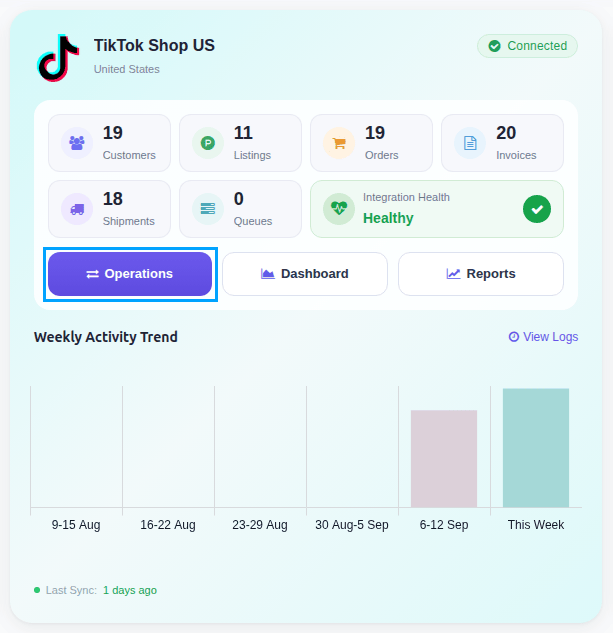
Select Import Operation and then select Import Returns option.
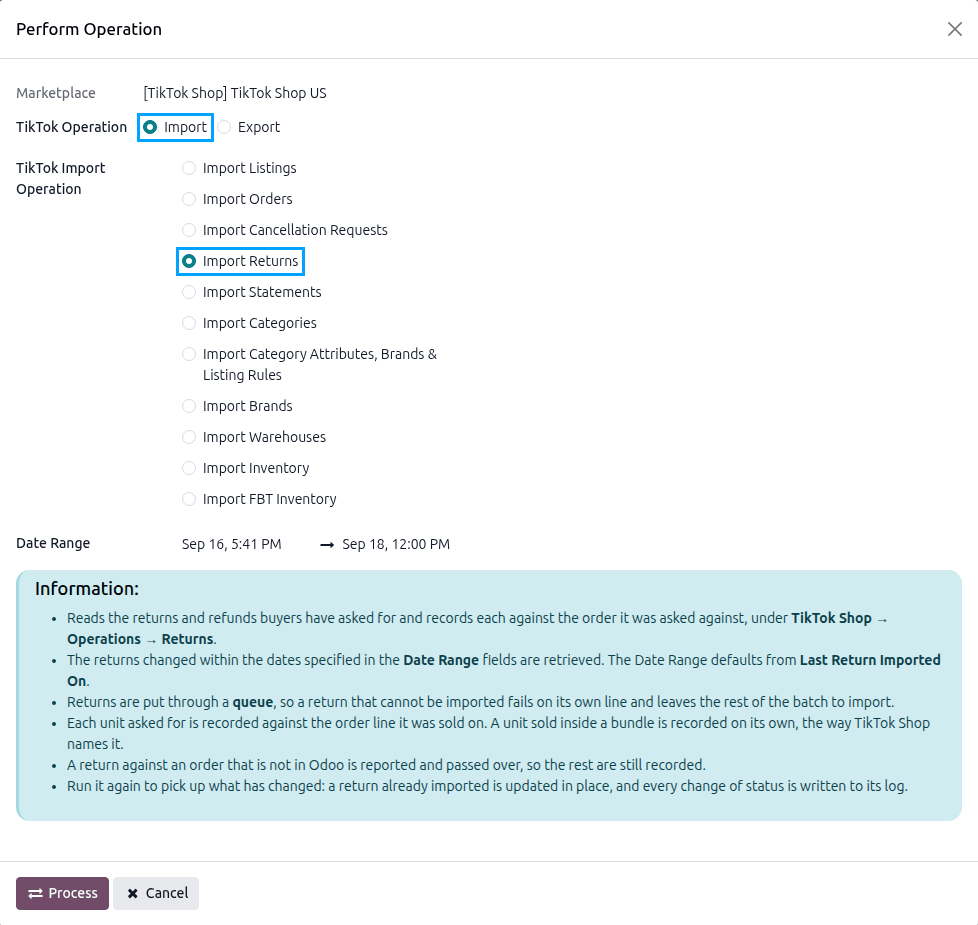
Adjust the Date Range if you want a specific period. Returns updated between the two dates are read. It defaults from the last return import to now, and from the last three days when there has been none.
Press
PROCESSbutton.
Method - 2: Automatic Return Import
Go to your TikTok Shop instance setting by navigating to .
On the Automatic Jobs tab, configure the Import Returns job by setting Interval Number, Interval Unit, and then Active.
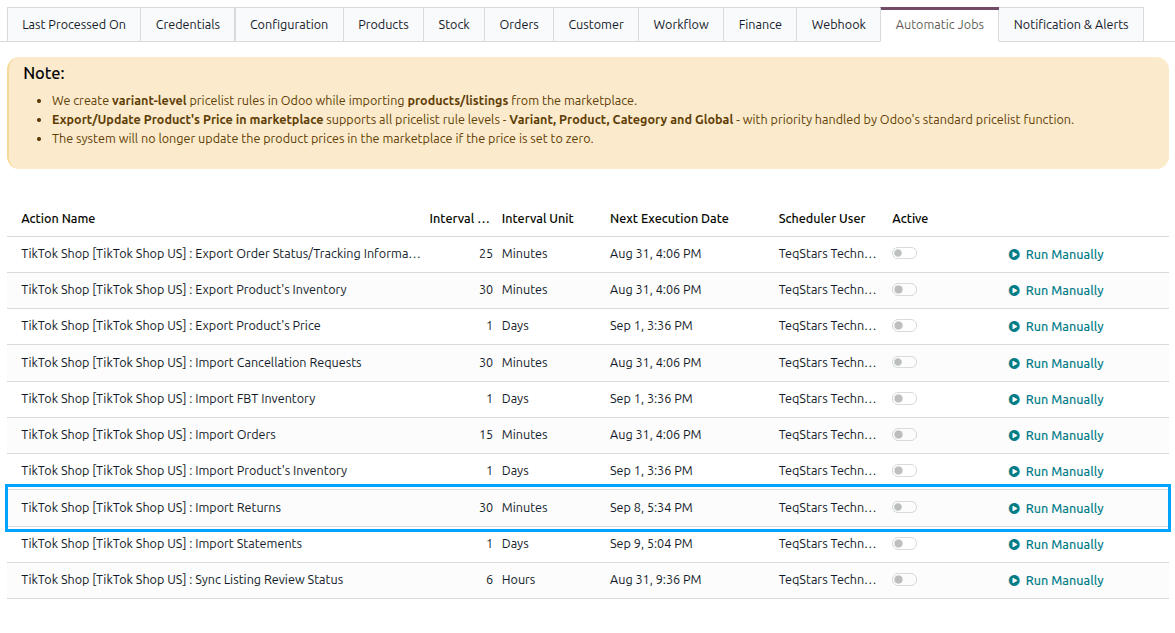
This scheduled action is created inactive and runs every 30 minutes by default. See Automatic Jobs.
The Returns List
The returns are listed under .

The Awaiting Answer, Awaiting Buyer Ship, Buyer Shipped, Complete and Cancelled filters, and the Status, Type and Requested On group-bys, sort a long list into what needs you and what does not.
What A Return Contains
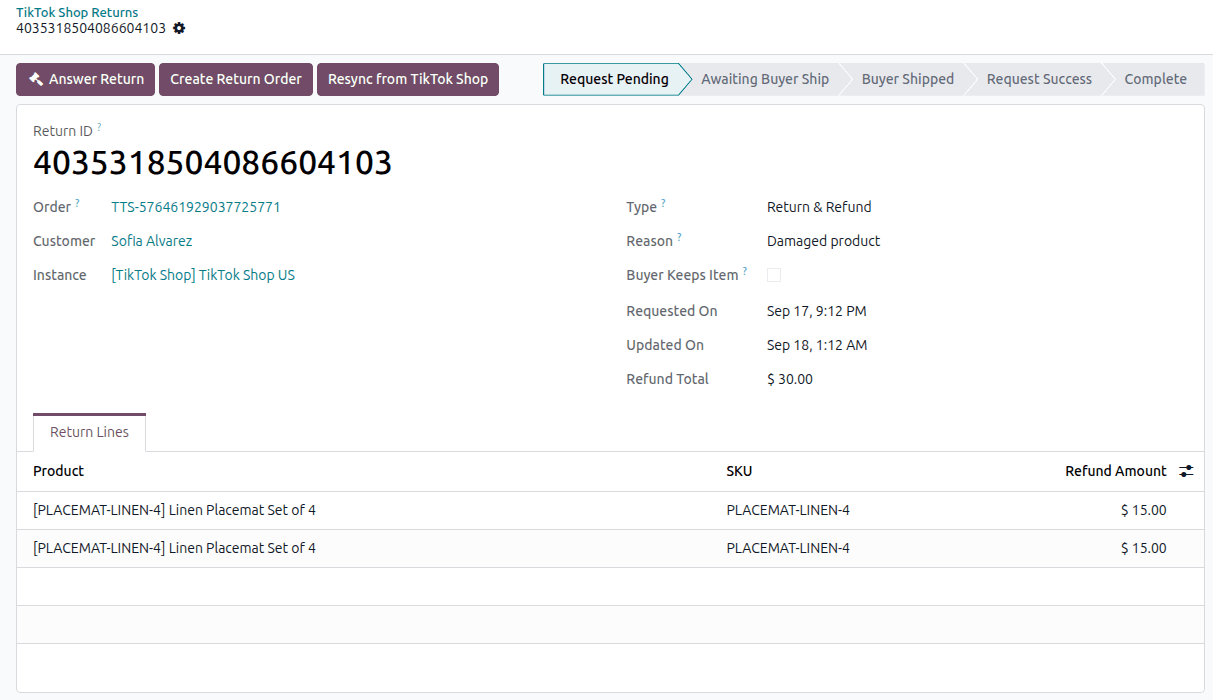
Type: what the buyer asked for:
Refund(money back, goods stay with the buyer),Return & Refund, a replacement or an exchange. It decides whether goods come back at all.Status: where TikTok Shop has got to with the request, from
Request PendingthroughAwaiting Buyer ShipandBuyer ShippedtoComplete.Reason: why the buyer asked, in TikTok Shop’s words.
Refund Total and Refunded Shipping: what the buyer gets back.
Return Shipping and Handover: whether TikTok Shop or the buyer arranges the parcel, and how the buyer hands it over.
Return Tracking Number and Return Carrier: the parcel bringing the goods back.
Buyer Keeps Item: TikTok Shop refunds without the goods coming back, so no return transfer is needed.
Replacement Order: the order TikTok Shop raised to replace what came back, when there is one.
Return Lines: the units of the request, each tied to its Sale Order Line, with its Refund Amount.
Receiving The Goods Back Into Stock
Open a Return & Refund return whose goods are coming back.
Click Create Return Order.
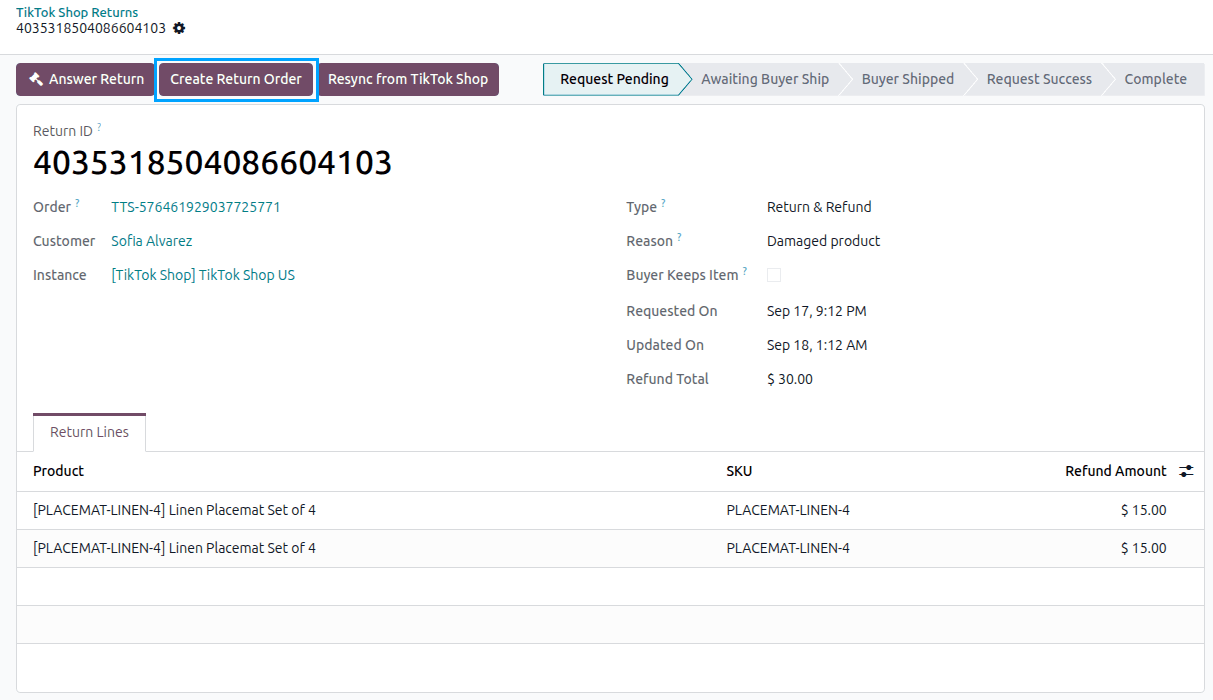
The connector creates an incoming transfer against the delivery that shipped the goods. Where the order was fulfilled without a delivery, reverse stock moves are recorded instead. The return’s Transfers, Return Moves and Credit Notes stat buttons then open what was raised for it.
Note
The button is shown only for a Return & Refund where the buyer does not keep the goods and the request is not rejected or cancelled. The button is hidden once a transfer or return move already exists, so a return cannot be received twice.
A return whose units are not on the order stops with “None of the units of return … is on the order, so there is nothing to bring back.”
An order never delivered stops with “There isn’t any done delivery order found to create return.”
Refreshing A Return
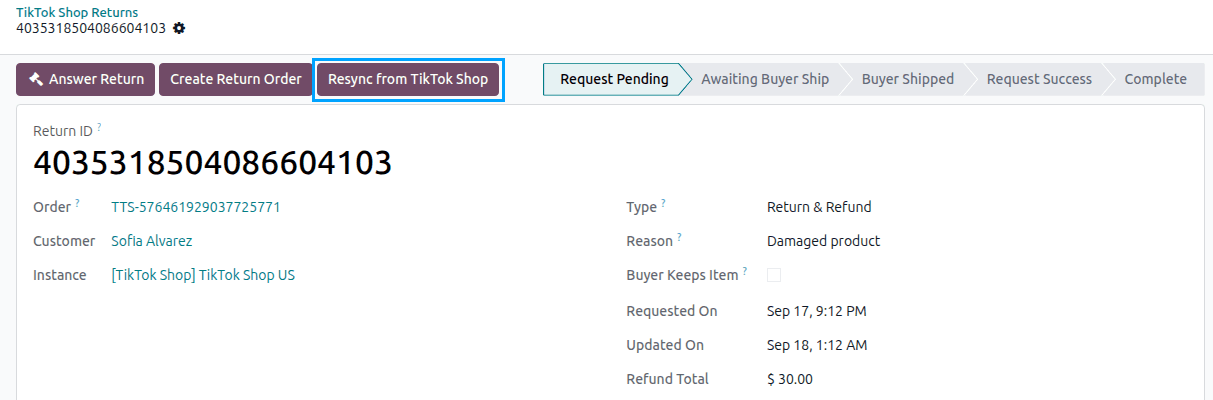
Click Resync from TikTok Shop to read a single return again straight away. This is useful right after answering one, instead of waiting for the next scheduled import.
The Credit Note
TikTok Shop pays the buyer’s refund itself. When a return reaches a refunded status on TikTok Shop, the import creates and posts a credit note against the order’s invoice and notes it in the chatter. If the order has no single posted customer invoice to reverse, the chatter says so and the credit note is left for you to create.