Shopify Metaobjects Management
Metaobjects let you store your own structured content in Shopify, such as size charts, ingredients or author details. Each metaobject has a definition and entries. The definition sets the fields. The entries hold the values. The connector lets you bring metaobject definitions and their entries into Odoo, so you can see and manage them next to your other Shopify data.
Overview
You work with metaobjects from two menus:
: the metaobject definitions of your store.
: the entries of those definitions.
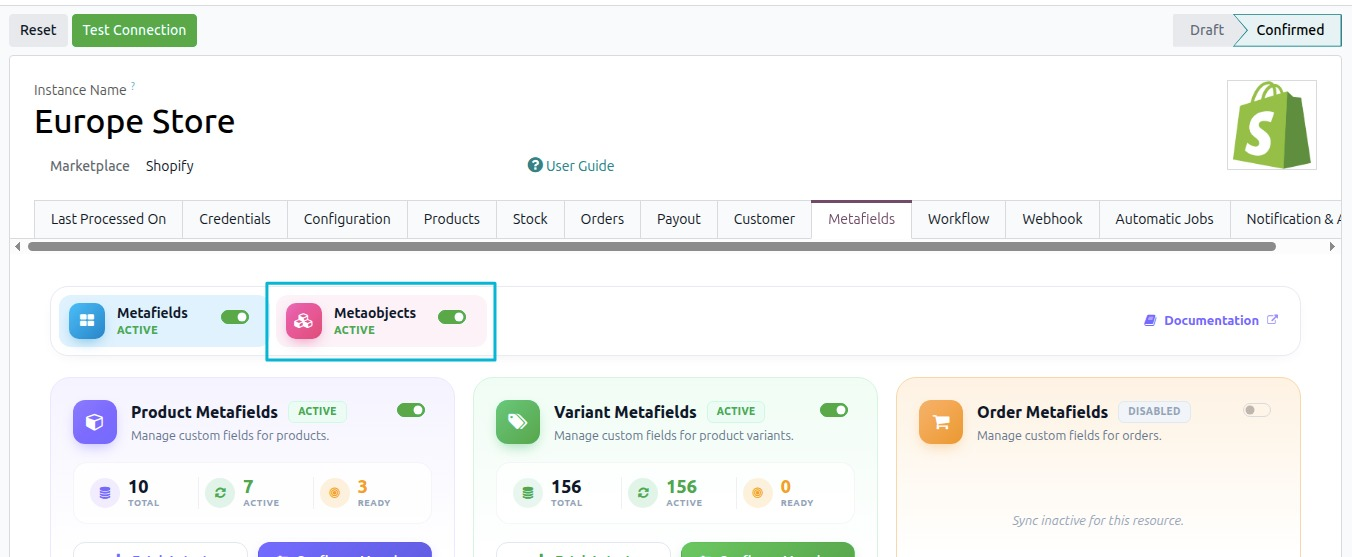
Before you start, open your Shopify instance and tick Enable Metaobject Functionality?. This setting turns the metaobject features on for that store.
Fetch Metaobject Definitions
Fetch the definitions first. The entries belong to a definition, so you need the definition in Odoo before you work with its entries.
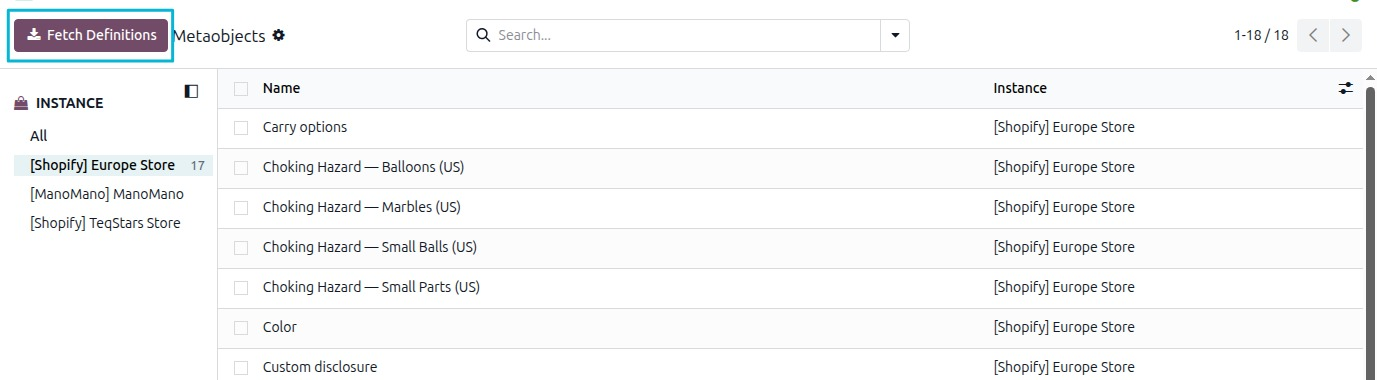
Go to .
Click Fetch Definitions.
The definitions of your Shopify store appear in the list.
Manage Metaobject Entries
Fetch Entries
Go to .
Open a definition.
Click Fetch Entries.
The entries of this definition are now in Odoo. You find them under .
Add an Entry
Because every entry follows the specific fields set up for that metaobject, you cannot create new entries from the main list. Instead, you create them directly from the metaobject definition.
Note
If Shopify marks a definition as read-only, new entries cannot be added from Odoo.
Go to .
Open the metaobject definition you want to add an entry for.
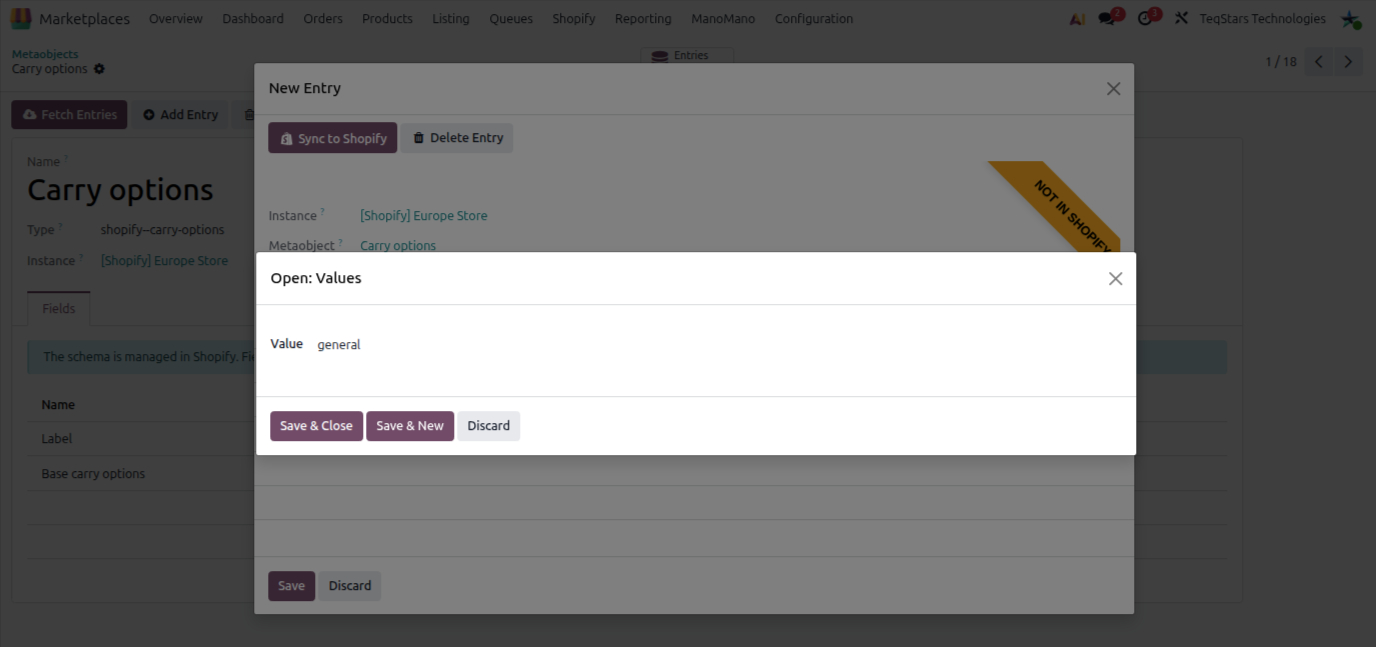
In the top bar, click Add Entry. A new entry form opens with a yellow Not in Shopify banner at the top.
Under the Values tab, click on any field row to open its edit window.
Enter the value for that field (see the field guide below) and click Save & Close.
Repeat the previous step for each field you want to fill in.
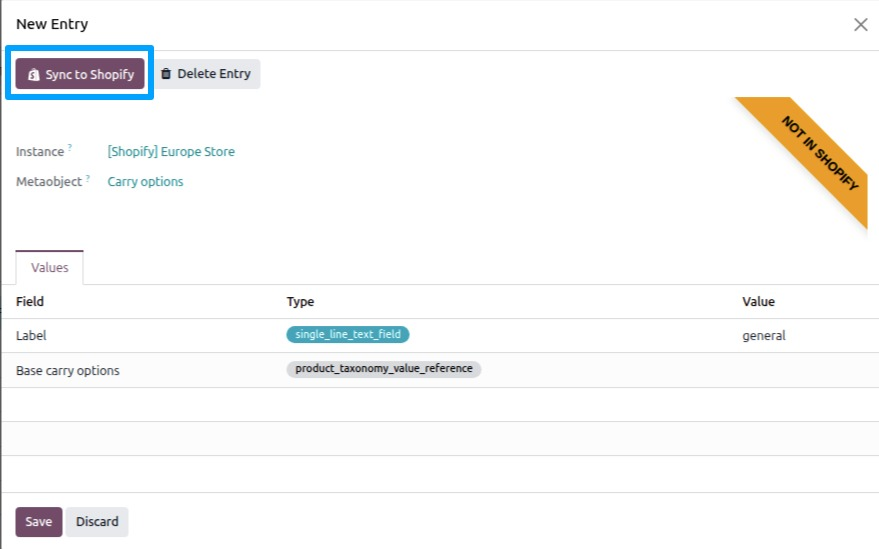
Save the record in Odoo using the save button at the top.
In the header, click Sync to Shopify to publish your new entry to your Shopify store.
Once Shopify receives the entry, it automatically generates the Display Name and store link handle, and the yellow Not in Shopify banner disappears.
Supported Field Types
When you click a row under the Values tab, the popup window automatically adapts to that field type:
Text or Numbers: Type in your regular text, note, or number.
Colour: Choose a shade using the color picker or type a color code (such as
#FFFFFF).Link: Paste the destination URL into the Value box and type the label into Link Text.
Weight or Volume: Enter the amount and pick the measurement from the Shopify Unit dropdown.
Product or Variant: Select the matching product or specific option from your catalog.
Metaobject Entry: Link to another existing metaobject entry.
Lists of items: If a field accepts multiple values (such as multiple products), select each applicable item.
Edit an Entry
Go to .
Open the entry.
Change the values you need.
Save the entry.
Delete Entries and Metaobjects
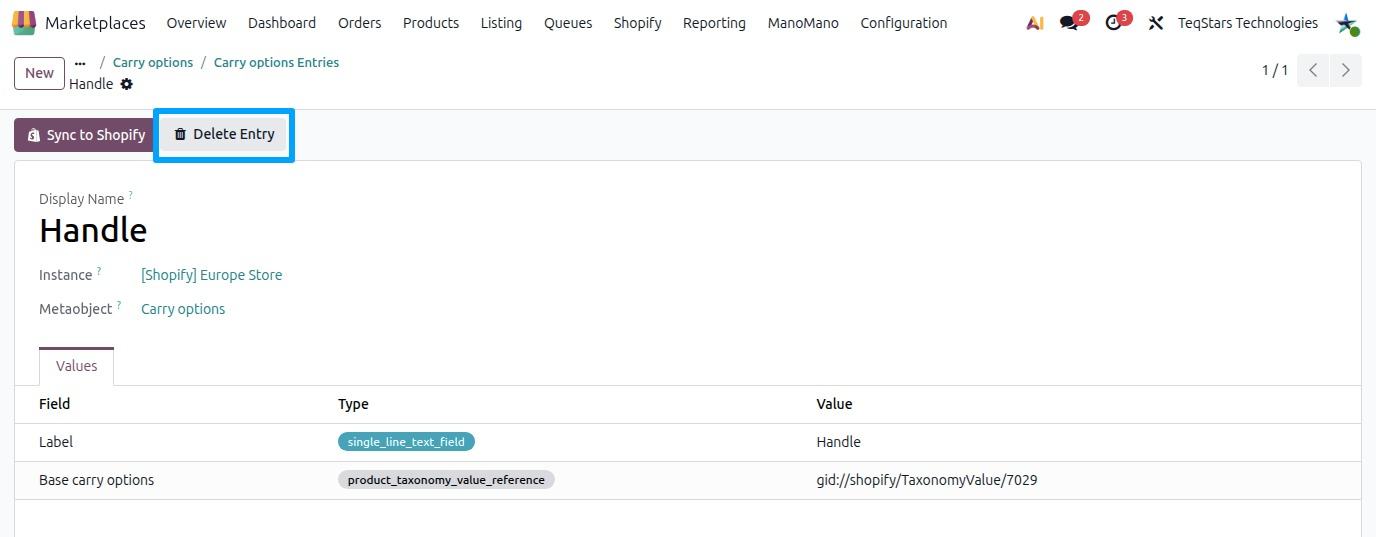
To delete one entry, open it and click Delete Entry.
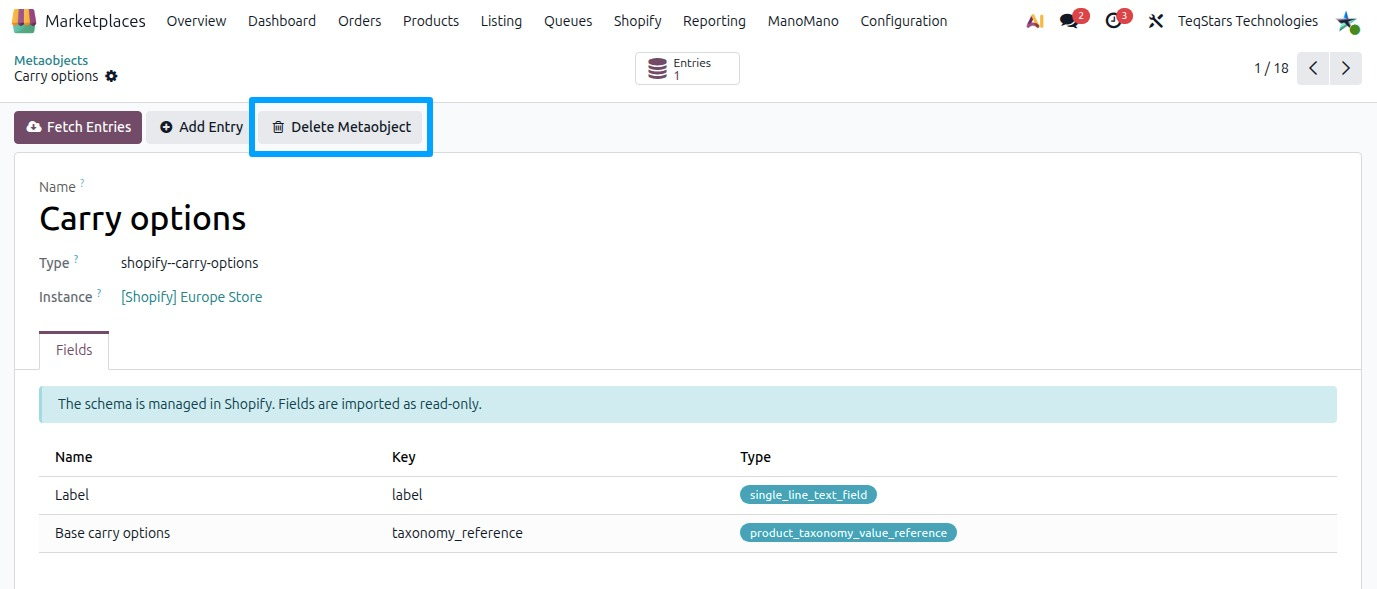
To delete a whole metaobject, open its definition and click Delete Metaobject.
Warning
Check the entry or the metaobject before you delete it. Make sure you no longer need it.