
Indexed Sources & Chunks
Once the Knowledge Layer is enabled, the indexing cron
turns every eligible ir.attachment into an Indexed
Source plus a stream of Chunks. This page is how you
monitor and troubleshoot that pipeline.
The Indexed Sources list
.
Each row corresponds to one attachment that the indexer has seen.
Columns:
Attachment — the underlying file name.
Mimetype — content type detected by Odoo.
Attached Model — what model the attachment is linked to (
res.partner,hr.employee…).State — pending, indexing, indexed, failed, skipped.
Extraction Method — pdf, text, html / markdown, …
Chunks — number of chunks produced from this source.
Tokens — total token count across chunks.
Last indexed at — timestamp of the most recent successful index.
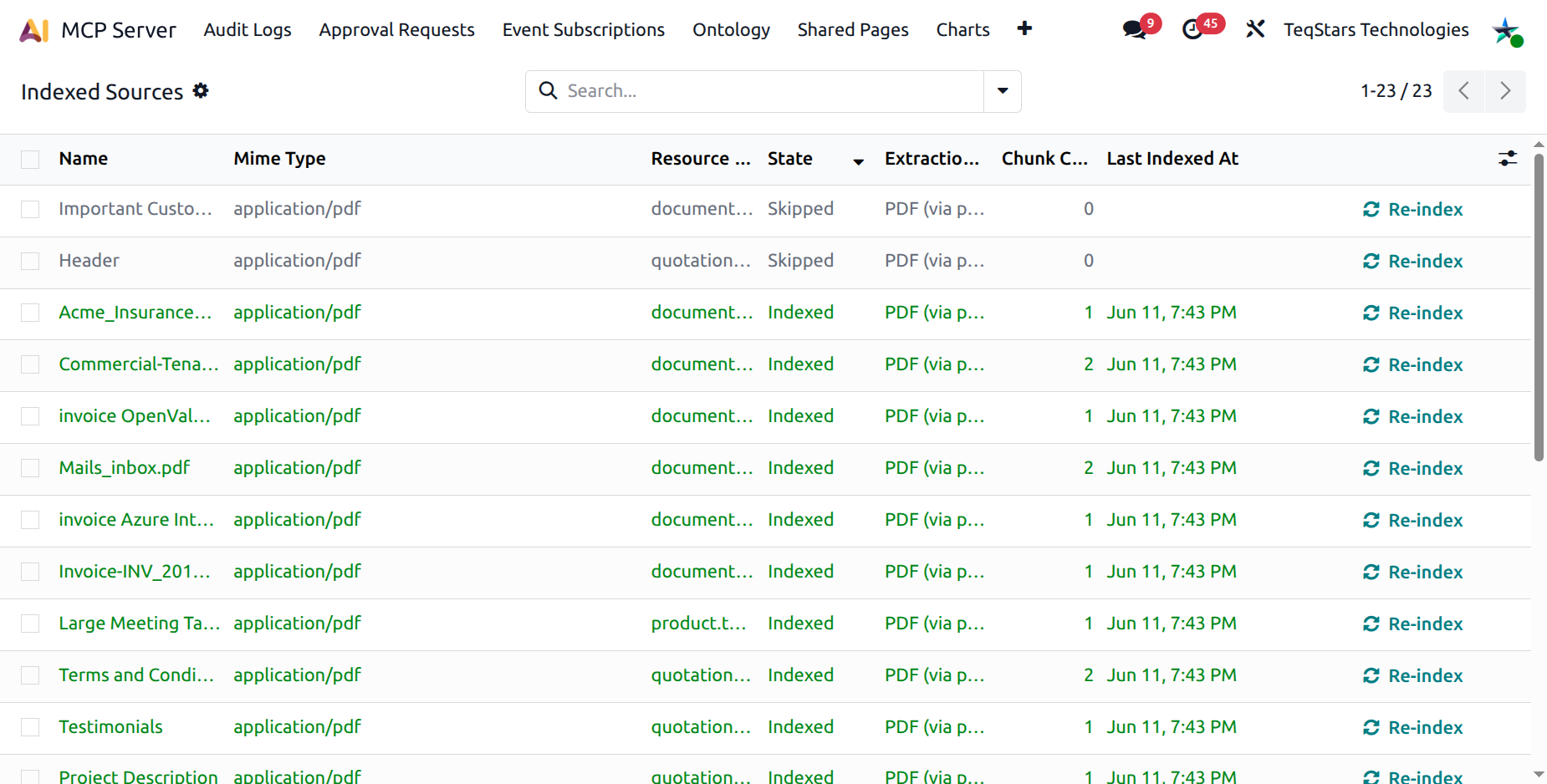
The colour coding makes it easy to spot failures at a glance:
Green — indexed (success).
Red — failed (with error details on the form).
Grey — skipped (excluded by mimetype, model, or size).
Blue / Info — pending / indexing (in progress).
State machine
Pending — the cron has noticed the attachment but hasn’t processed it yet.
Indexing — the worker is extracting text and producing chunks.
Indexed — chunks are stored and queryable.
Failed — extraction crashed; the form’s Error section explains why. The cron keeps retrying up to the configured limit, then stops.
Skipped — excluded by mimetype, model, or size policy.
The Source form
Open a row to see:
Smart buttons
Chunks — drills into the embedded chunk browser.
Attachment — opens the underlying
ir.attachment.Retry Count (failed only) — X / Y indicator showing remaining retry budget.
Statusbar — pending → indexing → indexed.
Header :guilabel:`Re-index` — visible in any state except pending / indexing. Click to retry / rebuild this source.
Error group — populated when
state = failed.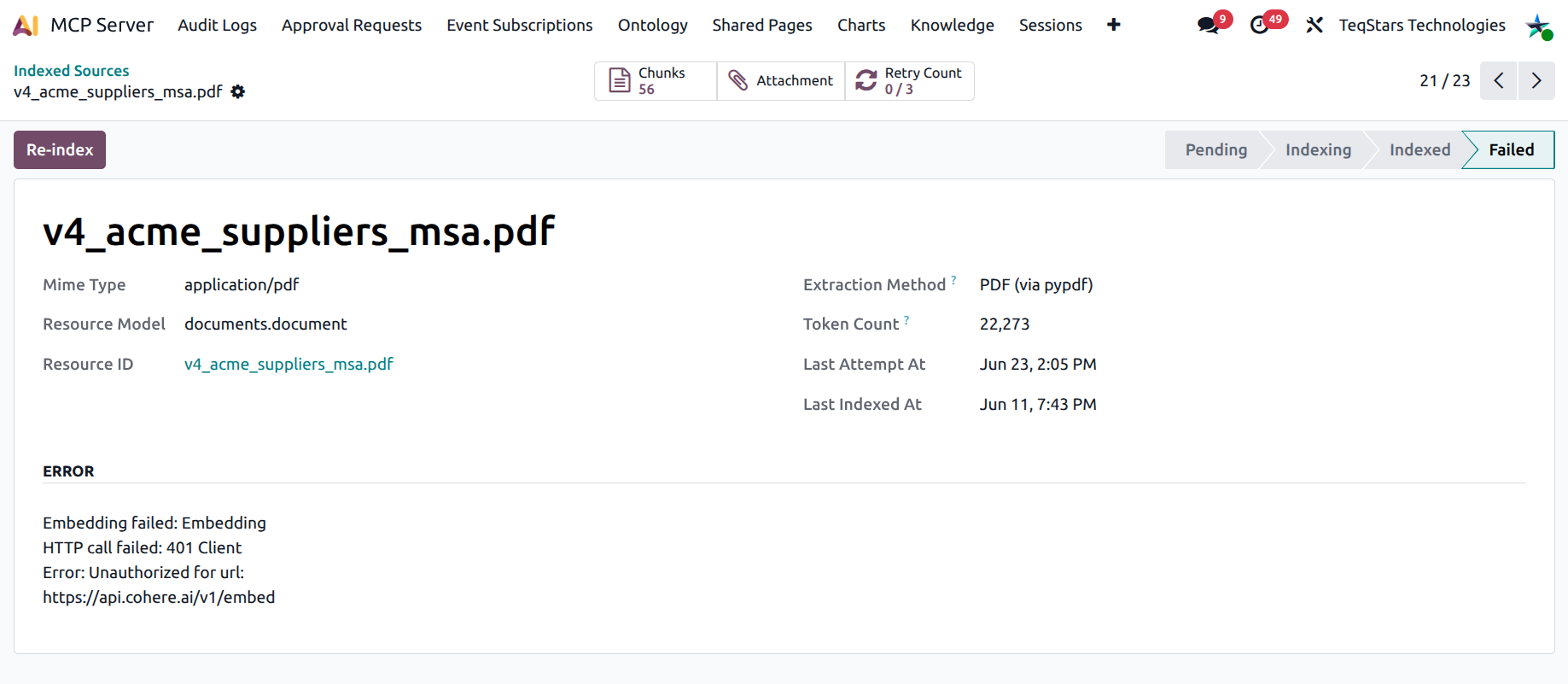
Manually re-indexing
Sometimes you need to force a re-index:
A new document was uploaded but you don’t want to wait for the 15-minute cron.
A previously-failed extraction now works after a server update.
You changed the chunking parameters and want a fresh rebuild.
Two options:
Per row — open the source form and click Re-index. The action runs inline — you wait while the worker rebuilds chunks for this source.
Bulk — in the list view, tick several rows and click the header Re-index Selected button. The confirmation dialog warns about the wait for large selections.

The Chunks browser
.
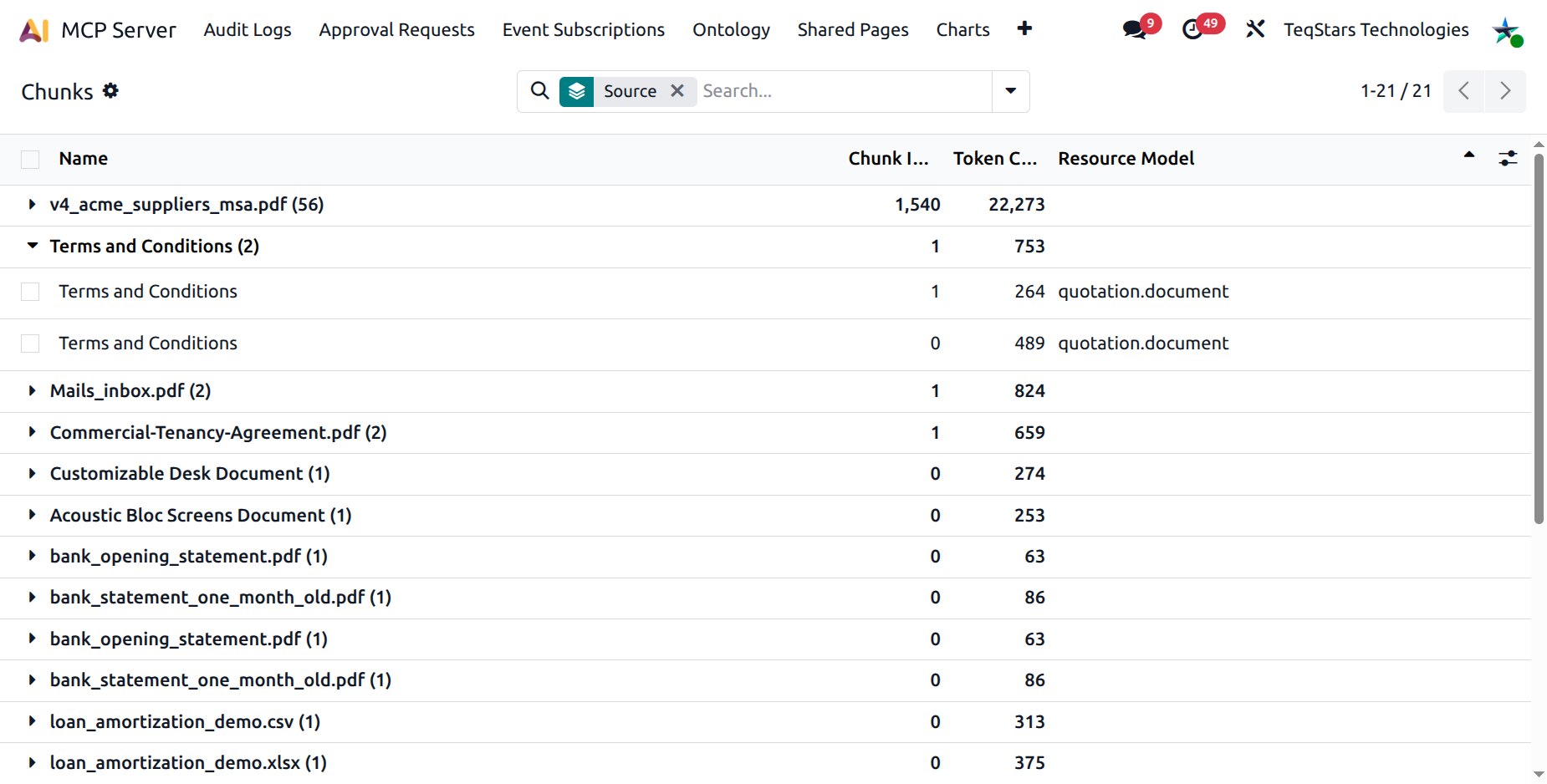
A read-only browser of every chunk the indexer has produced.
Columns:
Attachment — the source file name.
Chunk index — 0-based position inside the source.
Tokens — token count.
Attached model — same as the source row.
Content — full chunk text (optional column).
Search filters
The search bar is geared toward debugging:
Has embedding / No embedding — diagnose hybrid-mode gaps (chunks with no vector mean the embedding call failed).
Tiny chunks (<50 tokens) — usually boilerplate headers / footers; harmless but noisy.
Huge chunks (>500 tokens) — the chunker couldn’t find a sentence break; consider lowering the chunk size in Configuration.
Group-bys: Source, Attachment, Attached model.
Tip
The Chunks view is the canonical debugger for “the AI said it doesn’t know this document — why?” questions. Filter by Attachment and look at the chunk contents: the extractor may have only captured the cover page.