
Export Products From Odoo
With Export Products, you can export your products from Odoo to eBay as new Auction or Fixed Price listings, including all information such as pricing, inventory, images, categories, item specifics, and seller policies.
Prerequisites
Before exporting a product to eBay, ensure the following are configured:
An eBay Product Category is set on the product (required by eBay).
Seller Policies (Payment, Fulfillment, Return) are either imported from eBay or configured.
The product has at least a title, price, and quantity available.
Item Specifics (Brand, MPN, and other category-specific attributes) are filled where required by the category.
Steps to Export
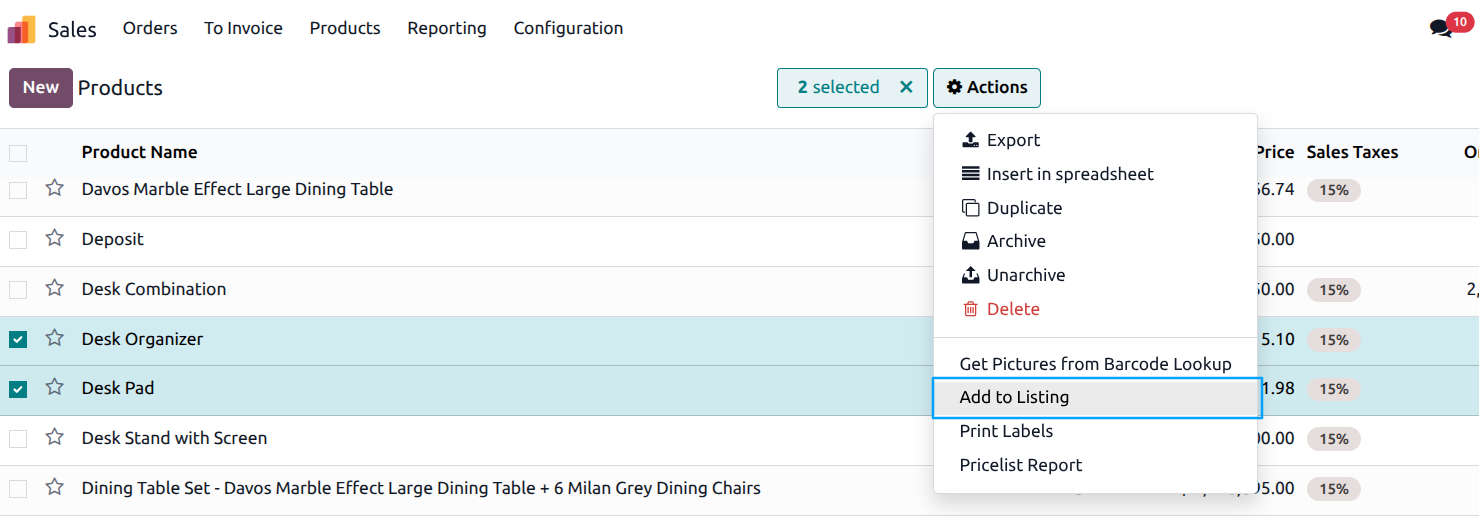
To begin exporting your products to eBay, navigate to the menu. In the product list view, select the products you want to export to eBay. Then, from the action dropdown, choose Add to Listings.
A popup will appear. In this window, select the eBay instances where you wish to add your products. After making your selections, click the
Add to Listingbutton.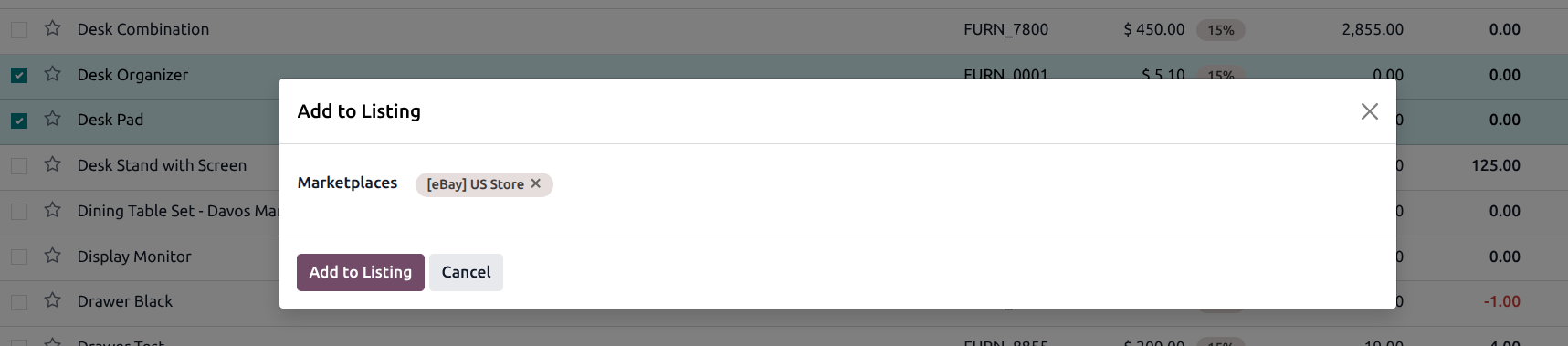
The selected products will now be listed in the designated eBay instances within your Odoo Marketplace. From there, you can proceed to configure eBay-specific details for your products.
Configure the following eBay-specific settings on each product before export:
Listing Type: Choose Auction or Fixed Price for the listing (default: Fixed Price).
Buy It Now Price (Auction only): Set the price at which a buyer can purchase the item immediately without waiting for the auction to end. Applies only to Auction listings.
eBay Category: Select the appropriate eBay category for the product.
Secondary eBay Category (optional): A second category for the product.
Store Category (optional): Your eBay Store category.
Secondary Store Category (optional): A second eBay Store category.
Item Condition: Select the condition (New, Used, etc.) based on the category’s allowed conditions.
Item Specifics: Fill in category-specific attributes (e.g., Brand, MPN, Color, Size).
Payment Policy: Select the payment policy for the product.
Fulfillment Policy: Select the shipping/fulfillment policy.
Return Policy: Select the return policy.
eBay Listing Duration: Choose the listing duration (3 Days, 5 Days, 7 Days, 10 Days, 30 Days (Fixed Price Only), or Good ‘Til Cancelled (Fixed Price Only)).
Dispatch Time: Select the handling time from the available options (Same Business Day, 1, 2, 3, 4, 5, 10, 15, 20, or 30 Business Days).
Instant Payment on Purchase?: Enable if you want immediate payment required at the time of purchase.
Product Identifiers: Set EAN, UPC, or ISBN for each product variant.
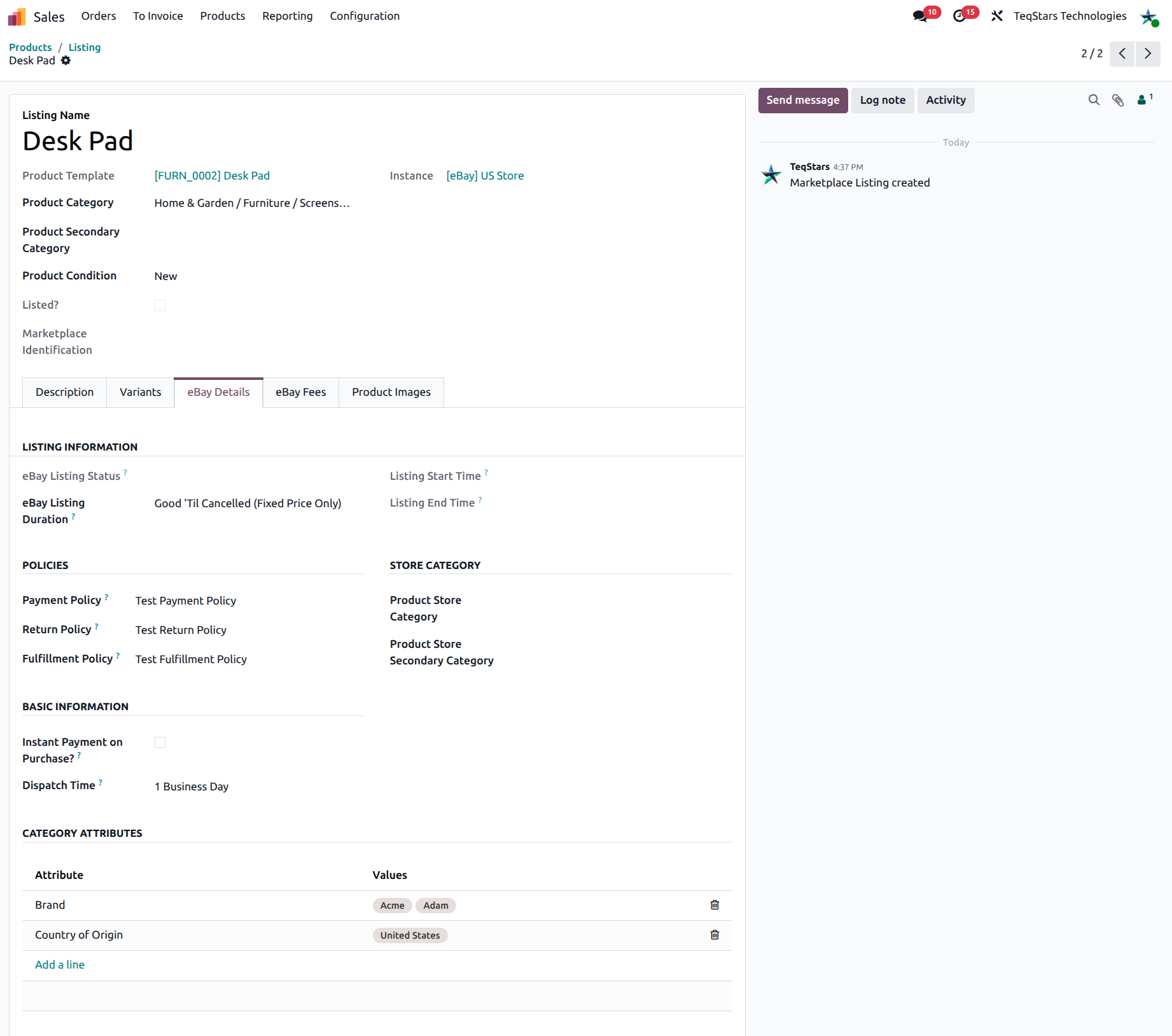
Once the product details are configured, you can export using one of the following methods:
Method - 1: From The Operation Popup
Go to the menu in Odoo.
Click on the
Operationsbutton from the instance record.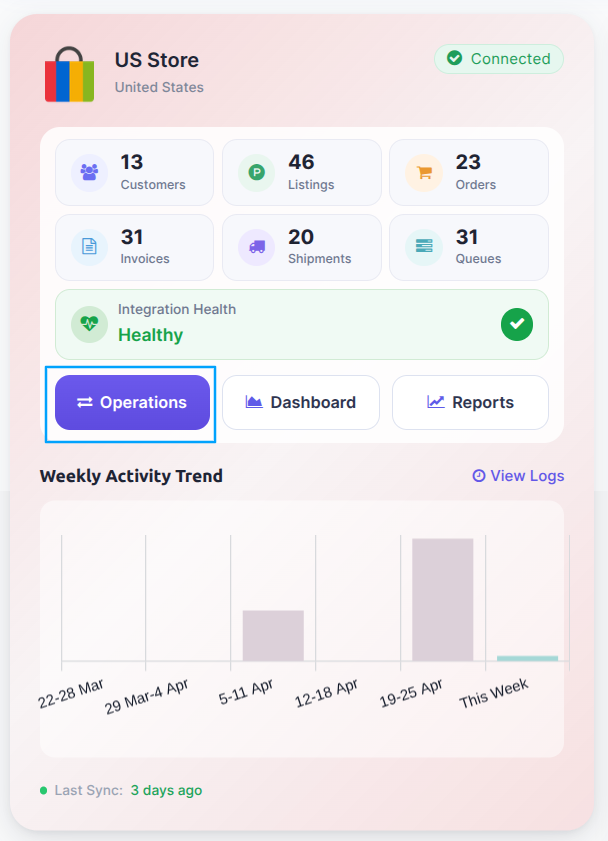
Select Export Operation and then select Export Listings option.
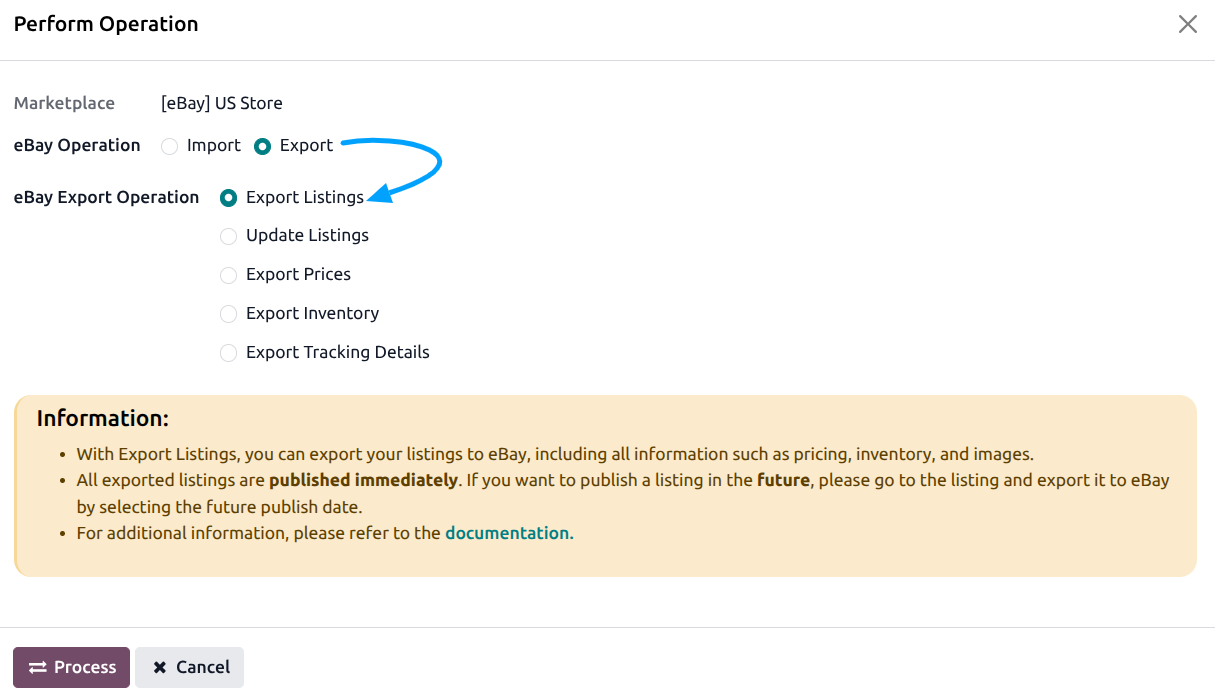
Press
PROCESSbutton to export products to eBay.
Method - 2: From The Product View
Go to the menu in Odoo.
Click on the
Listingbutton from the instance record to navigate where all your product listings are managed.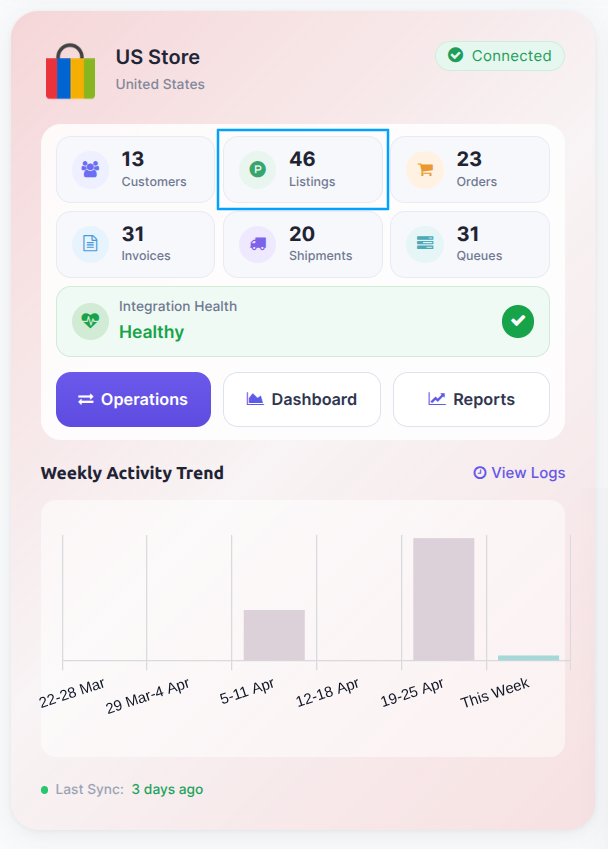
In the Listing menu, select products and click on the
Export/Update to Marketplacebutton.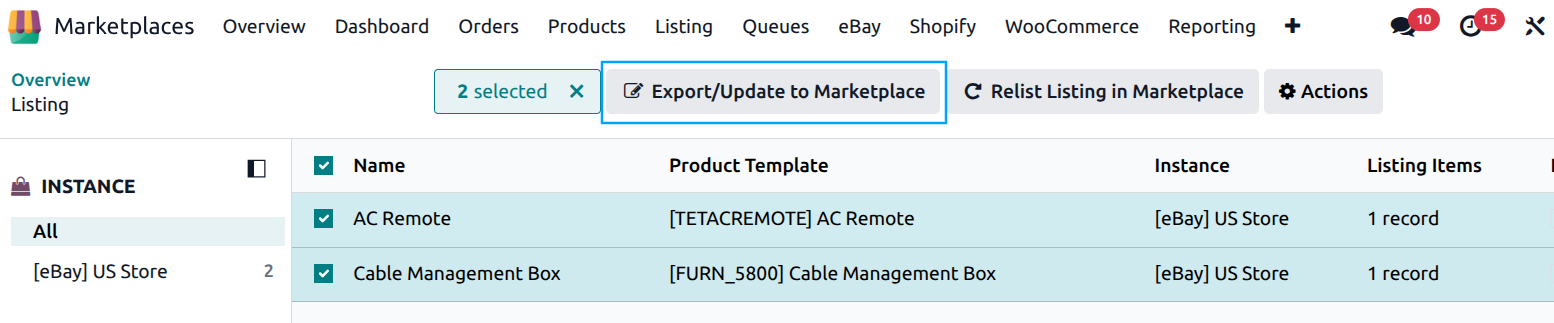
A pop-up window will appear with export options. Optionally set a Publish At date and time to schedule when the listing goes live on eBay (leave empty to publish immediately). Configure the remaining settings and press
Export Listingbutton.
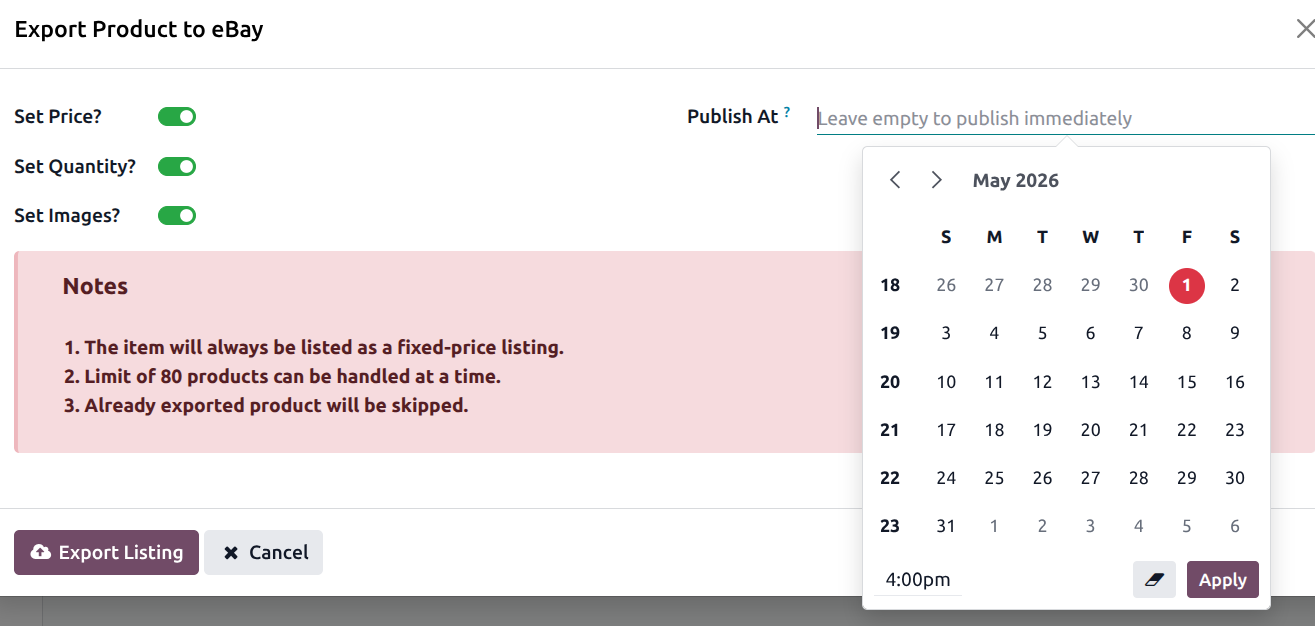
After Export
Any fees returned by eBay (insertion fees, etc.) are automatically recorded in the product’s fee history.
If the export fails, check the error logs at .
Important
The Variation Image Attribute can be set on the product to control which attribute’s values determine the variation images on eBay.
See also