
Step 2: Install Apps Script in Google Sheets
After copying the generated script code from Odoo, install it in your Google Spreadsheet to enable the custom Odoo menu bar and interactive sidebar.
Installation Steps
Open your target Google Sheet.
In the top navigation menu, click .
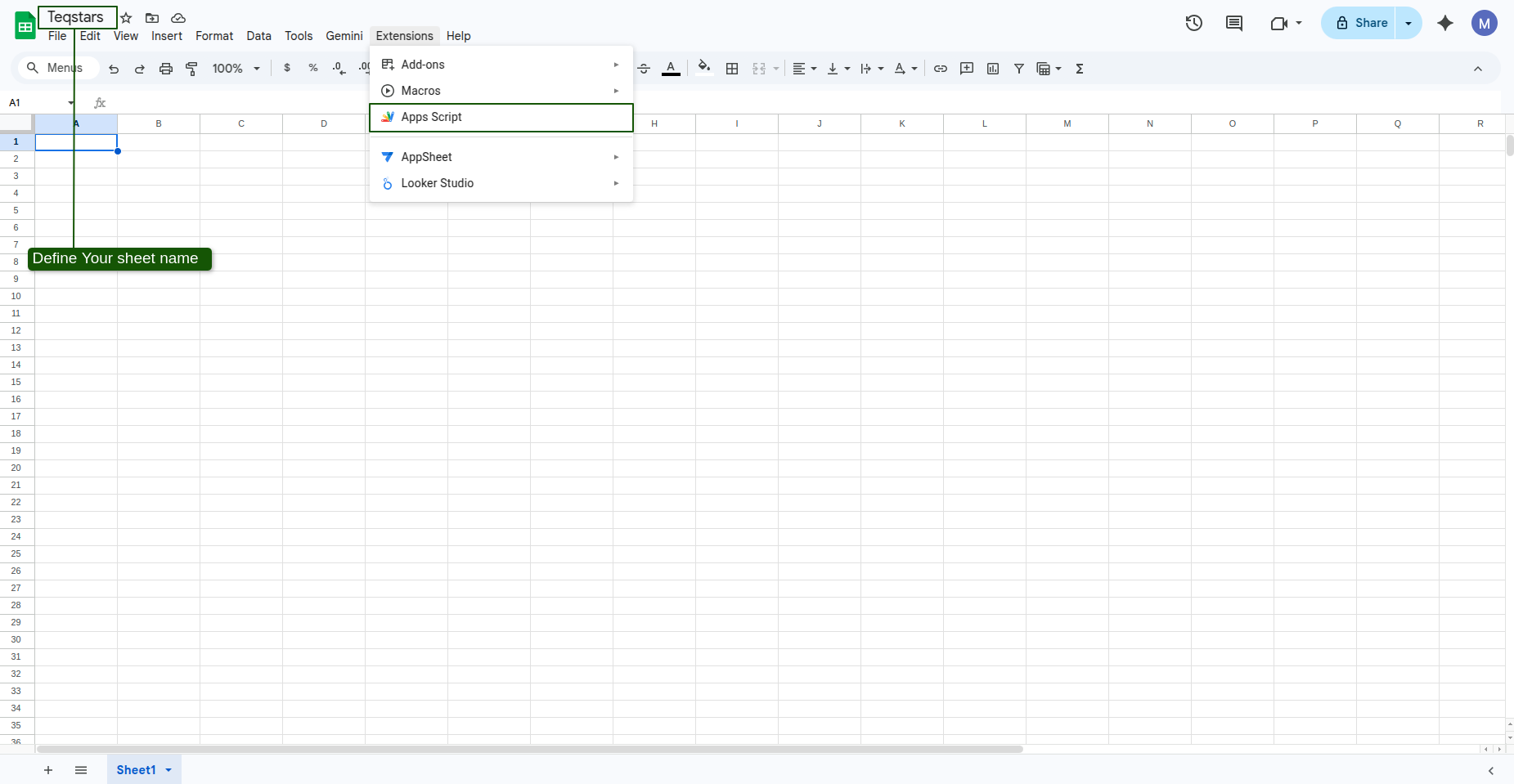
In the Apps Script editor, erase any default placeholder code inside
Code.gs.Paste the complete script code copied from Odoo into
Code.gs.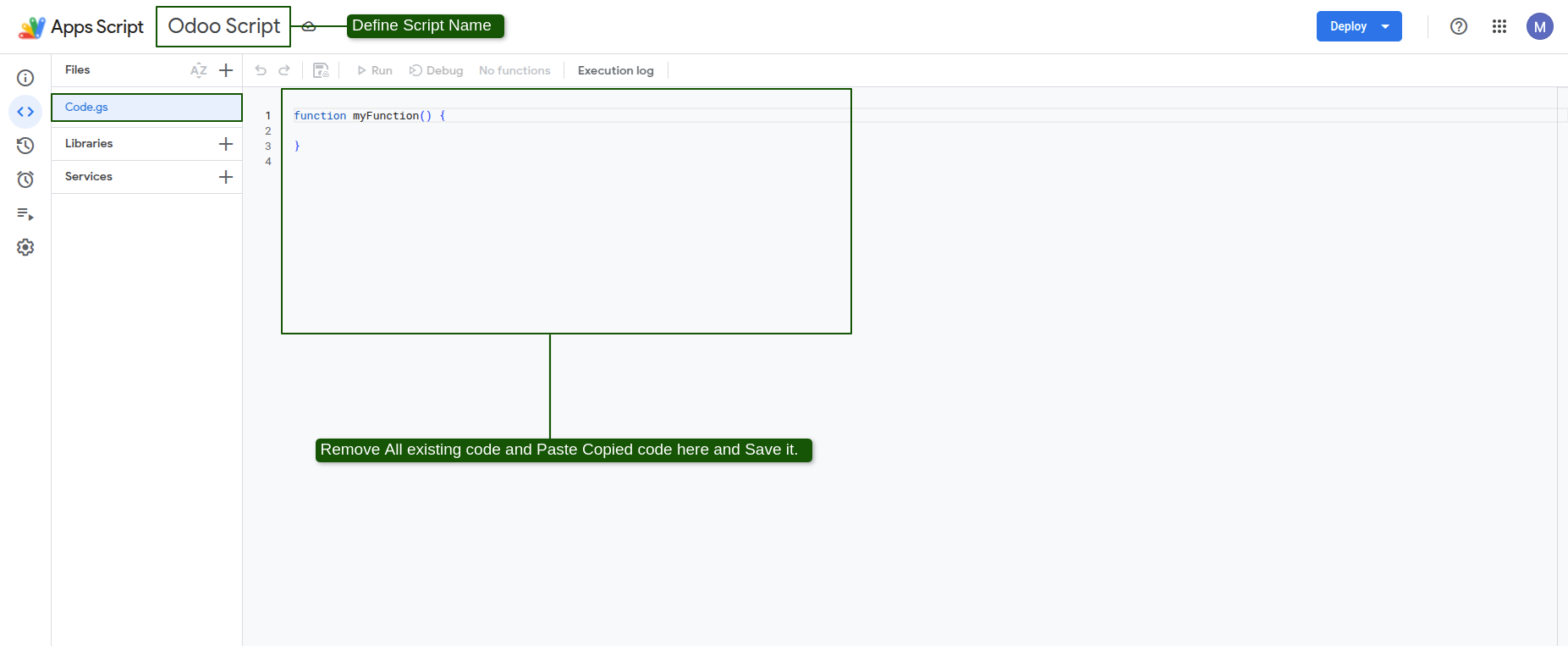
Click the Save icon (diskette) or press Ctrl+S (Cmd+S on macOS).
Close the Apps Script editor browser tab and reload your Google Sheet page.
The Custom Odoo Menu
Once reloaded, a custom Odoo menu item appears on the Google Sheets top bar:
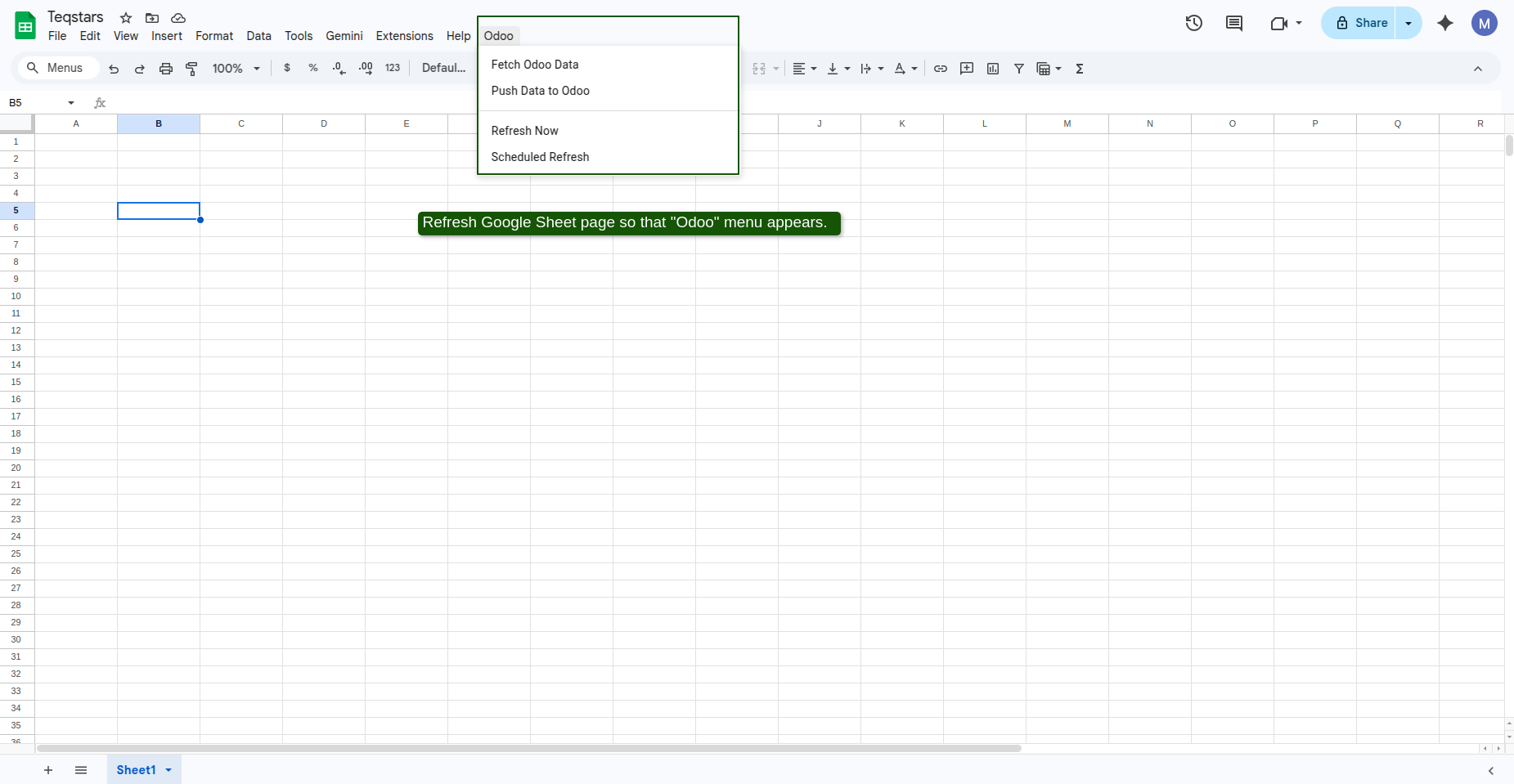
Fetch Odoo Data: Opens the interactive sidebar to select models, search fields, and load data into the sheet.
Push Data to Odoo: Pushes new rows or modifications from the current sheet back to Odoo.
Refresh Now: Executes an immediate incremental data fetch for the active worksheet.
Scheduled Refresh: Opens a configuration dialog to set automated background update schedules.
Authorizing Permissions
When clicking any option under the Odoo menu for the first time, Google requires one-time permission authorization:
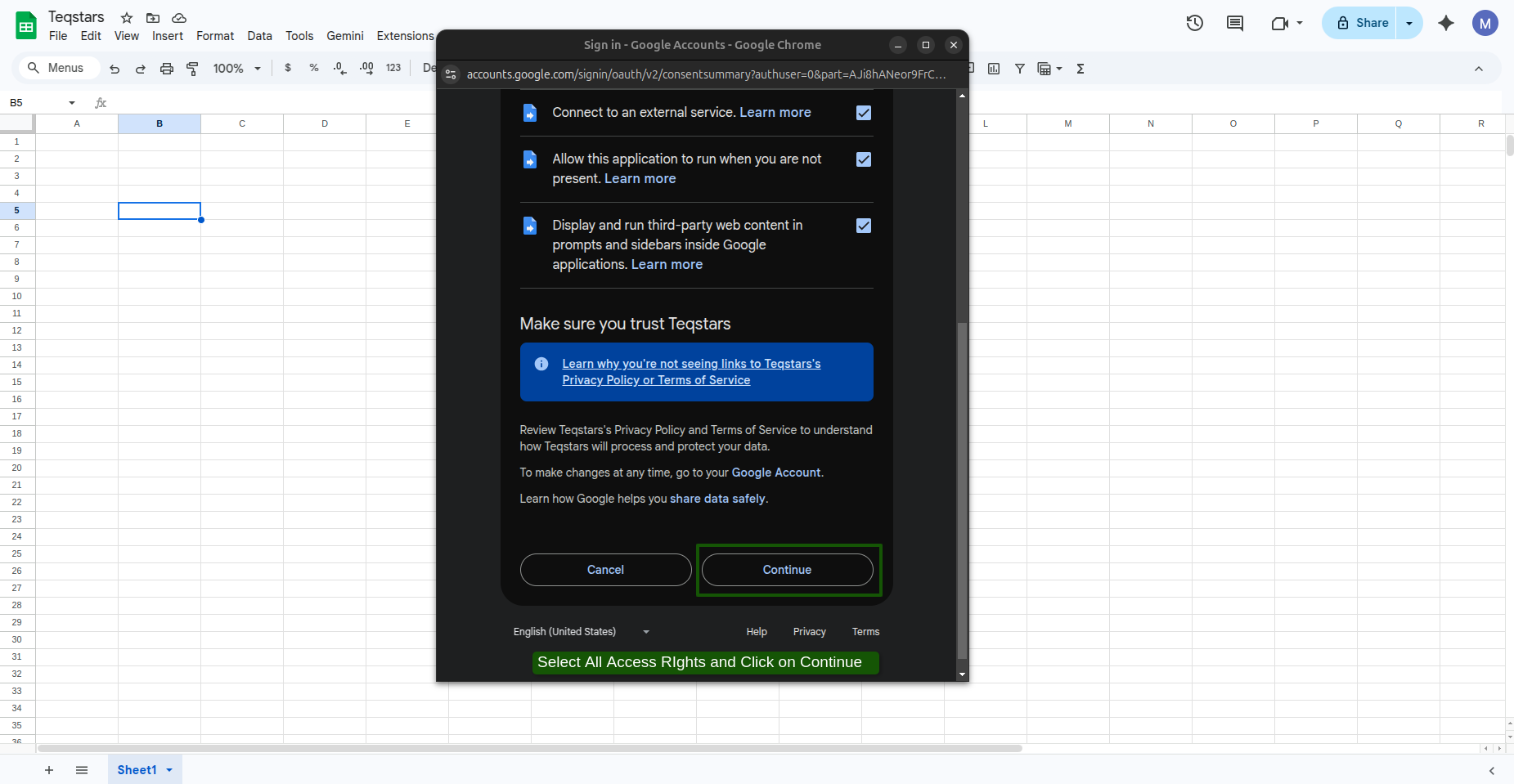
Click Continue in the prompt dialog.
Select your Google Account.
Click Advanced, and then click Go to Project (unsafe).
Click Allow to permit Google Apps Script to connect to external Odoo endpoints.
Tip
This authorization is a standard Google security requirement and is performed only once per Google Spreadsheet.