
ManoMano Seller Contracts
A ManoMano instance sells through seller contracts: one B2B contract and one B2C contract. Odoo creates them for you when you confirm the instance. Each contract has its own seller contract ID, selling pricelist, retail pricelist and feed URL.
What A Seller Contract Is
On ManoMano, the B2C contract sells to private customers and the B2B contract sells to professionals on ManoManoPro. Each contract has its own price grid and its own product feed, so the same product can have a different price on each.
In Odoo, the contracts are listed in the Seller Contracts field of the instance. The connector uses them to:
Read the price of each product from the pricelist of the right contract.
Write a separate product feed for each contract.
Import orders, prices and stock for the right contract.
The listing items show both prices side by side, in B2B Price and B2C Price. Each one comes from the pricelist of its contract.
Add A Seller Contract
You do not add a seller contract by hand. Odoo creates the contracts when you confirm the instance, from the seller contract IDs on the Credentials tab.
Go to and open your ManoMano instance.
On the Credentials tab, enter the B2B Seller Contract ID, the B2C Seller Contract ID or both. See Create a ManoMano instance in Odoo.
Click Confirm.
Go to , open your ManoMano instance and open the Products tab.
On the instance’s Products tab. check the Seller Contracts list. It displays a separate contract for each Seller Contract ID.
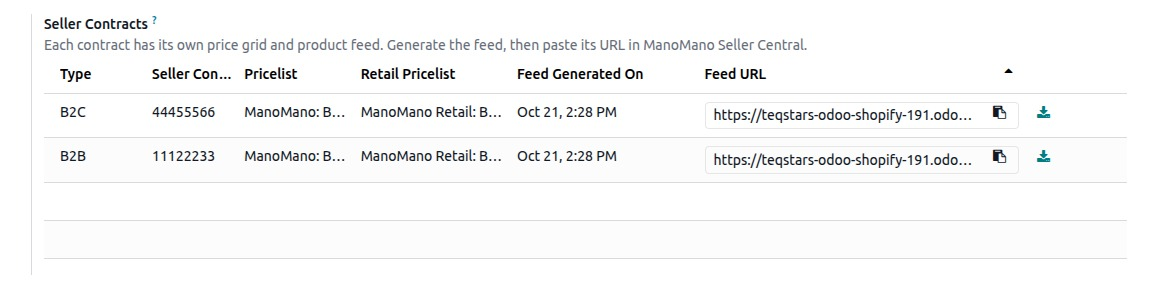
You must enter at least one seller contract ID before you confirm the instance. Otherwise Odoo stops with a message.
Contract Type And Seller Contract ID
You never type the seller contract ID on the contract itself. The Type decides which ID from the Credentials tab the contract uses. To change the ID, change it on the Credentials tab.
The contract type follows the rest of your ManoMano work:
Imported orders show the ManoMano Seller Contract and the ManoMano Contract Type they came from. Deliveries show the ManoMano Contract Type too.
The Update Offer Price and Update Offer Stock operations run for the Seller Contract you select (B2B or B2C).
Pricelist And Retail Pricelist
Each contract uses two pricelists. Keep them apart, because they hold two different prices.
Pricelist: The price grid you sell at on this contract. The price in the feed and in price updates comes from it.
Retail Pricelist: The struck-through retail price shown next to a discounted offer. It is kept separate from the selling pricelist.
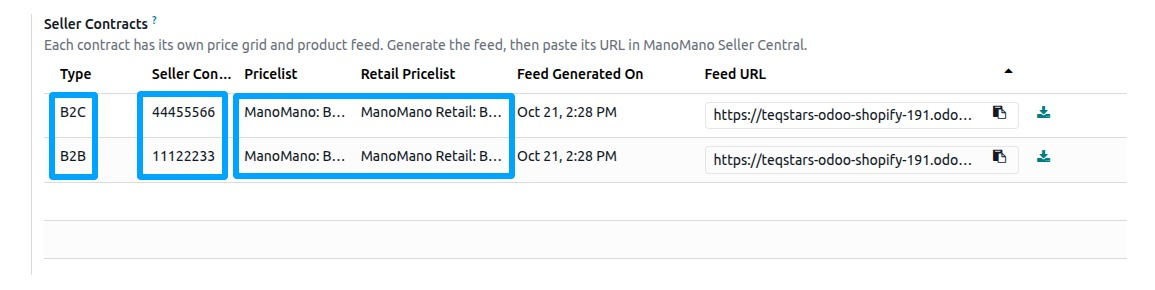
Prices imported from ManoMano go into these pricelists, not onto the product. On a listing item, the Change B2B Price, Change B2C Price, Change B2B Retail Price and Change B2C Retail Price actions change the price in the pricelist of that contract.
Feed URL
Each contract has its own Feed URL for ManoMano to read, and how you set it up is explained in ManoMano Product Feed.
Rules
Odoo checks your contracts and stops with a message when one of these rules is not met:
An instance has only one B2B contract and one B2C contract. A second contract of the same type shows: “This instance already has a B2B seller contract. Add only one B2B and one B2C contract.”
The Retail Pricelist of a contract must be different from its Pricelist. Otherwise changing the price would also change the retail price.
The B2B Seller Contract ID and the B2C Seller Contract ID must be different.
At least one of the two seller contract IDs must be set on the Credentials tab before you confirm the instance.
When something fails later, check these:
Price change refused: The message “No B2B seller contract with a pricelist is configured on this instance” means that contract or its pricelist is missing. Check the Seller Contracts list on the Products tab of the instance and set the pricelist of the contract.
Import Listings Offers stops: The message “No seller contract is set up on this instance” means the instance has no contract yet. Enter a seller contract ID on the Credentials tab and confirm the instance.
Operation stops for one contract: Set the missing seller contract ID on the Credentials tab, then run the operation again.