
Update Products From Odoo
After a listing has been pushed to BigCommerce (either via Export Products From Odoo or imported from BigCommerce in the first place), you can keep it up to date with Update Listings. This operation pushes selected fields from the Odoo Listing back to BigCommerce without re-creating the product.
You can update listings in two ways.
Method - 1: From The Operations Wizard
Use this when you want to push the latest listing details to BigCommerce in bulk across all listings of an instance.
Go to the menu in Odoo.
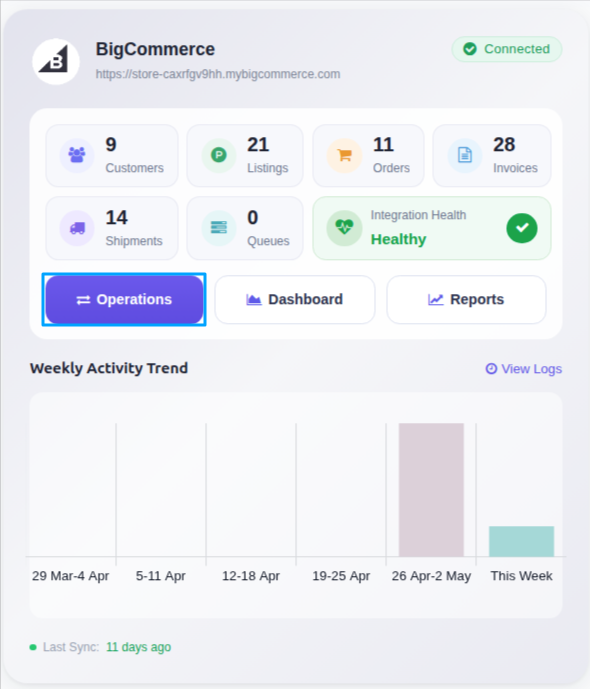
Click on the Operations button from the instance record.
Choose Export as the operation type, then from Export Operation, select Update Listings.
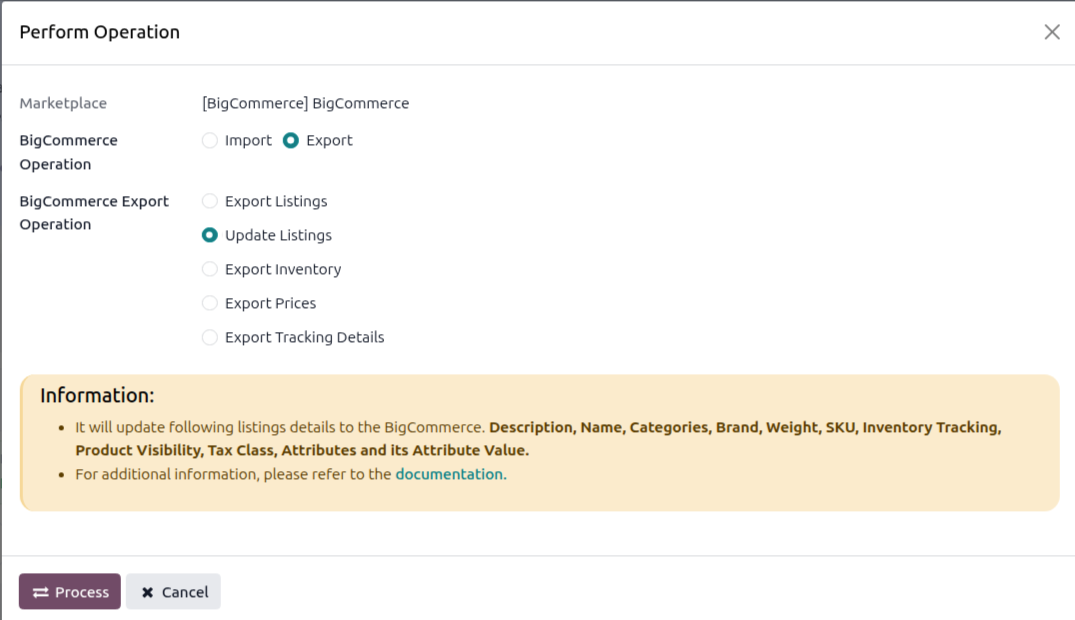
Click PROCESS. The connector iterates over all Listings linked to the instance and updates them in BigCommerce.
Note
To change a listing’s channel publication after it is already on BigCommerce, use Method 2 below: it opens a per-listing wizard with a Sales Channels selector and a Publish/Unpublish toggle. The bulk Update Listings operation focuses on product-data updates; channel publication is handled per listing in Method 2.
Method - 2: From The Listing View
Use this when you want fine-grained control over what is pushed for one (or a small set of) listings — including channel publication.
Go to the menu in Odoo.
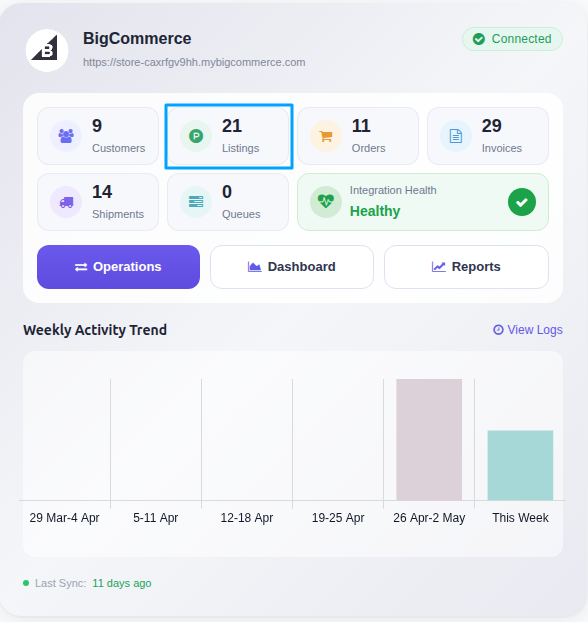
Click on the Listing button from the instance record to navigate where all your product listings are managed.
Select one or more already-exported Listings (Listed? is true).
Open the Actions menu (gear icon) and choose Export/Update Listing in Marketplace.
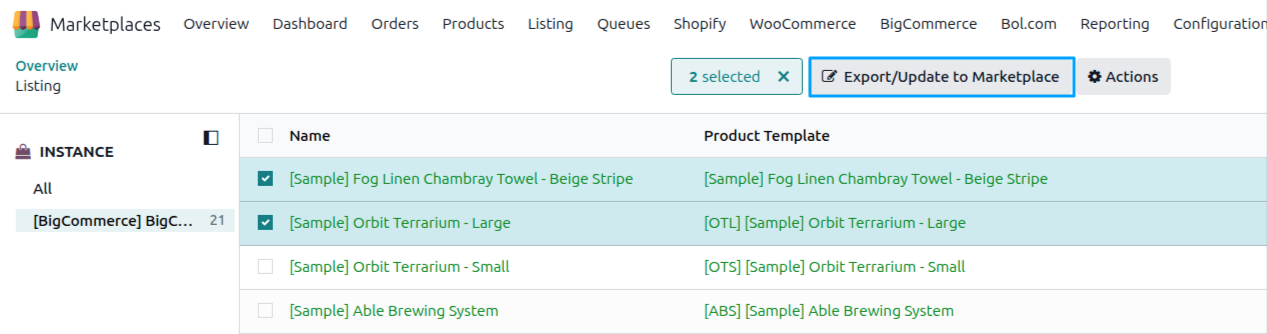
The connector detects that the listings are already exported and opens the Update Listings in BigCommerce wizard. Pick what to push and click Update Listing.
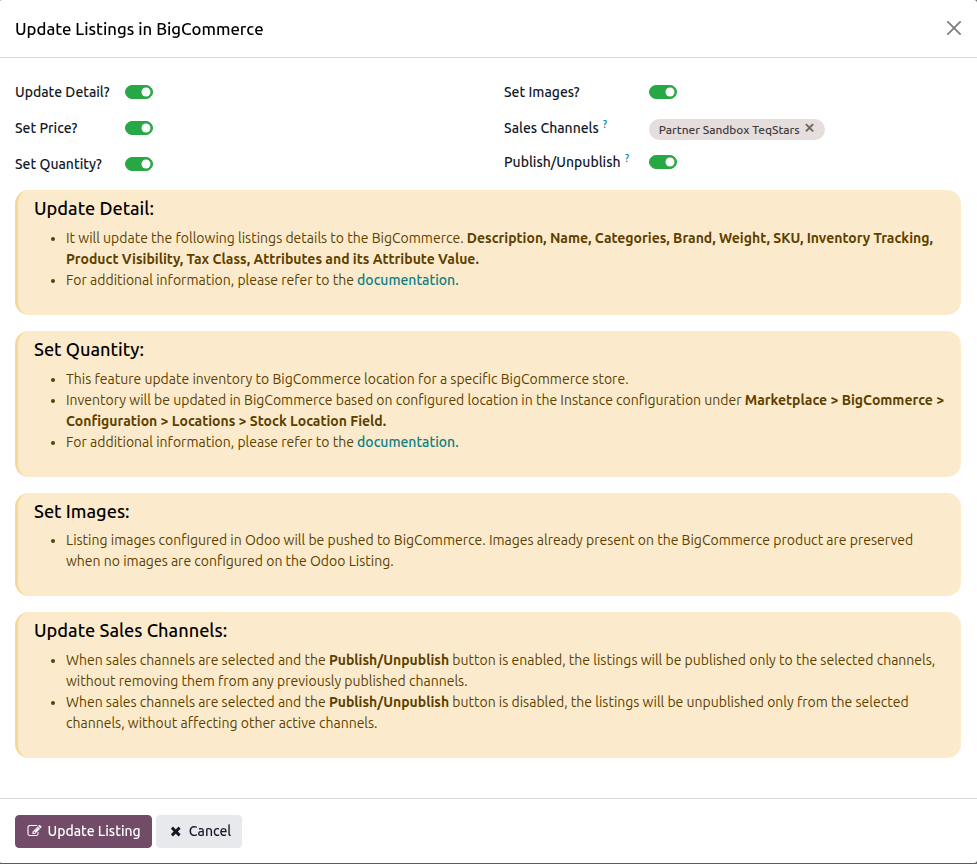
Available toggles and fields:
Update Product — Push product-level fields (Name, Description, Categories, Brand, Tax Class, Weight, SKU, Inventory Tracking, Visibility).
Set Price — Push prices from the instance pricelist.
Set Quantity — Push on-hand quantities to enabled BigCommerce locations.
Set Images — Push listing images. Existing BigCommerce images are preserved when no images are set on the Odoo Listing.
Sales Channels — Select one or more BigCommerce sales channels (publications) to act on.
Publish/Unpublish — When enabled, the selected listings are published only to the selected channels (existing channels are left untouched). When disabled, the selected listings are unpublished only from the selected channels.
Manage Sales Channels
Click the Manage Sales Channels button to open a popup where you can manage where your products are published/unpublished in BigCommerce.
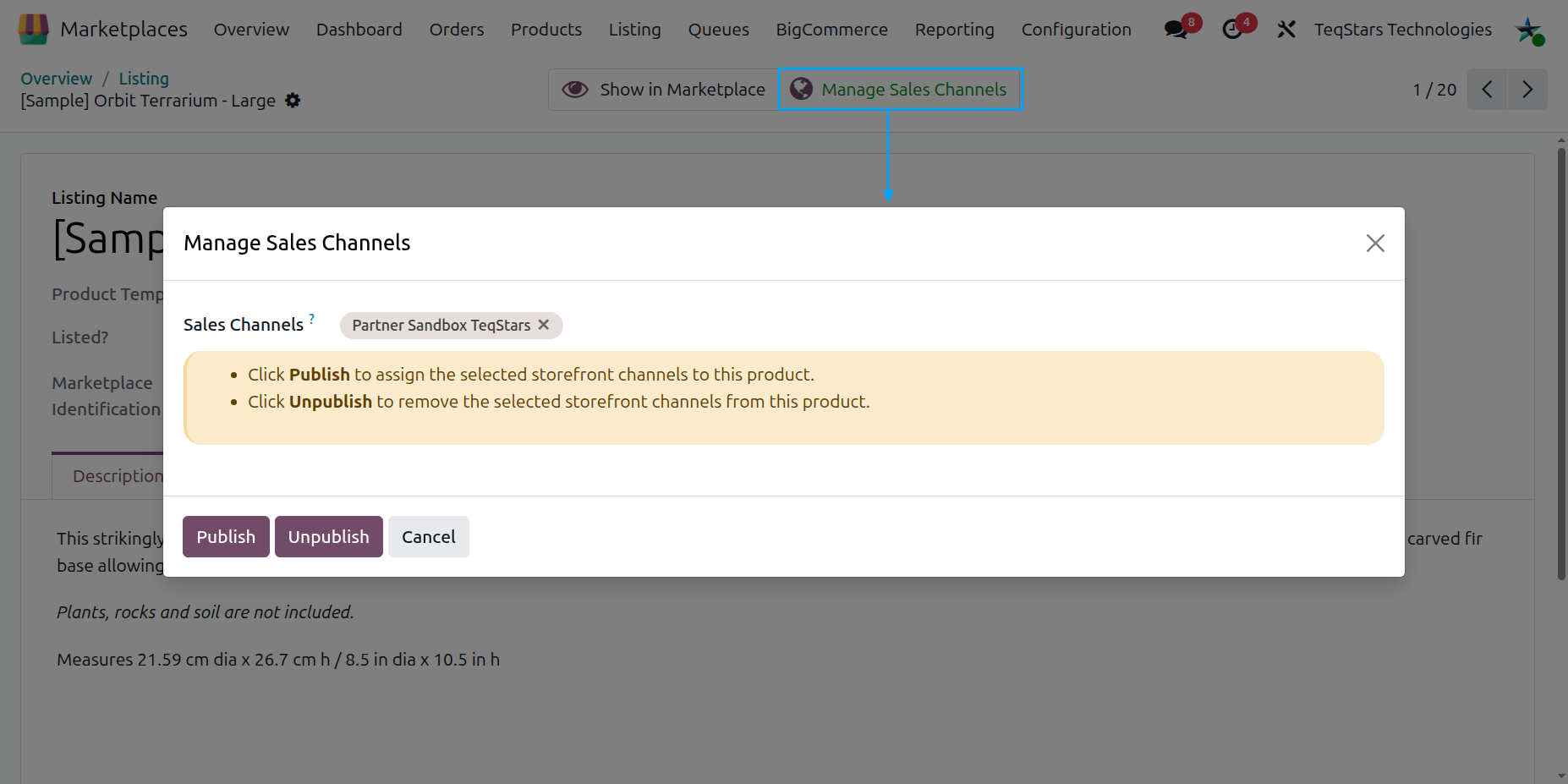
- Sales Channels (Required):
Select the sales channels where you want your products to be published/unpublished (for example, Online Store or Point of Sale).
- Publish / Unpublish:
Select the sales channels and click Publish or Unpublish to control product visibility in BigCommerce sales channel.
Clicking Publish will show the product in the selected channels.
Clicking Unpublish will remove the product from the selected channels.
This action only affects the channels you select.
What Gets Updated
At the product level, the operation pushes:
Name
Description
Categories
Brand
Tax Class
Weight — sent as a numeric value, automatically converted from the Odoo product’s weight to the BigCommerce store’s weight unit (see note below).
SKU — only for products without variants (variant SKUs travel with the variants).
Inventory Tracking mode (none / product / variant).
Visibility — whether the listing is published in the BigCommerce storefront.
At the variant level, the operation also pushes per-variant SKU, price, weight, and option values (attributes and attribute values).
For price, inventory, and channel publication, use the dedicated operations (Export Prices From Odoo and Export Inventory From Odoo) or Method 2 above to push publication changes to specific Sales Channels.
Note
Weight Unit is not sent. BigCommerce stores a single, store-wide weight unit (configured in the BigCommerce control panel and read into the instance as Weight Unit during confirmation). The connector converts the Odoo product weight into that unit before sending the numeric weight value — BigCommerce does not accept a per-product weight unit. To change the weight unit on the BigCommerce side, change it in the BigCommerce store settings, then re-confirm the instance in Odoo.