
Create an eBay instance in Odoo
To create your eBay instance in Odoo, navigate to and click on CREATE.
Choose a meaningful name for your Instance (e.g.
eBay US Store), and selecteBayon Marketplace.On Credentials tab, fill the required eBay API credentials. Follow the Generate eBay API Credentials guide to set up credentials from the eBay Developer Portal and connect your eBay account.
Let’s begin with the instance configuration process for the eBay Odoo Connector. By following the configurations below you’ll be able to set up and customize the integration according to your business needs. Let’s get started!
Last Processed On
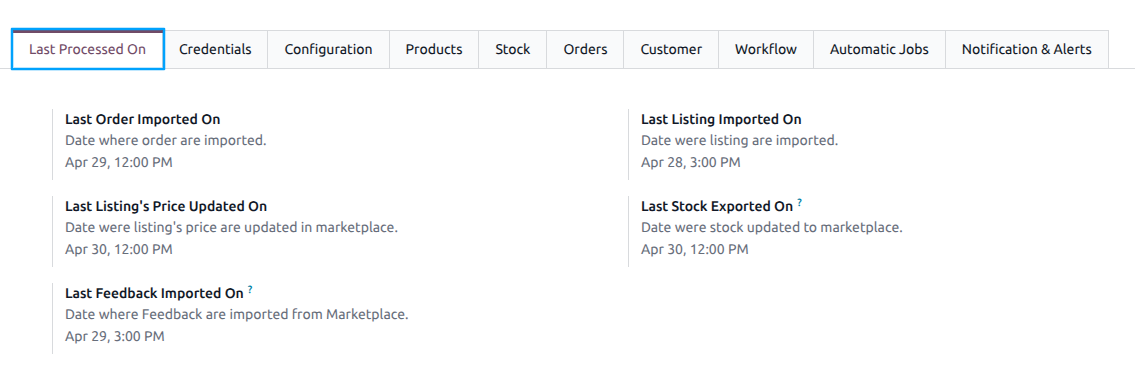
Last Processed On refers to the date that indicates the last time a specific operation or task was processed or executed. It typically represents the date and time of the most recent successful execution of a particular operation.
In most cases, the Last Processed On date is set when the Automatic Jobs are executed.
Configurations
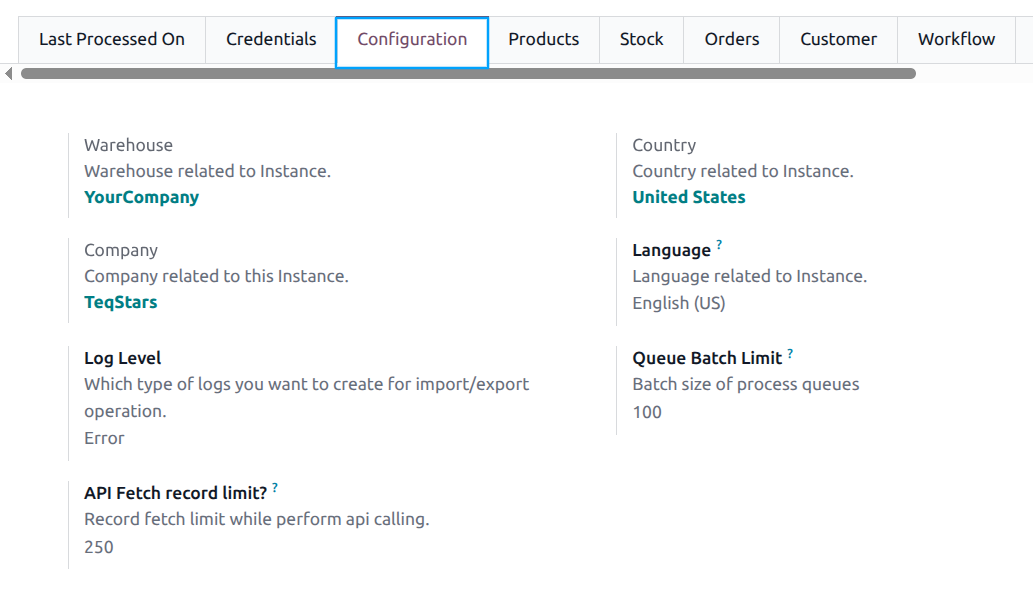
Warehouse: This warehouse will act as the default warehouse for the instance.
Company: Choose the company related to the instance.
Log Level: Choose which type of log level you would like to have. You can choose between
ALL,SUCCESS, orERROR. Defaults toERROR. The system will create logs for each marketplace operation. To view the logs, navigate to .Queue Batch Limit: Defaults to 100 records. We do not suggest changing this.
Note
To modify the Queue Batch Limit, activate the developer mode and navigate to and click on Configuration tab.
Product Configurations
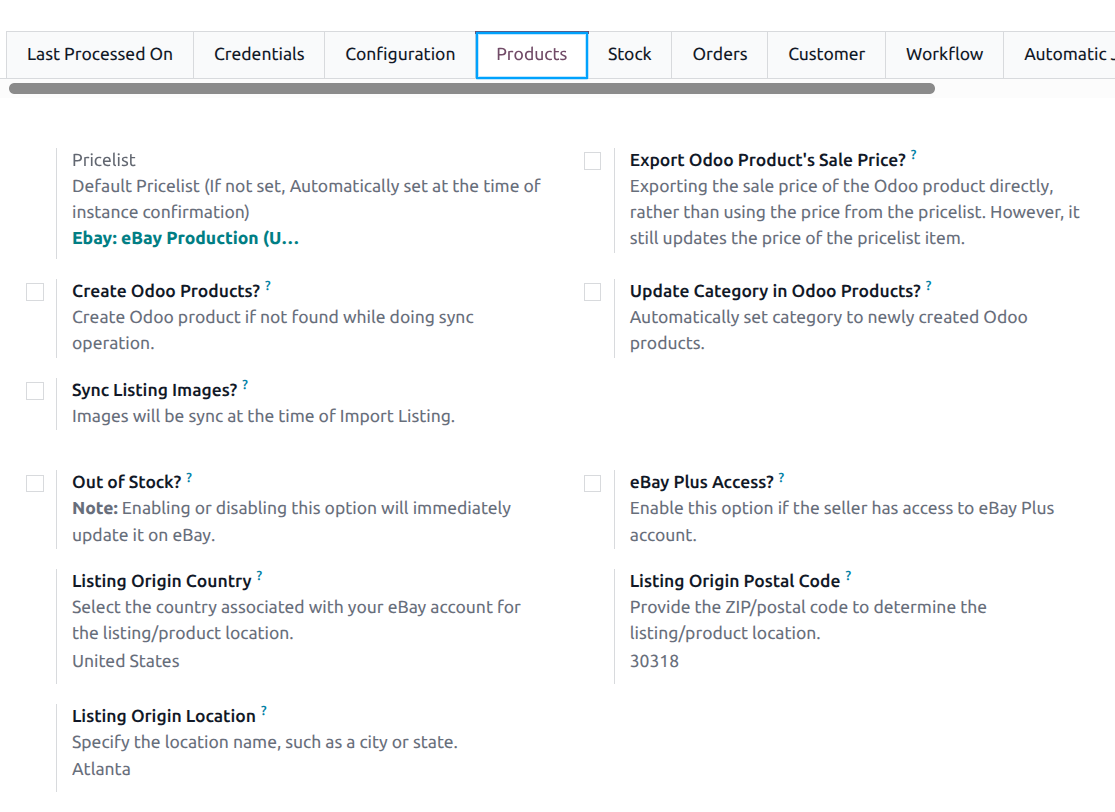
Pricelist
Pricelist refers to a pricing configuration that determines the prices of products during the product sync operation between eBay and Odoo. When prices are exported during synchronization, this pricelist is used to set the appropriate prices.
Export Odoo Product’s Sale Price?
When exporting Odoo products, the standard behavior is to export the prices based on the pricelist configured in the Instance. However, if you want to export the product’s sale price directly, bypassing the pricelist, you can customize the export functionality by enabling this option.
Create Odoo Products?
Enabling the Create Odoo Products? option allows the eBay Odoo Connector to automatically create new products in your Odoo catalog when a matching product is not found based on the SKU. This feature streamlines the product synchronization process by creating products in Odoo, ensuring that all products from your eBay store are accurately represented in your Odoo ERP system.
Tip
If you already have existing products in your Odoo ERP system, it is not recommended to enable the Create Odoo Products? option in the Instance.
Update Category in Odoo Products?
This ensures that when a new product is added to the Odoo ERP system, it is automatically set to the category received from eBay.
Sync Listing Images?
This means that the images associated with the products or items being imported from the eBay store to Odoo. By syncing the listing images during the import process, the images will be available and properly associated with the respective listings within the Odoo system.
Listing Origin Country:
The country of origin for your listings. This is used for shipping and customs information on eBay.
Listing Origin Postal Code:
The postal code of your listing origin location.
Listing Origin Location:
The location description for your listing origin.
Out of Stock?:
When enabled, out-of-stock items will show as “0 quantity” on eBay instead of ending the listing. The listing will be hidden until inventory is updated, preventing it from ending and avoiding the loss of sales history and ranking.
Changing this option in Odoo will automatically enable or disable the Out of Stock Control program on your eBay account. For example, if you enable it in Odoo and save the instance, it will be enabled on eBay as well. Disabling it in Odoo will opt out of the program on eBay.
When the instance is confirmed for the first time, the connector fetches the current value of this setting from your eBay account and sets it automatically.
eBay Plus Access?:
Enable this if your seller account has eBay Plus eligibility. This adds the eBay Plus badge to qualifying listings.
Stock Configurations
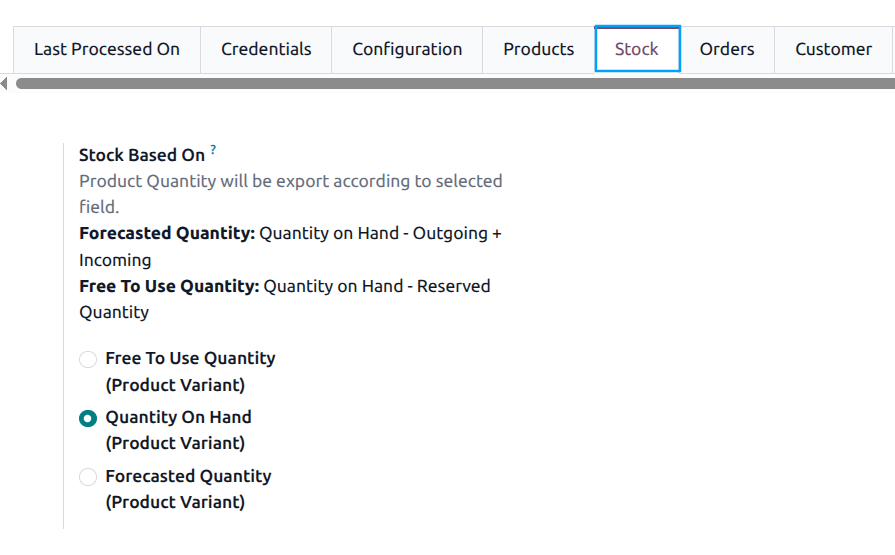
Stock Based On
When exporting Inventory from Odoo to eBay, you can choose
Free To Use Quantity,Quantity On HandorForecasted Quantityconfiguration based on your requirements, ensuring accurate inventory management between eBay and Odoo.Tip
Forecasted Quantity: Quantity on Hand - Outgoing + Incoming
Free To Use Quantity: Quantity on Hand - Reserved Quantity
Orders Configurations
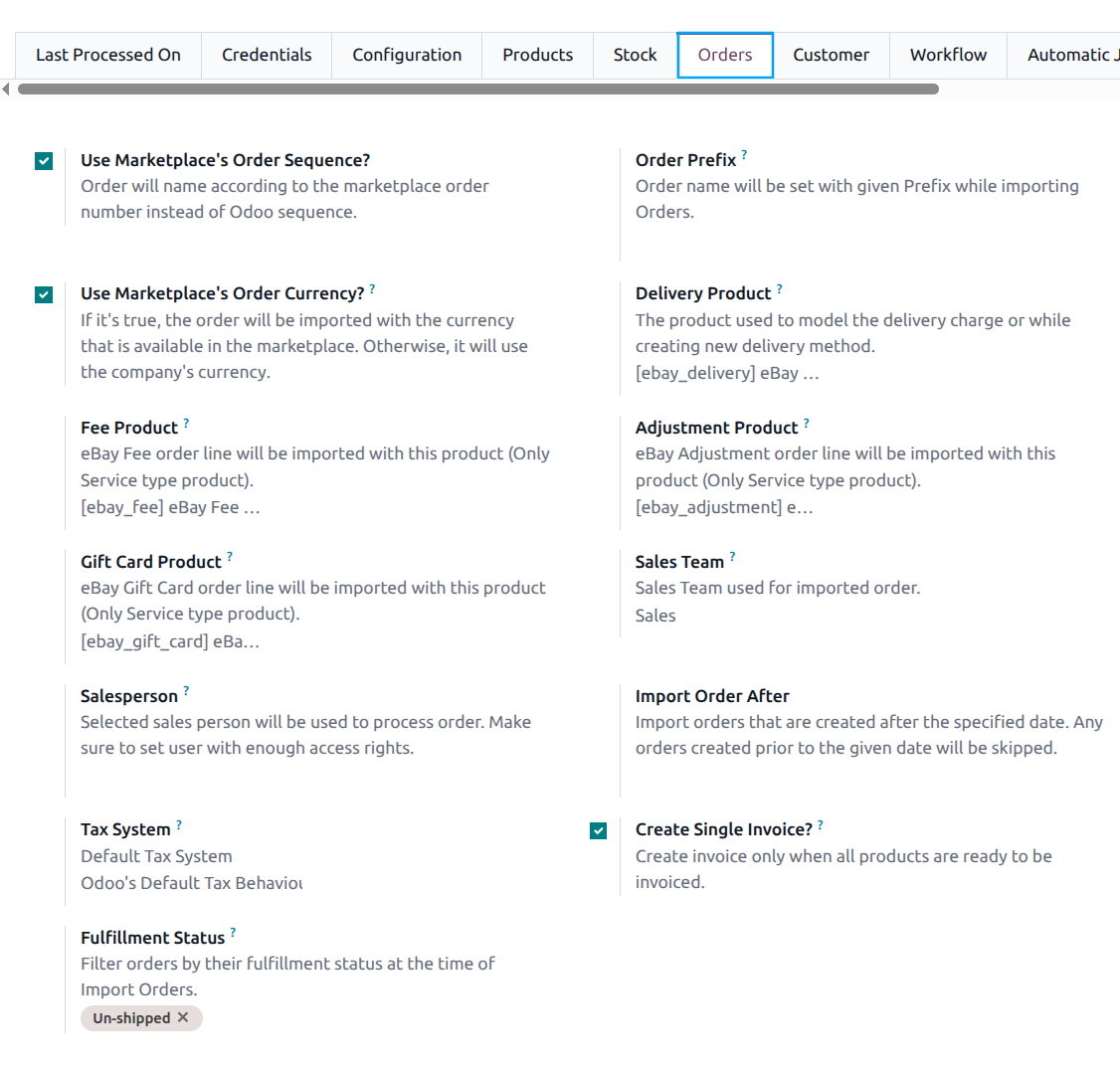
Use Marketplace’s Order Sequence?
This feature allows you to name orders in Odoo based on the eBay order number rather than using the default Odoo sequence. This ensures that the order names in Odoo correspond directly to the order numbers generated by eBay, providing consistency and easier cross-referencing between Odoo and eBay.
Order Prefix
This feature allows you to specify a prefix that will be added to the names of imported orders. When importing orders from your eBay store to your Odoo ERP system, the connector will automatically set the order name with the given prefix. This helps to easily identify and distinguish the imported orders in your Odoo system.
Use Marketplace’s Order Currency?
When enabled, imported orders are assigned the currency available on eBay. In this case, the order currency will match eBay’s currency.
If the feature is disabled, the company’s default currency will be used for the imported orders.
Delivery Product (Only visible in developer mode)
This allows you to define a specific product in Odoo that will represent the charges associated with the delivery of orders from your eBay store.
eBay Fee Product: (Only visible in developer mode)
This product is used for eBay fee line items when importing orders. Fee charges from eBay (such as Final Value Fees) are recorded against this product.
eBay Adjustment Product: (Only visible in developer mode)
This product is used for adjustment line items in eBay orders (e.g., promotional adjustments, seller discounts).
eBay Gift Card Product: (Only visible in developer mode)
This product is used for gift card line items in eBay orders. When a gift card is used as payment, it is imported as a separate line using this product.
Sales Team
By configuring this feature, you can ensure that all imported orders from eBay are automatically assigned to the specified default Sales Team in Odoo.
Salesperson
Select a salesperson who will be responsible for processing the orders received from your eBay store. It is important to ensure that the assigned user has sufficient access rights in Odoo.
Import Order After
This feature allows you to import orders from your eBay store that were created after a specific date. By setting this date, any orders created before the specified date will be skipped during the import process.
Tax System
The tax system in eBay Instance offers three options for handling taxes when importing orders from eBay:
Odoo’s Default Tax Behaviour (Taxes will be taken from Odoo Product):
With this option selected, Odoo will use the tax information defined on the Odoo products and related fiscal rules. When importing orders from eBay, the connector ignores eBay tax lines and applies the taxes configured on the corresponding Odoo products. This keeps tax calculation fully aligned with your Odoo tax configuration.
Follow Marketplace Tax (no fiscal position mappings):
With this option, the connector follows the tax amounts coming from eBay. For each tax in the eBay order, Odoo looks for a matching tax; if it does not exist, a new tax can be created and linked to the configured Tax Account fields. The resulting Odoo taxes from eBay are applied directly on the order and shipping lines without applying any fiscal position mappings.
Follow Marketplace Tax and applies fiscal position mappings:
This option also starts from the taxes provided by eBay, creating or reusing matching Odoo taxes as needed. After determining the Odoo taxes based on eBay tax lines, the connector applies the fiscal position of the order to remap those taxes before posting them on the order lines. This lets you respect eBay tax amounts while still using Odoo fiscal position rules for accounting and reporting.
Tax Account
This allows you to specify the account to be associated with a tax when it is created in Odoo. This account is used for recording tax-related transactions and ensures accurate tracking and reporting of tax amounts within your Odoo ERP system.
Tax Account on Credit Notes
This allows you to specify the account to be associated with a tax on credit notes when it is created in Odoo.
Tax Rounding
When the Tax Rounding is enabled and set to zero, no rounding will be applied. This feature ensures that tax calculations are accurate and aligned with your specific tax regulations and requirements.
Fulfillment Status
When importing orders from eBay to Odoo, you have the option to filter and import orders based on their fulfillment status. You can select one or both statuses: Shipped and/or Un-shipped. This feature allows you to have better control over the orders you import into Odoo.
Create Single Invoice? (Only visible in developer mode)
When enabled, the invoice is created only when all products in the order are ready to be invoiced. This ensures a single consolidated invoice instead of multiple partial invoices.
Customer Configurations

Receivable Account
This allows you to specify the default account for receivables when creating customers. By setting this field to Account Receivable instead of the default account, you ensure that the receivable transactions, such as invoices and payments, associated with the customer are correctly accounted for in the Odoo ERP system.
Create Company Contact?
When a contact is being created, the connector checks if there is a corresponding company. If found, it automatically generates a company contact, ensuring that the company’s information is properly recorded and linked to the contact in Odoo. This feature helps maintain comprehensive and organized company contact records within the system.
Workflow Configurations
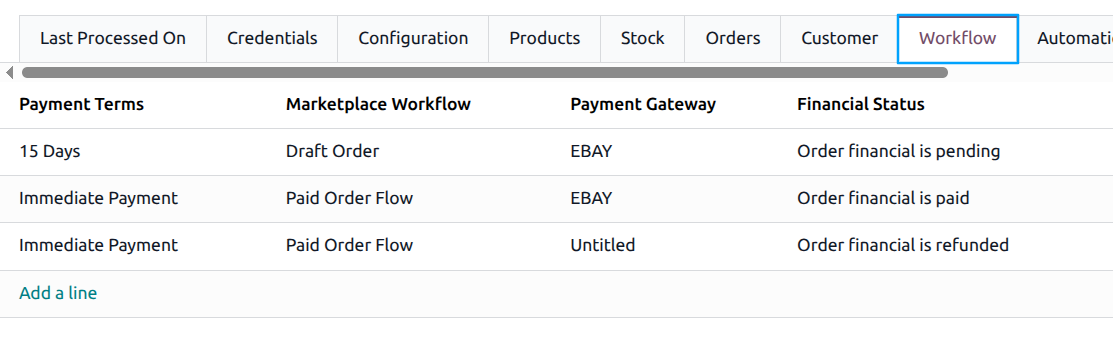
Workflow is a configuration setting used in the eBay Odoo Connector that enables the automatic processing of orders from eBay. This workflow automates various actions, including confirming orders, creating invoices, validating invoices, and registering payments.
By setting up the Marketplace Workflow, you can streamline the order processing cycle and save time by eliminating manual interventions. The workflow ensures that orders from eBay are seamlessly processed and managed within your Odoo system.
- Payment Terms
Payment Terms are set in the order at the time of creation and specify when and how the customer is expected to make the payment for their purchase.
Marketplace Workflow
It enables the automatic processing of orders from eBay. This workflow automates various steps, including confirming orders, creating invoices, validating invoices, and registering payments.
To learn more about the details and configuration options of the Marketplace Workflow, please refer to the following link: Configure Marketplace Order Workflow
Create Credit Note in eBay?
When enabled, the workflow will also create credit notes for refunded or canceled eBay orders.
Payment Gateways & Financial Status
The order workflow can be defined based on the combination of the Payment Gateway used for the transaction and the Financial Status of the order.
Different Payment Gateways may have specific requirements or processes for handling payments and updating the Financial Status in Odoo.
The order processing is triggered based on the Financial Status received from the Payment Gateway.
To view and manage configured Payment Gateways, navigate to .
By considering the Payment Terms, Payment Gateway, and Financial Status of an order, businesses can define an appropriate workflow that ensures smooth order processing and accurate payment handling.
Automatic Jobs Configurations
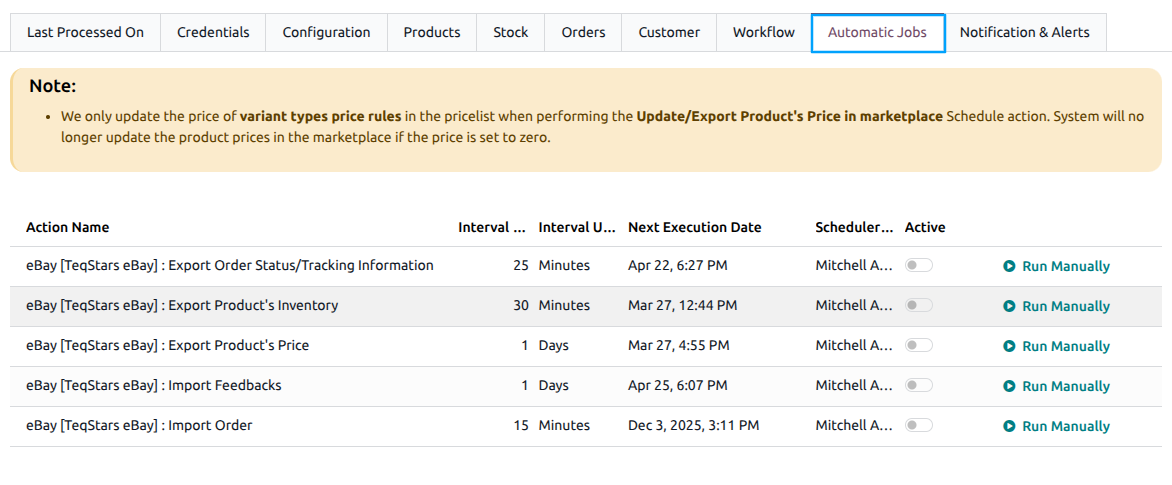
Automatic Jobs Configurations allow for the automation of various tasks related to exporting and importing data between eBay and Odoo. These jobs are scheduled to run automatically at specified intervals to keep the data synchronized and up to date. You can configure Interval Number, Interval Unit, and Active for each job. Here’s an explanation of each automatic job.
Export Order Status/Tracking Information
This automatic job enables the automatic export of order status and tracking information from Odoo to eBay.
It ensures that the order updates, such as shipment status and tracking numbers, are reflected accurately on eBay.
Export Product’s Inventory
This automatic job automatically exports the inventory levels of products from Odoo to eBay.
It helps keep the product stock information synchronized between the two platforms, ensuring accurate stock availability on your eBay store.
Stock Based On configuration will be used while exporting stock.
Export Product’s Price
This automatic job enables the automatic export of product prices from Odoo to eBay.
Any changes in product prices in Odoo will be automatically reflected in the corresponding products on eBay.
Pricelist will be used while exporting price to eBay.
Import Order
With this configuration, the connector automatically imports new orders from eBay to Odoo.
It ensures that the orders placed by buyers on your eBay store are seamlessly transferred to Odoo for further processing and fulfillment.
Order configuration and Workflow configuration will be used while importing and processing orders.
Import Feedbacks
This automatic job automatically imports buyer feedback from eBay to Odoo, including overall rating (Positive, Neutral, Negative), comments, and detailed seller ratings.
Imported feedback entries are linked to the corresponding sale orders and listing items for easy traceability.
Note
It’s important not to schedule all your processes to run at the same time interval because it can consume a significant amount of your system resources. Instead, it’s recommended to leave a gap between them. This helps ensure that your system resources are not overused and can handle the workload more efficiently.
Notification & Alerts
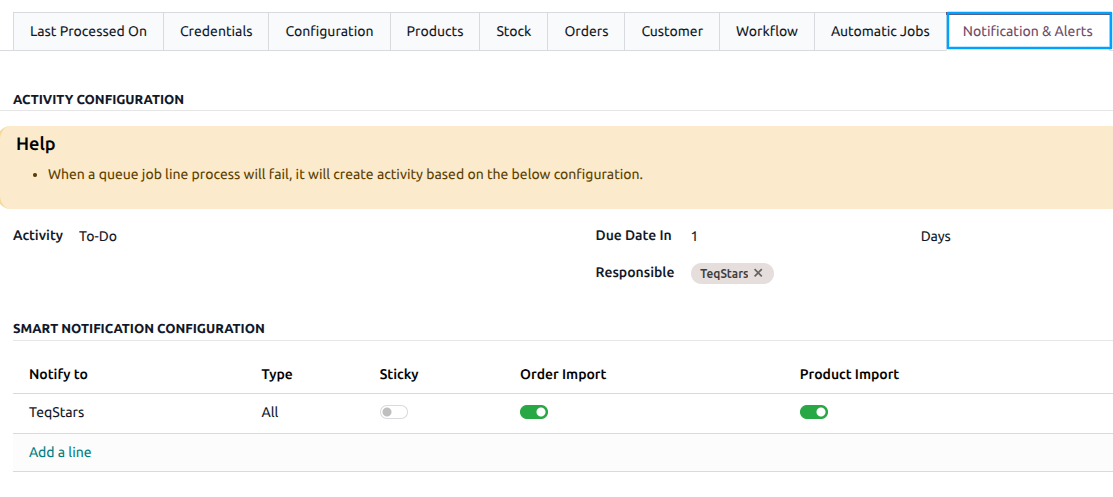
- Activity Configuration
When a queue job line process fails, the system creates an activity based on the specified configuration.
By configuring Activity, Due Date In and Responsible the system can automatically generate an activity when a queue job line process fails. The activity will be assigned to the responsible person and categorized based on the specified type of activity. This helps ensure that appropriate follow-up actions are taken to address and resolve any issues or errors encountered during the Queue job process.
Smart Notification Configuration
By configuring Smart Notification Configuration, users will receive timely updates regarding the success or failure of order processing and product imports. This helps them stay informed and take appropriate actions promptly when needed.
Confirming Instance
Once you are satisfied with the configuration, click the
Confirmbutton. Upon pressing the Confirm button, your eBay Odoo Instance will be confirmed.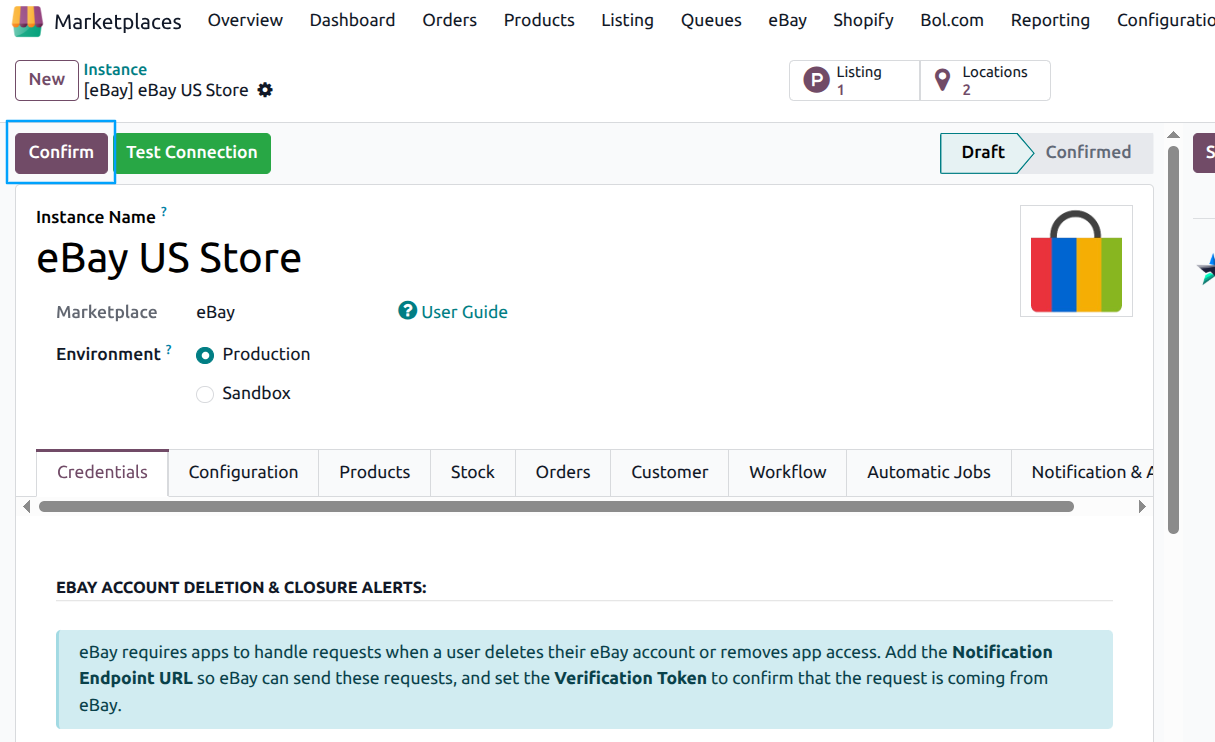
When confirming the instance for the first time, the connector performs the following actions automatically:
Fetches Seller Programs: Retrieves the current seller program settings from your eBay account (e.g., Out of Stock Control status) and updates the instance accordingly.
Sets Pricelist: Automatically sets the pricelist based on the currency of the selected eBay site’s country.
After confirmation, the instance state is set to Confirmed and ready for operations. You can then manually import products, categories, policies, feedbacks, and other data via the Operations popup.
Note
The eBay account must be connected (via the Connect eBay Account button on the Credentials tab) before confirming the instance.