
Import WooCommerce Orders In Odoo
The WooCommerce Odoo Connector lets you import WooCommerce orders into Odoo as Sale Orders — with their line items, shipping, fees, discounts and coupon codes — keeping inventory, accounting and fulfillment centralized in Odoo.
Before importing, configure the relevant Orders Configuration and Financial Workflow Configuration on the instance.
You can import orders manually from the operations wizard, on schedule through the Import Order automatic job, or in real time through the Create Orders webhook.
Method - 1: Manual Order Import
Go to the menu in Odoo.
Click on the Operations button from the instance record.
Choose Import as the operation type, then from Import Operation, select Import Orders.
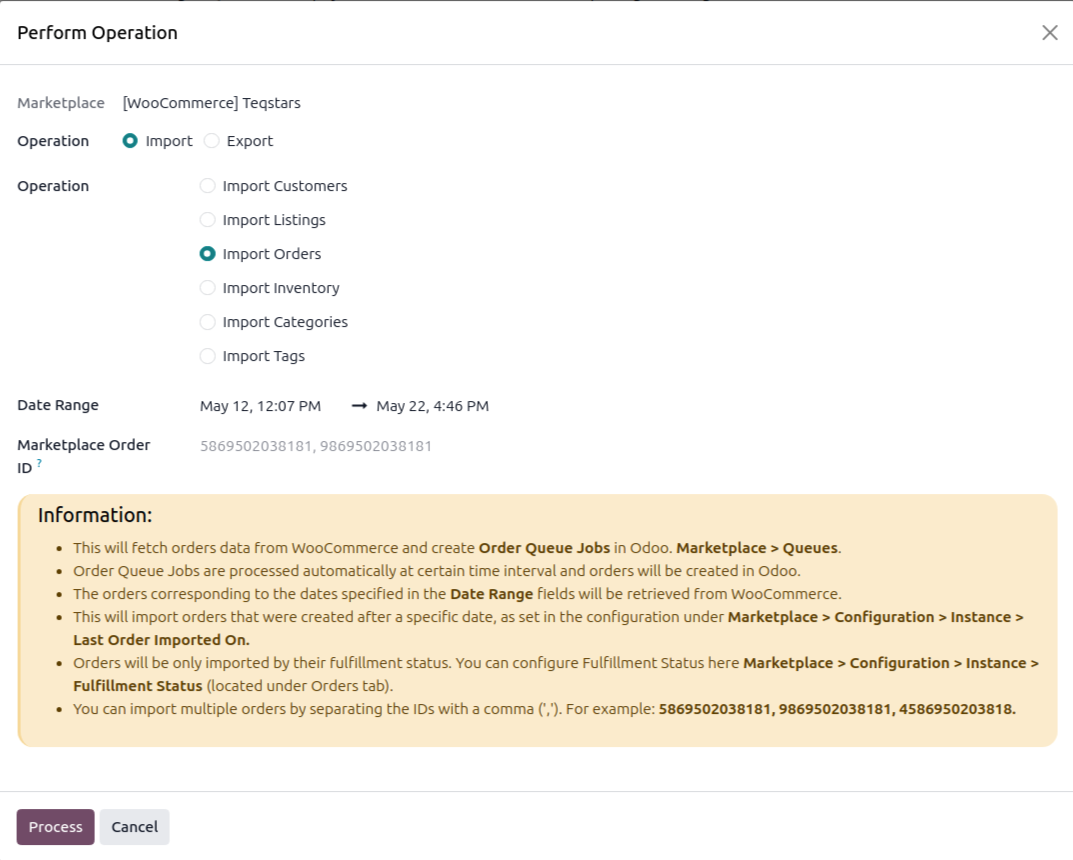
The wizard exposes the following options:
Date Range — Orders modified within the selected date range are retrieved from WooCommerce.
Marketplace Order ID — Import specific WooCommerce orders by entering their numeric IDs, separated by commas, for example
5869502038181, 9869502038181.
Click Process.
The connector fetches orders from WooCommerce and adds them to the Order Queue Job visible at . The queue job is processed automatically, each order is created in Odoo following the Marketplace Workflow matched to the order’s Payment Gateway and Financial Status.
If some orders fail because no matching financial workflow is configured, the queue line writes a log entry. Add the workflow for that payment gateway and financial status on the instance, then retry the failed queue line.
Method - 2: Automatic Order Import
Order import from WooCommerce to Odoo can be automated using the Automatic Schedule action, which runs the import at a predefined interval so the latest orders are consistently created or updated in Odoo without manual intervention. Here’s how the process works:
Go to your WooCommerce instance setting by navigating to .
Open the Automatic Jobs tab. In that tab you can configure the Import Order automatic action by setting Interval Number, Interval Unit, and then enable Active (every 15 minutes by default).
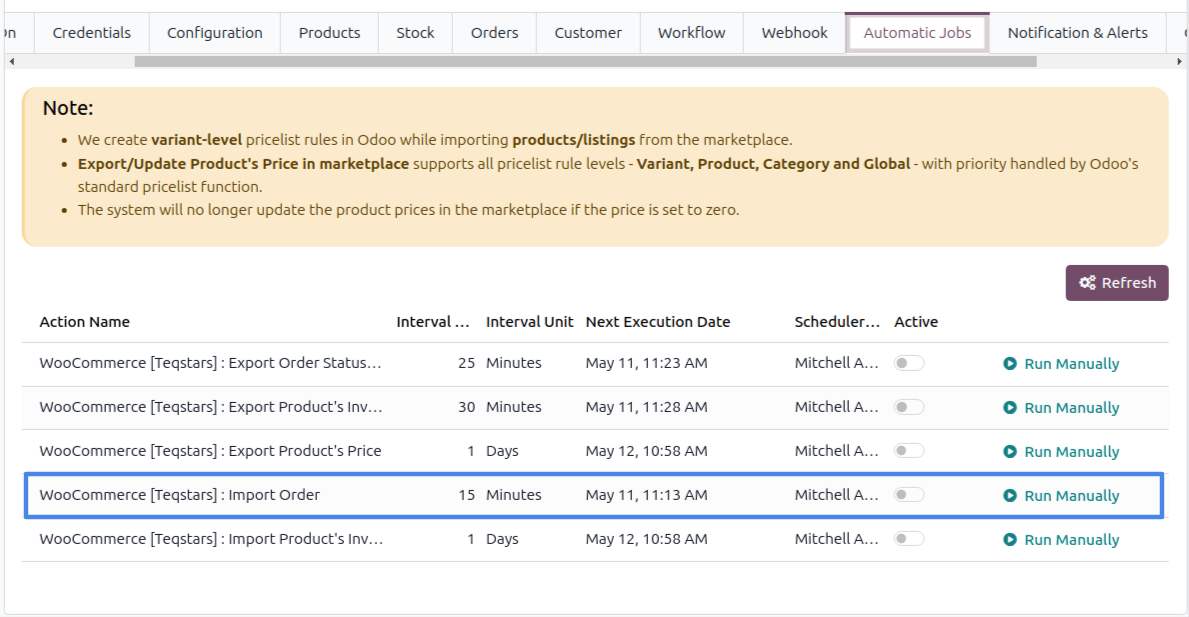
Once the schedule action is active, Odoo automatically imports the latest orders at the specified intervals and processes them according to the configured order workflow.
Important
Orders are imported only when their WooCommerce status is included in the instance’s Order Status filter (default Processing). Configure the filter at , on the Orders tab.
Orders completed on WooCommerce have their delivery validated automatically in Odoo.
Orders cancelled or refunded on WooCommerce are skipped if they were never imported, existing orders are updated in place.