
Create a ManoMano instance in Odoo
To create your ManoMano instance in Odoo, navigate to and click New.
Choose a meaningful name for your instance (e.g.
TeqStars ManoMano) and select ManoMano in the Marketplace field.On the Credentials tab, fill in the API Key and at least one of the B2B Seller Contract ID and B2C Seller Contract ID, see Get Your ManoMano Credentials.
Click Test Connection to check that Odoo can reach ManoMano.
Fill in the other tabs, then click Confirm.
Tip
You can connect more than one ManoMano account. Create one instance per ManoMano seller account. Each instance has its own API key, seller contract IDs, warehouse, pricelists and feed URLs.
Get Your ManoMano Credentials
To connect Odoo to ManoMano you need an API key and the seller contract ID of each contract you sell on. You find them in ManoMano Toolbox.
Sign in to ManoMano Toolbox.
Go to and generate an API key.
Copy the API key.
Copy the seller contract ID of your B2B contract, your B2C contract, or both.
ManoMano handles B2B and B2C as separate contracts. Each one has its own seller contract ID, its own price grid and its own product feed.
Credentials
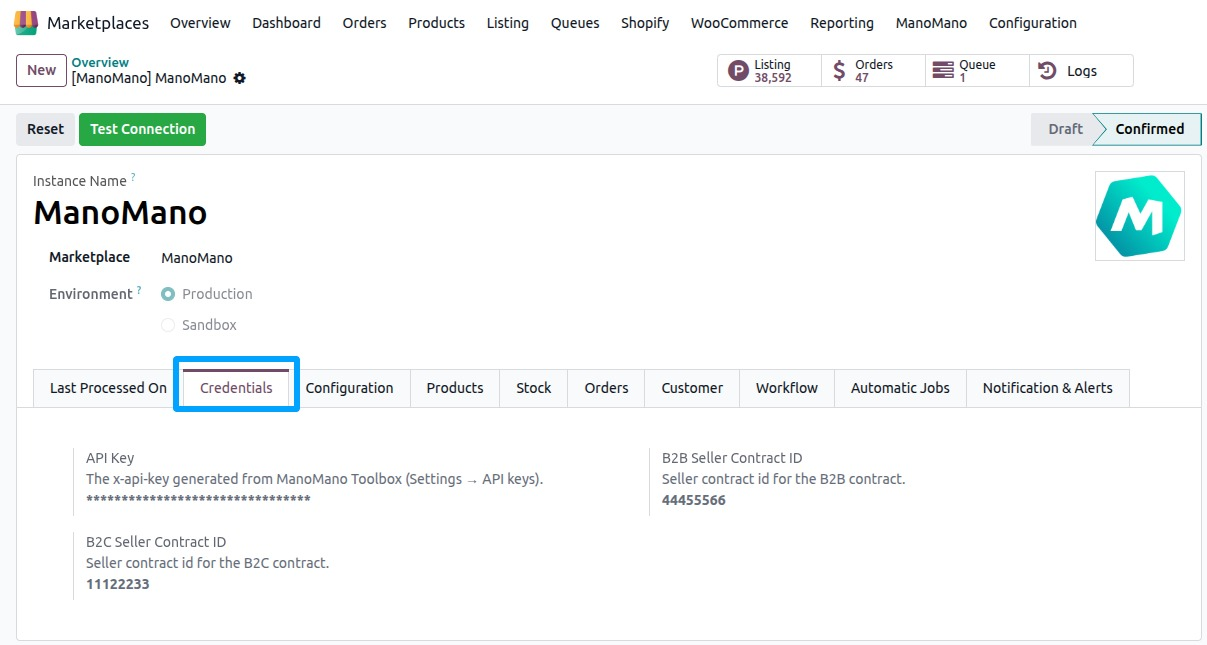
API Key: The API key you generated in ManoMano Toolbox ().
B2B Seller Contract ID: The seller contract ID of your B2B contract.
B2C Seller Contract ID: The seller contract ID of your B2C contract.
You need at least one of the two seller contract IDs. If you fill in both, they must be different, otherwise Odoo shows a message and does not save them.
Click Test Connection. On success Odoo shows Successfully connected.
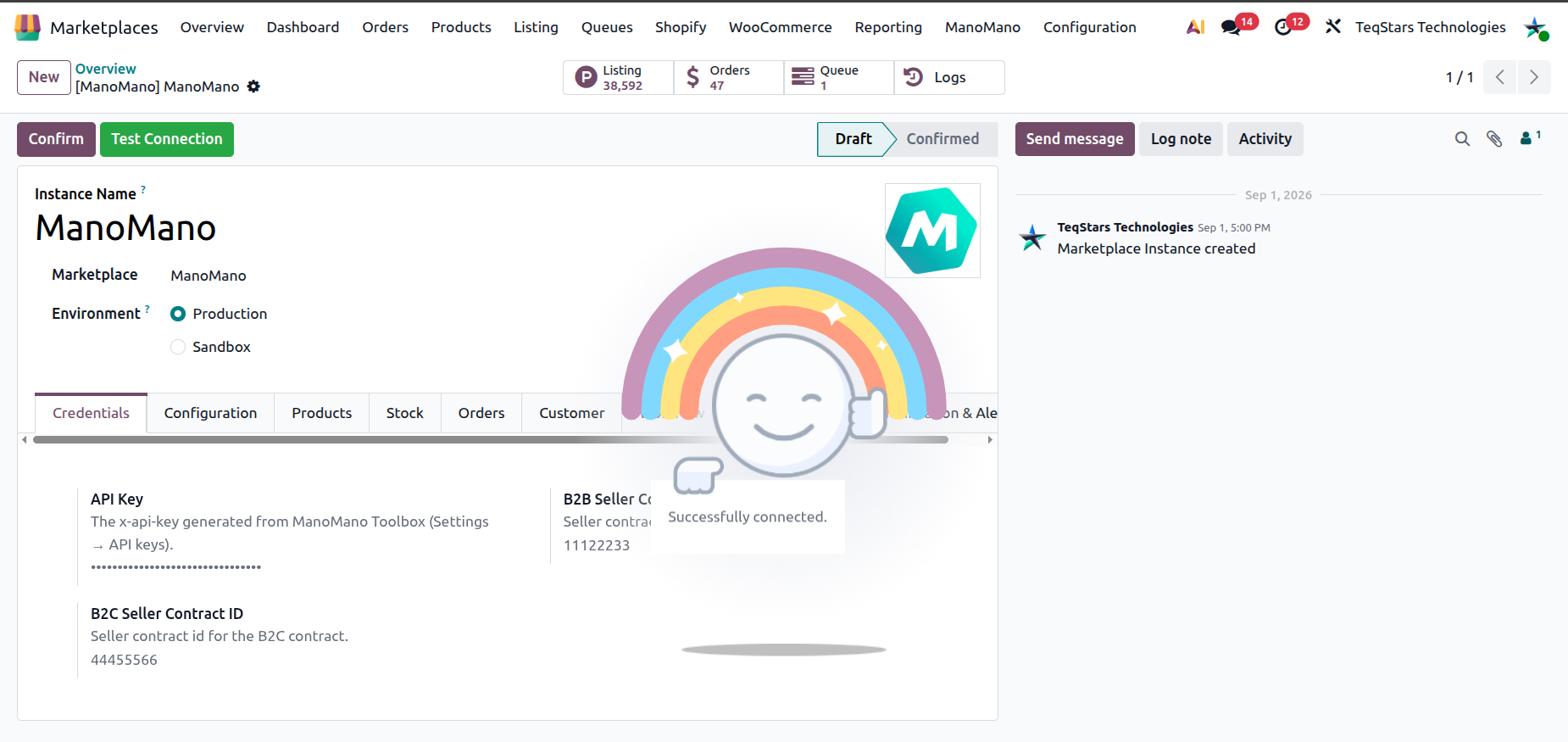
When the test fails, Odoo tells you why:
ManoMano API Key is missing on instance …: The API Key field is empty. Fill it in and test again.
ManoMano is temporarily unavailable: ManoMano does not answer for the moment. Try again in a few minutes.
ManoMano did not return a valid response: Try again.
Configurations
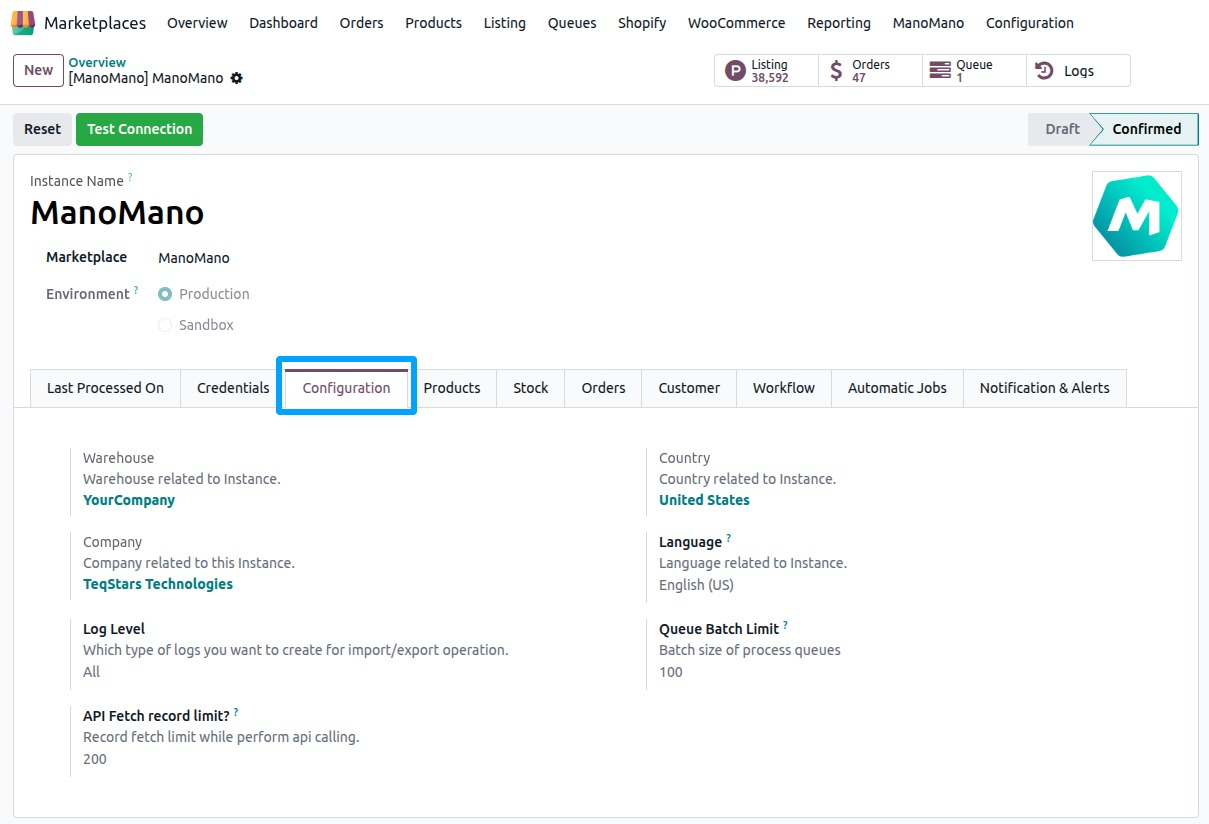
Warehouse: Default warehouse of the instance. The stock you send to ManoMano comes from this warehouse.
Company: Company linked to the instance.
Log Level: Which logs you want for each operation:
All,SuccessorError. You find the logs in .Queue Batch Limit: Number of records processed in each queue.
Product Configurations
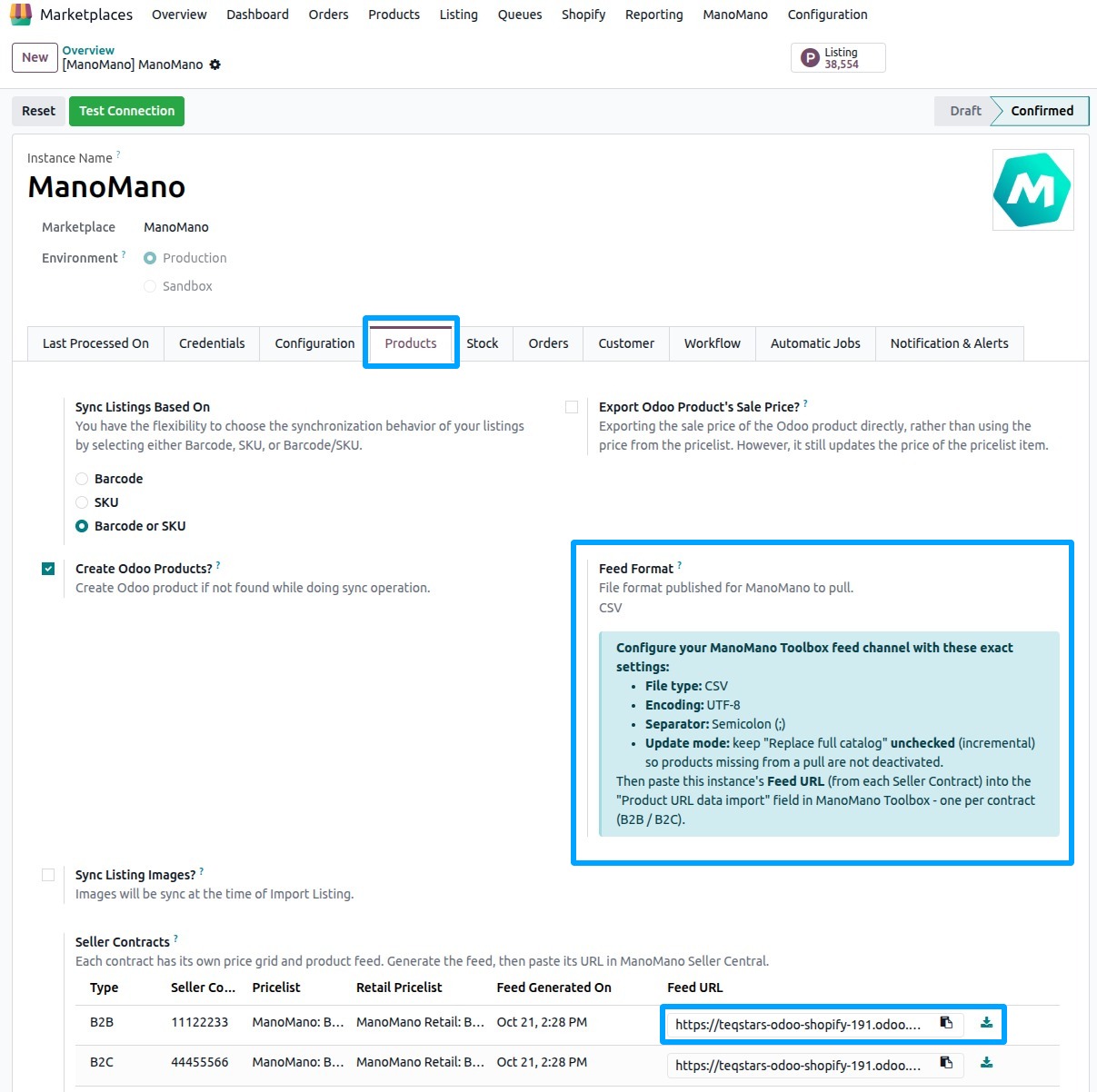
Seller Contracts: The seller contracts this instance sells on. You add one B2B and one B2C contract at most, each with its own pricelist and product feed. See ManoMano Seller Contracts.
Feed Format: File format published for ManoMano to pull. ManoMano feeds are published as CSV.
Create Odoo Products?: Create a new Odoo product when no matching product is found. When it is disabled, rows without a matching product are skipped and logged.
ManoMano pulls your products from a feed URL that you paste in ManoMano Toolbox, one per contract. The feed channel settings are explained in ManoMano Product Feed.
Tip
If you already have your products in Odoo, keep Create Odoo Products? disabled. Products are matched by SKU (Internal Reference) first, with the EAN (barcode) as a fallback, so no duplicates are created.
Prices do not come from one instance pricelist. Each seller contract has its own selling pricelist and retail pricelist, see ManoMano Seller Contracts.
Stock Configurations
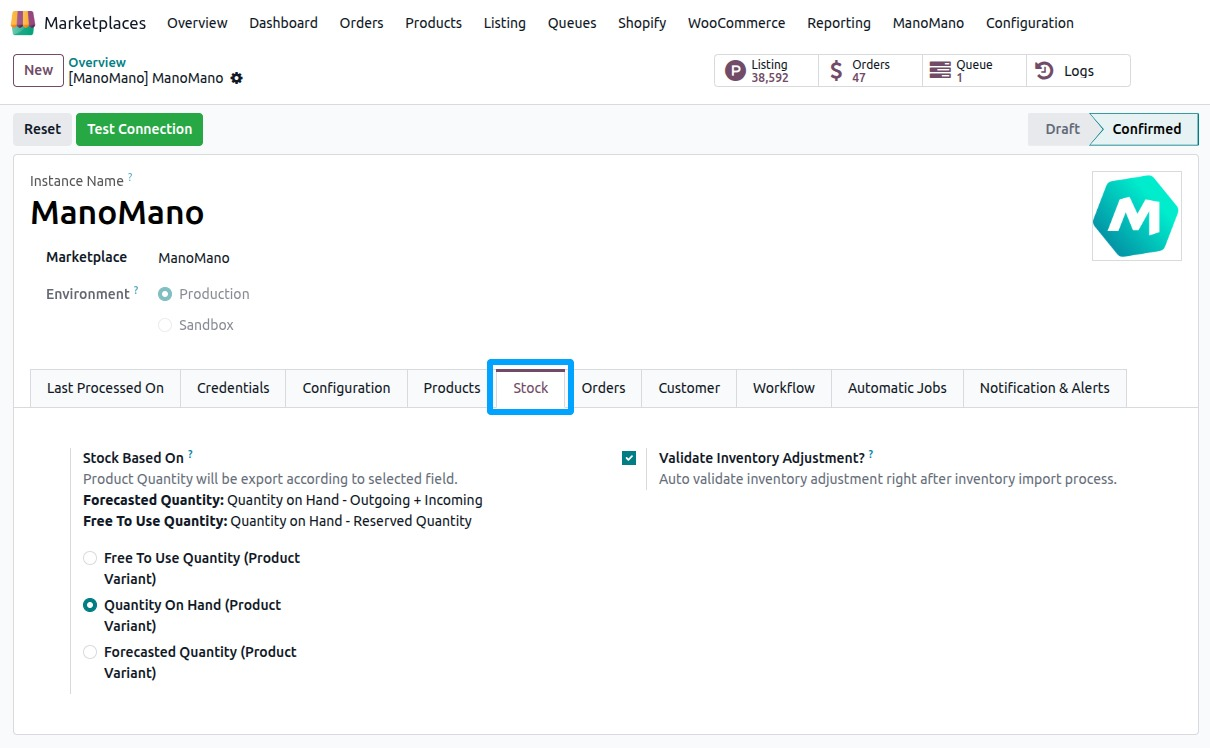
Stock Based On: Which quantity of your products is sent to ManoMano.
Tip
Forecasted Quantity: Quantity on Hand - Outgoing + Incoming.
Free To Use Quantity: Quantity on Hand - Reserved Quantity.
Orders Configurations
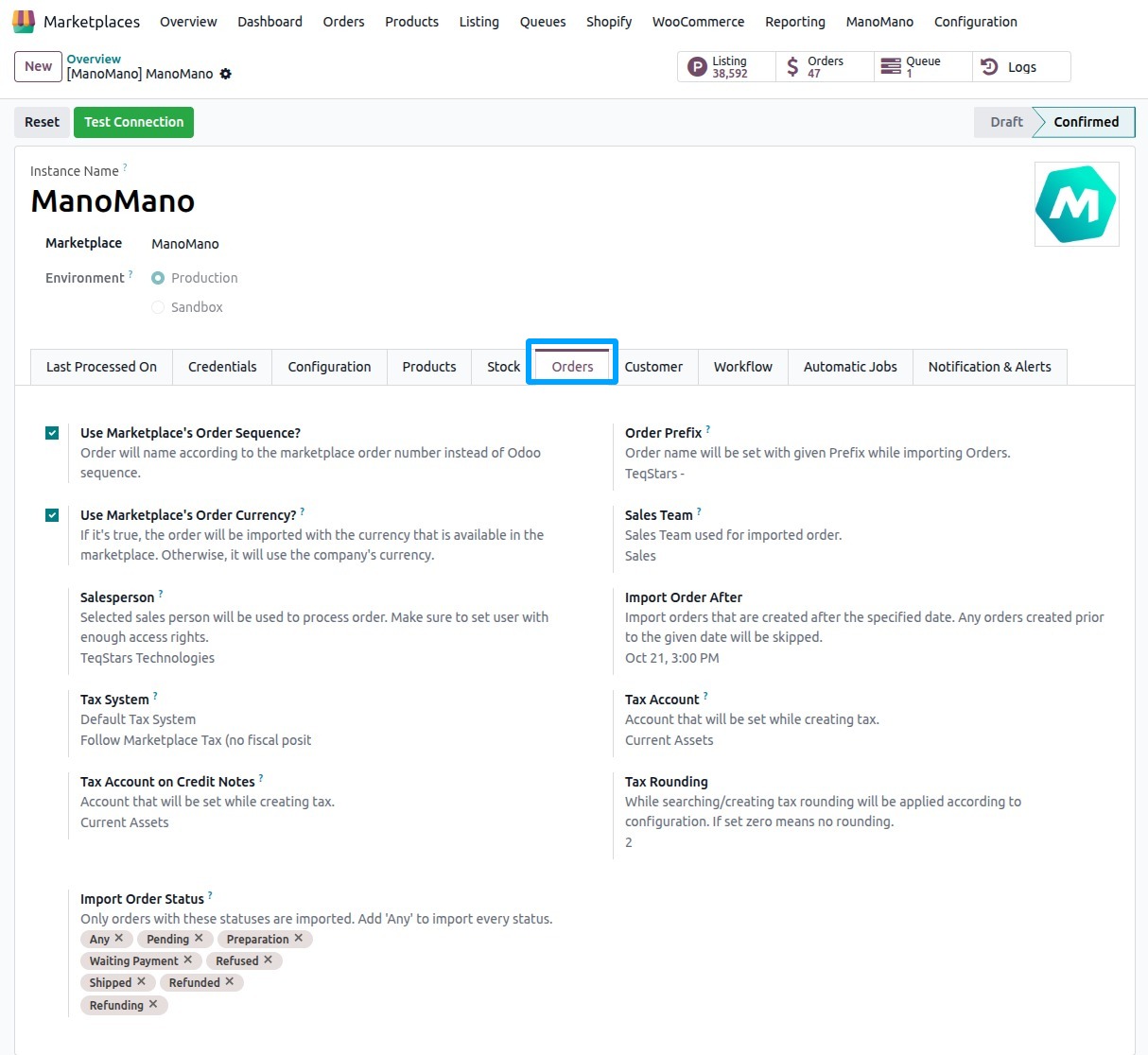
Import Order Status: Only orders with these statuses are imported. Add Any to import every status.
Import Order After: Only orders created after this date are imported. Older orders are skipped and logged.
Use Marketplace Order Sequence?: Name Odoo orders with the ManoMano order number instead of the Odoo sequence.
Order Prefix: Prefix added to the names of imported orders.
Sales Team: Sales team set on imported orders.
Salesperson: Salesperson who processes imported orders. Make sure this user has enough access rights.
Delivery Product: Product used for the delivery charge line.
Discount Product: Product used for the discount line.
Use Marketplace Order Currency?: When enabled, orders are imported in the ManoMano currency. Otherwise, the company currency is used.
Create Single Invoice?: Create the invoice only when all products are ready to be invoiced.
Tax System controls how taxes are applied to imported orders:
Odoo’s Default Tax Behaviour (Taxes will be taken from Odoo Product): Taxes come from the Odoo product and your fiscal position mappings.
Follow Marketplace Tax (no fiscal position mappings): Odoo uses the ManoMano tax rate and creates a matching tax when none exists, using the Tax Account and Tax Account on Credit Notes.
Follow Marketplace Tax and applies fiscal position mappings: As above, then the fiscal position of the order maps those taxes.
Customer Configurations
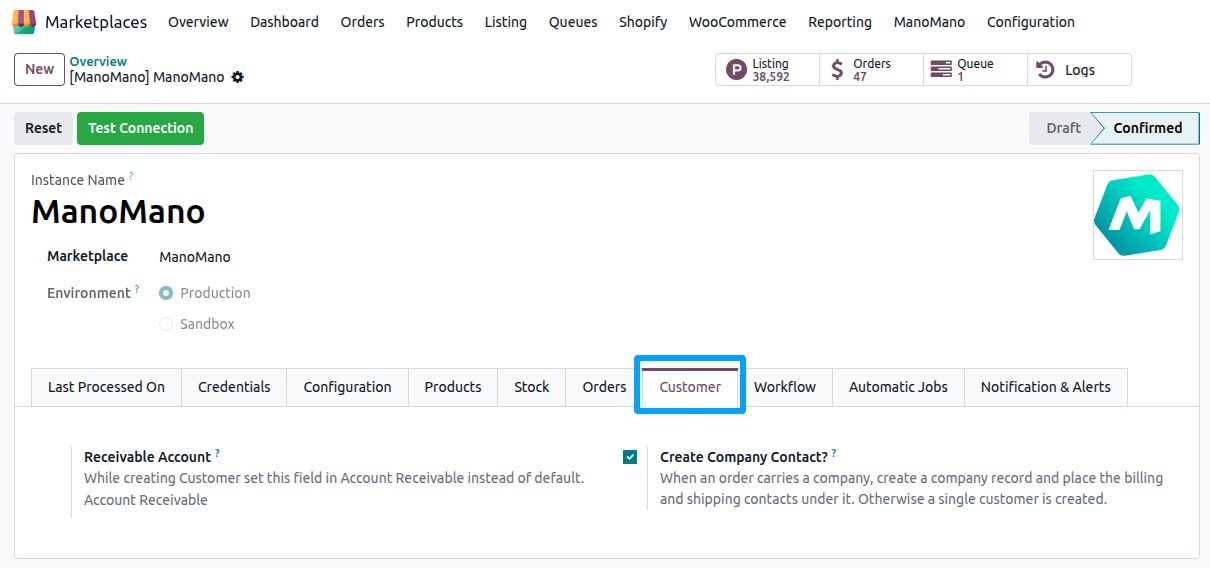
Receivable Account: Receivable account set on the customers the connector creates, instead of the default one.
Create Company Contact?: Create a company contact when the order carries a company. See Customer Creation During Order Import.
Workflow Configurations
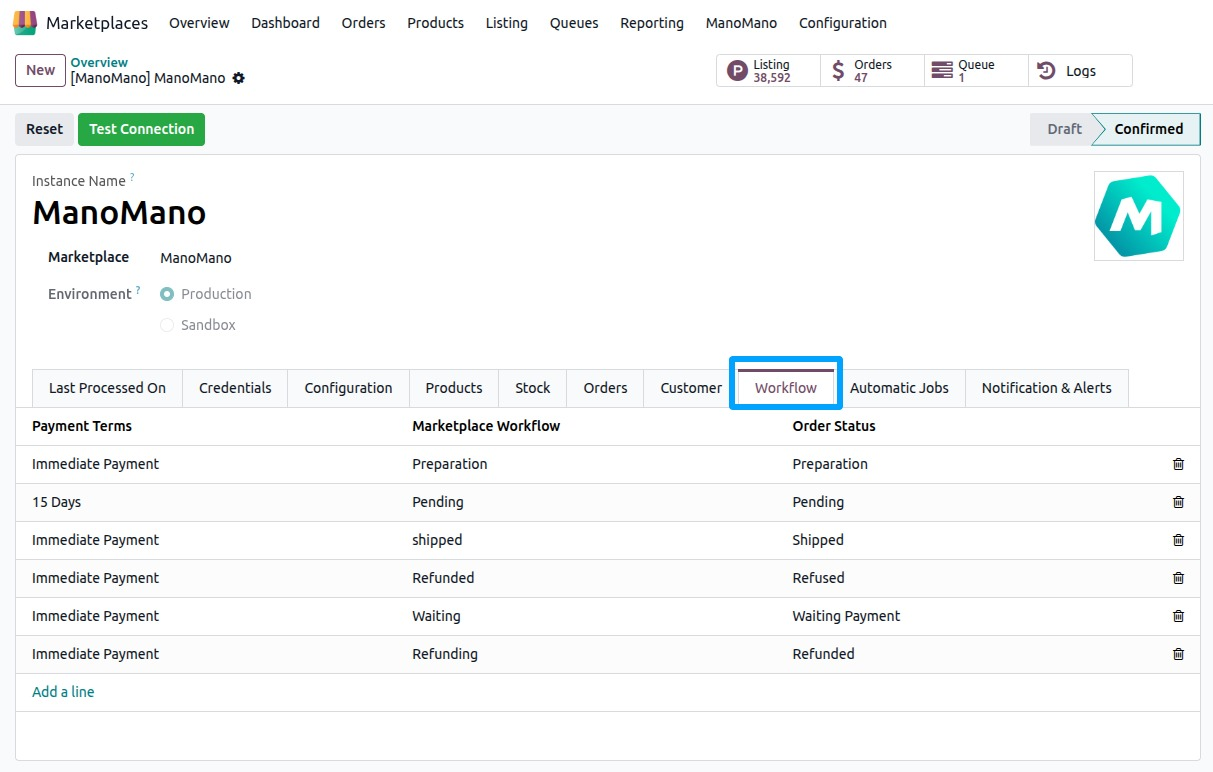
On the Workflow tab, the ManoMano Financial Workflow Configuration tells Odoo how to process each imported order based on its ManoMano order status. See ManoMano Order Workflow Configuration.
Automatic Jobs Configurations
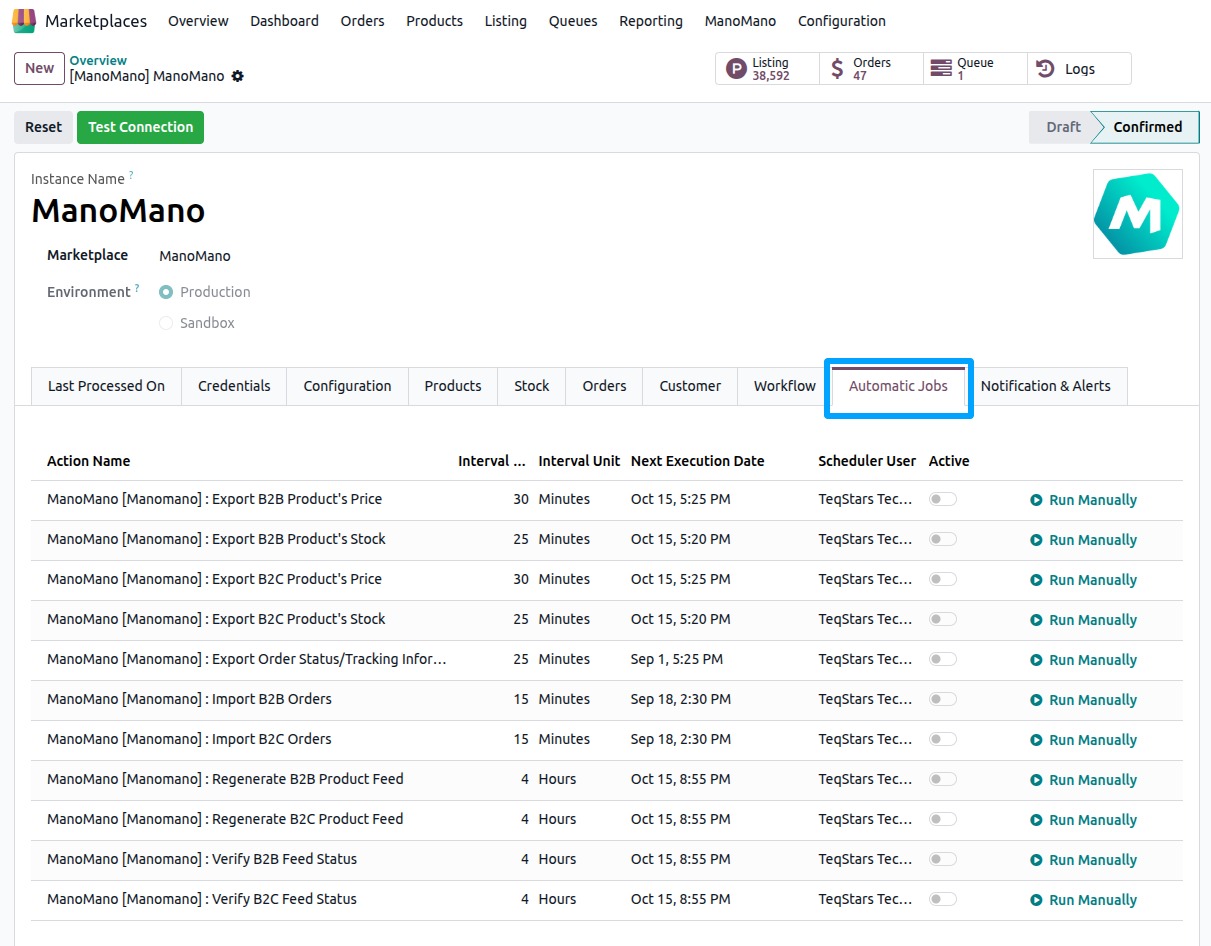
The Automatic Jobs tab lists the scheduled jobs of the instance. Each job runs on a schedule you set. Click Run Manually to run a job now.
Import B2B Orders and Import B2C Orders: Import new orders of each contract. See Import ManoMano Orders In Odoo.
Export Order Status/Tracking Information: Send the tracking of your validated deliveries to ManoMano. See ManoMano Update Order Status From Odoo.
Export B2B Product’s Stock and Export B2C Product’s Stock: Send the stock of your listed products. See Export Inventory From Odoo.
Export B2B Product’s Price and Export B2C Product’s Price: Send the price of your listed products. See Export Price From Odoo.
Regenerate B2B Product Feed and Regenerate B2C Product Feed: Rebuild the product feed of each contract. See Update Products From Odoo.
Verify B2B Feed Status and Verify B2C Feed Status: Check which products ManoMano confirms as live. See Export Products From Odoo.
Notification & Alerts
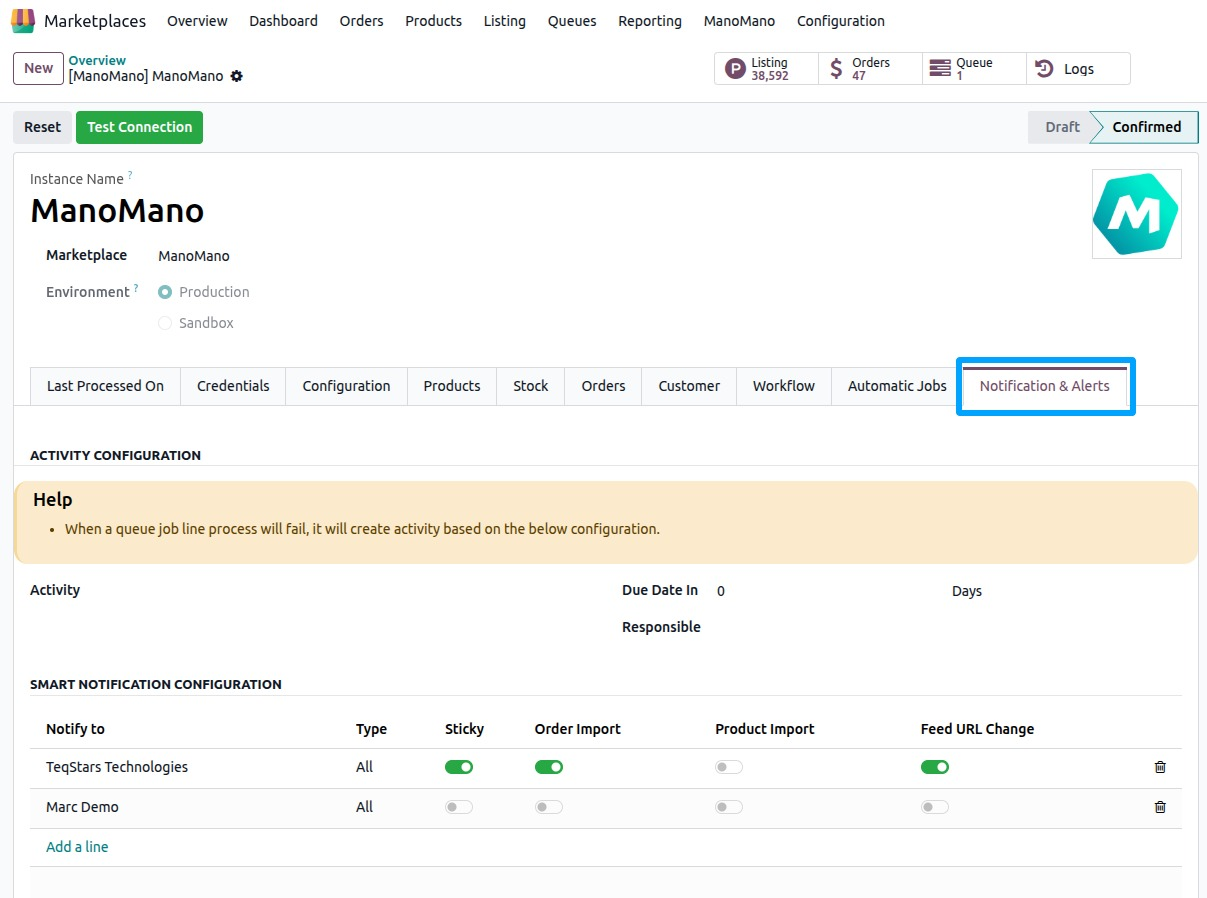
When a queue line fails, Odoo creates an activity based on this configuration:
Activity: Type of activity to create.
Due Date In and Due type: When the activity is due, in Days, Weeks or Months.
Responsible: User who receives the activity.
Last Processed On
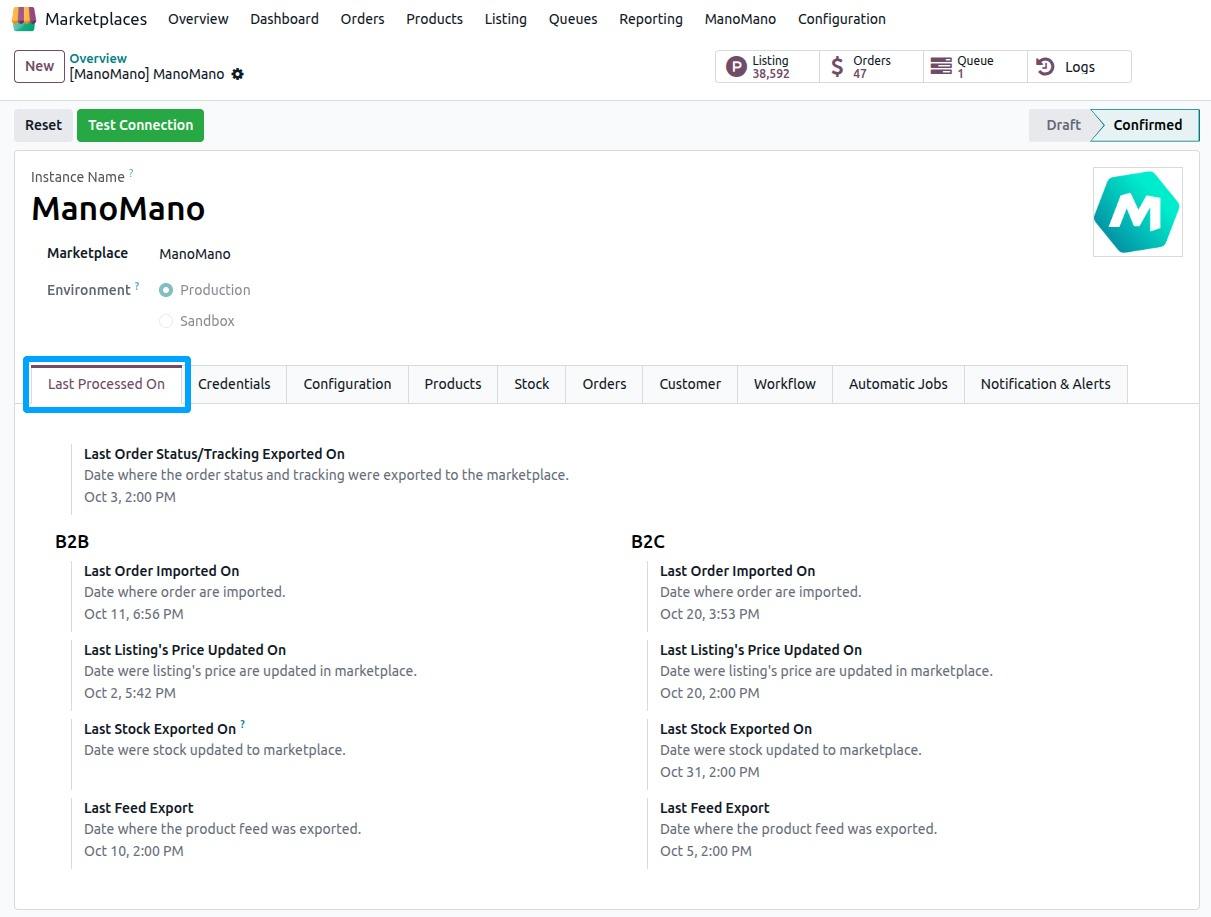
This tab shows when each sync last ran. The dates are grouped under B2B and B2C, because each contract syncs on its own:
Last Order Imported On: Date when orders were imported.
Last Listing’s Price Updated On: Date when listing prices were updated on ManoMano.
Last Stock Exported On: Date when stock was updated on ManoMano.
Last Feed Export (B2B) and Last Feed Export (B2C): Date when the product feed was exported.
Last Order Status/Tracking Exported On: Date when the order status and tracking were exported to ManoMano.
Confirming the Instance
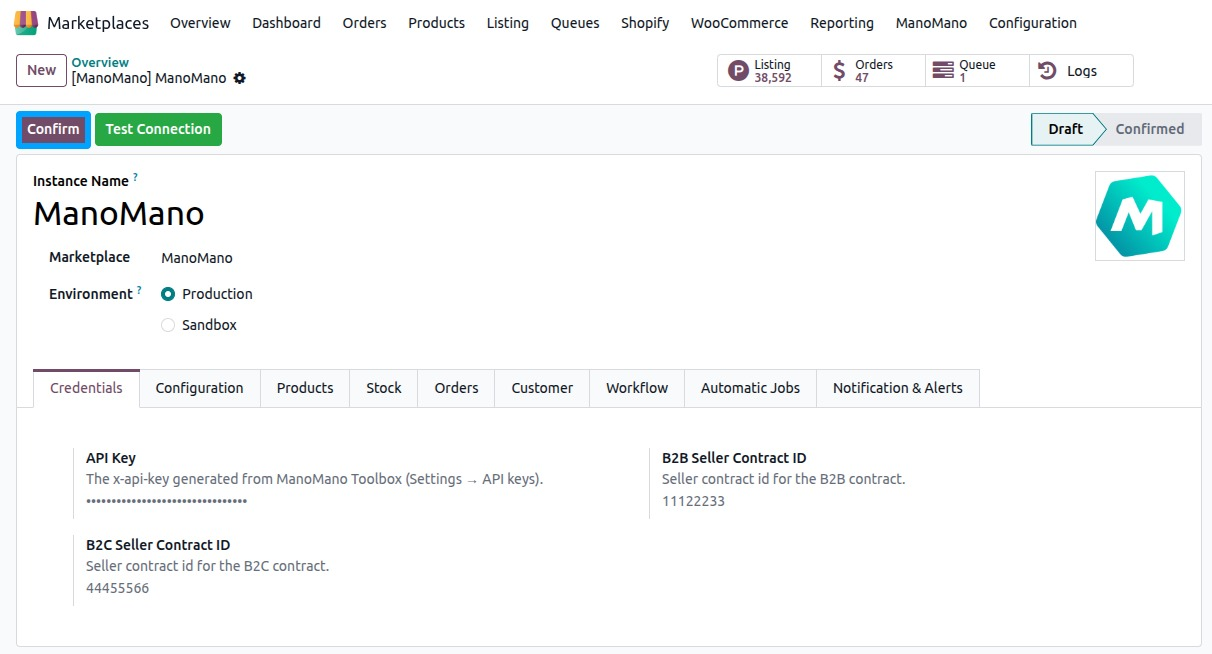
Once the instance is configured, click Confirm. Odoo:
Checks that at least one B2B Seller Contract ID or B2C Seller Contract ID is set on the Credentials tab. Otherwise it stops with a message.
Creates the pricelist of each seller contract.
Imports the ManoMano categories and brands.
The instance then becomes Confirmed.
Note
If the categories and brands cannot be imported after you confirm, Odoo logs the problem. Import them again from Import Categories From ManoMano and Import Brands From ManoMano.
Warning
Operations need the seller contract ID on the Credentials tab and a confirmed instance. Otherwise the operation stops with a message.
Stat Buttons
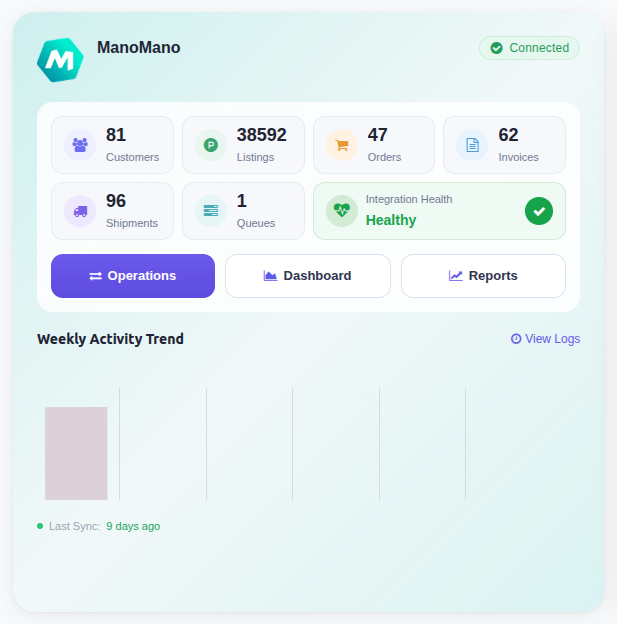
The buttons at the top of the instance open the records of this instance:
Customers: Customers created from ManoMano orders.
Listings: Your ManoMano listings.
Orders: Imported ManoMano orders.
Invoices: Invoices of those orders.
Shipments: Deliveries of those orders.
Queues: Queue jobs of the instance.
Logs: Logs of every operation of the instance.