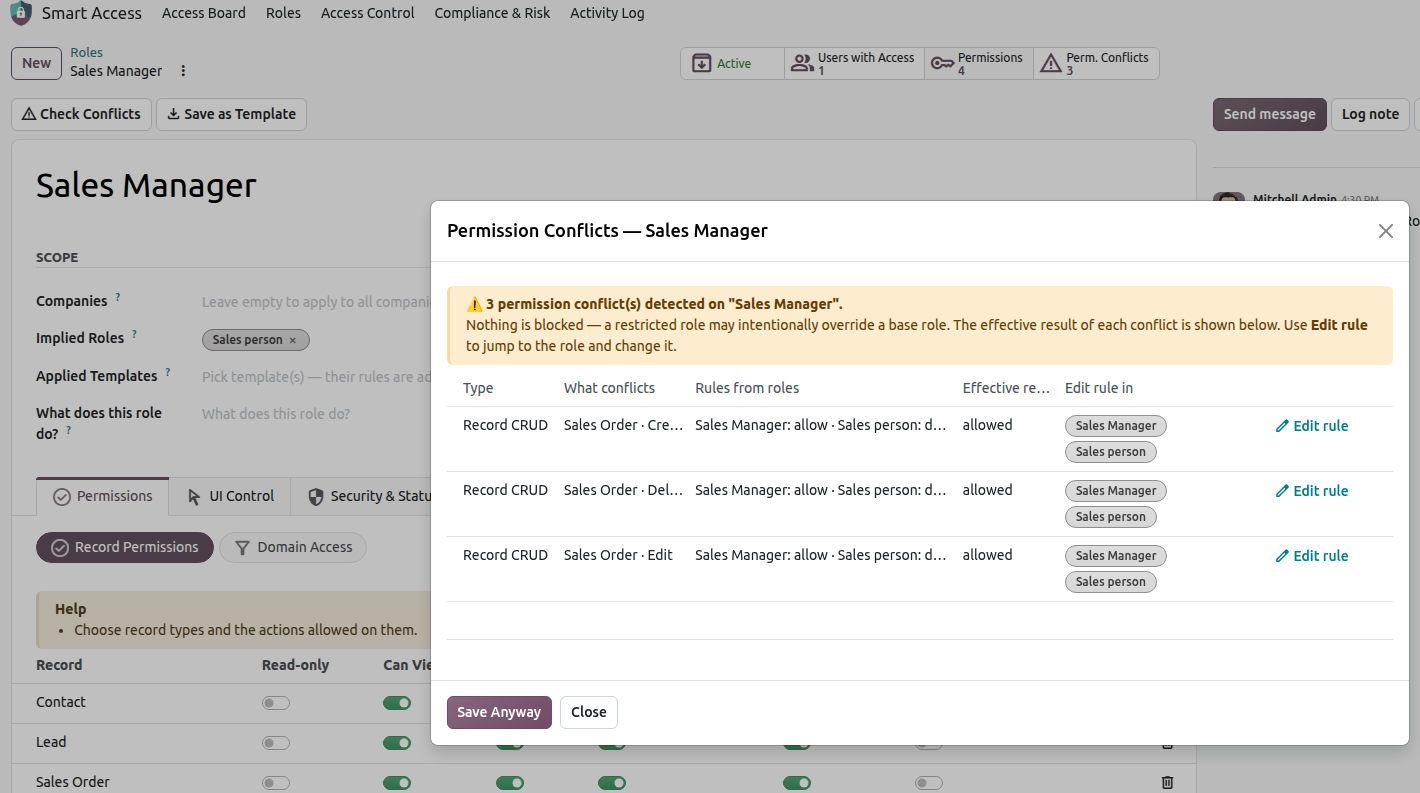
Permission Conflicts Between Roles
A user can hold several roles at once. When the rules in those roles overlap or contradict each other, Smart Access Manager finds the clash and shows it to you before you save. This page explains how to read the warning and what to do about it.
What a permission conflict is
A permission conflict happens when two or more roles held by the same users set rules on the same thing, and those rules do not agree. For example, one role allows a record type to be edited and another role makes it read-only.
A permission conflict is not the same as a Segregation of Duties conflict:
Permission conflict: the rules inside the roles overlap or contradict each other. The app shows you the clash and the result the user really gets.
Segregation of Duties conflict: two roles must never be held by the same person at all. You set these pairs in , and the app refuses the assignment unless you give a written reason to override.
When conflicts are detected
The app checks for permission conflicts when you save a role.
Go to .
Open a role, or create a new one.
Change its rules, for example in Record Permissions, Hide & Lock Fields or Filter Field Values.
Save the role.
If the role’s rules clash with rules from another role, a conflict warning opens before the save is done. If there is no conflict, the role saves as usual.
Reading the conflict warning
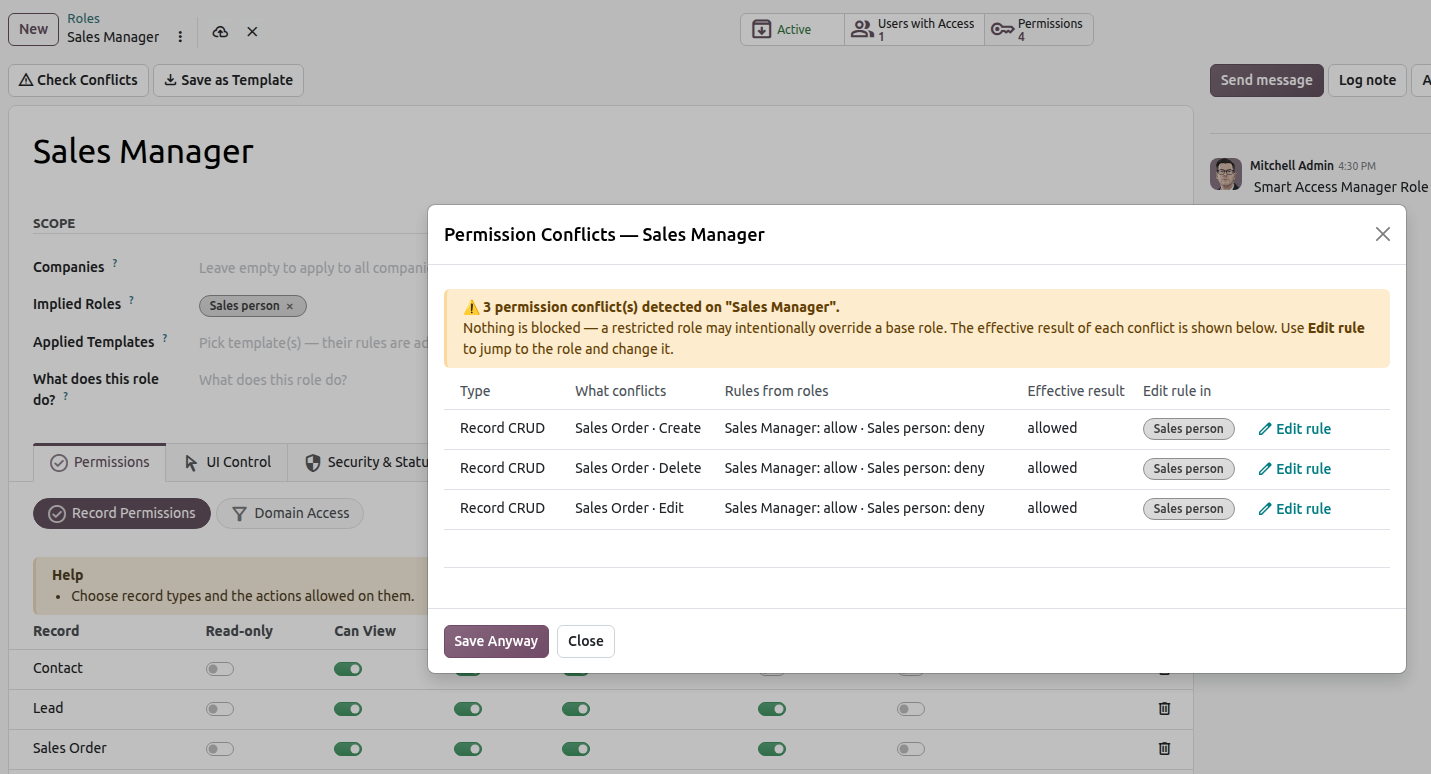
The warning shows the Role you are saving, a short Summary, and a list of Conflicts. Each line in the list is one conflict. Its Type tells you what kind of rule clashes, for example Record CRUD for view, edit, create and delete rights on a record type.
What conflicts
What conflicts names the thing the rules disagree about, such as a record type or a field.
Rules from roles
Rules from roles lists the rule each role sets on that thing, so you can see side by side which role says what.
Effective result
Effective result shows what the user really gets once all their roles are combined. Check it first: if the result is what you want, you may not need to change anything.
Fixing a conflict
Each conflict line tells you where to make the change and gives you a button to go there.
Edit rule in shows the role that holds the rule you need to change.
The Edit rule button opens that rule so you can change it.
In the conflict warning, find the line you want to fix.
Check Edit rule in to see which role the rule belongs to.
Click Edit rule.
Change the rule so it no longer clashes, then save.
Saving anyway
Sometimes the overlap is on purpose and the Effective result is exactly what you want. In that case, click Save Anyway. The role is saved with its rules as they are, and the conflict stays on record on the role.
Reviewing conflicts on the role
You can look at a role’s conflicts at any time, not only when you save it.
Go to .
Open the role.
Look at Permission Conflicts. It lists each conflict with the same details as the warning: What conflicts, Rules from roles, Effective result and Edit rule in.