
Export Products From Odoo
With Export Listings, you can create a new product on TikTok Shop from Odoo, including its details, price, inventory, images, category, brand and attributes. To export listings from Odoo to TikTok Shop, follow these steps.
Before You Export
TikTok Shop will not create a product unless it is fully described. Each listing needs:
A TikTok Category: a leaf category of the shop’s tree. See Import Category Attributes, Brands & Rules.
All required attributes filled in, and each variant value mapped where the category’s attribute does not accept a value of your own. See Attribute Mapping.
At least one variant, each with an internal reference (SKU) of at most 50 characters and no spaces.
Between one and nine images, and a title of the length your market allows.
A Pricelist on the instance, and a TikTok sales warehouse that is not restricted, is set to export stock and has a Stock Location.
Tip
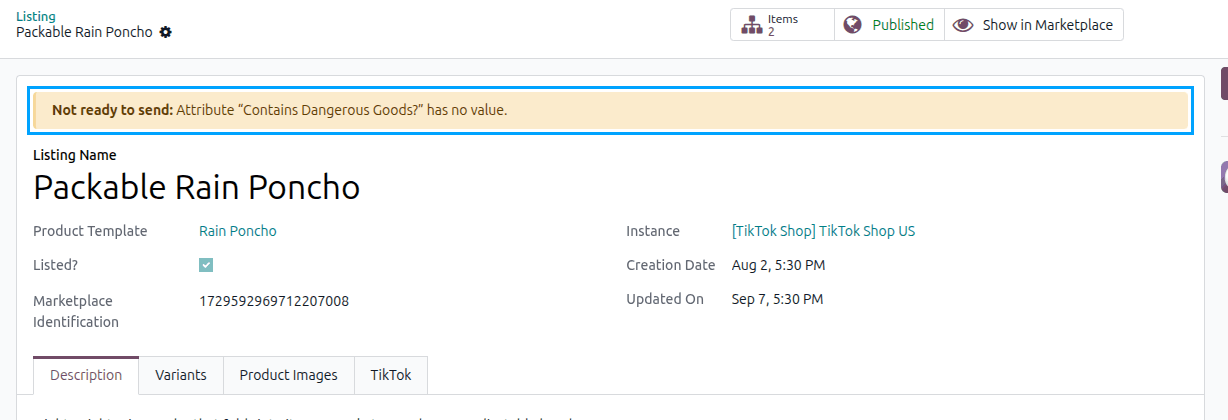
The yellow Not ready to send banner on the listing names what its category still asks for, such as a required attribute. The rest (pictures, SKUs, title length) is checked when you export, and anything missing is written to the log.
Step 1: Add Products To Listings
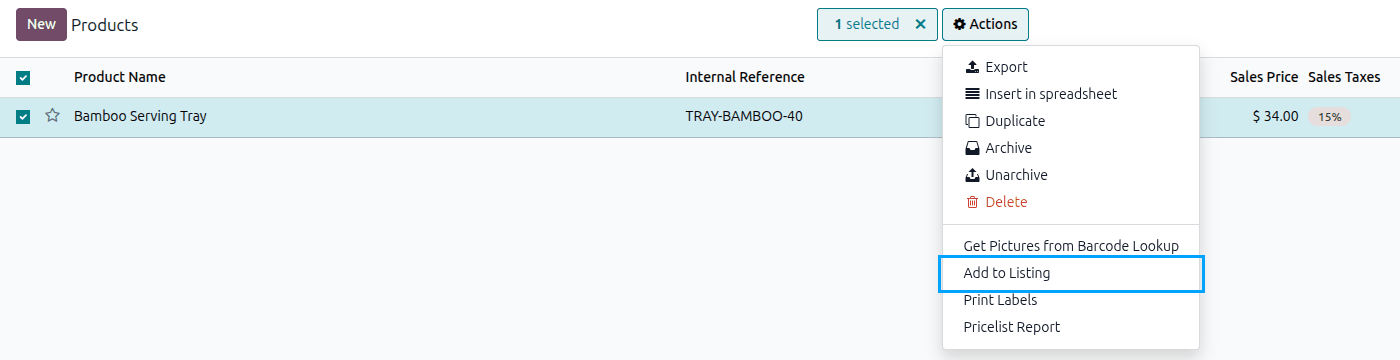
Go to . Select the products you want to sell on TikTok Shop.
From the action dropdown, choose Add to Listing.
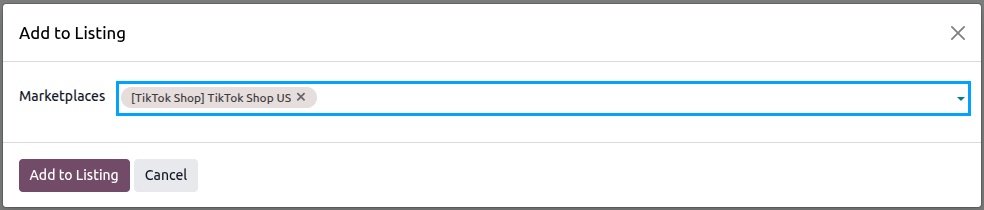
In the popup, select the TikTok Shop instance and click Add to Listing.
The selected products now appear in . From there, complete each listing’s TikTok tab: category, brand, attributes, package weight and dimensions.
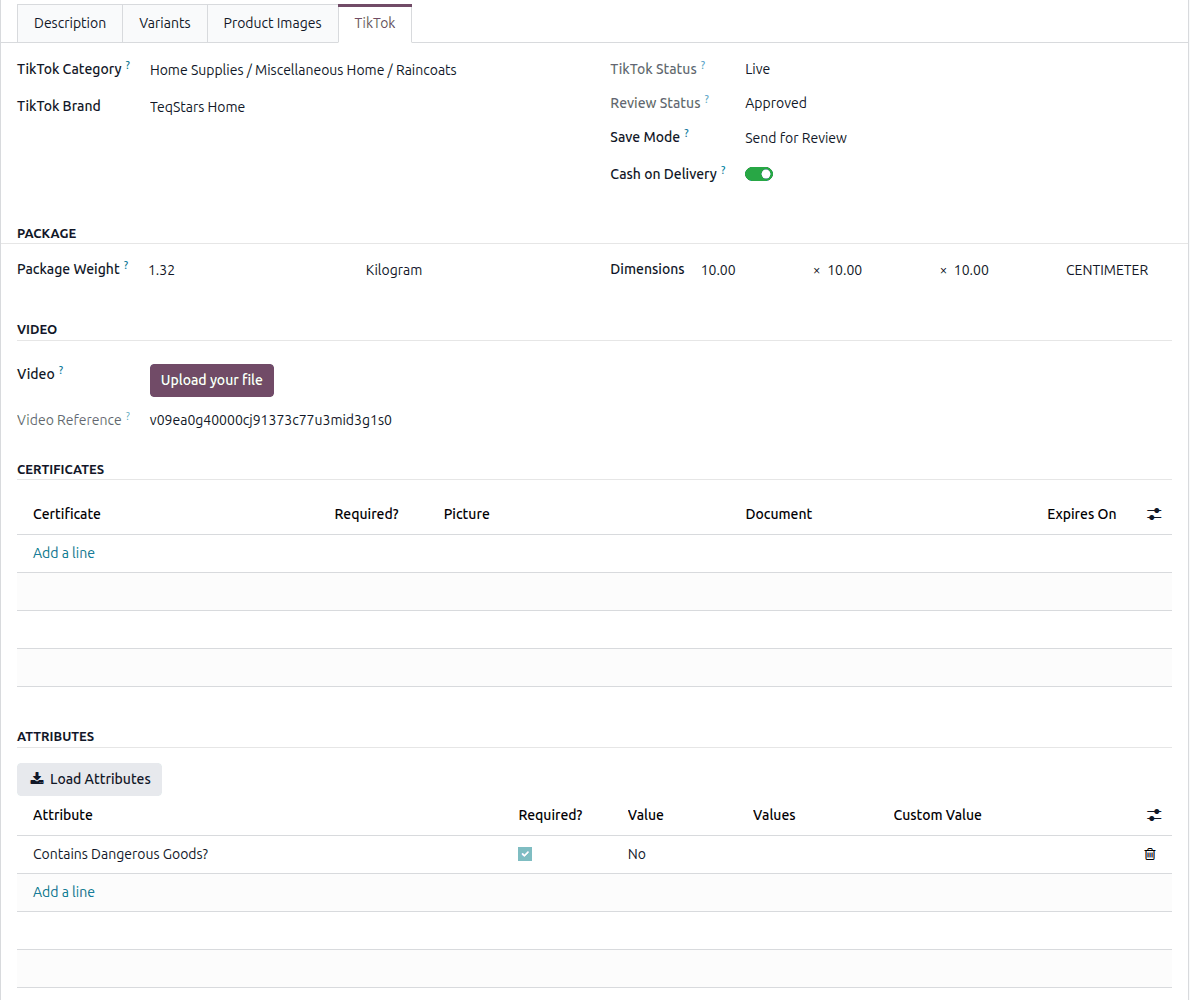
TikTok Category: a leaf category of the shop’s tree. Choosing another category clears the attribute lines, and a brand the new category does not allow.
Load Attributes: adds a line for each required attribute of the chosen category, reading the category from TikTok Shop first if it has not been read yet.
TikTok Brand: only the brands available in that category can be chosen.
Package Weight, and Package Length, Package Width and Package Height in their Dimension Unit: what the packed product weighs and measures. Some categories require the dimensions.
Cash on Delivery: offered where both the category and your market support it.
Size Chart and Certificates: sent where the category takes them. A certificate names its Certificate, its Picture or Document and, where needed, the date it Expires On.
Video: sent whenever the listing has one.
Manufacturers and Responsible Persons: where the market and the category ask for them. See Manufacturers And Responsible Persons.
Save Mode:
Send for Reviewsubmits the product;Save as Draftkeeps it as a draft on TikTok Shop.
Step 2: Choose An Export Method
You can export listings in two ways:
Method - 1: From The Operation Popup
Go to the menu in Odoo.
Click on the
Operationsbutton from the instance record.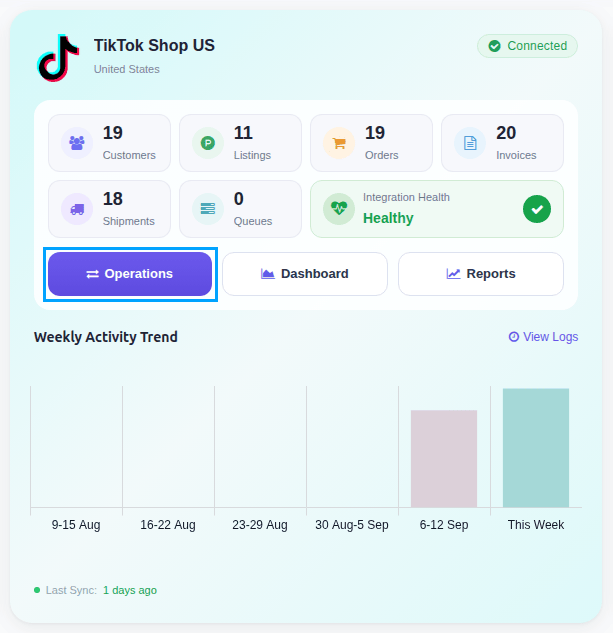
Select Export Operation and then select Export Listings option.
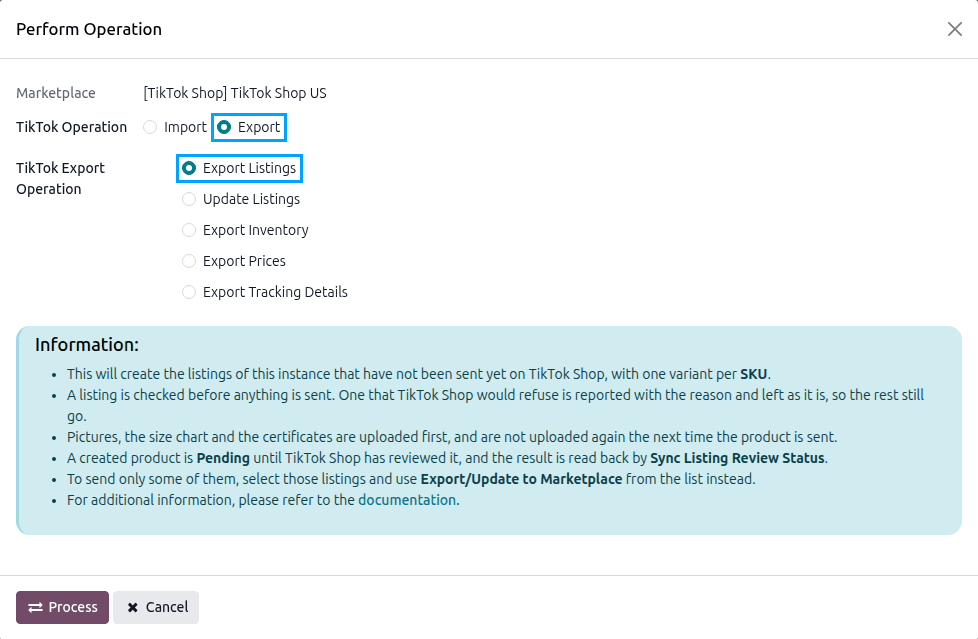
Press
PROCESSbutton. Every listing of the instance that is not yet on TikTok Shop is sent.
Method - 2: From The Listing View
Go to and select the listings that are not yet exported (Listed? is not ticked).
Click Export/Update to Marketplace.
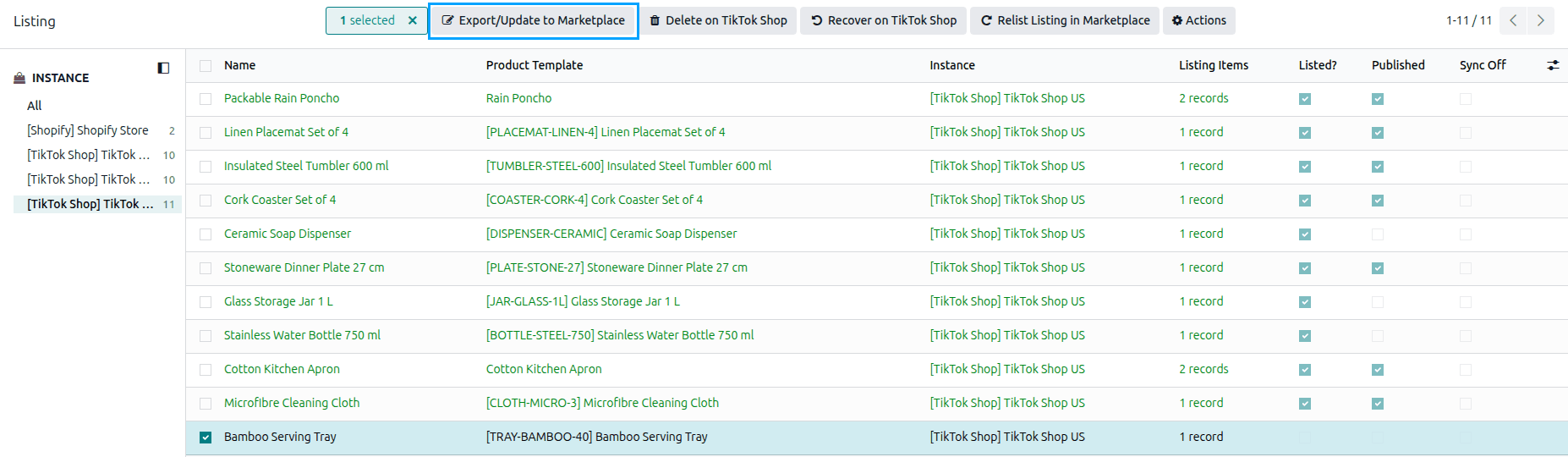
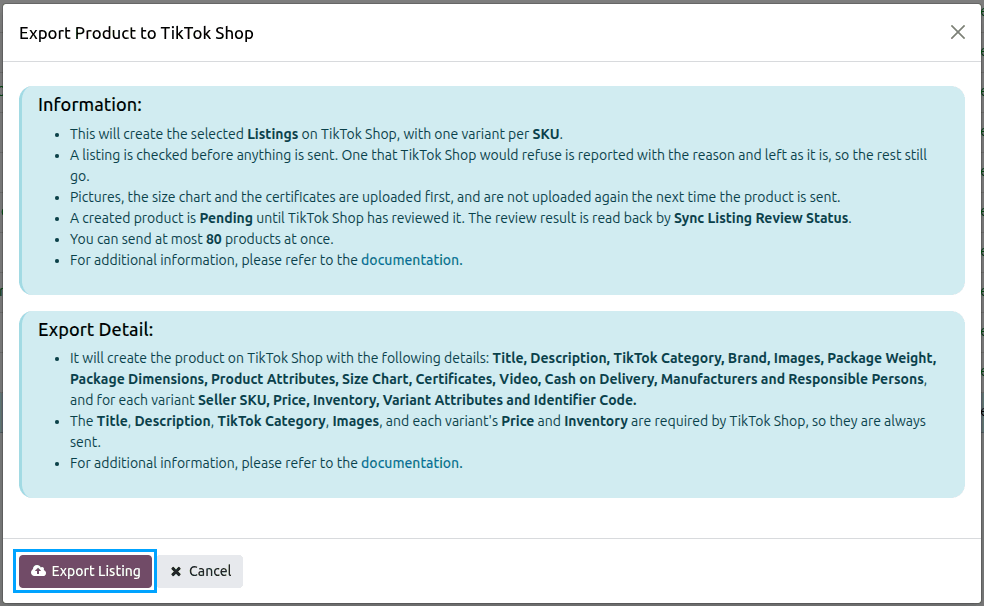
The connector detects that the listings are not yet exported and opens the Export Product to TikTok Shop popup. Click Export Listing.
Note
Select only listings that are not yet on TikTok Shop. Listings already exported open the update popup instead. See Update Products From Odoo.
Important
At most 80 products can be sent at once, because TikTok Shop creates a product one request at a time. Select fewer and export again for the rest.
What Gets Exported
For the product: Title, Description, TikTok Category, Brand, Images, Package Weight, Package Dimensions, Product Attributes, Size Chart, Certificates, Video, Cash on Delivery, Manufacturers and Responsible Persons, and for each variant: Seller SKU, Price, Inventory, Variant Attributes and Identifier Code.
A listing is checked before anything is sent. One that TikTok Shop would refuse is reported with the reason and left as it is, so the rest still go.
Pictures, the size chart and the certificates are uploaded first, and are not uploaded again the next time the product is sent.
After The Export
A product sent with Save Mode Send for Review is Pending until TikTok Shop has reviewed it; one
sent with Save as Draft stays a Draft. The verdict is read back by the
Sync Listing Review Status scheduled action and shown on the listing as its Review Status. See
Manage Product Status.