
Reconcile TikTok Shop Payouts
A payout is one transfer TikTok Shop makes to your bank, settling the statements it carries.
Payouts are read by the statement import, both when you run it and when its scheduled action runs. See Import TikTok Shop Statements In Odoo.
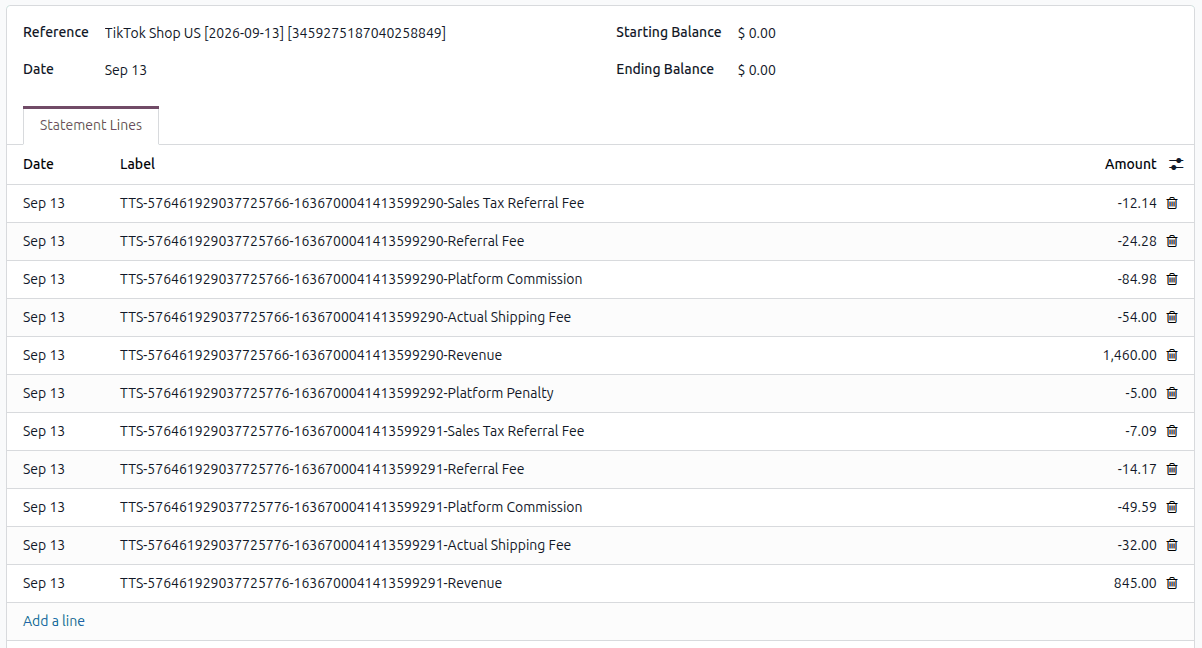
Each payout raises a bank statement in the Statement Journal of the instance, which is then reconciled against the invoices and the accounts mapped in Statement Account Configuration.
The Payouts
The payouts are listed under .

Each payout shows its Payout ID, Amount and Currency. If the money was converted, you also see the Exchange Rate and the Amount Before Exchange. The payout also shows the Bank Account it was paid into and the dates it was started and paid (Initiated On and Paid On). It lists the Statements it settles and their Settled Amounts. Its status says how far it has got:
Status |
What it means |
|---|---|
Draft |
Read from TikTok Shop; no bank statement yet. |
Processing |
Its bank statement exists, and some lines are still unreconciled. |
Validated |
Every line of its bank statement is reconciled. |
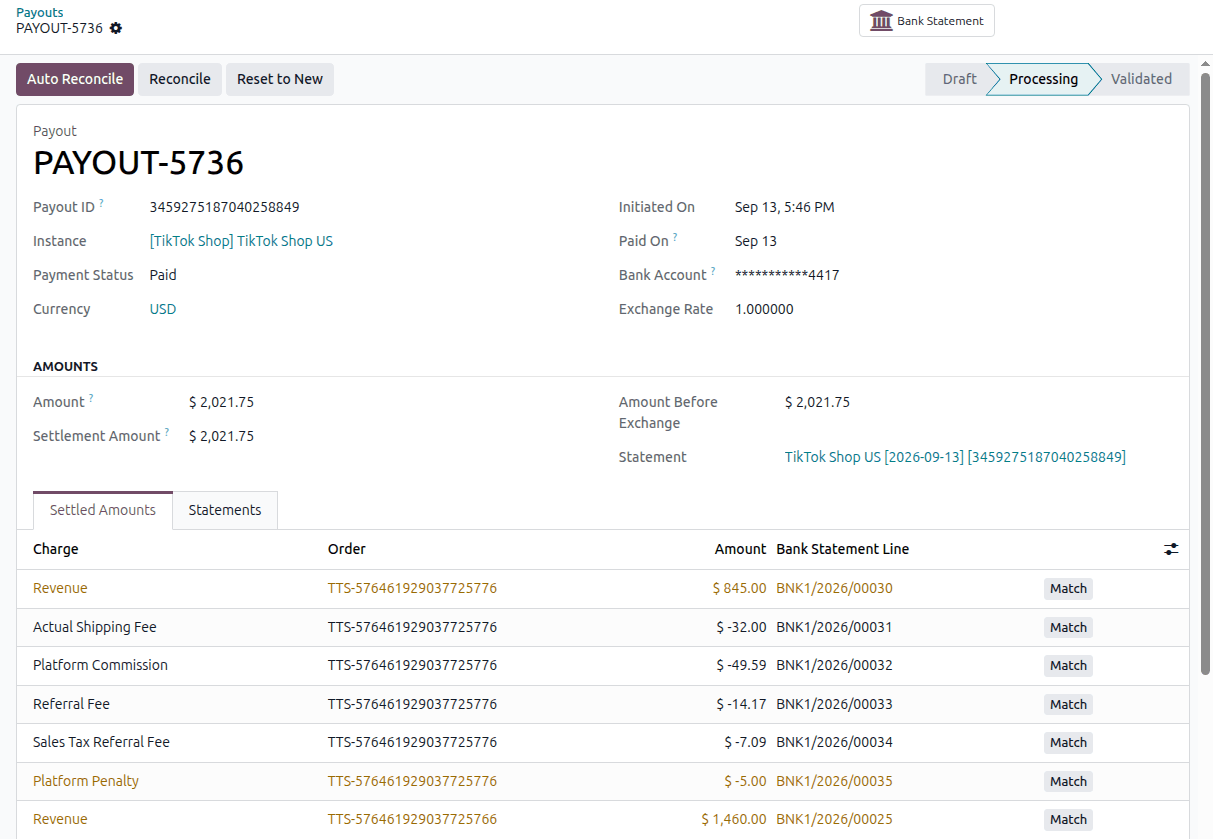
Step 1: Post
The statement import raises the bank statement of every payout once every statement it carries is paid, because until then what reaches the bank is not final. To raise it yourself, open a Paid payout in Draft and click Post.
The payout moves to Processing, and its bank statement opens from the Bank Statement stat button.
Step 2: Reconcile
Auto Reconcile
Click Auto Reconcile to match the bank statement lines against the invoices, and to post every other amount to the account mapped for its transaction type.
Note
Auto Reconcile requires the Accounting application from Odoo Enterprise. In Odoo Community it stops with “Auto Reconcile is not supported in Community.” The bank statement is created in Community too; reconciling it needs the Accounting application of Odoo Enterprise.
Tip
To have this happen the moment the statements are imported, enable Auto Process Statements? on the instance’s Finance tab. It also requires Odoo Enterprise.
Reconcile
Click Reconcile to open Odoo’s standard bank reconciliation view and match what is left by hand. It also requires the Accounting application from Odoo Enterprise; in Odoo Community it stops with a message saying so.
When every line is reconciled, the payout becomes Validated.
Starting Over
Click Reset to New on a payout in Processing to undo its reconciliations and remove its bank statement, so it can be posted again.