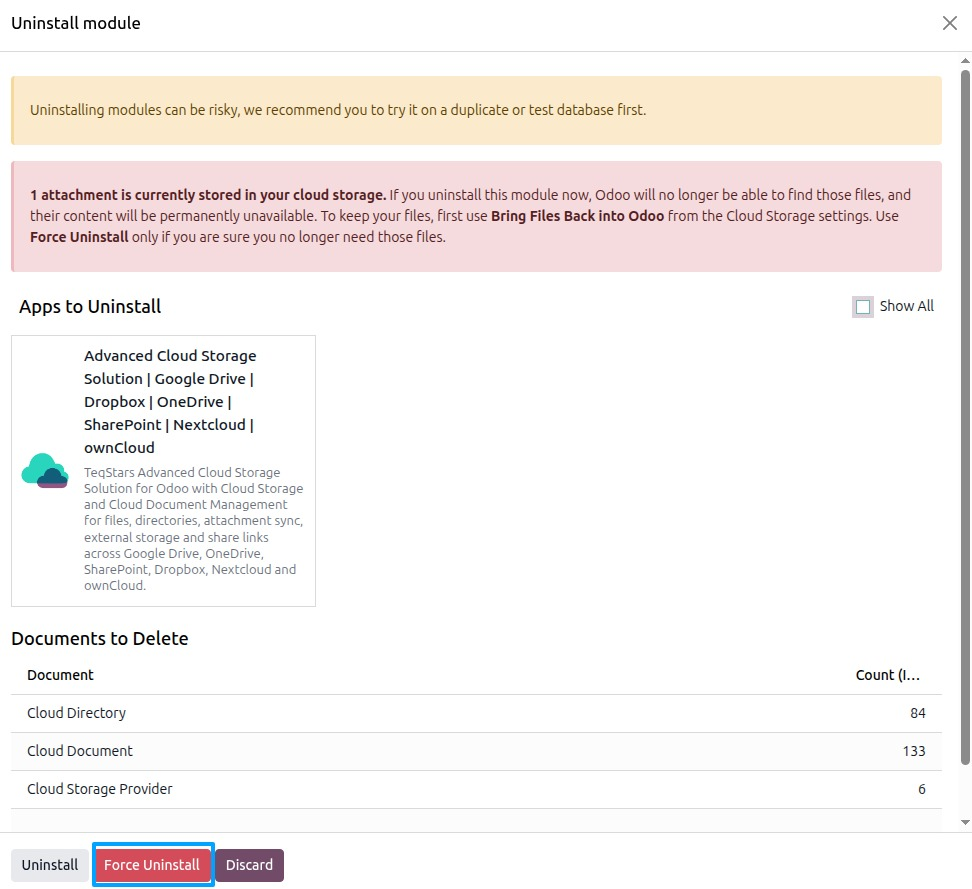
Move Attachments to External Storage
Odoo keeps attachment files in its filestore on your server. With Move Attachments to External Storage, the app moves those files to your connected cloud to reduce Odoo storage usage. The attachment records stay in Odoo, so nothing breaks. The move is fully reversible.
How much room you get back depends on how much of your storage is business attachments. Odoo’s own files, such as avatars and product images, stay where they are.
Move attachments to external storage
Turn it on for all attachments
Go to .
Tick Move Attachments to External Storage.
Save.
The app moves attachment files off your server onto your cloud.
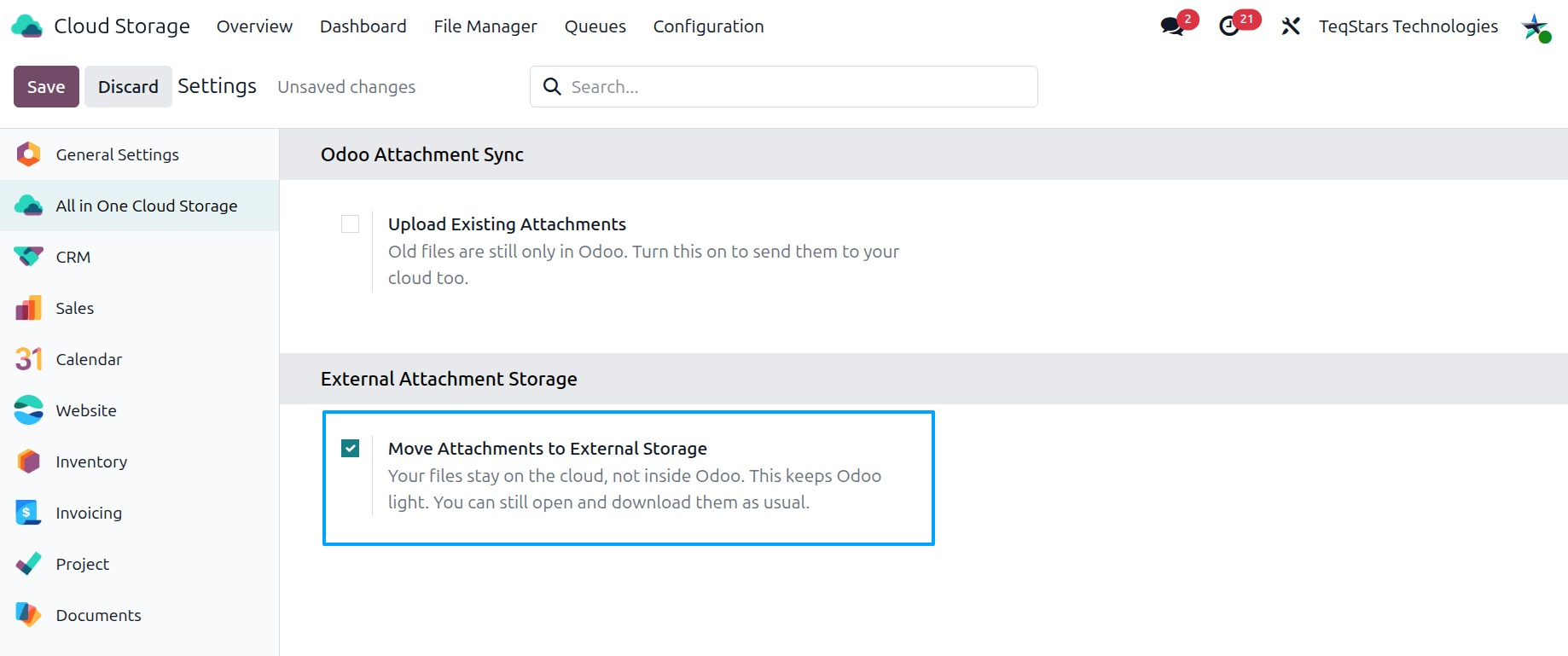
Move one attachment
You can also move a single attachment.
Open the attachment.
Click Move to External Storage.
The button shows only on attachments that can move to external storage.
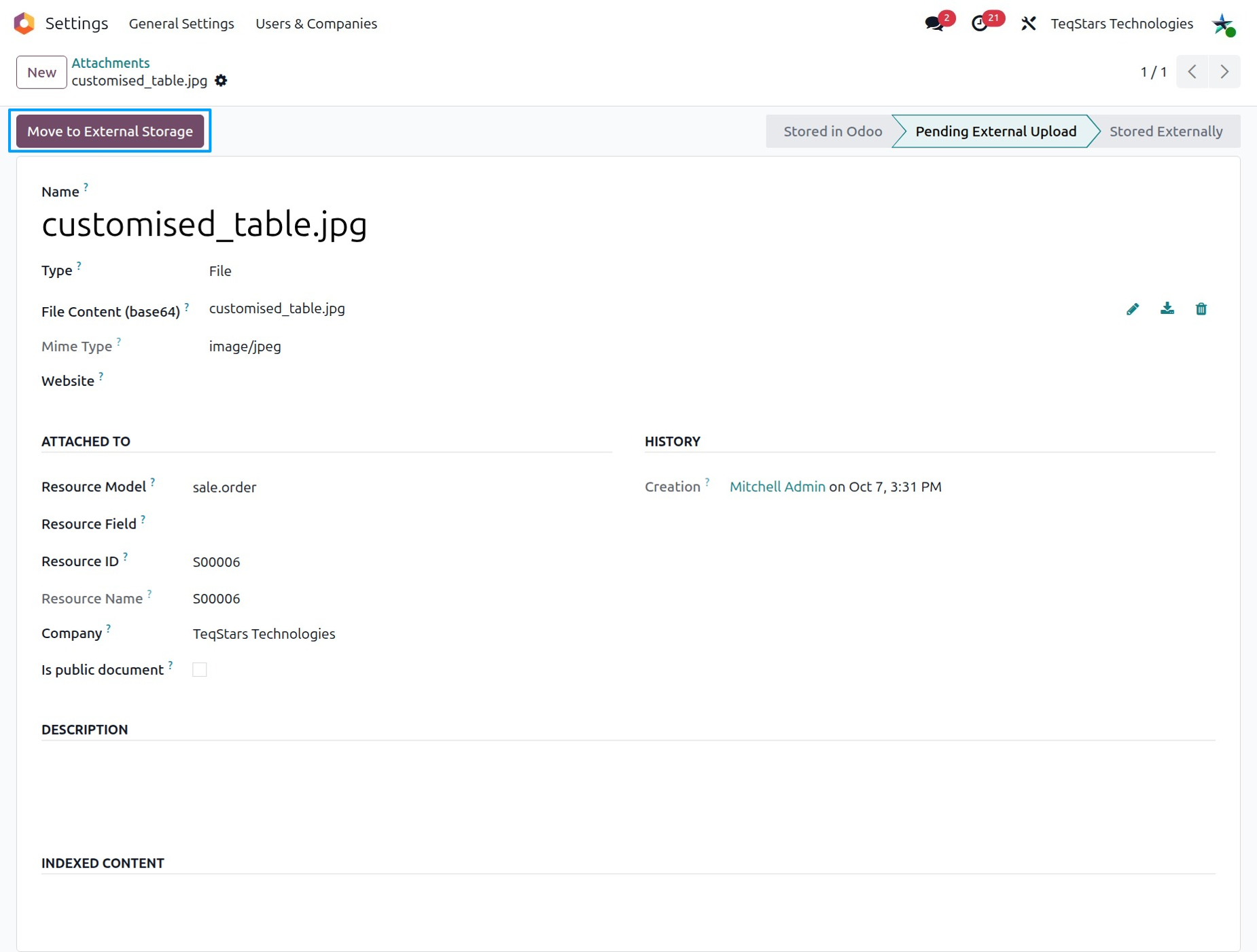
External copies of an attachment
Once an attachment is moved, its form shows the External Copies list. Each line is one copy on a cloud, with:
Provider: the cloud connection that holds the copy.
External File ID: the ID of the file on that cloud.
External UID: the unique ID of the file on that cloud.
External URL: the link to the file on that cloud.
Status: where the copy stands.
Attempts: how many times the app tried to store the copy.
Last Attempt: when the app last tried.
Last Error: the last problem, if any.
If a copy shows an error, check Last Error. You can find more in the activity logs, see Monitor Provider Health and Activity Logs.
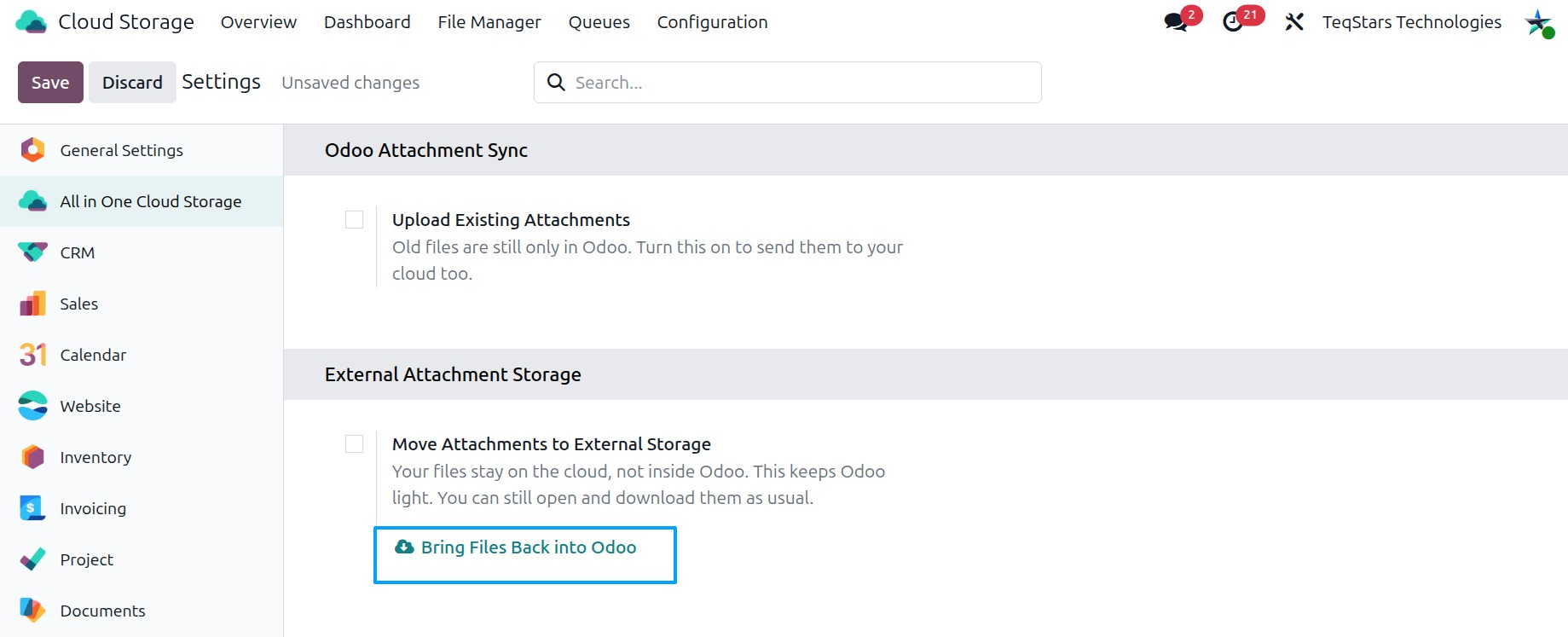
Bring files back into Odoo
You bring files back from the settings. There is no button to bring back a single attachment.
Go to .
Clear Move Attachments to External Storage and save. Do this first, so the app does not move the files out again.
Click Bring Files Back into Odoo.
The app brings the files back into the Odoo filestore.
Uninstall with files stored outside Odoo
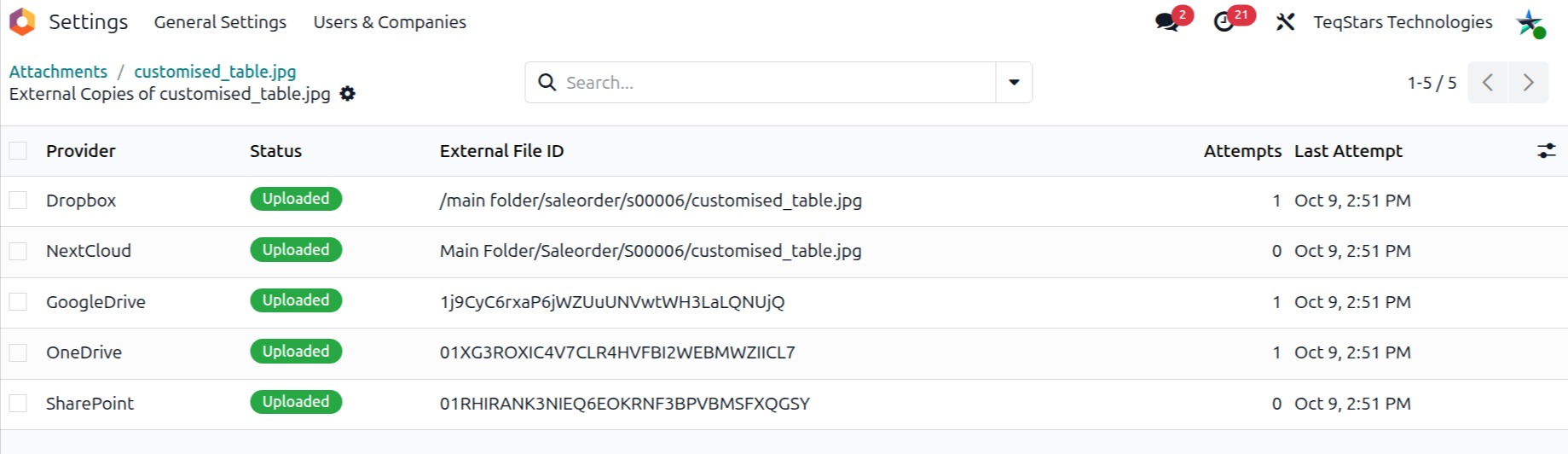
When you uninstall the app while files are still stored outside Odoo, the uninstall dialog lists them under Attachments Stored Outside Odoo.
To keep these files in Odoo, cancel the uninstall and bring them back first, see Bring files back into Odoo. Then uninstall again.
If you still want to uninstall right away, click Force Uninstall. Do this only when you no longer need the listed files in Odoo.