Credit Card & Wallet Payments
Card Checkout Workflow
On the website checkout or portal invoice pay page, the customer selects Braintree.
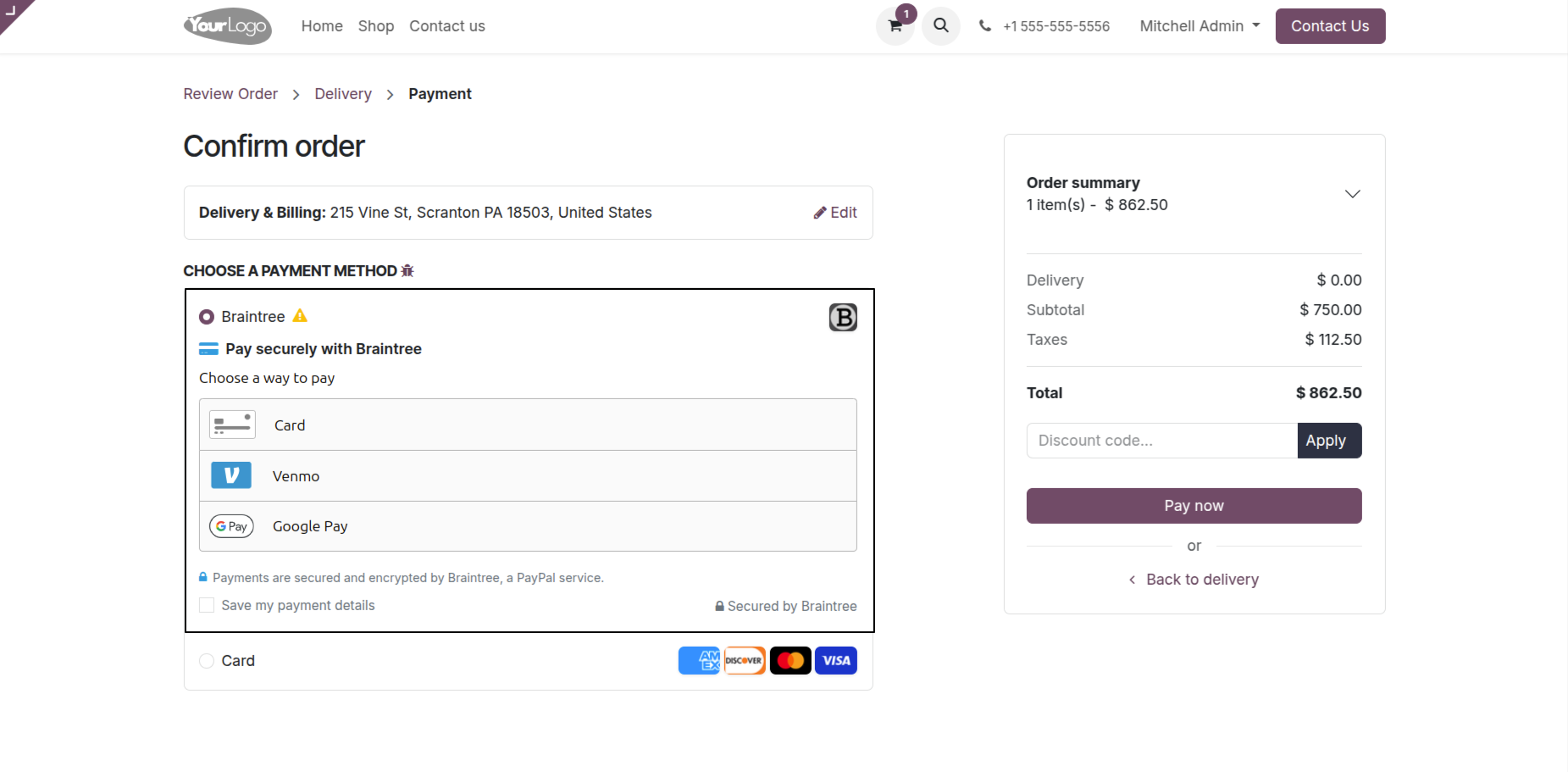
The Braintree Drop-in UI renders securely inline.
The customer enters card details or selects a digital wallet (Google Pay, Apple Pay, or Venmo).
Ticking Save my payment details vaults the card for future one-click checkouts.
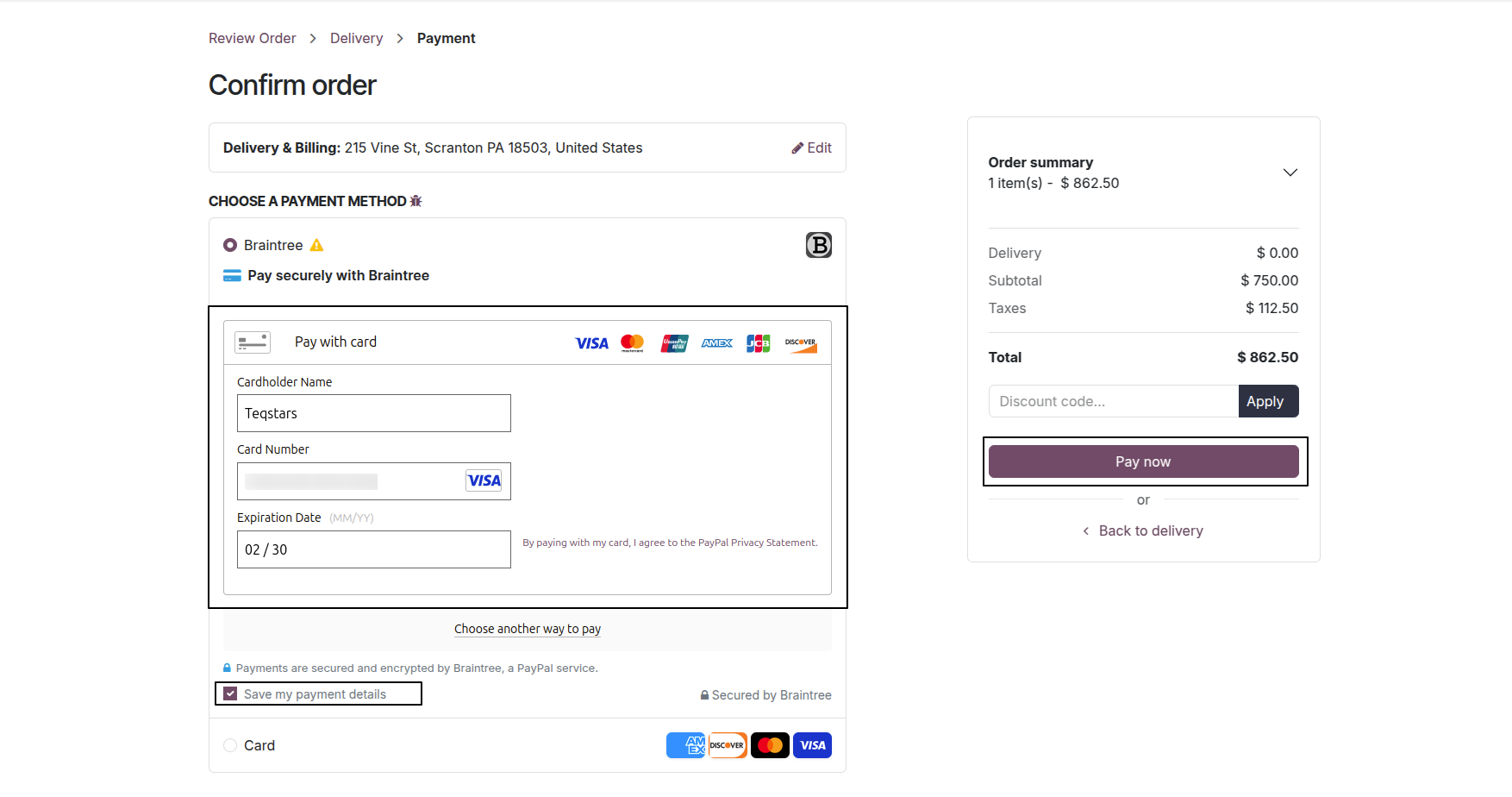
If 3D Secure is enabled, a bank challenge popup prompts the user for verification.
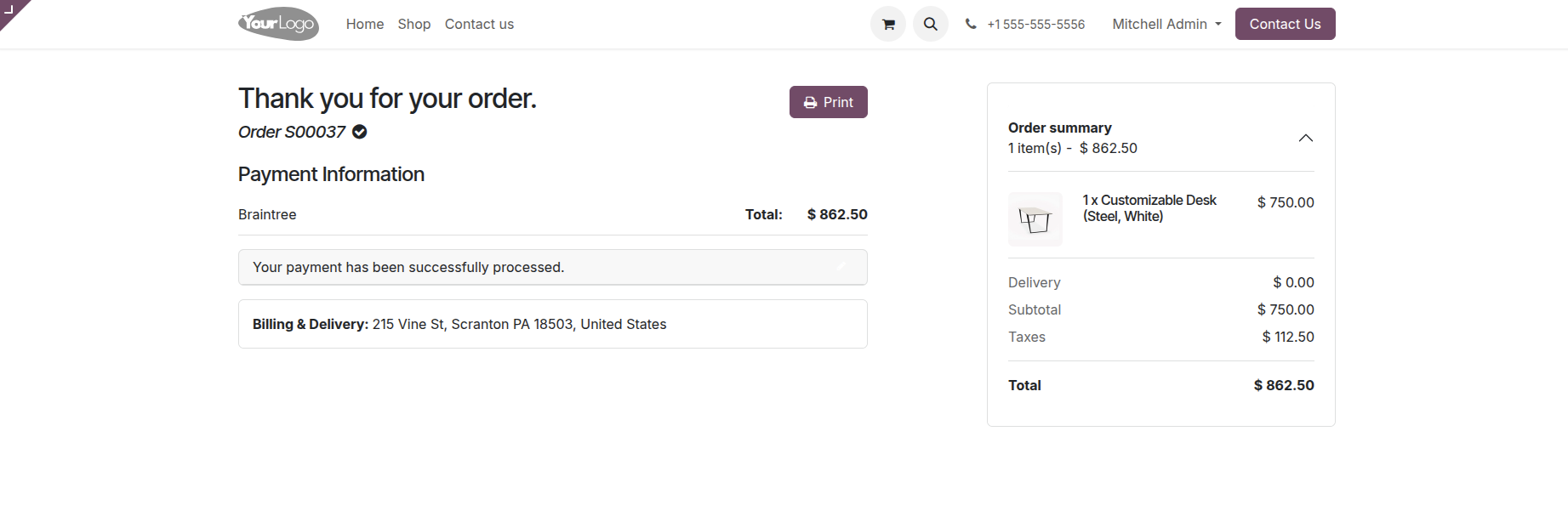
Upon completion, the customer receives an instant payment confirmation.
Backend Transaction Record
In Odoo, the payment transaction state moves to Done (or Authorized if manual capture is enabled).
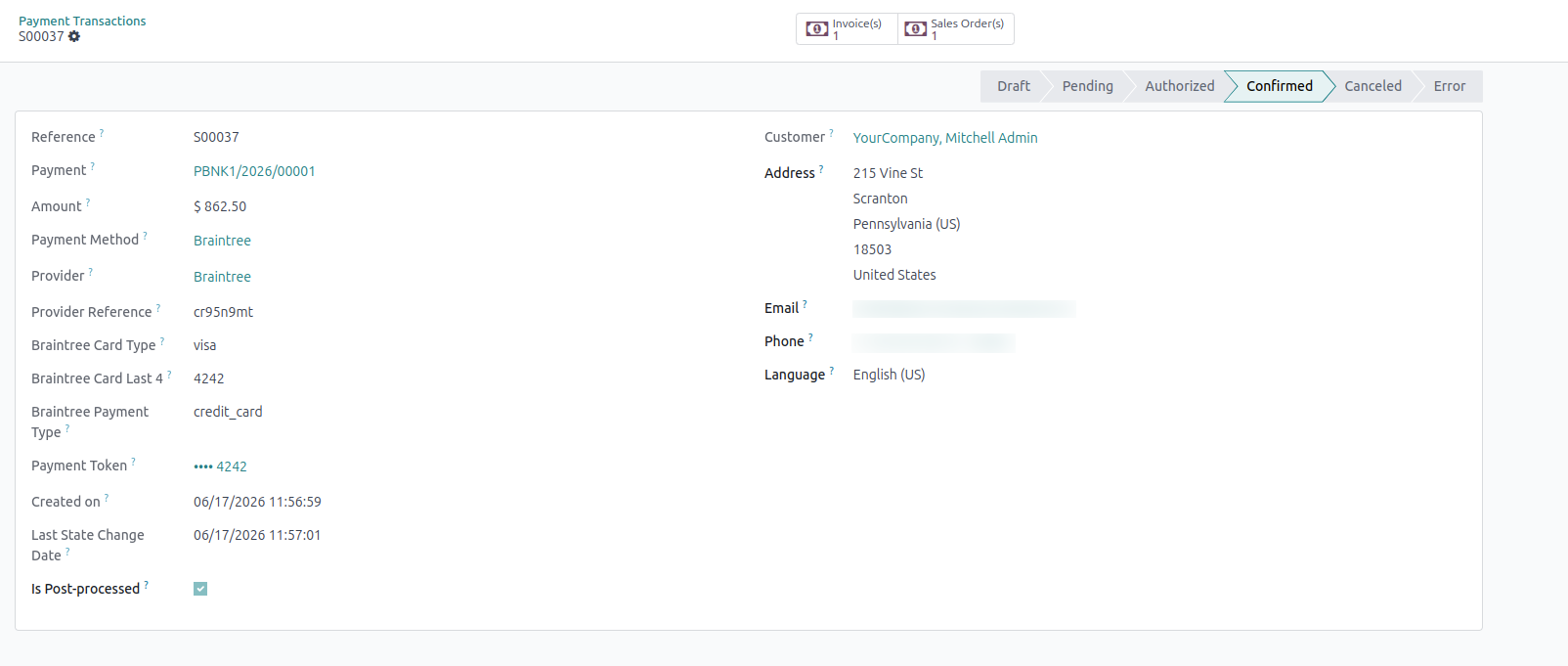
The transaction captures:
- Provider Reference: Braintree transaction ID.
- Braintree Card Type: the card brand, for example Visa or Mastercard.
- Braintree Card Last 4: e.g., 1111.
- Braintree Payment Type: the type of payment method, for example a card or an ACH bank account.
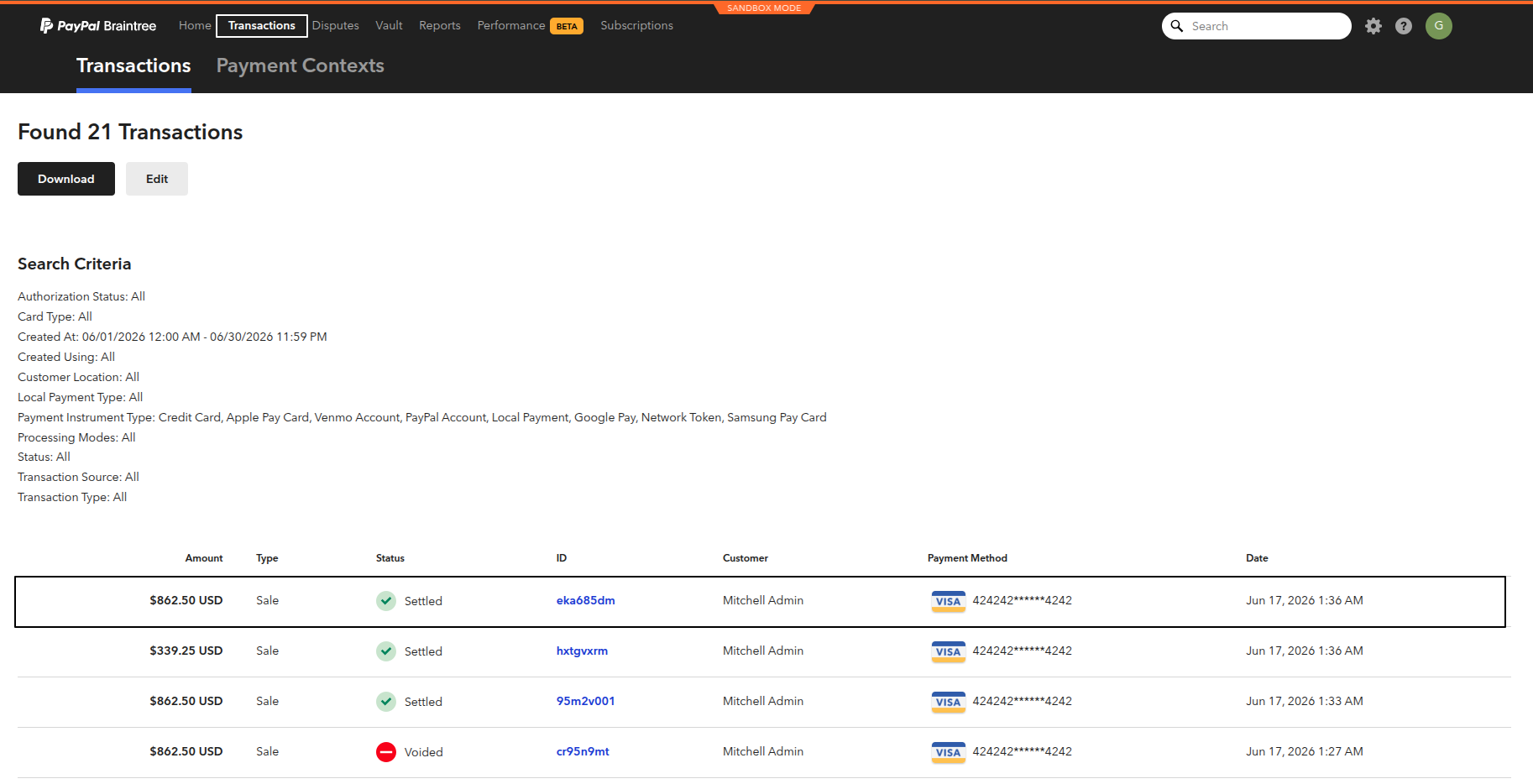
The corresponding transaction appears in settled status in the Braintree Control Panel: