
Reconcile Walmart Settlement Reports
Note
Settlement reports are available for the United States marketplace only. See Walmart Supported Marketplaces.
Once a settlement report has been imported, reconciling it turns Walmart’s breakdown into accounting entries: a bank statement matching the payment Walmart made, with each charge either matched to an invoice or posted to the right account.
Start from and open a report. See Import Walmart Settlement Reports.
Step 1: Post The Settlement Report
Click Post.
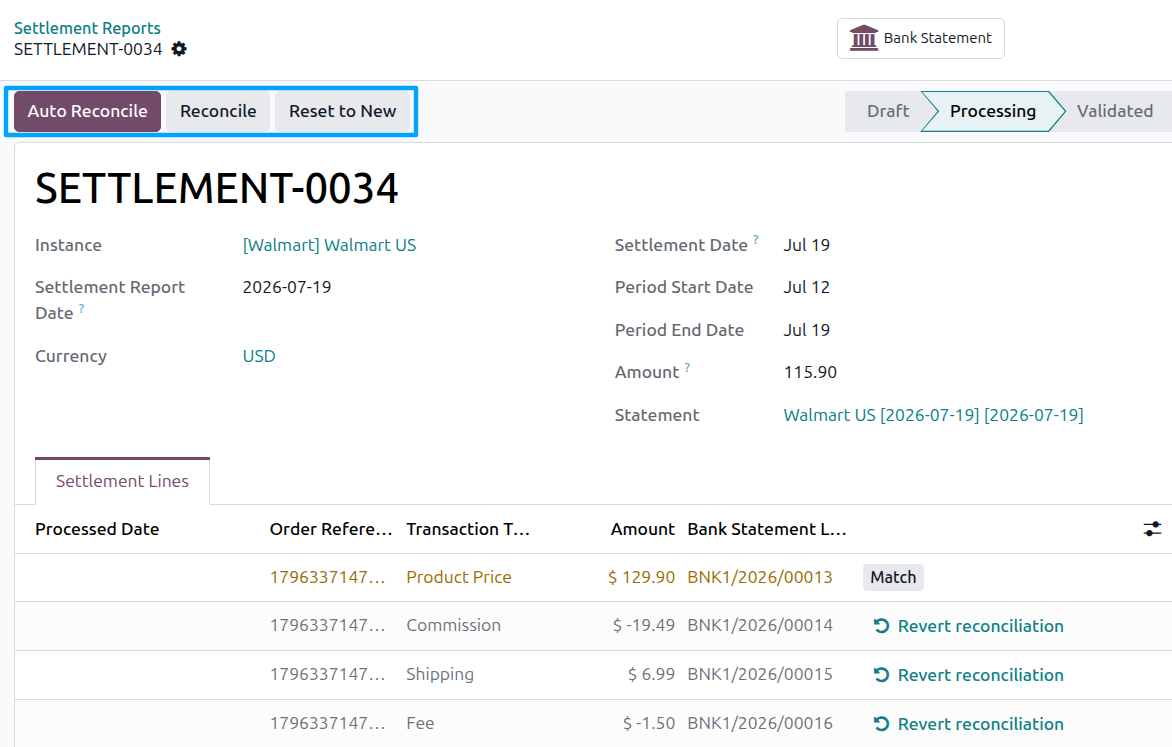
This creates a bank statement in the settlement journal, with one statement line per settlement charge. The report moves to Processing, and the statement is reachable from the Bank Statement stat button.
Note
The statement is named after the instance, the settlement date and the report, so it is easy to find later. Each statement line is labeled with its Walmart purchase order and transaction reference.
Step 2: Reconcile The Settlement Lines
You have two ways to reconcile.
Auto Reconcile
Click Auto Reconcile to let the connector match everything it can:
Product Price charges are matched against the posted customer invoice for that Walmart order, or the credit note when the charge came from a refund.
Every other charge: commission, shipping, fees, and adjustments are posted to the account you mapped for its transaction type on the instance.
Note
Auto Reconcile requires the Accounting application from Odoo Enterprise. In Odoo Community it stops with “Auto Reconcile is not supported in Community.” Reconcile the bank statement from the Accounting app instead.
Tip
To have this happen the moment a report is imported, enable Auto Process Settlement Report? on the Settlement tab of the instance. It also requires Odoo Enterprise.
Manual Reconcile
Click Reconcile to open Odoo’s standard bank reconciliation view and match the lines yourself, whenever a line needs judgment.
Note
Like Auto Reconcile, this also requires the Accounting application from Odoo Enterprise. In Odoo Community it stops with “Manual reconciliation uses the bank reconciliation widget, which is available in Odoo Enterprise (Accounting) only. Please reconcile the bank statement from the Accounting app instead.”
When every line is reconciled, the report becomes Validated.
Working Through Problem Lines
Lines that could not be matched are highlighted and carry a message explaining why:
“Order not found : Transaction won’t reconcile automatically.”: the Walmart order behind this charge is not in Odoo. Import the order, then reconcile again. See Import Walmart Orders In Odoo.
“Invoice not found: no posted … exists for order …”: the order is in Odoo, but the document the charge should match has not been posted. Post the customer invoice, or the credit note if the charge came from a refund, then reconcile again.
“Product amount mismatch with the invoice. Please try to reconcile manually.”: Walmart’s amount differs from your invoice, which usually means a partial refund, an adjustment, or a price change after the sale. Match it by hand.
Use the Match button on a line to open it in the reconciliation view, and Revert reconciliation to undo a line that was matched incorrectly.
Starting Over
Click Reset to New to undo everything done so far: reconciliation is reversed, the bank statement is removed, and the report returns to Draft. The imported settlement lines are kept, so you can post and reconcile again after fixing whatever was wrong.
Important
Reset to New is only available while the report is Processing. Once every line is reconciled and the report becomes Validated, it can no longer be reset or deleted: “You cannot delete a processing or validated settlement.”
Check your work before the last line is reconciled. If something is wrong, reset the report while it is still Processing.
Note
Auto Reconcile and Reconcile also disappear once every settlement line is marked reconciled because there is nothing left for them to process.
Before You Post
Before posting a settlement report:
Import the orders in the period.
Post their invoices.
Map your transaction types to accounts on the instance.
Then click Post, click Auto Reconcile, and reconcile anything left over manually.