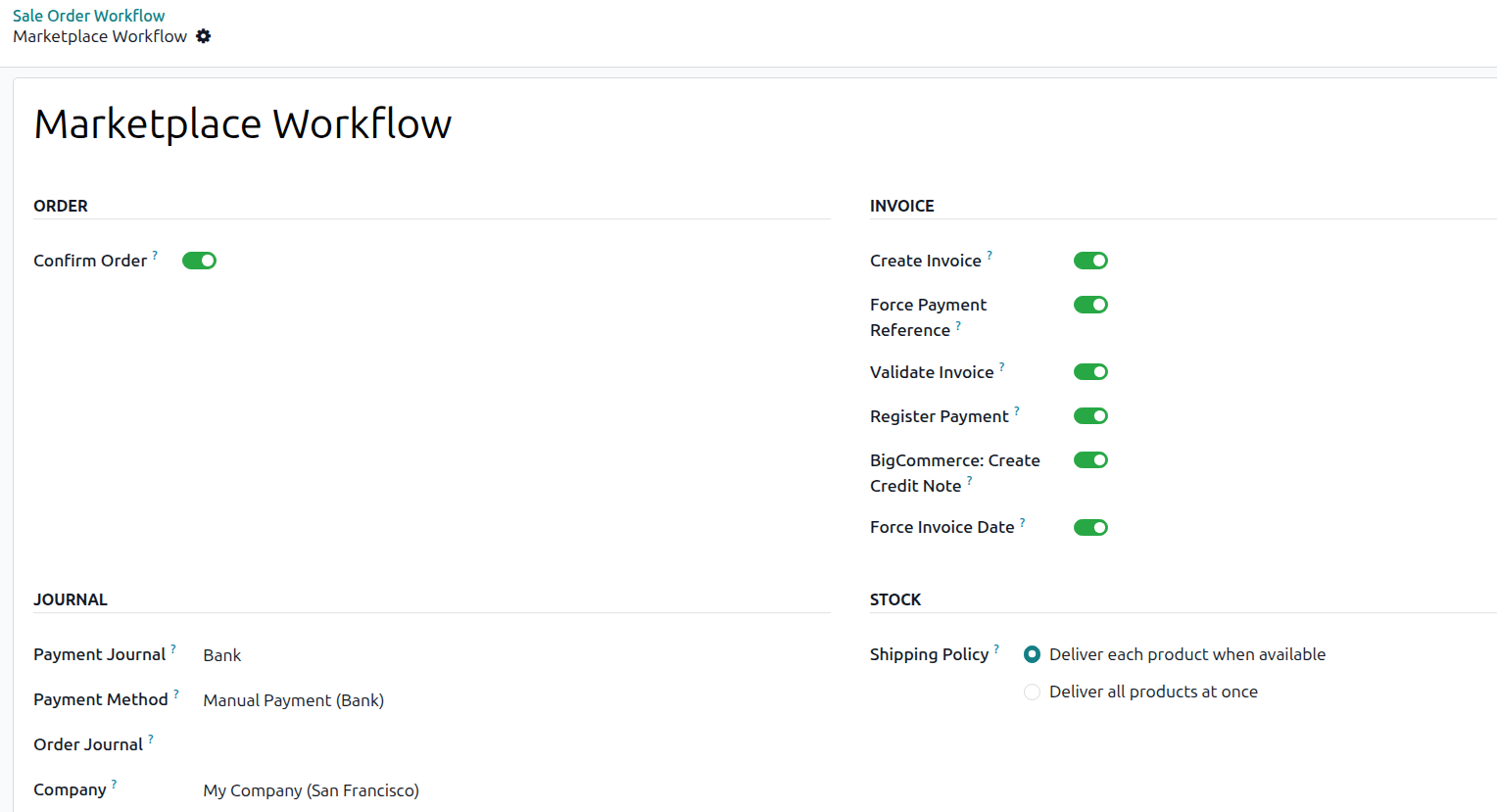
BigCommerce Financial Workflow Configuration
The financial workflow tells Odoo what to do with each imported BigCommerce order. You link a BigCommerce payment gateway and a payment status to an Odoo order workflow and to payment terms. Odoo then confirms, invoices and pays the order for you, based on how the customer paid. You can also let Odoo create a credit note when a BigCommerce order is refunded.
Payment Gateways
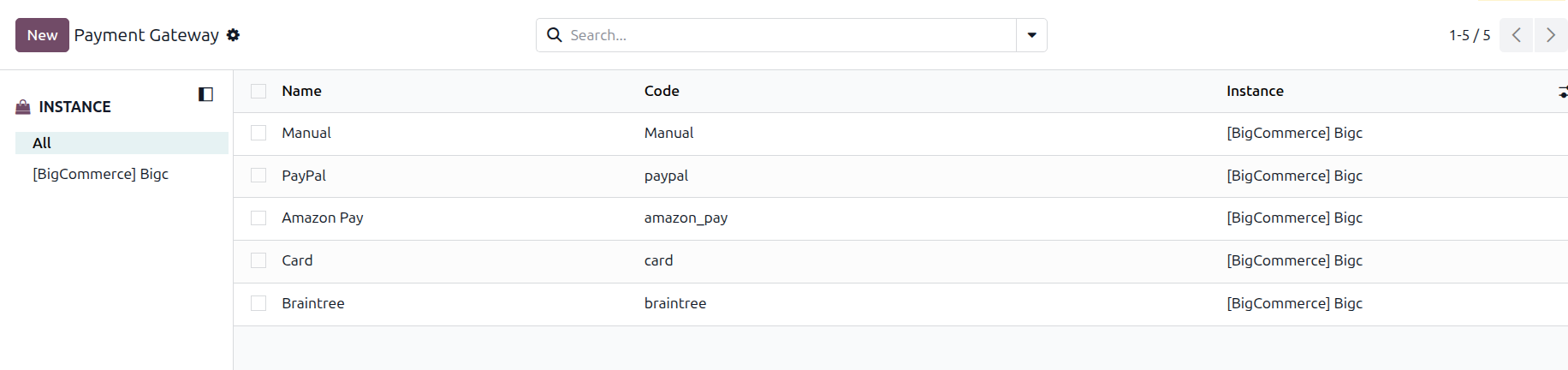
A payment gateway is the payment method the customer used in BigCommerce, such as Credit Card or PayPal. When you import an order, the connector matches its payment method to a payment gateway in Odoo. You see the matched gateway on the sale order in BigCommerce Payment Method.
To see your payment gateways, go to .
Each payment gateway shows:
Name: The name of the payment method.
Code: The code of the payment method in BigCommerce.
Instance: The BigCommerce instance the payment gateway belongs to.
Financial Workflow Configuration
You set the financial workflow on your BigCommerce instance. Each line links one payment gateway and one payment status to the workflow Odoo runs on the order.
Open your BigCommerce instance.
Find the BigCommerce Financial Workflow Configuration table.
Add a line and fill in the fields below.
Save the instance.
Payment Gateway: The BigCommerce payment method this line applies to.
Payment Status: The BigCommerce payment status this line applies to.
Marketplace Workflow: The order workflow Odoo runs on matching orders, for example confirm the sale order, validate the delivery, create the invoice and register the payment.
Payment Terms: The payment terms Odoo sets on matching orders.
Add one line for each combination of payment gateway and payment status you receive. This way, the right steps run automatically for every order.
Payment Status Options
The Payment Status field has these options:
Any
Authorized
Captured
Capture Pending
Declined
Held for Review
Paid
Partially Refunded
Pending
Refunded
Void
Void Pending
The imported order keeps its BigCommerce payment status in BigCommerce Payment Status on the sale order.
Workflow Not Configured
If an imported order has a payment gateway and payment status with no matching line, the connector adds a log line. The log line shows the Payment Gateway, the Payment Status and BigCommerce Workflow Configured?.
To fix it:
Open the log line.
Click Configure Workflow.
Choose the Marketplace Workflow and Payment Terms for this payment gateway and payment status.
Save.
Once the workflow is set, the next orders with the same payment gateway and payment status follow it.
Create Credit Note for Refunded Orders
The connector can create a credit note in Odoo when a BigCommerce order is refunded or partially refunded.
Open the order workflow you use for your BigCommerce orders.
Enable BigCommerce: Create Credit Note.
Save.
When this option is on, Odoo creates a credit note for each refunded or partially refunded BigCommerce order that uses this workflow. The credit note keeps the refund ID from BigCommerce in BigCommerce Refund ID.