
Cancel / Void a Shipping Label
When a label is generated but the parcel never leaves the warehouse, the label can be voided in ShipStation so it is not billed.
When to Use
Void a label when:
The delivery order has a ShipStation Shipment ID (i.e. a label was created).
The carrier has not yet collected the parcel. Once scanned in by the carrier, voiding is no longer accepted by ShipStation.
How to Void a Label
Go to .
Open the delivery order whose label you want to void. It must have a ShipStation Shipment ID populated.
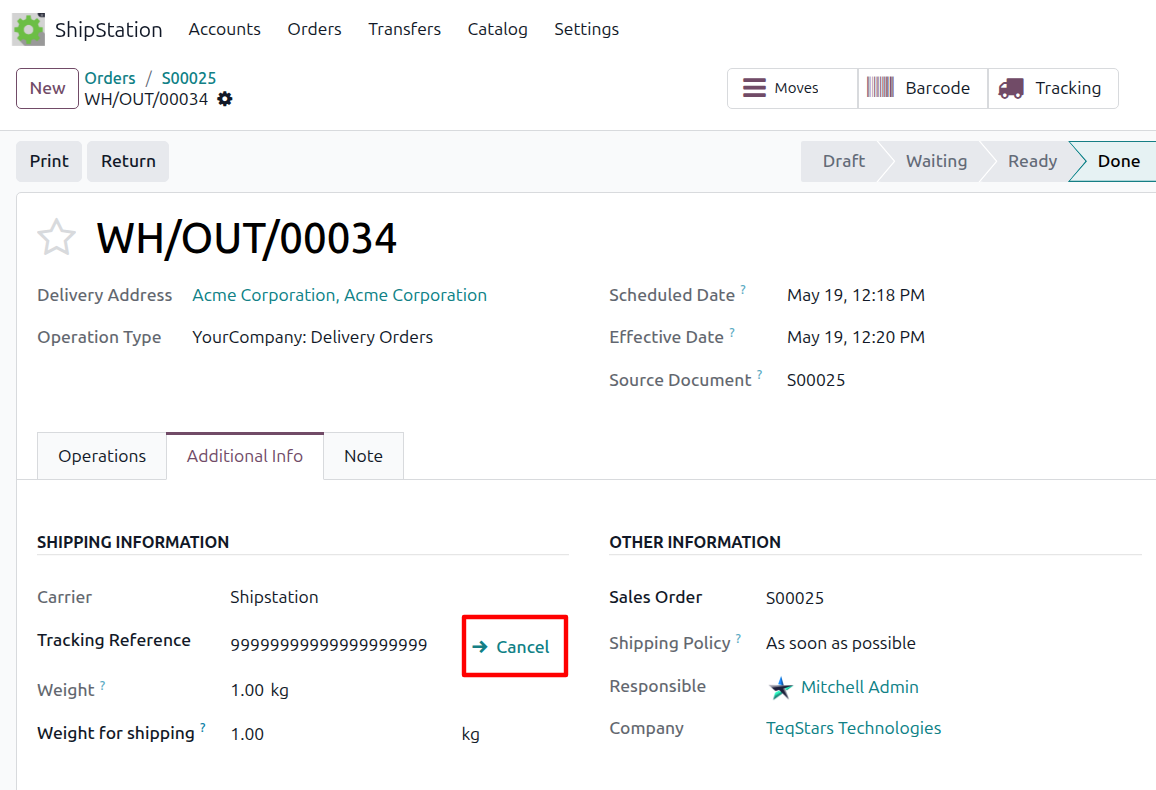
Click the Cancel link next to the Tracking Reference field on the picking.
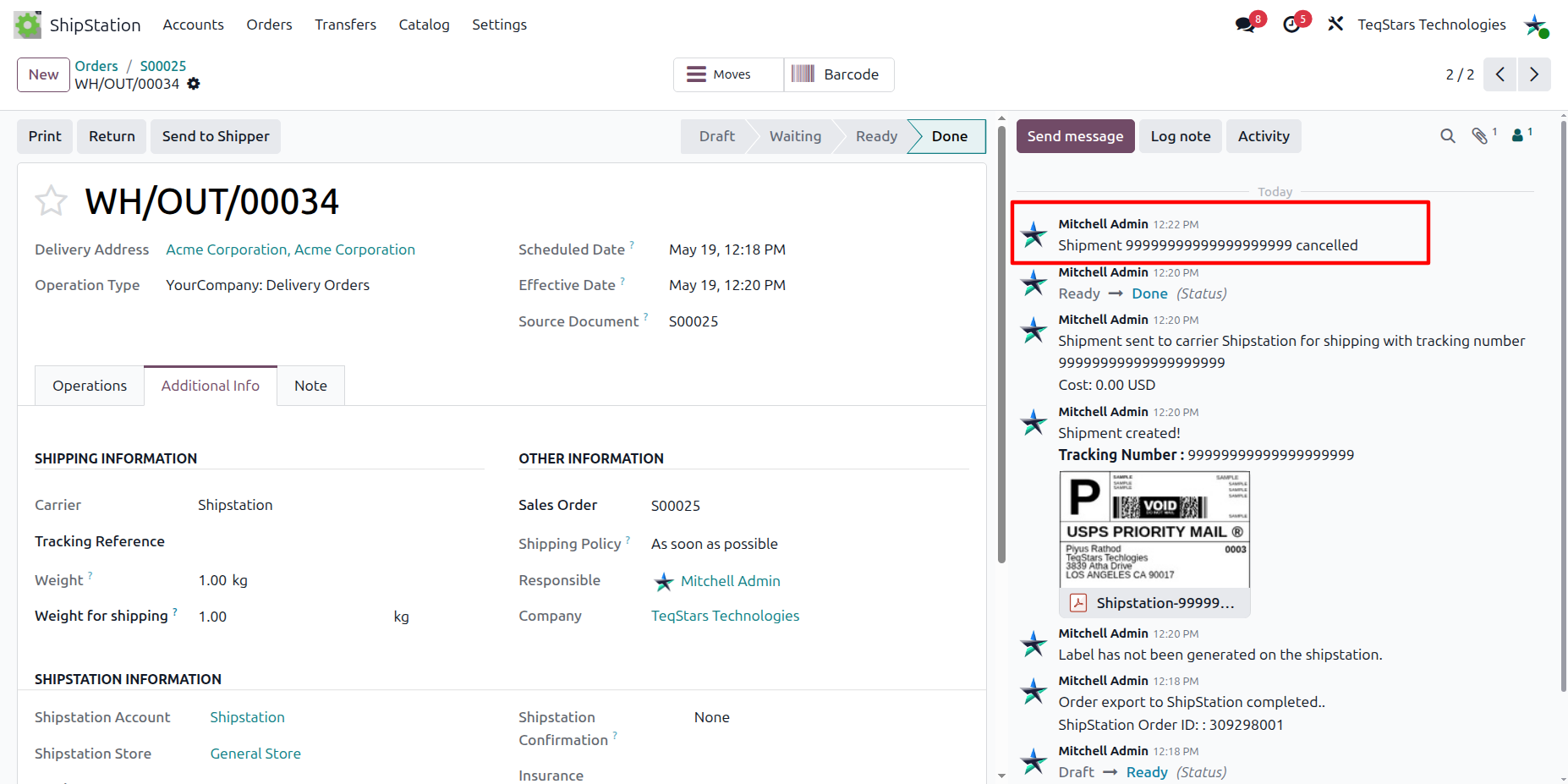
The connector sends the void request to ShipStation and reports the outcome in the chatter:
Approved: ShipStation voided the label. The delivery’s tracking reference is cleared and the chatter confirms the cancellation.
Rejected: ShipStation refused the void (most commonly because the carrier has already scanned the parcel). The delivery is left as-is and the rejection reason is surfaced in the chatter.
Warning
Voiding a label is final. A subsequent label generation for the same delivery order will create a brand-new ShipStation shipment with a new tracking number, so do not hand the old tracking number to the customer after a void.