
Export Products From Odoo
With Export Listings, you can publish a new product to WooCommerce in one operation, including pricing, inventory and images. To export listings from Odoo to WooCommerce, follow these steps.
Step 1: Add Products To Listings
Go to and select the products you want to publish to WooCommerce.
From the action dropdown, choose Add to Listings.
In the popup, select the WooCommerce instance(s) and click Add to Listings.
The selected products now appear in . From there, complete each Listing’s WooCommerce fields — categories, tags, weight and attributes — and make sure every variant has an Internal Reference (SKU).
Step 2: Choose An Export Method
You can export listings in two ways:
Method - 1: From The Operations Wizard
Go to the menu in Odoo.
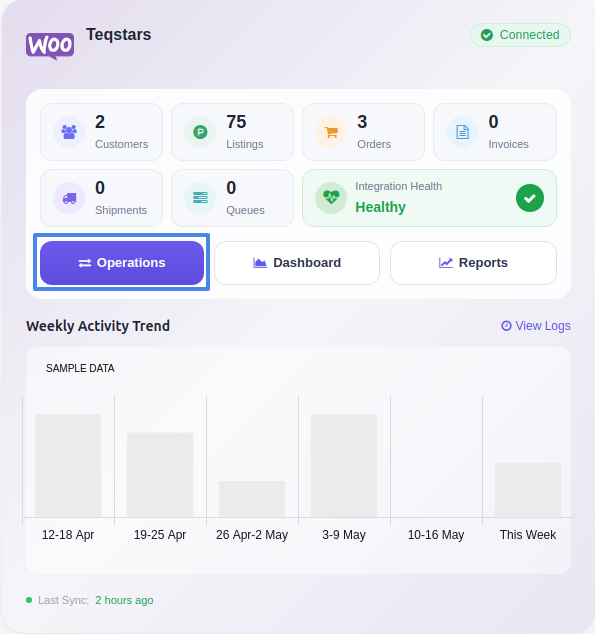
Click the Operations button from the instance record.
Choose Export as the operation type, then from Export Operation, select Export Listings to WooCommerce.
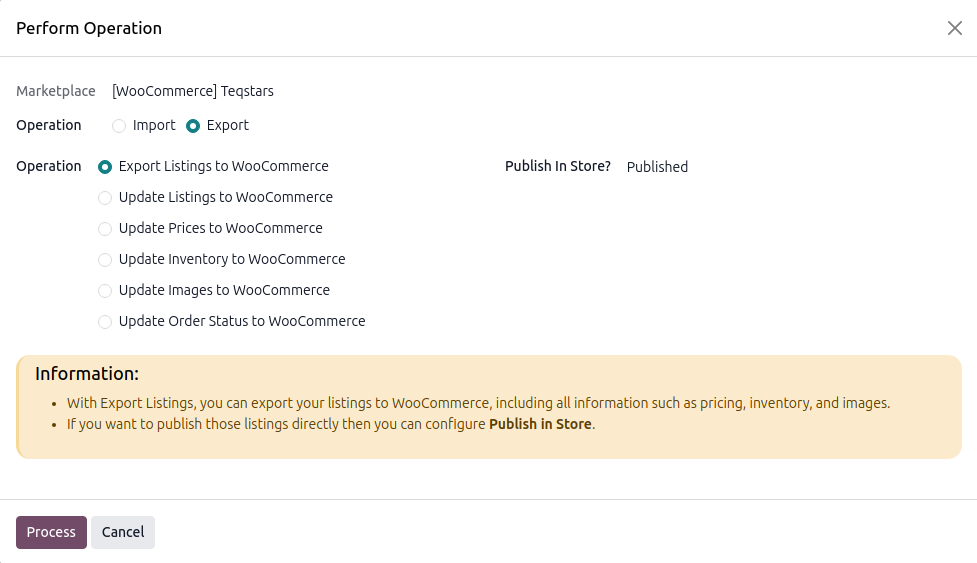
Choose whether to publish the listing with Publish in Store to publish the listings immediately (Published) or send them to WooCommerce as a draft (Unpublished).
Click Process.
Method - 2: From The Listing View
Go to the menu in Odoo.
Click the Listing button from the instance record to open where all your product listings are managed.
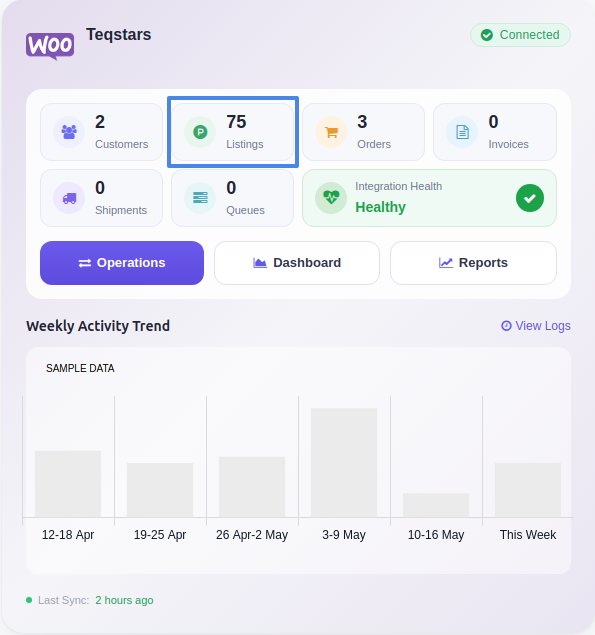
Select one or more Listings that have not yet been exported (Listed? is false).
Open the Actions menu (gear icon) and choose Export/Update Listing in Marketplace.

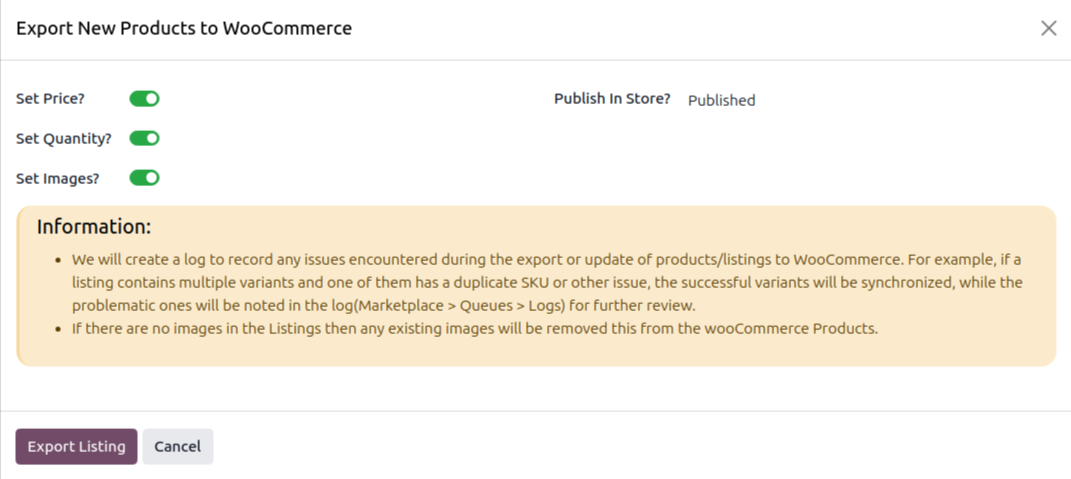
The connector detects that the listings are not yet exported and opens the Export New Products to WooCommerce wizard. Choose what to include (price, inventory, images, publish state) and click Export Listing.
What Gets Exported
A successful Export Listings call sends the following information to WooCommerce:
Listing Name, Description and Short Description
SKU (Internal Reference, variant SKUs travel with each variant)
Weight, converted from Odoo’s weight to the store’s configured Weight Unit
Price (regular and sale price, from the instance pricelist)
Stock for variants with Manage Stock? enabled
Images (one per variant)
Categories and Tags
Attributes and their values
Published / Unpublished status
Note
You can export up to 80 listings in a single operation.
Every variant must have a unique Internal Reference (SKU), WooCommerce matches products by SKU.
WooCommerce accepts only one image per variant, additional variant images are ignored.
Both simple and variable products are supported.