
Bol.com Update Order Status From Odoo
After validating an FBR delivery in Odoo, push the shipment status and tracking information to Bol.com so the marketplace marks the order as shipped and notifies the customer. You can do this manually for a single order or in bulk, or let a scheduled action handle it automatically.
Method - 1: Manual Update Order Status
You can update the order status in Bol.com manually once the Delivery Order of an FBR order is validated in Odoo.
Bulk Update (Multiple Orders)
Go to the menu in Odoo.
Click on the
Operationsbutton from the instance record.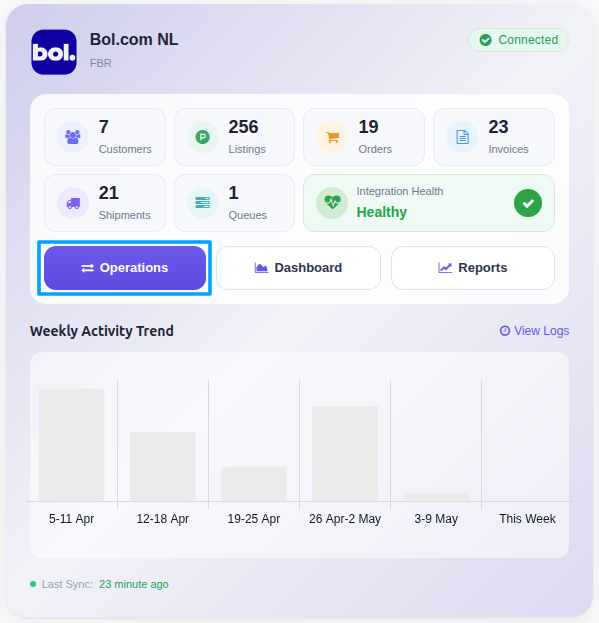
Set Operation For to
FBRand, under FBR Operations, select the Update Tracking Details option.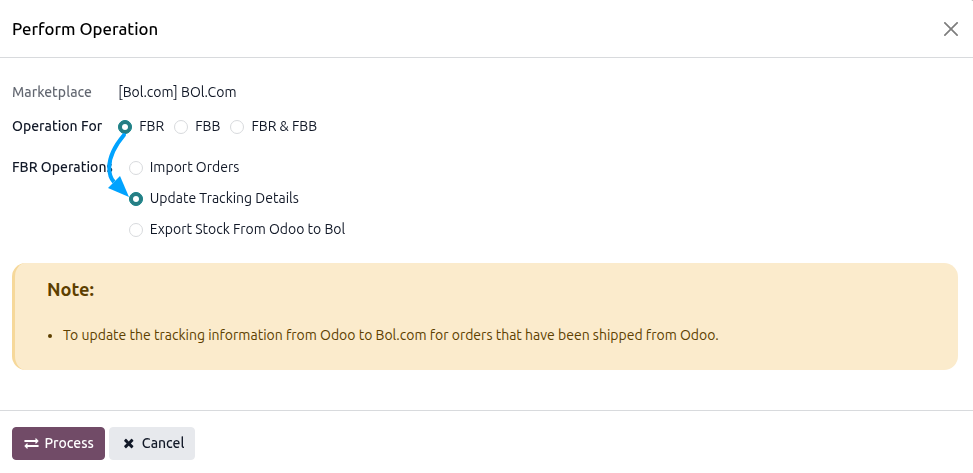
Click PROCESS.
The connector pushes the shipment and tracking reference to Bol.com for every eligible delivery: an FBR delivery that is Done, ships to the customer, is not yet updated in Bol.com, is not marked as a marketplace exception and has failed fewer than 3 automatic attempts. When the run finishes and there is something to report, a Bol.com Update Order Status Log opens with the result for each order.
Note
Each order item is sent to Bol.com as a separate shipment and the connector waits for Bol.com to confirm it, so a bulk run with many orders can take some time.
Single Order Update
Use this when you need to push tracking information for one order immediately.
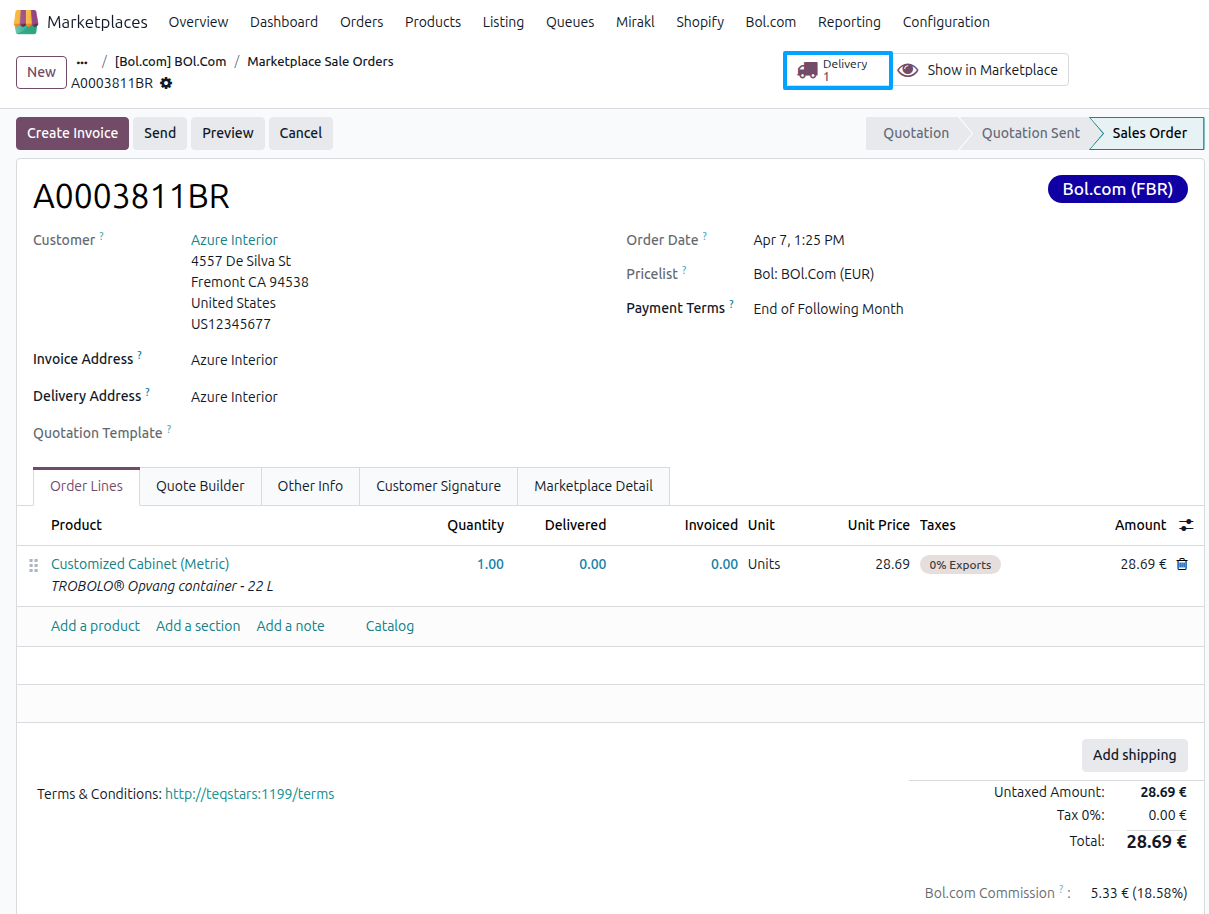
Open the Bol.com Sale Order and click the Delivery smart button to open the transfer.
On the transfer, set the Carrier and Tracking Reference (under the Additional Info tab) and click Validate. Set the carrier before validating, because it can no longer be changed once the transfer is
Done.Once the transfer reaches
Done, an Update in Marketplace button appears (it is hidden when the transfer is already updated in Bol.com or is marked as a marketplace exception).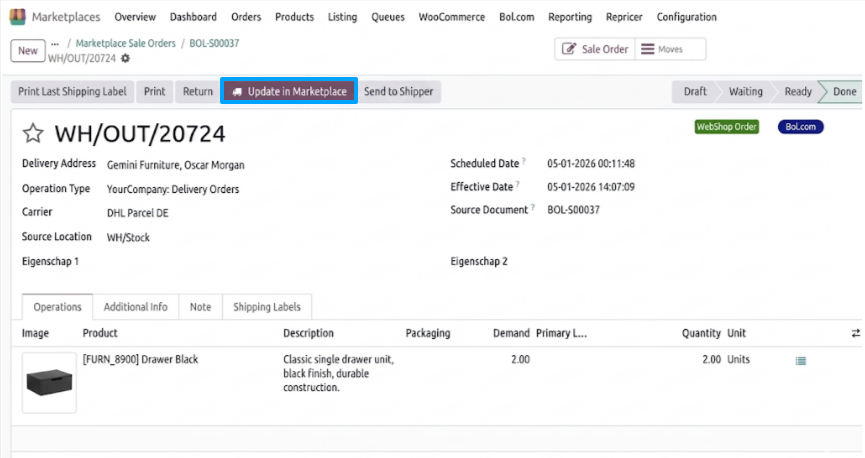
Click Update in Marketplace and confirm to push the shipment to Bol.com. When Bol.com has accepted it, the transfer shows “Order has been successfully updated/fulfilled in marketplace.”. If the push fails, the error is shown immediately.
Validating A Delivery With Cancelled Items
When you validate the delivery of a Bol.com order, Odoo first checks the order on Bol.com. If an item with a quantity to deliver has already been cancelled on Bol.com, or the customer has requested its cancellation, validation is blocked with the message “The item ‘…’ has already cancelled on Bol.com”. To continue, set the Done quantity of the cancelled item to 0, enter the quantity of the items you are actually shipping, validate, and choose No Backorder.
Method - 2: Automatic Update Order Status
Use the scheduled action to keep tracking information in sync without manual action.
Go to .
Open the Automatic Jobs tab.
Find Export Order Status/Tracking Information to Bol and configure Interval Number, Interval Unit (created every 25 minutes by default), and Active.
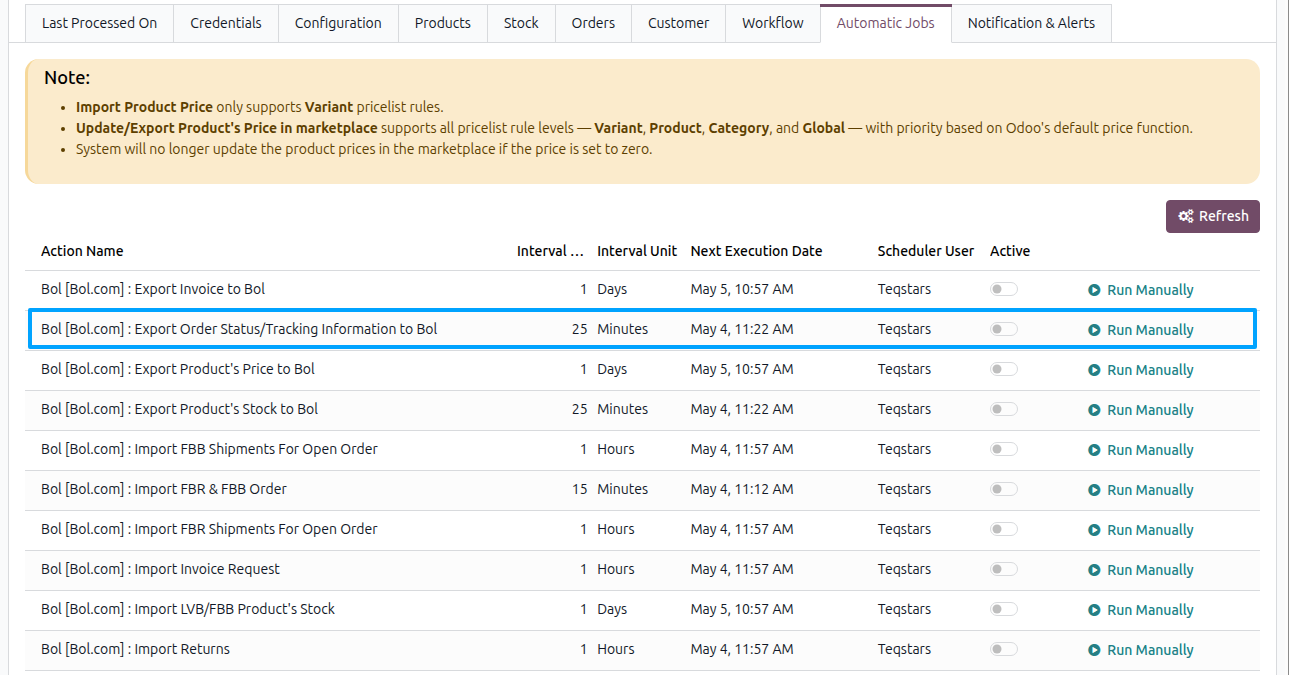
The connector regularly checks for validated FBR deliveries that are not yet updated in Bol.com and pushes the shipment and tracking reference to Bol.com.
Note
Tracking pushes are restricted to FBR orders. For FBB orders, Bol.com fulfills the shipment and the connector imports the resulting tracking data via Import Bol.com Shipments In Odoo.
Before pushing tracking, ensure the delivery method record used on the transfer has its Bol’s Transporter field set to one of the transporters listed under . The transporter list is read-only; if a delivery has no carrier or the carrier has no transporter, the push fails with a “Bol Transporter is not set” error.
Every product line of the order (services excluded) must carry a Bol.com order item ID, i.e. the order must have been imported from Bol.com.
If the Bol.com order has several items and the Tracking Reference contains several comma-separated numbers, they are assigned to the items in order; otherwise the same reference is used for every item.
Deliveries imported from Bol.com (shipped via the shipment import) get their carrier from the Bol.com transporter code. If no delivery method uses that code, the connector creates the transporter and a delivery method with that name automatically.
If the scheduled action fails to update a delivery 3 times, the delivery is marked as a marketplace exception, the last error is shown in a red banner on the delivery and the scheduled action skips it. The Update in Marketplace button is then hidden; use Retry in the banner to push it again manually, or Marked as Updated in Odoo if the order was already shipped on Bol.com.