
Update Collection From Odoo
With Update Collection, you can update your collection to Shopify, including all information such as Description, Products, Template Suffix, Sort Order, Source, and Image.
Once you have updated the details in the collections, you can proceed to Update collection from Odoo to Shopify in two different ways:
Method - 1: From The Operation Popup
Go to the menu in Odoo.
Click on the
Operationsbutton from the instance record.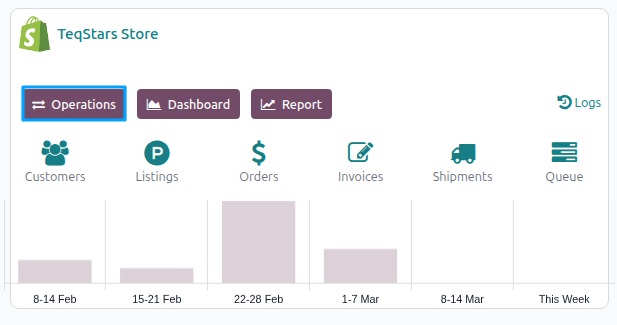
Select Export Operation and then select Update Collections option.
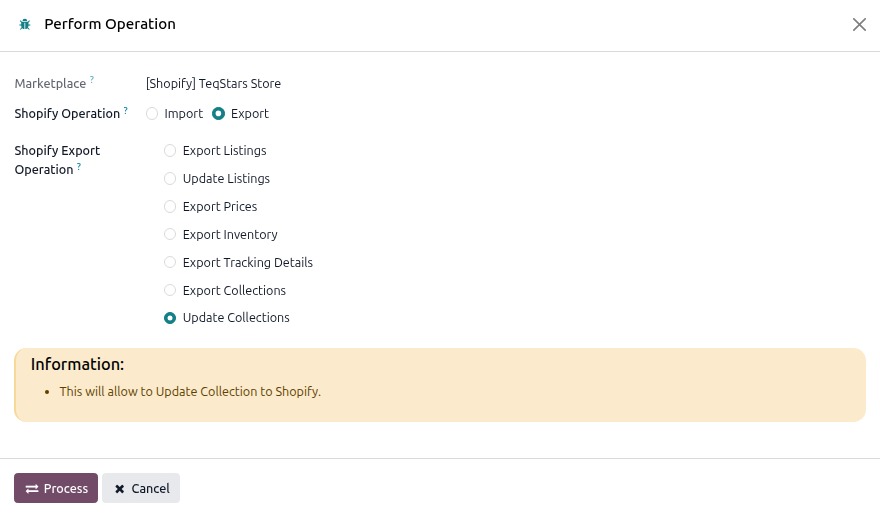
Press
PROCESSbutton.
Method - 2: From The Update Collection View
Open the collection, click the Server Action and click
Export/Update Collection in Marketplacebutton.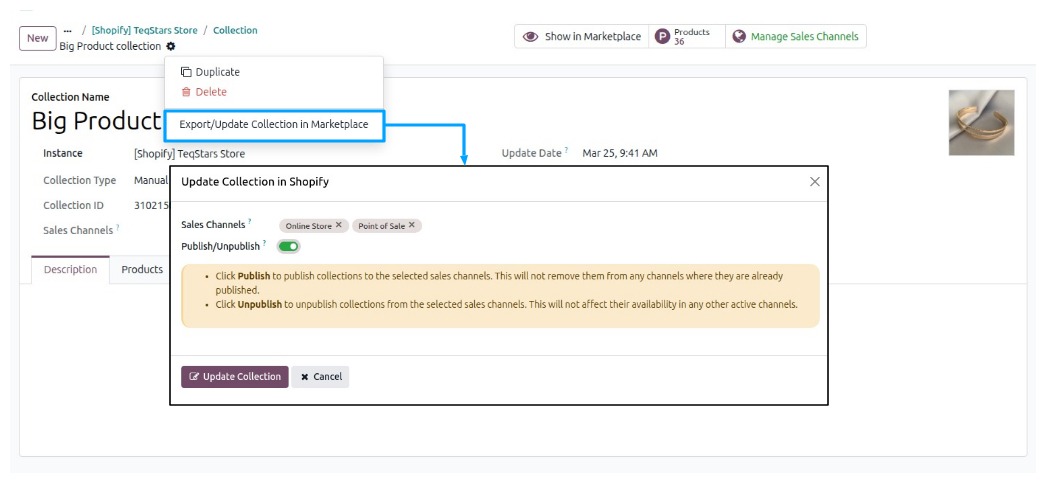
Sales Channels (optional):
Select the Shopify sales channels (e.g., Online Store, Point of Sale) where you want the updated collection to be published. If left empty, the collections will still be updated to Shopify but will not be published to any sales channel.
Publish/Unpublish:
Select the sales channels and enable or disable Publish/Unpublish to control collection visibility in Shopify sales channel.
Enable it to publish the collection to the selected channels.
Disable it to unpublish the collection from the selected channels.
This action only affects the selected channels.
Click
Update Collectionbutton.
Method - 3: Sync a Single Shopify Collection
Use this method to update one specific collection in Shopify.
Go to the menu in odoo and open the collection you want to sync.
Click the
Sync to Shopifybutton on the collection form view.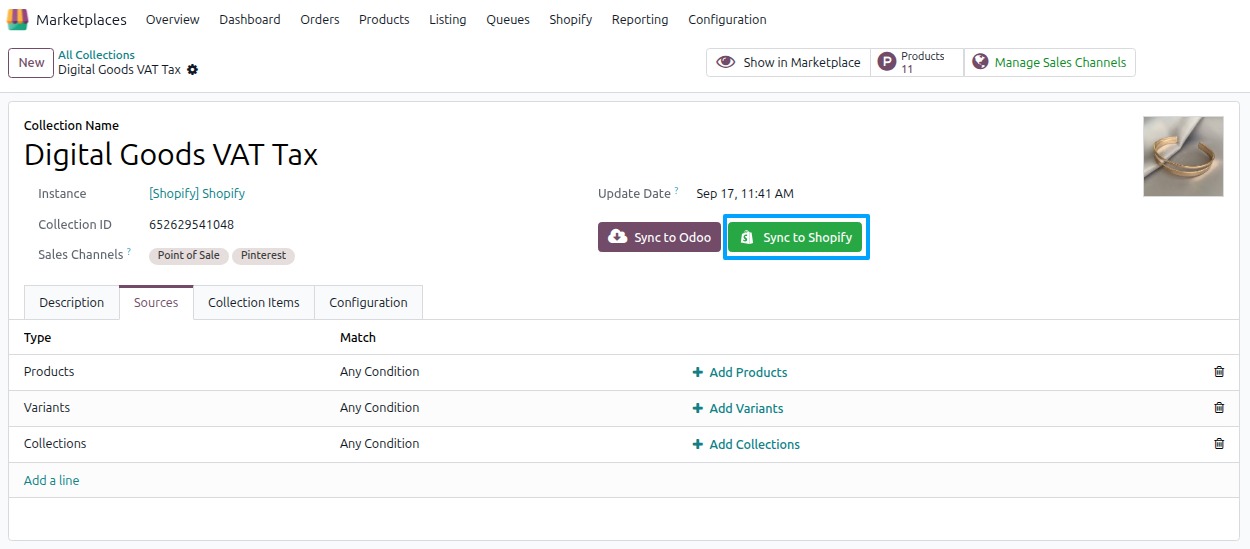
The connector fetches the latest data for this collection from odoo and updates the shopify record. An Update Completed notification appears when finished.
Note
The
Sync to shopifybutton is Update the collection in Shopify with the latest Products, Template Suffix, Sales Channels, Sort Order, Sources and Image from Odoo to Shopify. Sales channels are not affected.
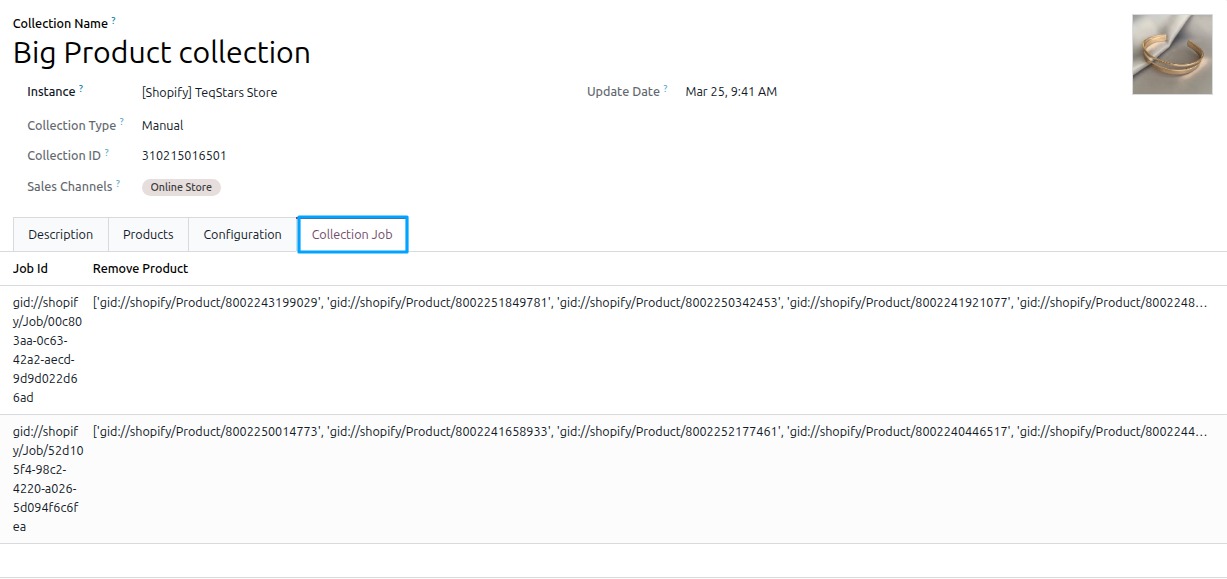
Collection job (Only visible in developer mode)
When products are removed from a collection, a background job is created to process the changes.
The job runs automatically every 15 minutes until it is completed.
Once the job is successfully completed, it is removed automatically.
If the job is not completed, it will be retried in the next run.
Warning
While the job is in progress, adding or removing products from the collection is not allowed.
Manage Sales Channels
Click the Manage Sales Channels button to open a popup where you can manage where your collection are published/unpublished in Shopify.
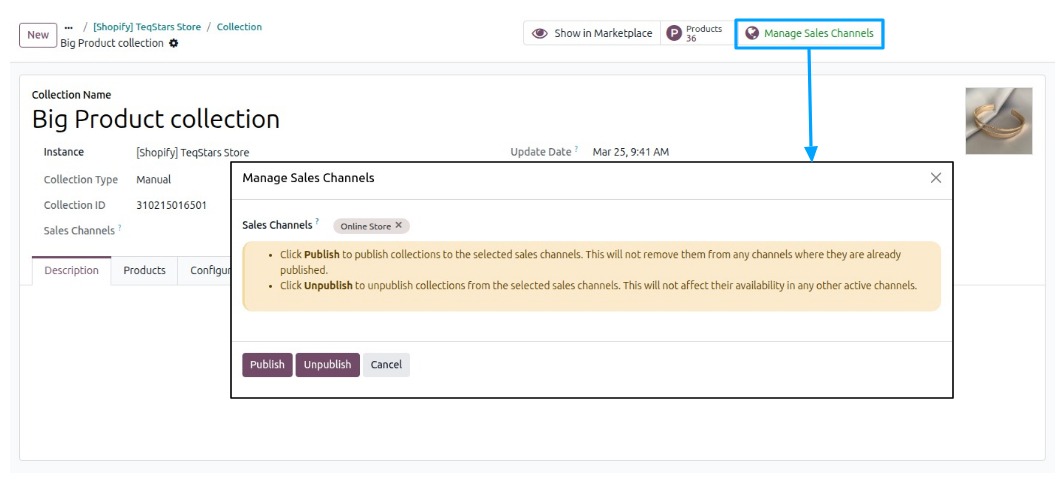
Sales Channels (Required):
Select the sales channels where you want your collection to be published/unpublished (for example, Online Store or Point of Sale).
Publish/Unpublish:
Select the sales channels and click Publish or Unpublish to control collection visibility in Shopify sales channel.
Clicking Publish will show the collection in the selected channels.
Clicking Unpublish will remove the collection from the selected channels.
This action only affects the channels you select.