
Add a Card
Add card is the one way to add a card. It starts from a ready-made measure, shows a live preview and adds the card in a minute.
Add a Card From a Ready-Made Measure
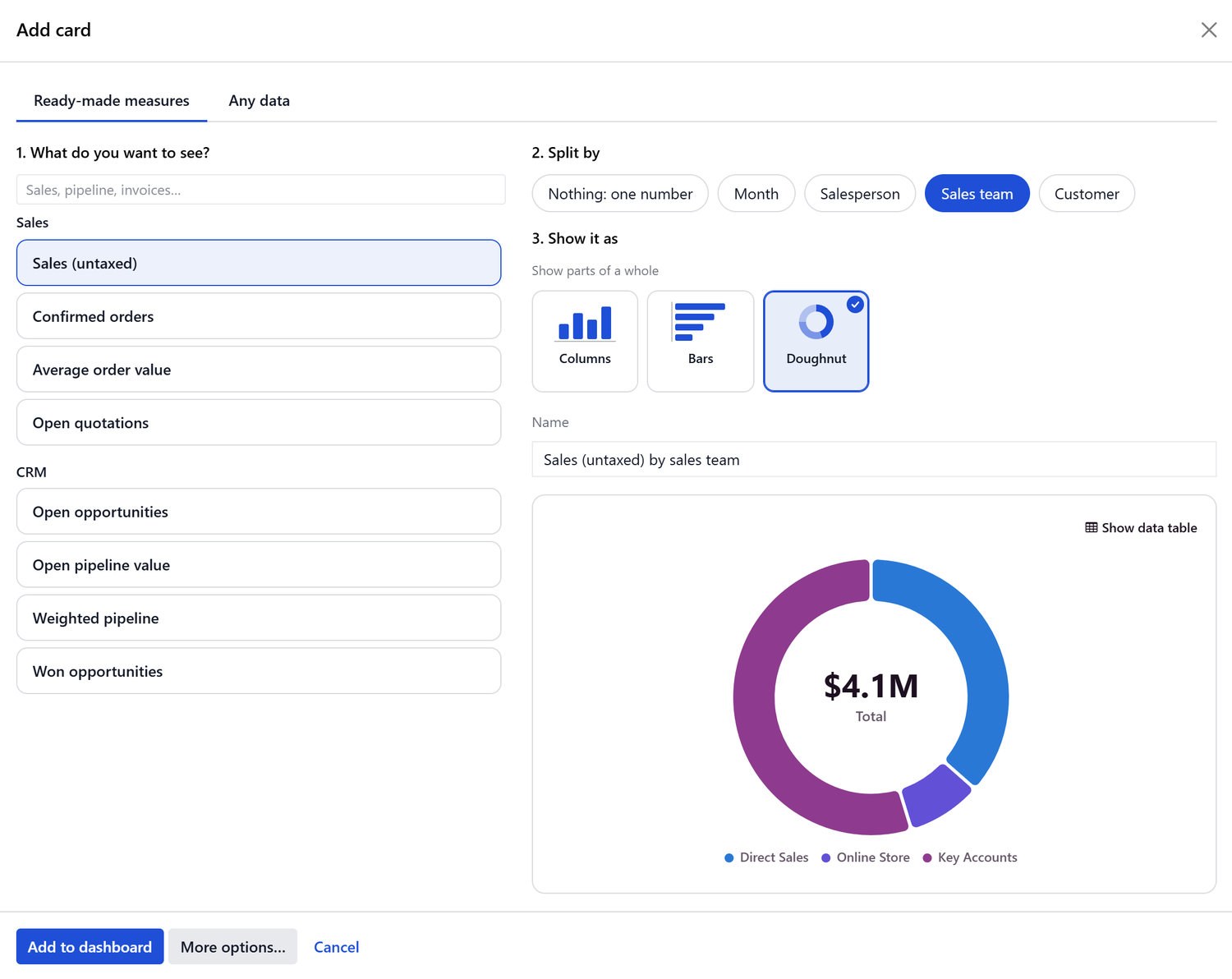
Open your draft dashboard and click Edit, then Add card in the toolbar. On an empty dashboard, click Add your first card.
Pick a ready-made measure. They are listed under their app (Sales, CRM, Invoicing, Purchase, Inventory) by the names managers use, such as Win rate, Sales (untaxed), Average order value, Customers owe us, Open pipeline value or Late transfers. The search also knows everyday words such as sales, revenue, orders, invoices and pipeline.
Optionally, split it by time (month, week…) or by a group, such as salesperson.
Check the live preview. The suggested chart type is already selected. Under Show it as, each choice is a tile with a small picture of how it looks, so you can pick another in one click.
Name the card and click Add to dashboard.
The new card already shows its numbers. Click Done to save the dashboard.
When nothing ready-made matches, Search all data → carries your words to the Any data tab. See Chart Any Data.
More Options
More options… opens the full card editor with the same draft: comparison, targets, appearance and what a click does. Fewer options at its top goes back. See Card Settings.
Ready-Made Measures
A ready-made measure is a calculation TeqStars defines for an app, such as what Sales (untaxed) counts and which date it goes by. Viewers read its exact definition in How it’s calculated. See How It’s Calculated.
The measures of an app appear once that app is installed.
Administrators see every measure, with its app, in . Keys and version numbers show only in developer mode.
Good Habits
One question per card. Name cards as a sentence, such as “Orders confirmed by salesperson”.
Put the numbers people check daily at the top and leave detail for below.
Check the numbers load before you save: the editor opens on live numbers.