
How to configure the tax name format used for new taxes
When the connector needs a tax that does not exist yet in Odoo, it creates one. The tax name format decides how that new tax is named, for example “Tax 8.25% Dallas TX”. A clear name helps you and your accountant recognize each tax on quotations, invoices and reports.
You build a format on the Tax Format screen, then assign it on your TaxJar Account.
Open the Tax Format screen
Go to .
Click New to create a format, or open an existing one.
In Tax Name, enter a name for the format so you can find it later.
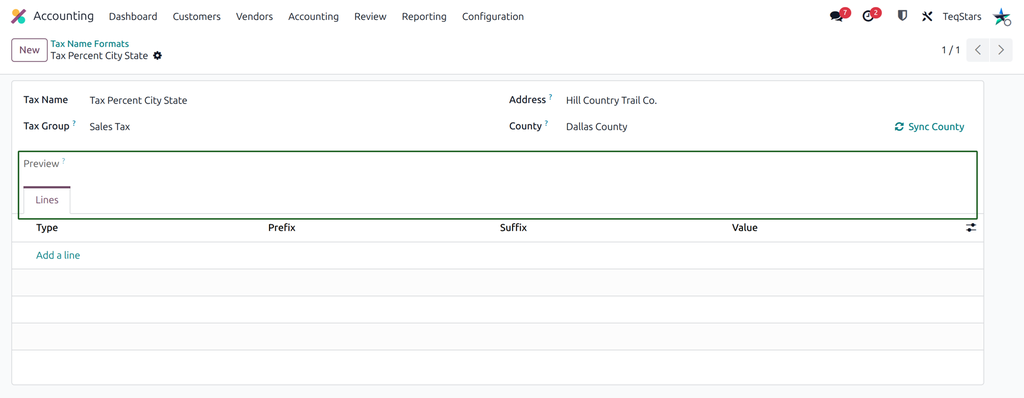
Add tax name format lines
The Tax Name Format Lines are the building blocks of the tax name. Each line adds one part of the name. The parts are joined in the order of the lines.
Open the Lines tab.
Click Add a line.
Choose the line type. See Line types below.
For a Hardcoded line, enter the text you want to show in the name.
Repeat for each part of the name.
Save the format.
Note
A format can have only one Percentage line. If you add more than one, the app shows the message “Invalid percentage lines! You can not select multiple percentage lines.”
Line types
Hardcoded: fixed text, for example “Tax”.
State Name: the full name of the state.
State Code: the short code of the state.
Country Name: the full name of the country.
Country Code: the short code of the country.
City: the city.
County: the county.
ZIP Code: the ZIP code.
Percentage: the tax rate.
Add a space: a space between two parts of the name.
Preview the tax name with an address
The Preview field shows how a tax name will look with your format. To see a real result, pick a contact.
In Address, select a contact that has a complete address.
Check the Preview field.
If the result is not what you want, change, add or remove lines until the preview is right.
If the preview is missing parts, check that the selected contact has an address. The state, city, ZIP code and country come from that address.
Fetch the county with Sync County
The County field holds the county of the selected address. The preview uses it for the County line type.
When you select an address, the county is filled in from the TaxJar rates already synced in Odoo. If it stays empty, fetch it from TaxJar:
Make sure the selected Address has a ZIP code.
Click Sync County. The app asks TaxJar for the county of that ZIP code and fills in County.
You can also type the county yourself.
If the app shows “Please select an Address with a ZIP code first.”, select a contact whose address has a ZIP code, or add the ZIP code to the contact, then try again.
Default tax group
In Tax Group, choose the tax group the app assigns to each new tax it creates with this format. This keeps new taxes grouped the way you want on documents and reports.
Assign tax formats on the TaxJar Account
A format is used only once you assign it on your TaxJar Account.
Go to and open your account.
In Tax Format, select the format used to name a new tax when no matching tax is found.
Select the formats for each tax level: City, County, Special, and the state and country formats. These are used when the app creates or matches the tax for that level.
Save the account.
If the app shows “Please define tax format on TaxJar Account. Missing tax format.” or “Missing tax formats.”, open the TaxJar Account and select the missing formats.
To set up the account itself, see Where to enter a TaxJar API token?.
See also
How to review the TaxJar rates cached in Odoo