
Export Inventory from Odoo to Bol
Push your FBR (Fulfilled by Retailer) stock from Odoo to Bol.com so customers always see accurate availability on the marketplace.
Note
This operation is FBR-only. FBB / LVB stock is managed by Bol.com and imported into Odoo via Import Inventory In Odoo.
The exported quantity uses your Stock Based On configuration (
Free To Use Quantity,Quantity On Hand, orForecasted Quantity).Stock is read from the stock location of the Warehouse configured on the instance (including its child locations), and only products already synchronized with Bol.com are pushed.
On the Inventory tab of a listing item you can set Export Qty Type (Fix or Percentage) and Export Qty Value to export a fixed maximum quantity or a percentage of the available stock instead of the full quantity.
A negative quantity is sent as 0.
Method - 1: Manual Export
Go to the menu in Odoo.
Click on the Operations button from the instance record.
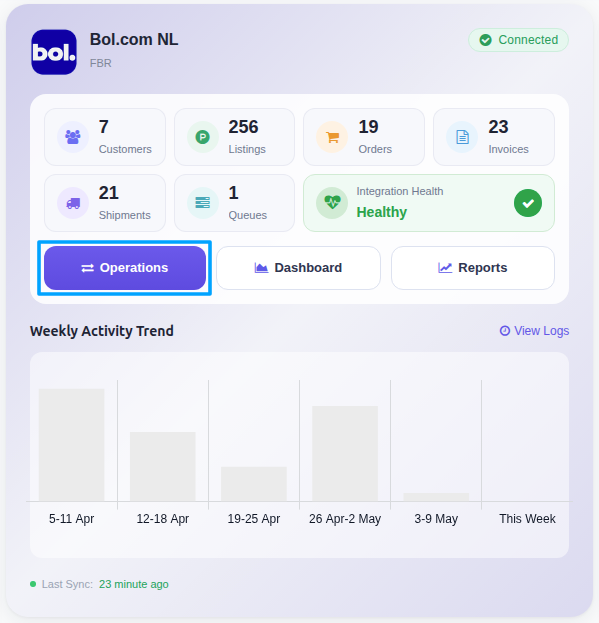
Select FBR Operation and then select Export Stock From Odoo to Bol option.
Note
The export is incremental. When Last Stock Exported On is set on the instance, only products that had a stock move (or components of a Bill of Materials of a listed product, when Manufacturing is installed) since that date are exported. When the field is empty, all listed FBR products are exported.
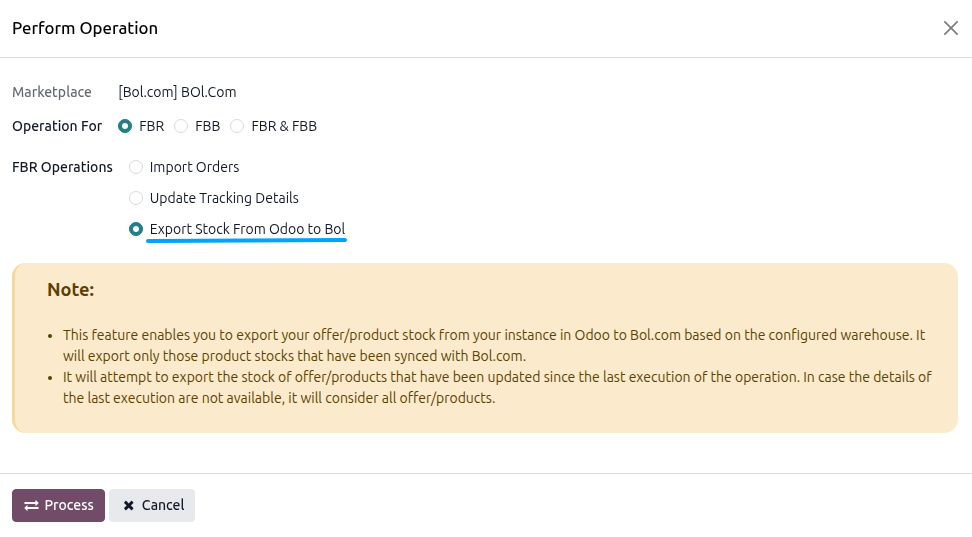
Press PROCESS button to export product inventory from Odoo to Bol.
The connector exports stock for the FBR products already synchronized with Bol.com (see the incremental note above), based on the Stock Based On configuration. A Bol.com Stock Log with the result per offer opens when the export finishes, and Last Stock Exported On is updated.
Note
The quantity sent to Bol.com is capped at 999 per offer regardless of the actual stock in Odoo. This is a Bol.com Retailer API limit.
Method - 2: Automatic Inventory Export
Inventory export from Odoo to Bol can be automated using the Automatic Schedule action, which allows you to set up a predefined time interval for the execution of the export inventory process. This automation ensures that the inventory data from your Odoo ERP is regularly and systematically updated in Bol without the need for manual intervention. Here’s how the process works:
Go to your Bol instance setting by navigate to .
Here you will see Automatic Jobs tab. In that tab you can configure Export Product’s Stock to Bol automatic action by setting Interval Number, Interval Unit and Active.
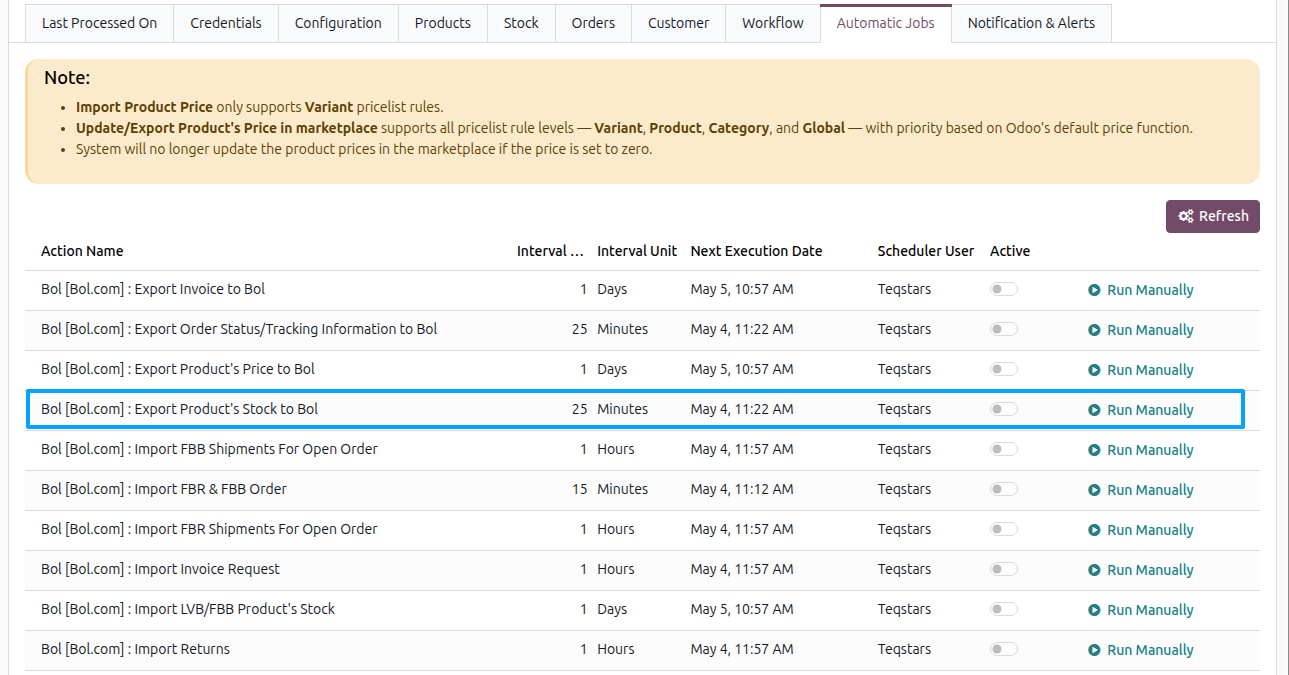
Once the schedule action is active, Odoo will automatically trigger the inventory export from Odoo to Bol at the specified time intervals. At the defined intervals, Odoo will export the latest inventory data from your Odoo ERP and update the corresponding inventory in the Bol based on Stock Based on configuration. The job is created inactive and runs every 25 minutes by default, and it only runs for confirmed instances.
See also