
Auto Directory Rules
Auto directory rules create cloud directories for your Odoo records on their own. You set the directory pattern once, and new records then file themselves, on any model.
This page shows you how to open the rules, create a rule, choose the model and directory name, nest rules under a parent rule, limit the records a rule applies to, and set the rule priority.
To browse the directories that your rules create, see Browse Cloud Documents and Directories.
Open Auto Directory Rules
Go to .
The list shows all your rules.
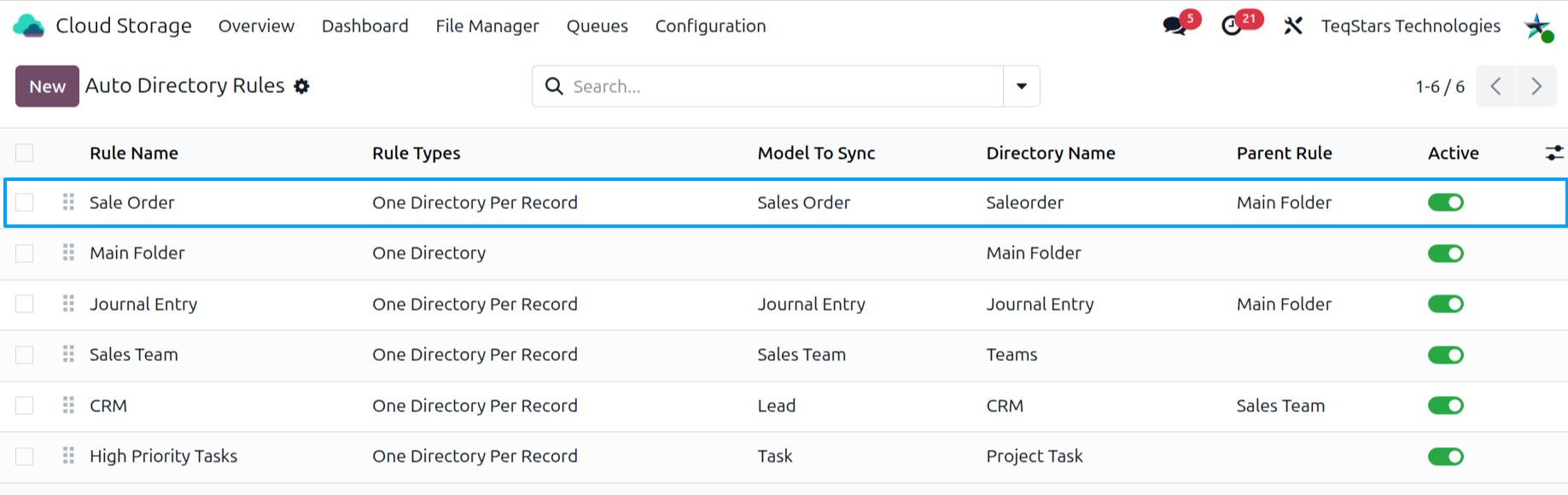
Create a rule
Go to .
Click New.
In Rule Name, enter a name for the rule.
Set the Rule Types for this rule.
In Priority, set the order of this rule among your other rules. See Rule priority.
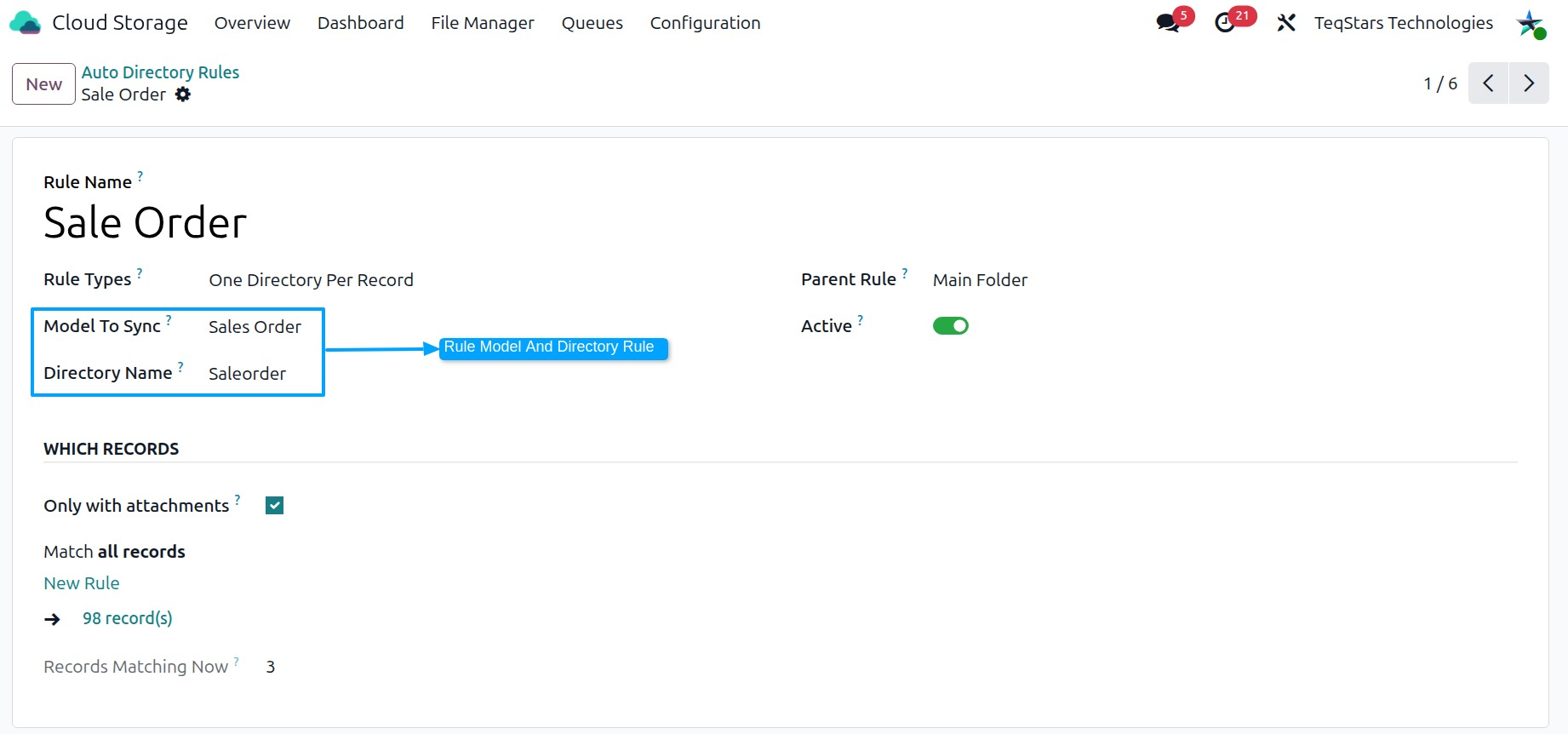
In Model To Sync, choose the model. See Choose the model and directory name.
In Directory Name, set the name of the directory.
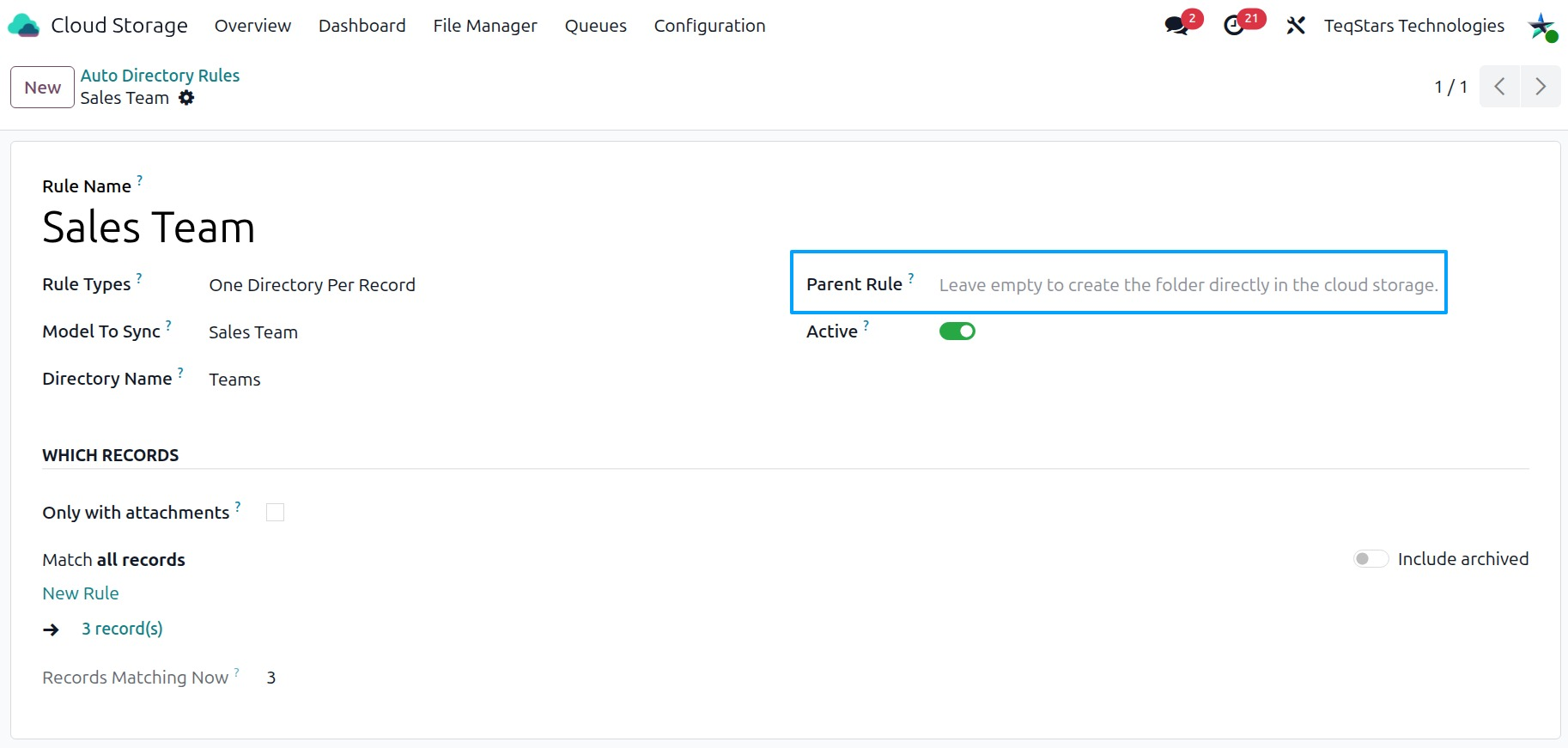
If this rule sits under another rule, choose the Parent Rule. See Nest rules under a parent rule.
If needed, limit the records the rule applies to. See Limit the records a rule applies to.
Save the rule.
Choose the model and directory name
Model To Sync: the Odoo model whose records get their own cloud directory, for example a model for customers or sales orders.
Directory Name: the name pattern for each record’s directory. You set it once, and every new record of the model gets its directory with this name.
Nest rules under a parent rule
You can place a rule under another rule. The directories of the child rule then sit inside the directories of the parent rule.
Open the child rule.
In Parent Rule, choose the parent rule.
In Parent Model Field, choose the field that links the records of this rule’s model to the records of the parent rule’s model.
Save the rule.
Limit the records a rule applies to
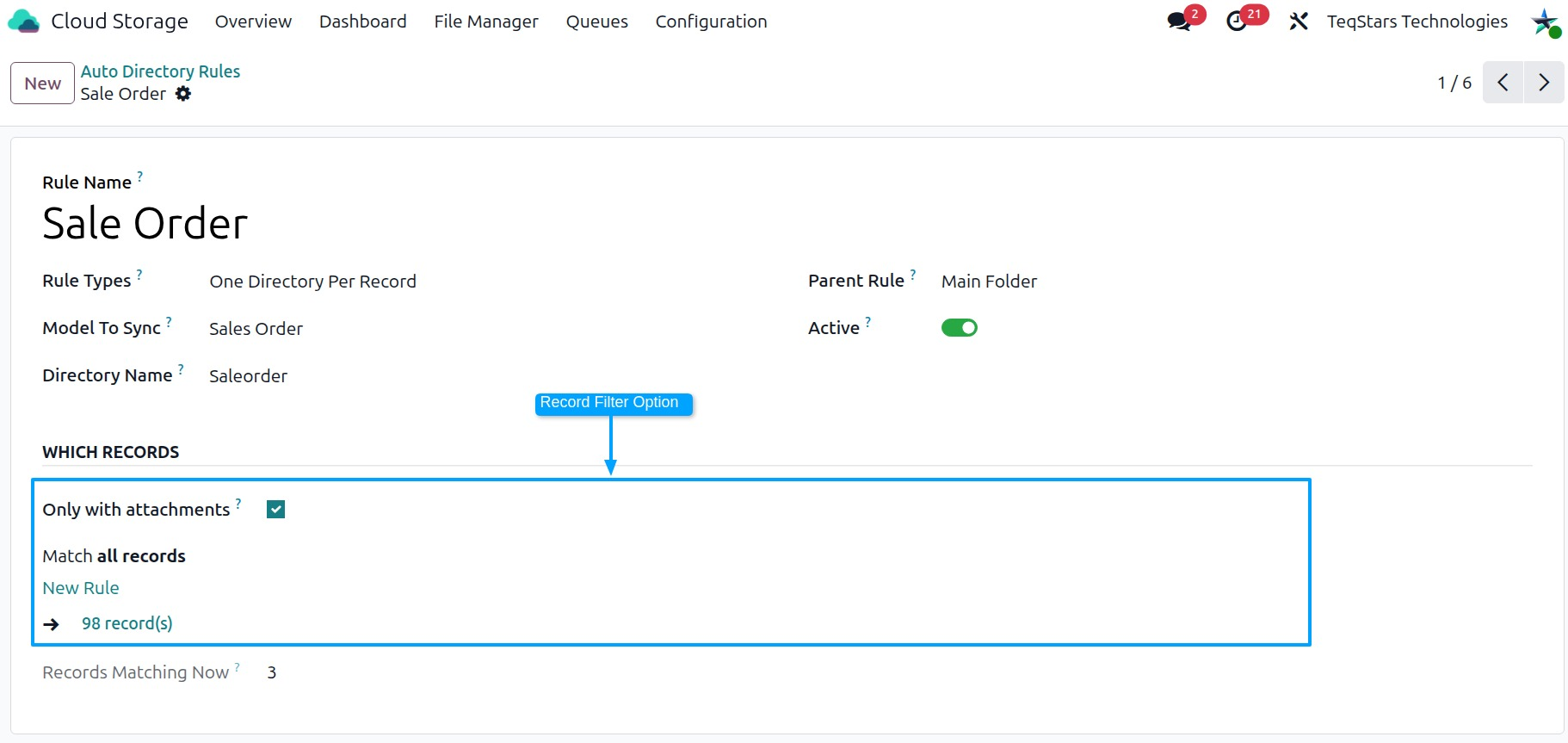
By default, a rule applies to the records of its model. You can narrow this down:
Only with attachments: tick it to apply the rule only to records that have attachments.
Only These Records: set conditions so the rule applies only to the records that match them.
Records Matching Now shows how many records the rule matches at the moment. Use it to check your filter before you save.
Rule priority
When you have several rules, Priority sets the order in which they apply. You set it when you create the rule, and you can change it at any time:
Open the rule.
Change the Priority.
Save the rule.