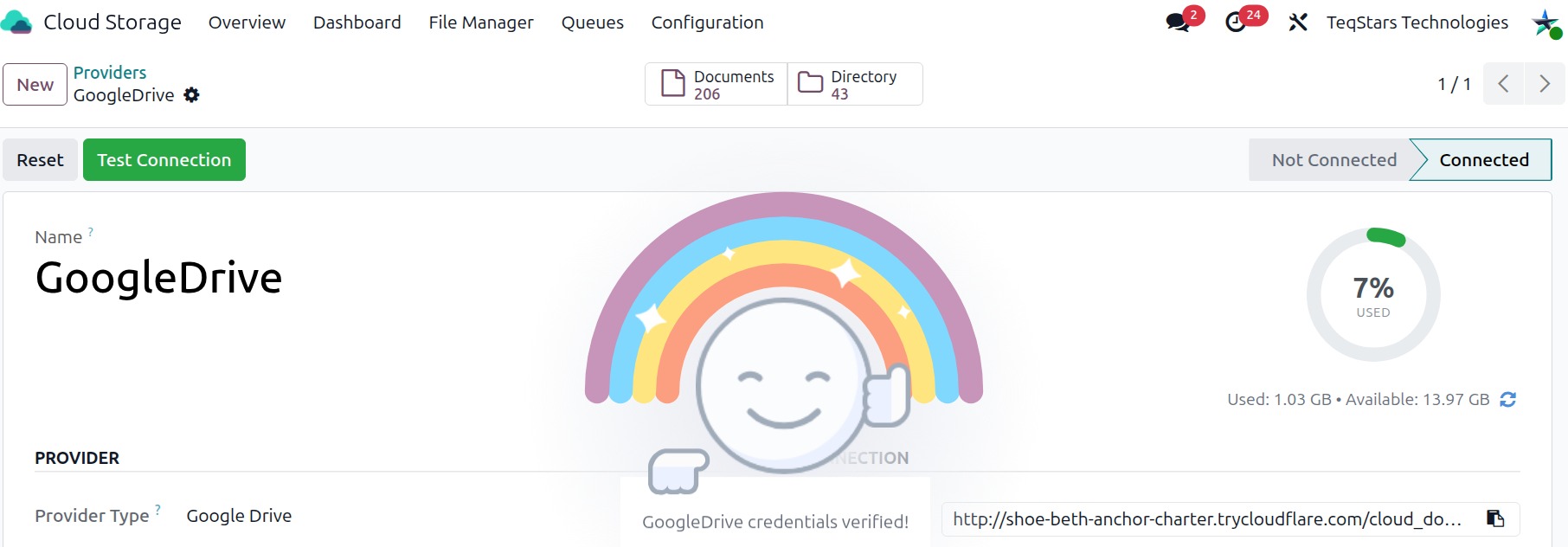
Create a Provider in Odoo
To create your cloud provider in Odoo, navigate to and click on New.
This page explains the settings that are the same for every cloud service. To get your login details and connect, follow your own service’s guide: Connect OneDrive, Connect SharePoint, Connect Google Drive, Connect Dropbox, or Connect Nextcloud / ownCloud.
Provider Configurations
Name: Name your team can easily recognize, such as
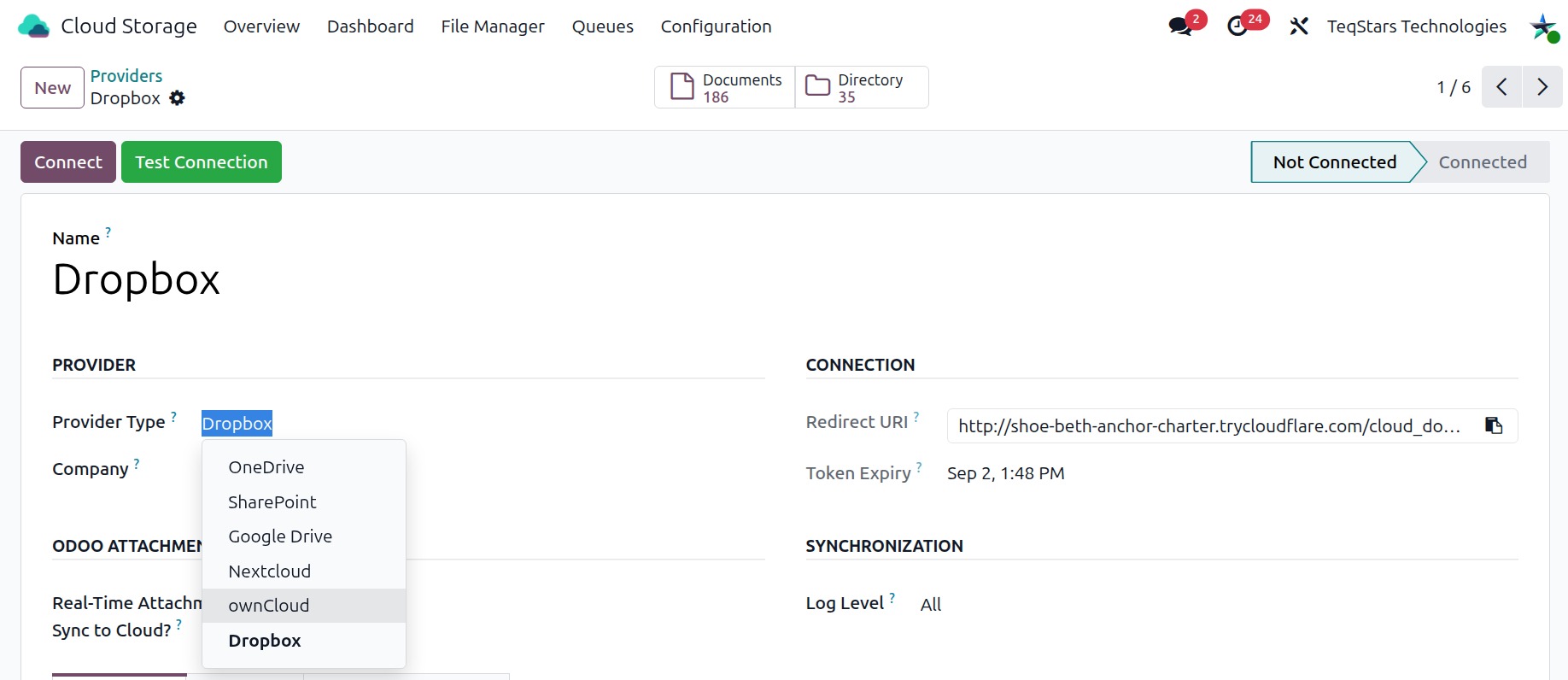
OneDrive. It appears on every file, folder, and log.Provider Type: The cloud service you want to connect:
OneDrive,SharePoint,Google Drive,Dropbox,Nextcloud, orownCloud.Company: The company this connection belongs to. Shown when you use more than one company.
Status: Where the connection stands:
Not Connected,Connected, orError.
Note
You can connect more than one provider, but you cannot configure two accounts of the same provider type(two OneDrive accounts).
Connection
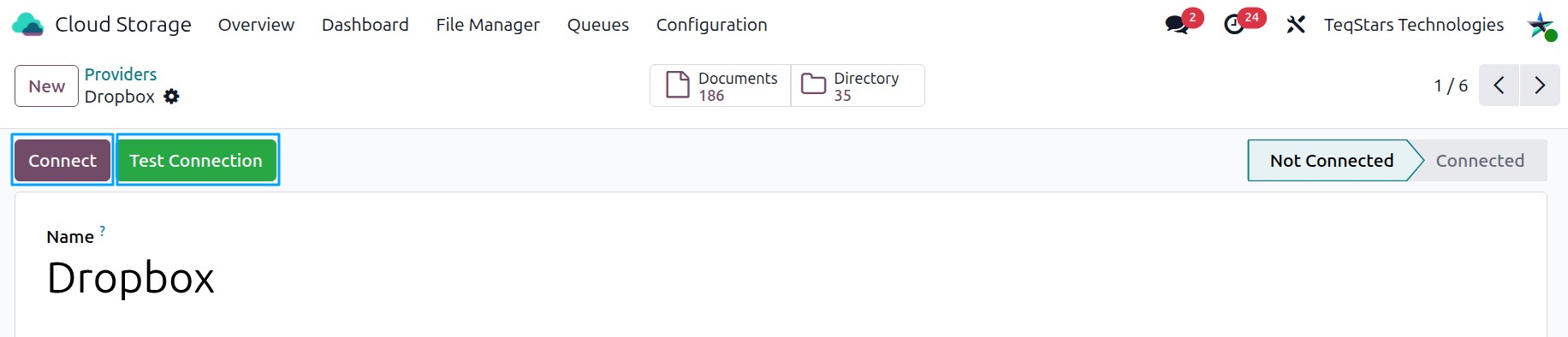
Three buttons at the top work the same way for every cloud service:
Test Connection: Checks that your login details are correct without changing anything. You can use it anytime.
Connect: Turns the connection on. The status becomes Connected, storage usage appears, and Odoo starts watching for changes.
Reset: Sets the provider to Not Connected, stops change notifications, and keeps the saved credentials for reconnecting.
Redirect URI: The callback address generated by Odoo from your system parameter(web.base.url).
Token Expiry: Shows when the current sign-in expires. It renews automatically.
Synchronization
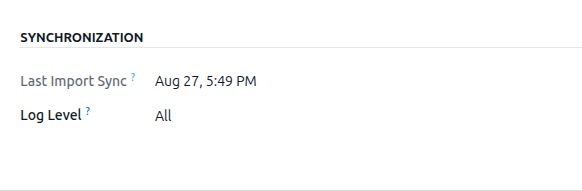
Last Import Sync: Shows when documents were last imported from the provider.
Log Level: Which activity logs to keep.
All: Keeps all logs.Success: Keeps only successful logs.Errors: Keeps only errors and warnings.
Odoo Attachment Sync
Real-Time Attachment Sync to Cloud?: Turn this on to automatically sync Odoo attachments (Sales Order, Invoice, Contact) to the cloud, and deleted files are also removed from the cloud. The upload happens as soon as the record is saved, so you do not have to wait for a scheduled action.
Important
We recommend keeping an independent copy of important data, as deletions and reverse operations are propagated and may be hard to undo.
Notifications & Alerts
If a file cannot be uploaded to the cloud, Odoo can create a to-do and notify the responsible users.
Activity: Select the to-do type. Leave it empty to create none.
Due Date In / Due type: Set when the to-do is due.
Responsible: Choose who gets the to-do and email.
Smart Notification Configuration: Add users who should see an Odoo notification.
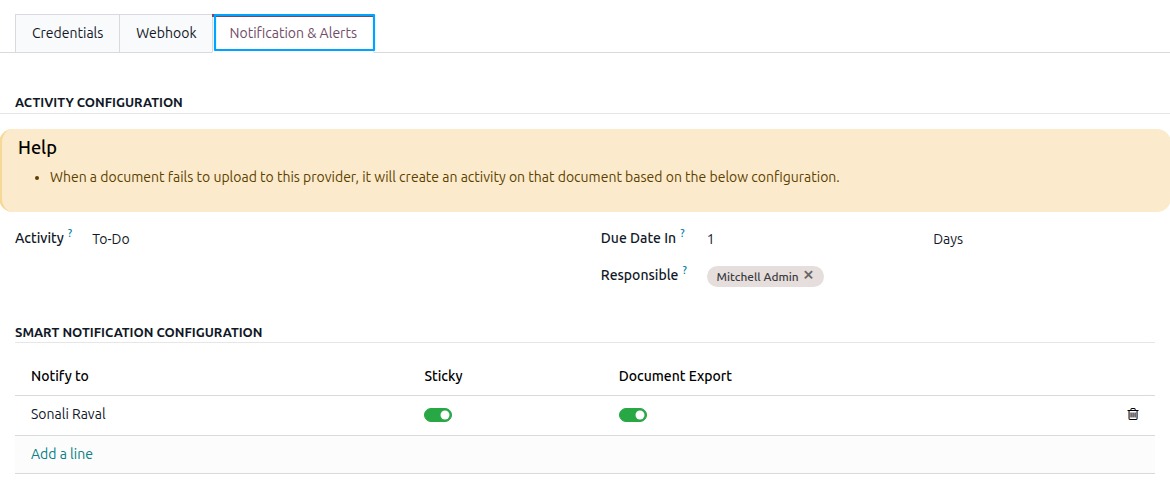
Notify to: Select who gets the notification.
Sticky: Keep the notification visible until it is closed.
Document Export: Show a notification when a documents fails to upload to the cloud.
The provider form also shows Integration Health, Failed Documents, and Not Yet Uploaded, so you can see which files still need to reach the cloud. Storage Summary shows the storage of the connection, and Storage Checked On shows when it was last checked.
Confirming the Provider
Your provider is ready when:
The Status shows Connected.
Test Connection gives a success message.