
Step 1: Register an app in Microsoft Entra
Sign in to the Microsoft Entra admin center and browse to .
Give the app a name (e.g.
Odoo Cloud Documents).Under Supported account types, choose who can use the app.
Under Redirect URI, choose the
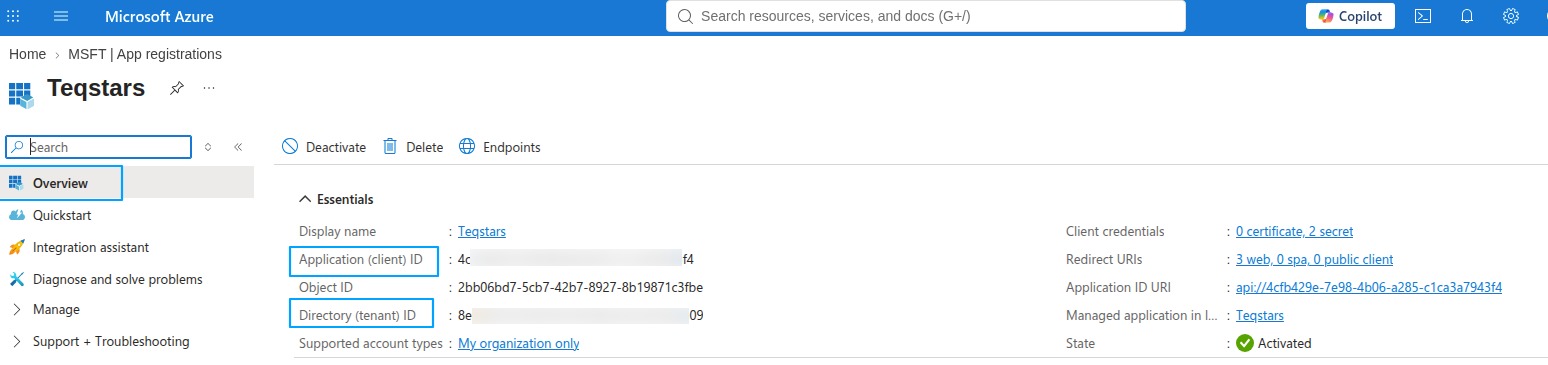
Webplatform. You fill in the value itself in Step 3.Select Register. The app’s own Overview page opens. Copy the Application (client) ID and the Directory (tenant) ID from there.
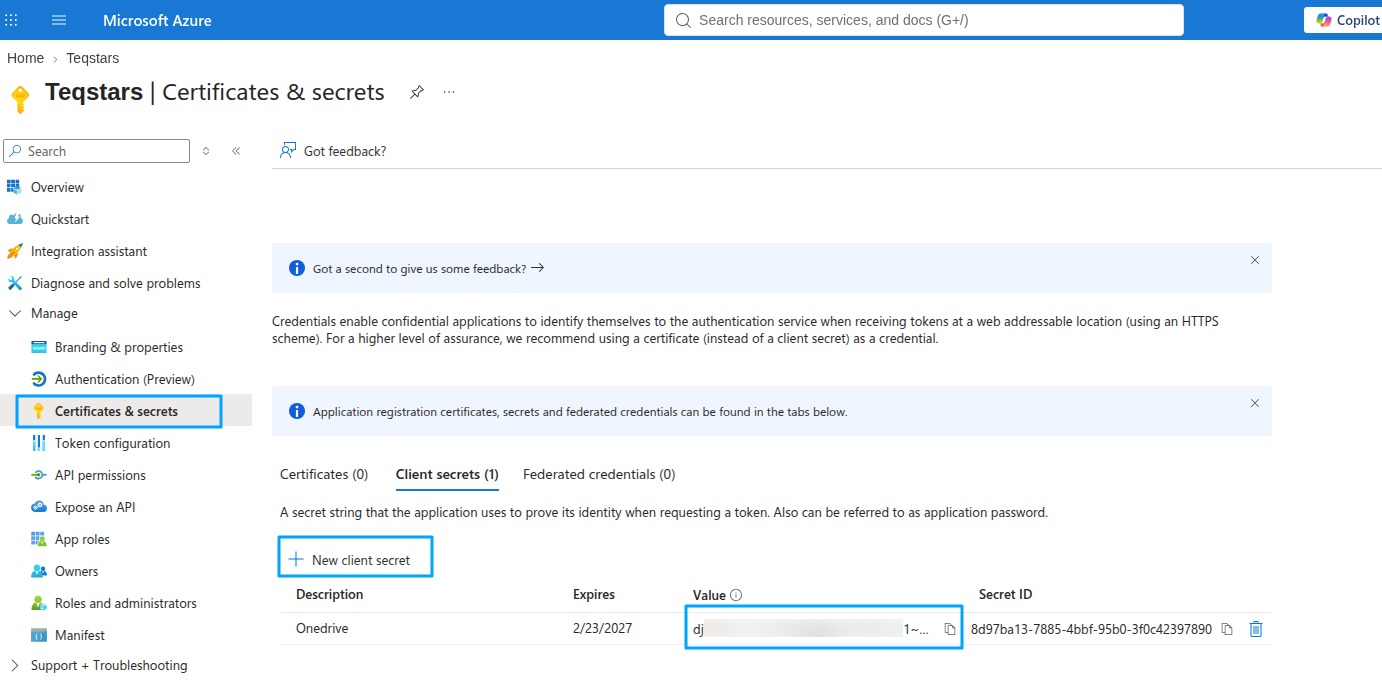
Open , create a secret and copy its Value right away. It is shown only once.
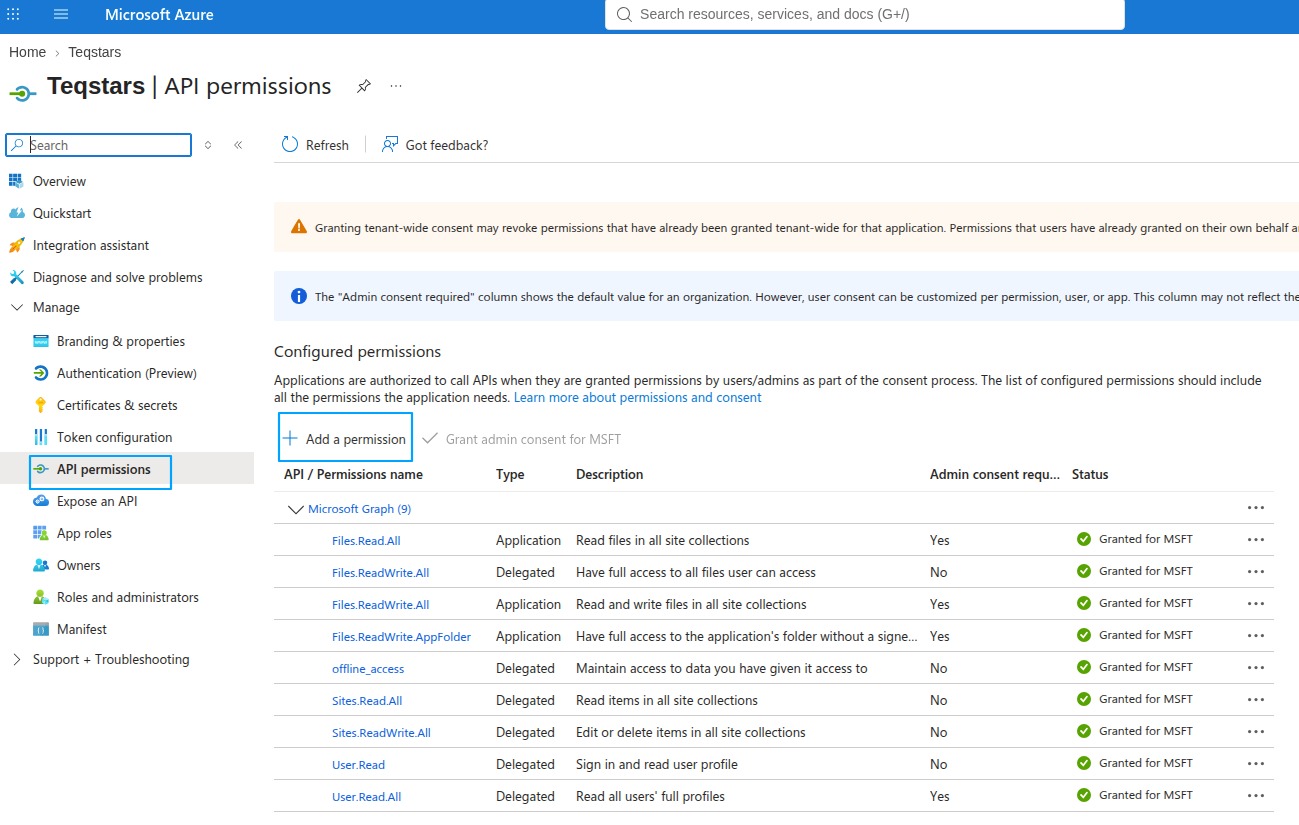
Open and add:
offline_access, Sites.ReadWrite.All, Files.ReadWrite.All
Tip
The Required Permissions field shows the permissions needed. If any permission is missing after sign-in, the provider will not connect.
Note
You can reuse one app registration for both OneDrive and SharePoint. It then needs the
permissions of both: offline_access, Files.ReadWrite.All, User.Read and
Sites.ReadWrite.All.
Step 2: Create the provider in Odoo
Navigate to and click New.
Set a friendly Name (e.g.
Company SharePoint) and chooseSharePointas the Provider Type.Open the Credentials tab and fill in:
Directory (Tenant) ID: the tenant ID from Step 1.
Client ID and Client Secret: from your app registration.
SharePoint Site URL: the site whose files should be synced, e.g.
https://contoso.sharepoint.com/sites/YourSite.
Save the record. The status bar stays on Not Connected until you finish Step 4.
Step 3: Redirect URI
Copy the Redirect URI from the provider form with the clipboard icon.
In your app registration under , add it as a
Webplatform redirect URI and click Save.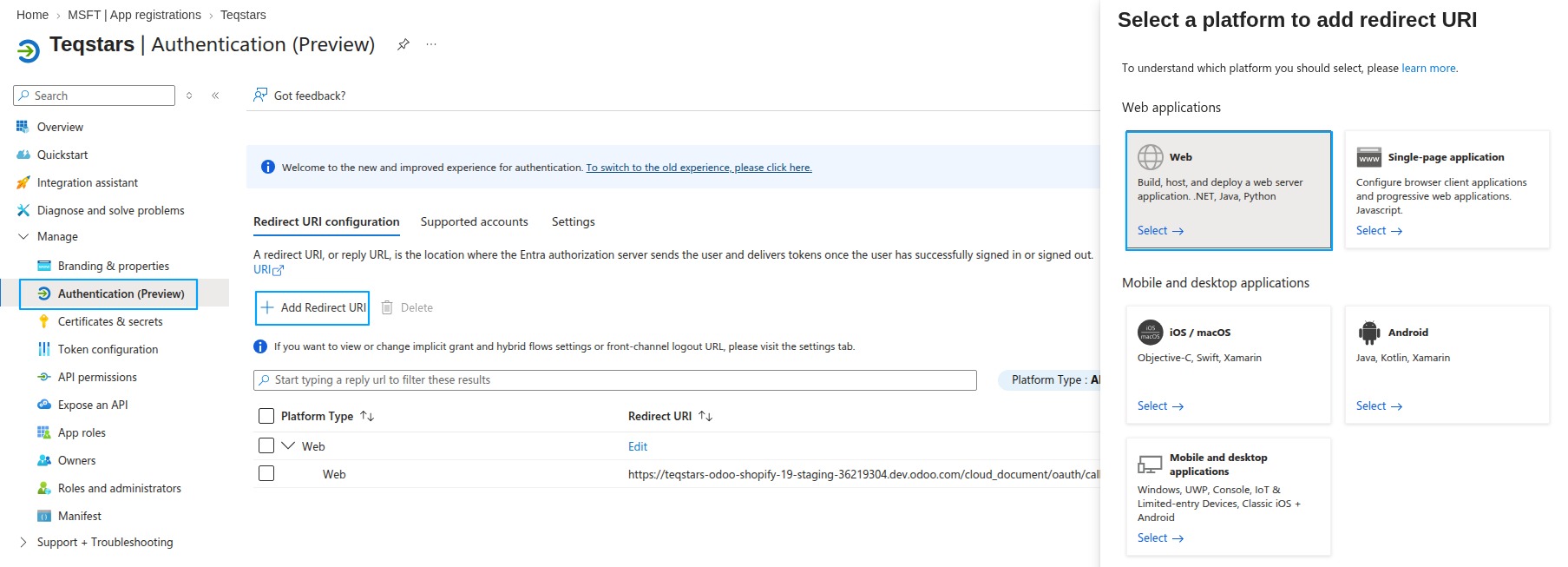
Warning
Paste the exact value, with no trailing slash, before Step 4. A mismatch is the most common cause of a failed sign-in.
Step 4: Connect and test
On the Credentials tab, click Generate Access Token. Odoo saves the Client ID and Client Secret, then sends you to the Microsoft sign-in page.
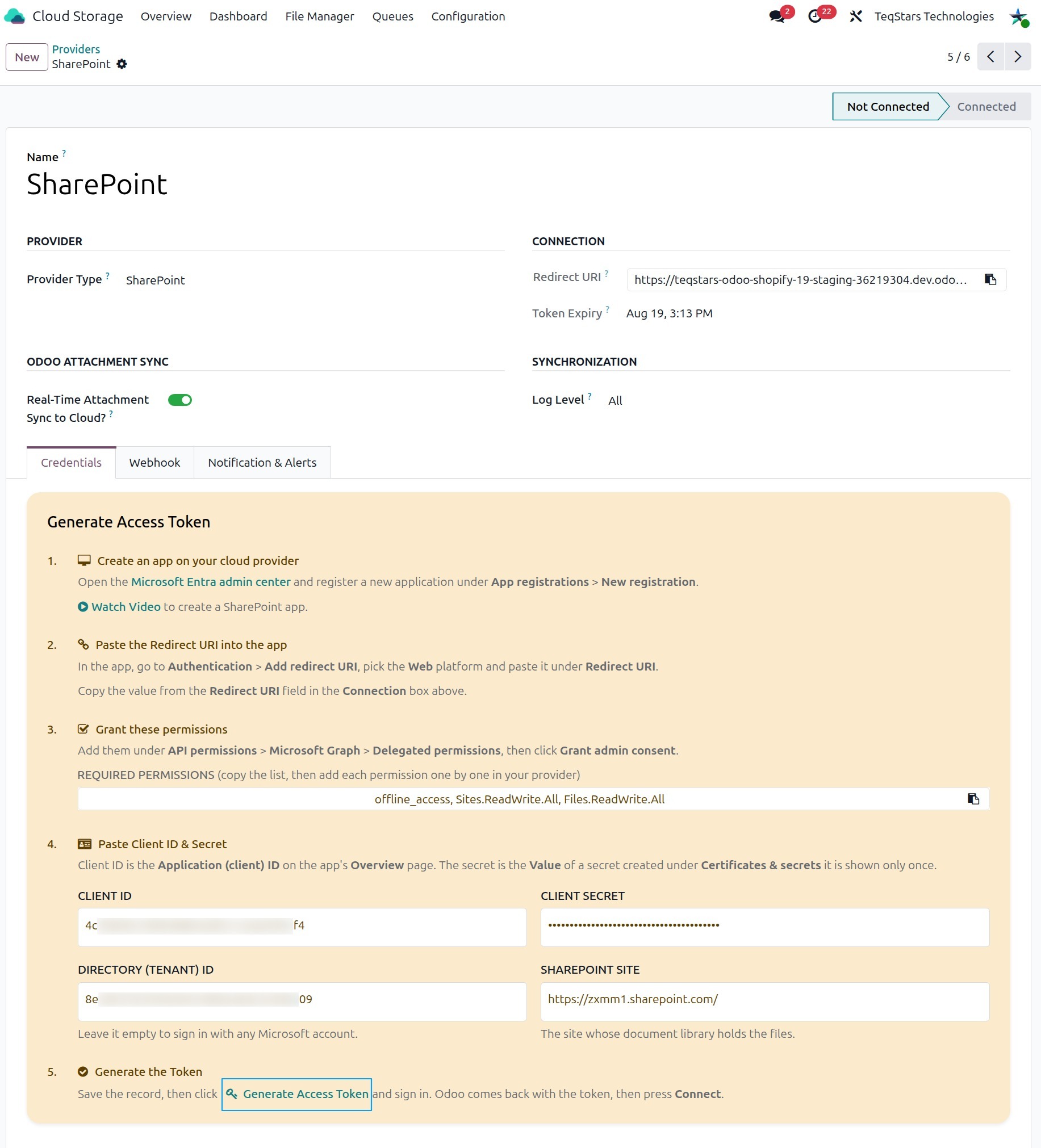
Sign in with an account that can reach the site, then review the permissions and click Accept.
Microsoft sends you back to the provider form and Odoo stores the access token. The Connect and Test Connection buttons now appear in the header.
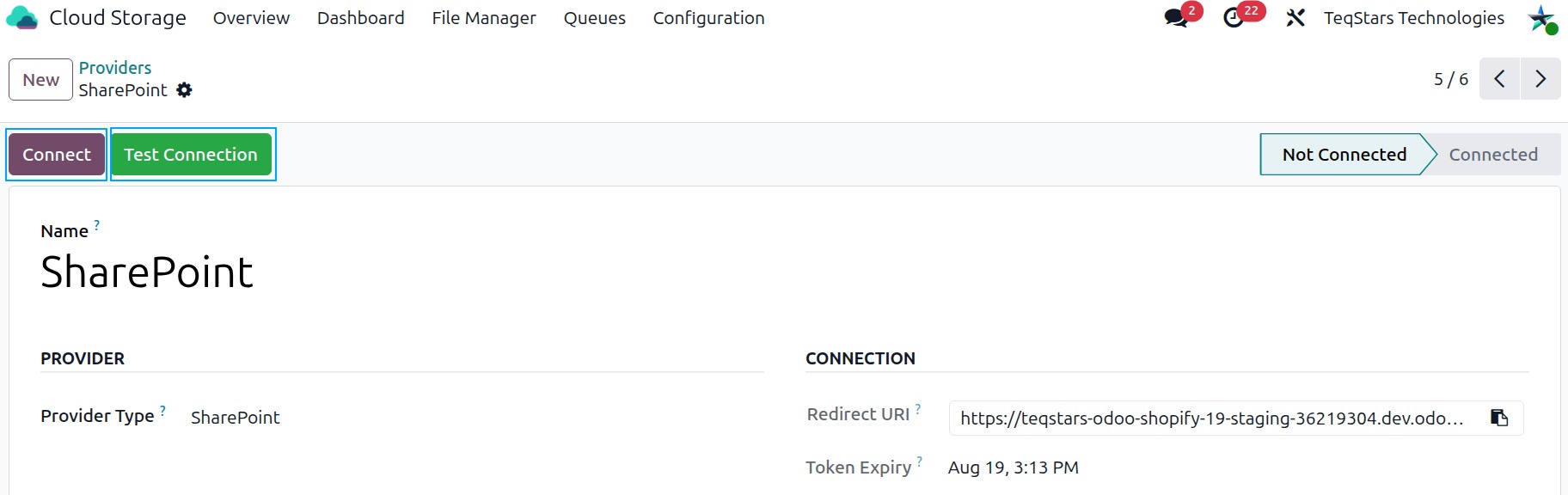
Click Test Connection and verify that the success message appears.
Click Connect to activate the provider. The status moves from Not Connected to Connected.
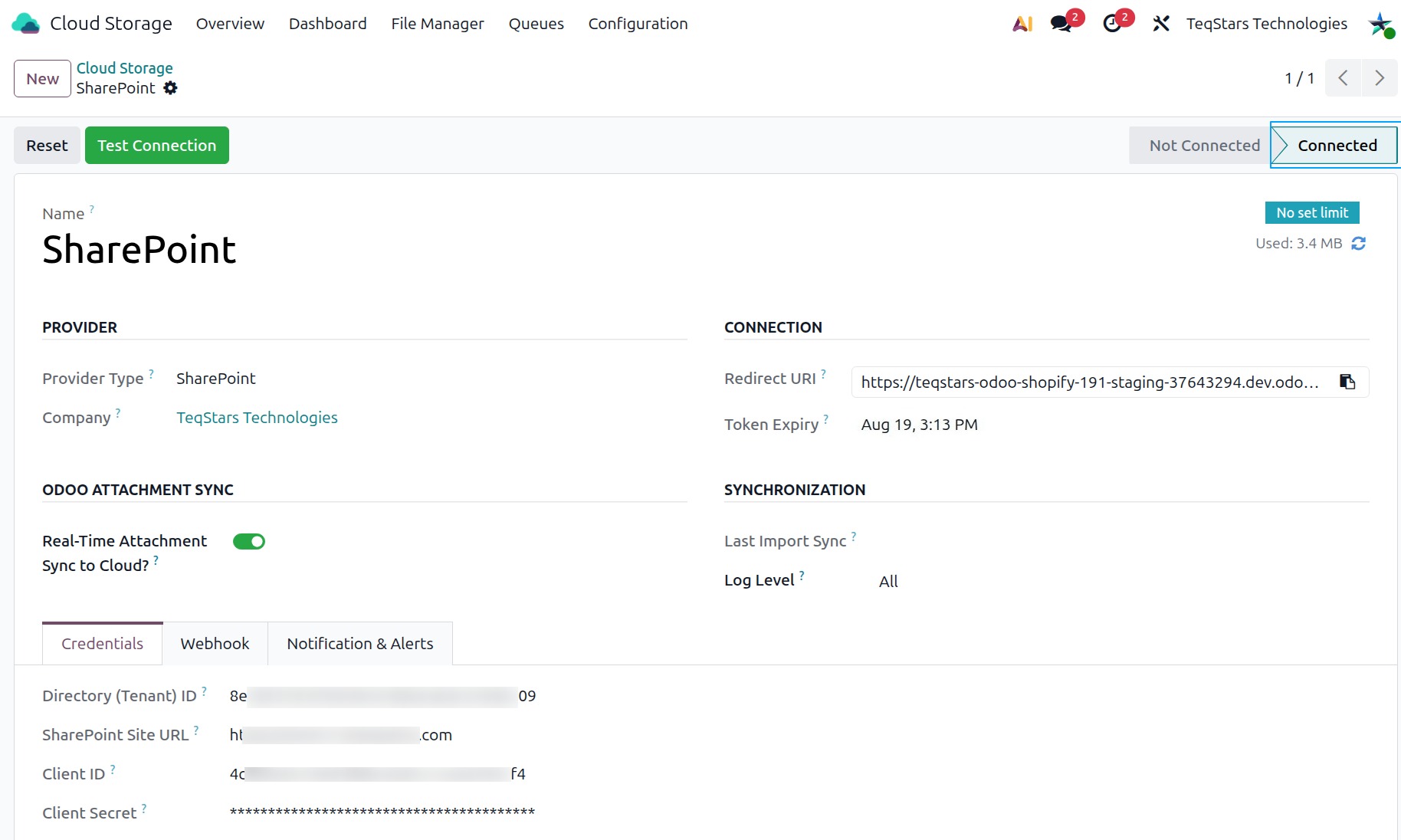
Note
The site ID is looked up once from the SharePoint Site URL and remembered. If you change the URL later, the site ID and the change cursor are cleared, so the sync starts fresh for the new site.
Step 5: Webhook Configurations
What webhooks do
Webhooks allow SharePoint to instantly inform Odoo when something happens on the site (a file or folder added, renamed, moved, or deleted).
This means Odoo updates automatically without waiting for the scheduled actions.
It helps keep your documents in sync in real time.
How to enable or disable
Open your SharePoint provider.
Open the Webhook tab. It is visible to Cloud Documents Administrators only.
Enable Active on the event lines you want, and save.
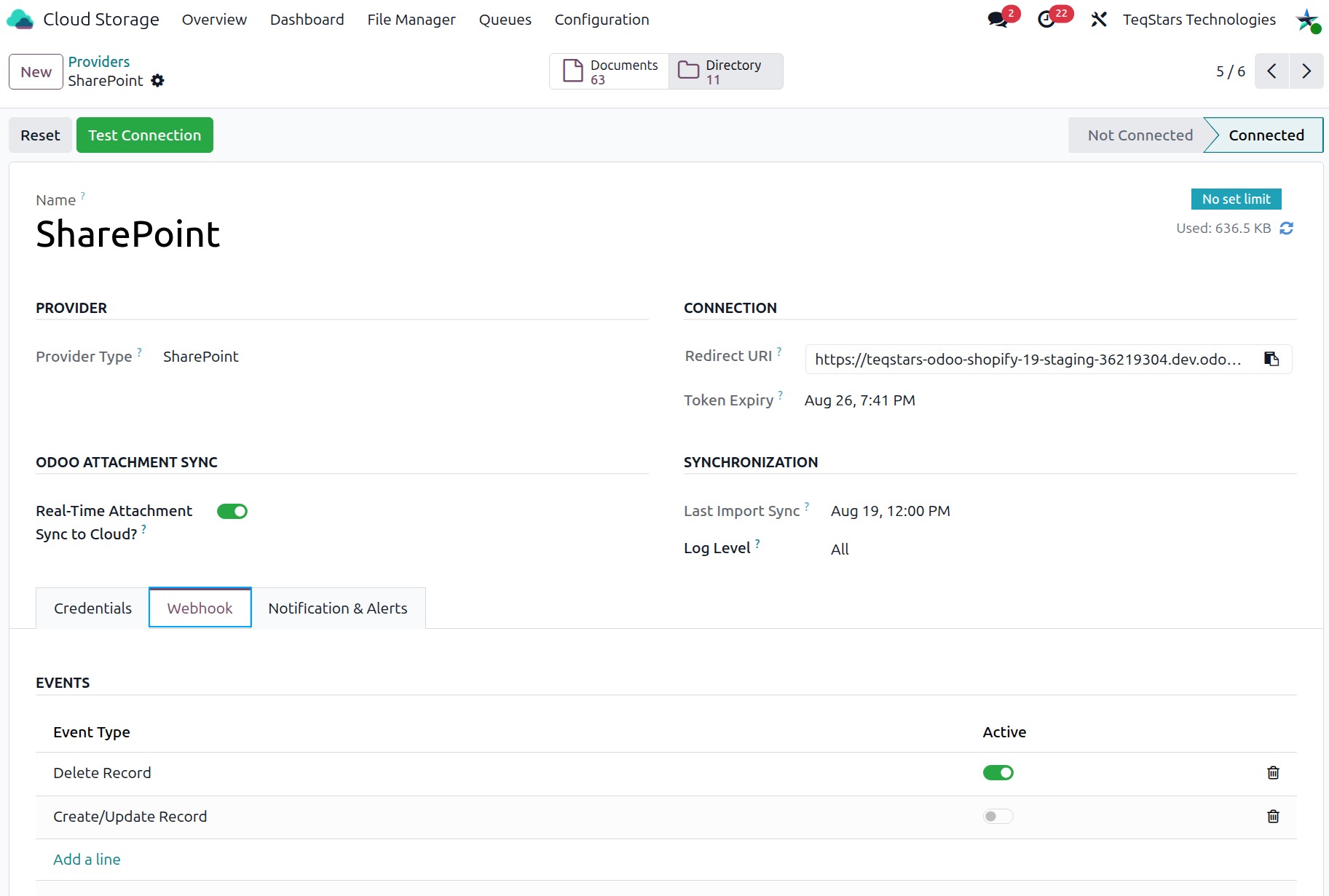
Webhook Event Types
Create/Update Record
Triggered when a file or folder is added or modified in SharePoint.
Odoo automatically creates or updates the matching document or directory.
Delete Record
Triggered when a file or folder is deleted in SharePoint.
Odoo removes the matching document or directory.
Note
Your Odoo URL must use https://. Webhooks will not work on localhost or an intranet.
The provider must be in Connected state.
See also