
Refund Orders From Odoo To BigCommerce
The BigCommerce Odoo Connector lets you push refunds to BigCommerce from a posted Credit Note in Odoo. The resulting refund ID is stored on the credit note so the operation is one-way and safe — you cannot accidentally push the same refund to BigCommerce twice.
You can refund partial or full amounts, with or without taxes — the connector computes the correct refund quote total from the credit note lines.
Refund From A Credit Note
Open the original customer invoice linked to the BigCommerce order.
Click Add Credit Note. Choose between full refund or partial refund, edit lines if needed, and click Reverse.
Open the resulting credit note and click Confirm to post it.
On the posted credit note, the Refund In BigCommerce button appears.
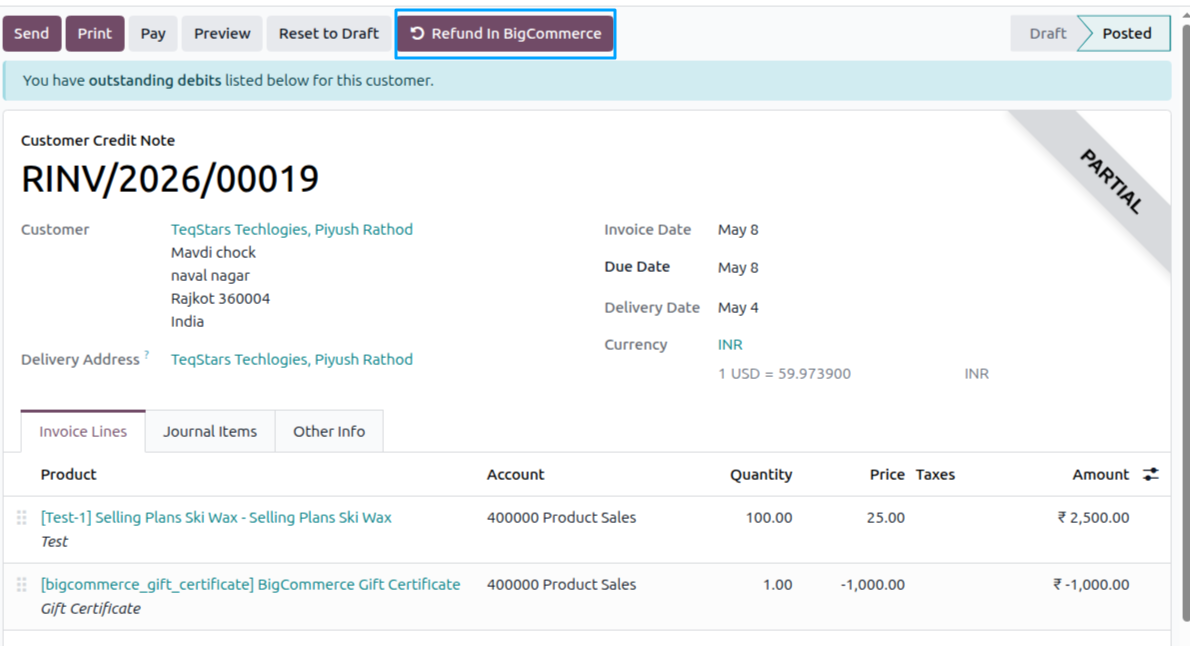
Click Refund In BigCommerce. The wizard opens.
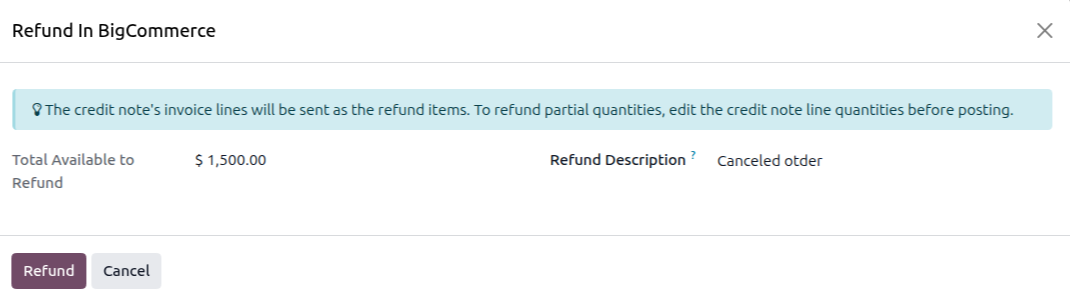
In the wizard, fill in:
Refund Description: the reason for the refund. It is recorded on the BigCommerce refund and in the Odoo chatter.
Click Refund. The connector:
Re-validates that the credit note is posted, linked to the original invoice, and tied to a single Sale Order.
Builds the refund items from the credit note lines (taxes are computed using the same fiscal logic as the original invoice).
Posts the refund to BigCommerce.
Stores the BigCommerce refund identifier on the credit note’s BigCommerce Refund ID field — this prevents accidental double-refunds.
The Sale Order’s BigCommerce Payment Status is updated to Refunded (full refund) or Partially Refunded (partial refund).
Important
The credit note must be posted before the refund button appears. Drafts are ignored.
The credit note must be linked to the same Sale Order as the original invoice; ad-hoc credit notes that are not tied to the original BigCommerce order cannot be pushed.
Once a refund is sent, the BigCommerce Refund ID is stored on the credit note. The button does not re-appear, and the connector refuses to send a second refund for the same credit note.