
Export Price From Odoo
Exporting Price from Odoo to Shopify can be achieved through the following steps:
Note
The Export Odoo Product’s Sale Price? setting in Product Configurations is used when exporting prices.
The standard behavior is to export the prices based on the pricelist configured in Instance. However, if you want to export the product’s sale price directly, bypassing the pricelist, you can customize the export functionality by enabling this option.
There are two ways to export price from Odoo to Shopify:
Method - 1: Manual Export Price
Go to the menu in Odoo.
Click on the
Operationsbutton from the instance record.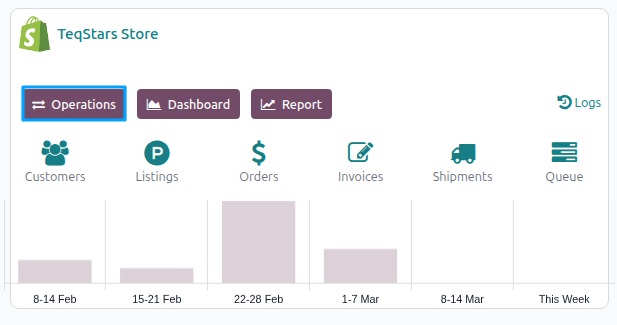
Select Export Operation and then select Export Prices option.
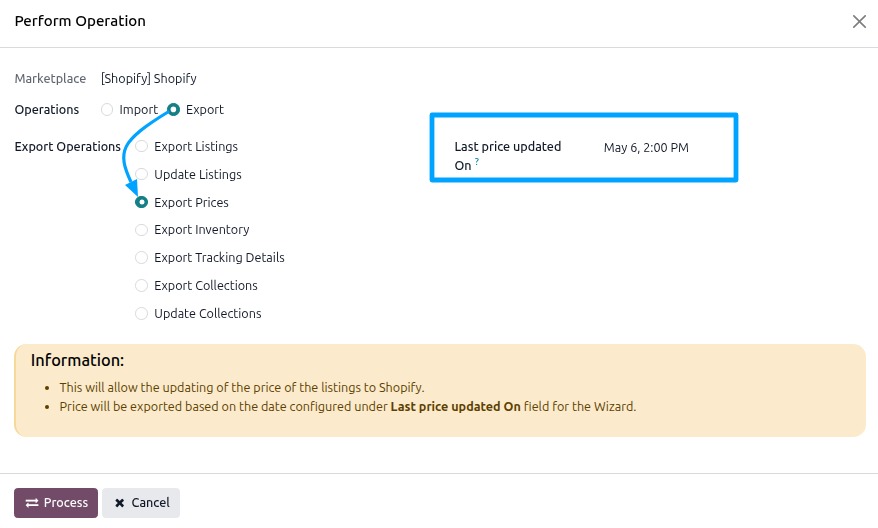
Last price updated On: Date of the last price export. Only products with price changes after this date will be export.
Press
PROCESSbutton to export product price from Odoo to Shopify.
The price export feature sends the latest prices from Odoo to Shopify, helping keep your store prices accurate and reducing manual work.
Note
Prices are exported based on the date set in the Last Listing’s Price Updated On field in the instance.
Method - 2: Automatic Export Price
You can automatically export prices in Shopify at regular intervals using the automatic job feature. This removes the need to export prices manually.
Follow these steps:
Go to .
Go to the Automatic Jobs tab.
Configure Export Product’s Price by setting the Interval Number (how often it should run), Interval Unit (such as minutes, hours, or days), and enable Active to turn on automatic price updates.
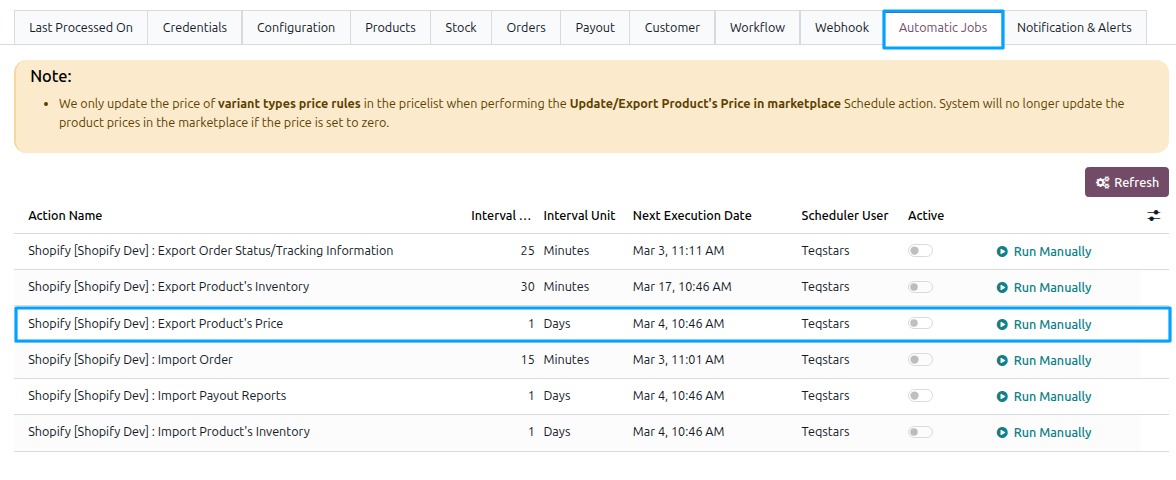
Once enabled, Odoo will automatically update prices in Shopify at the selected time intervals. After each update, the Last Listing Price Updated On field will be updated.
Note
Prices can also be updated automatically in real time whenever the price changes in Odoo, see Real-Time Price Sync configuration on the instance.
A specific listing can’t be updated when the Not Allowed Sync status badge is shown on the Form View. For more details, see Skip Sync for a Specific Listing.
See also