
Refund ManoMano Orders From Odoo
You can send a full or partial refund of a ManoMano order to ManoMano straight from its credit note in Odoo.
You choose the products and quantities to refund, the refund reason and whether the shipping charges are refunded.
ManoMano accepts two refund reasons: Customer Cancellation and No Stock.
Before You Start
Check the following before you send a refund:
The credit note is linked to a sales order imported from ManoMano. See Import ManoMano Orders In Odoo. If no sales order is linked, Odoo shows the message No associated sales order found.
The sales order has a ManoMano seller contract (B2B or B2C). ManoMano needs it to know which contract the refund belongs to. If it is missing, Odoo shows the message ManoMano order … has no seller contract reference, so the refund cannot be sent.
The Create Credit Note (ManoMano) option of the order workflow decides whether Odoo creates credit notes for refunded ManoMano orders. See ManoMano Order Workflow Configuration.
Open The Refund Wizard
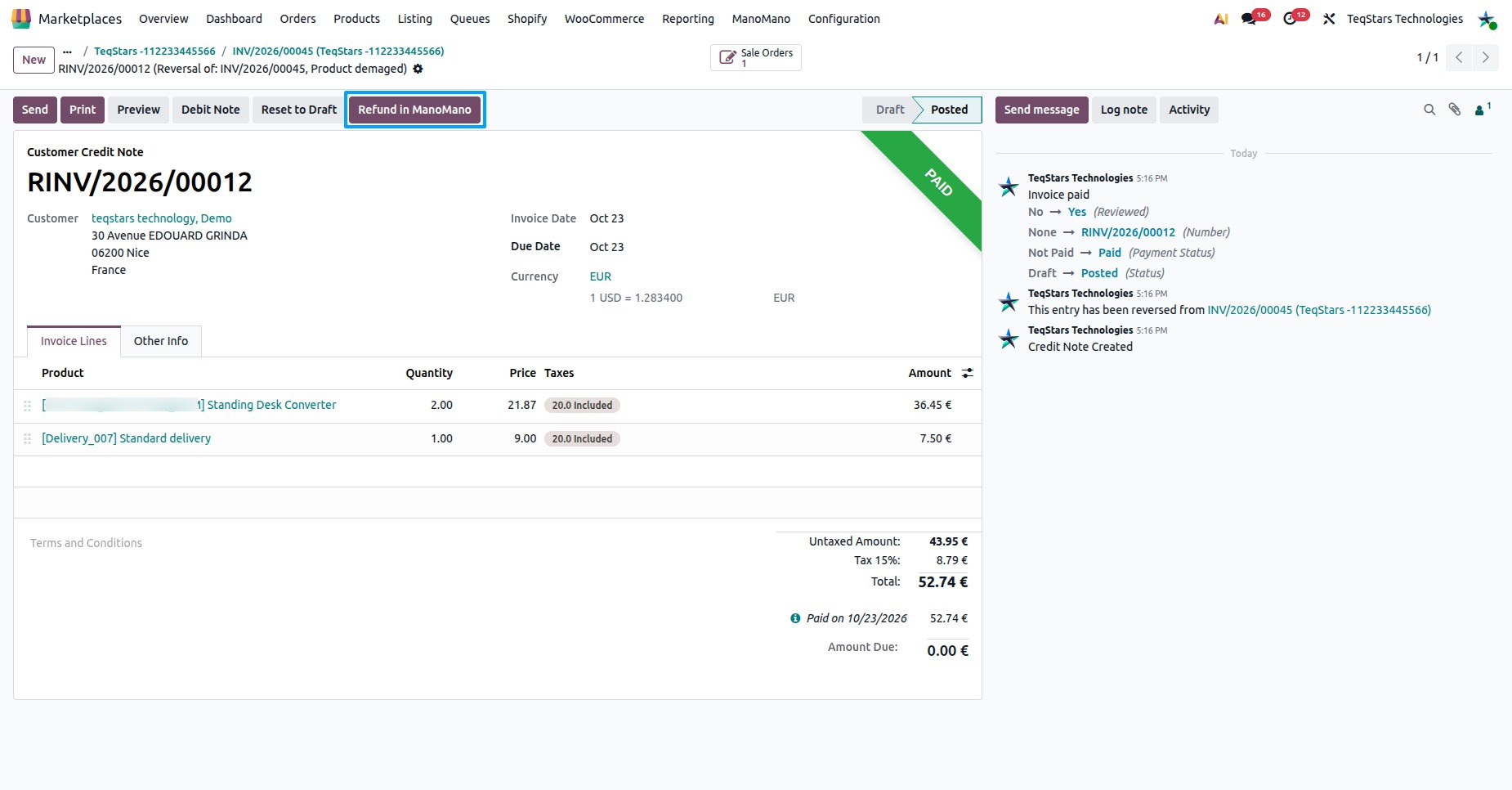
Go to .
Open the credit note of the ManoMano order you want to refund.
Click Refund in ManoMano.
The Refund in ManoMano wizard opens.
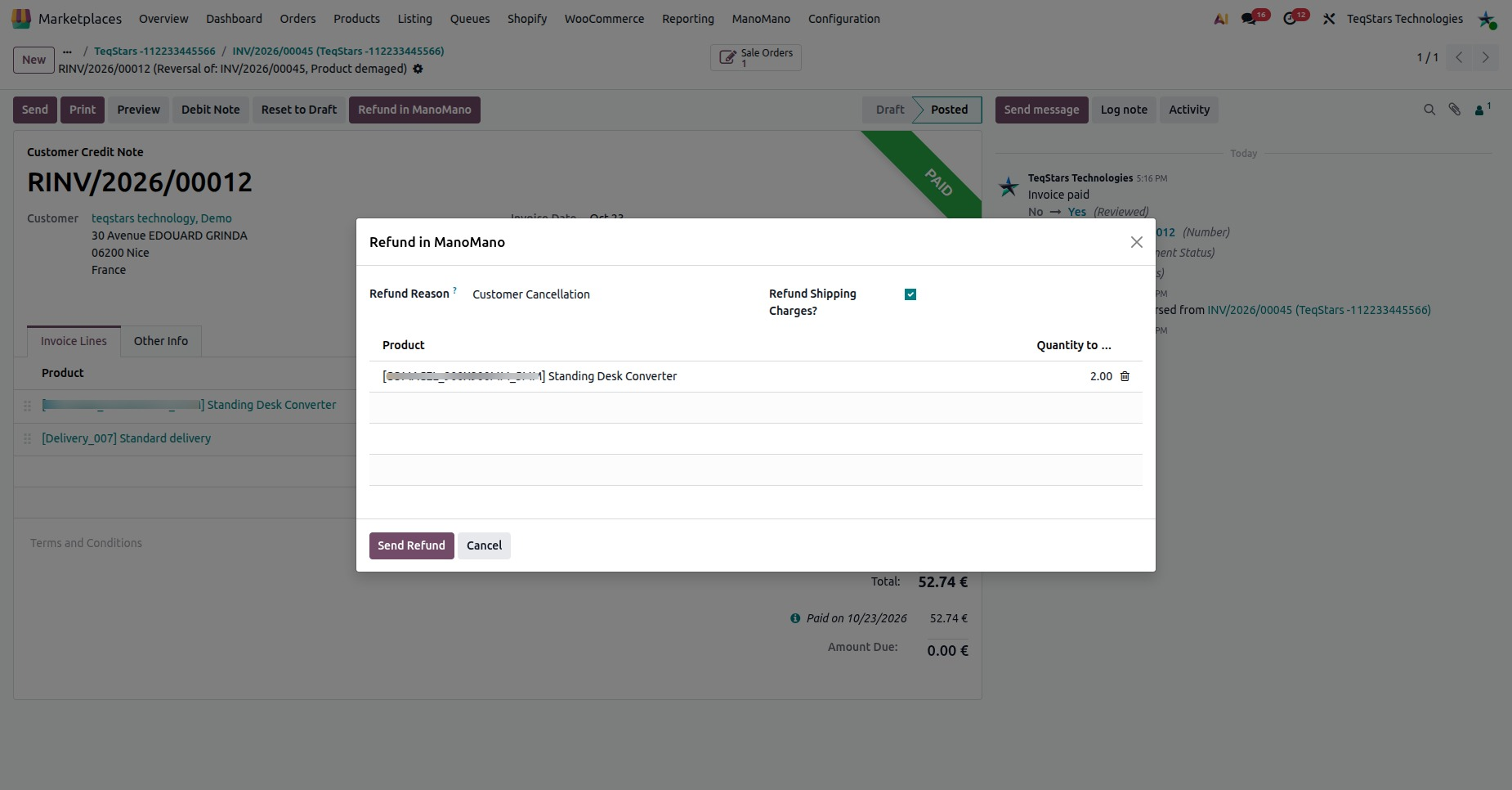
Products To Refund
The Products to Refund list shows the products of the order.
Set the quantity to refund on each product you refund.
To refund the whole order, set the full quantity on every product.
To send a partial refund, set a lower quantity, or set a quantity only on the products you refund.
You must set a quantity on at least one product. Otherwise, Odoo shows the message Please set a quantity on at least one product to refund.
Refund Reason And Shipping Charges
Refund Reason: Pick the reason for the refund. ManoMano accepts exactly these two reasons:
Customer Cancellation
No Stock
Refund Shipping Charges?: Enable it to refund the shipping charges of the order. ManoMano takes shipping as yes or no, so the shipping is refunded in full or not at all.
Send The Refund
Check the quantities, the Refund Reason and the Refund Shipping Charges? option.
Click Send Refund.
Odoo sends the refund to ManoMano for the seller contract of the order.
To close the wizard without sending anything, click Cancel.
After Sending
Odoo adds a note with the reason and the shipping choice, for example Refund sent to ManoMano (reason: …, shipping refunded: yes).
A log line is written in , for example REFUND: Successfully sent refund for ManoMano Order … (… product(s), reason: …).
Tip
If the refund is not sent, open and read the message. Then check the points in Before You Start and send the refund again.