
ManoMano Product Feed
ManoMano reads your products from a CSV product feed that Odoo publishes. Each seller contract of the instance has its own feed and its own feed URL. You paste that URL once in ManoMano Toolbox, and ManoMano pulls the feed from Odoo on its own schedule.
How The Product Feed Works
The connector writes your listings to a feed file for each seller contract, B2B and B2C. Each contract has its own price grid and its own product feed. ManoMano then reads the feed from the contract’s feed URL.
Export Listings writes your not-yet-listed products to the feed for both contracts. They are marked as listed once ManoMano confirms the offer. See Export Products From Odoo.
Update Listings rebuilds the feed for your listed products. ManoMano reads the same feed URL on its next pull, so you never paste the link again. See Update Products From Odoo.
The Regenerate B2B Product Feed and Regenerate B2C Product Feed scheduled jobs rebuild the feed of each contract automatically.
The Verify B2B Feed Status and Verify B2C Feed Status scheduled jobs read your offers back from ManoMano. When a SKU is confirmed live on ManoMano for a contract, it is removed from that contract’s feed and a log line tells you so.
You find these jobs on the Automatic Jobs tab of the instance. You choose how often each one runs there, and you can start one at once with Run Manually.
The date of the last feed export of each contract is shown on the instance in Last Feed Export (B2B) and Last Feed Export (B2C).
Note
ManoMano reads the feed from your Odoo, so your Odoo must be reachable over HTTPS and its base URL must be your public address. Orders and offers do not need this: Odoo calls ManoMano for them.
Configure The Feed Channel In ManoMano Toolbox
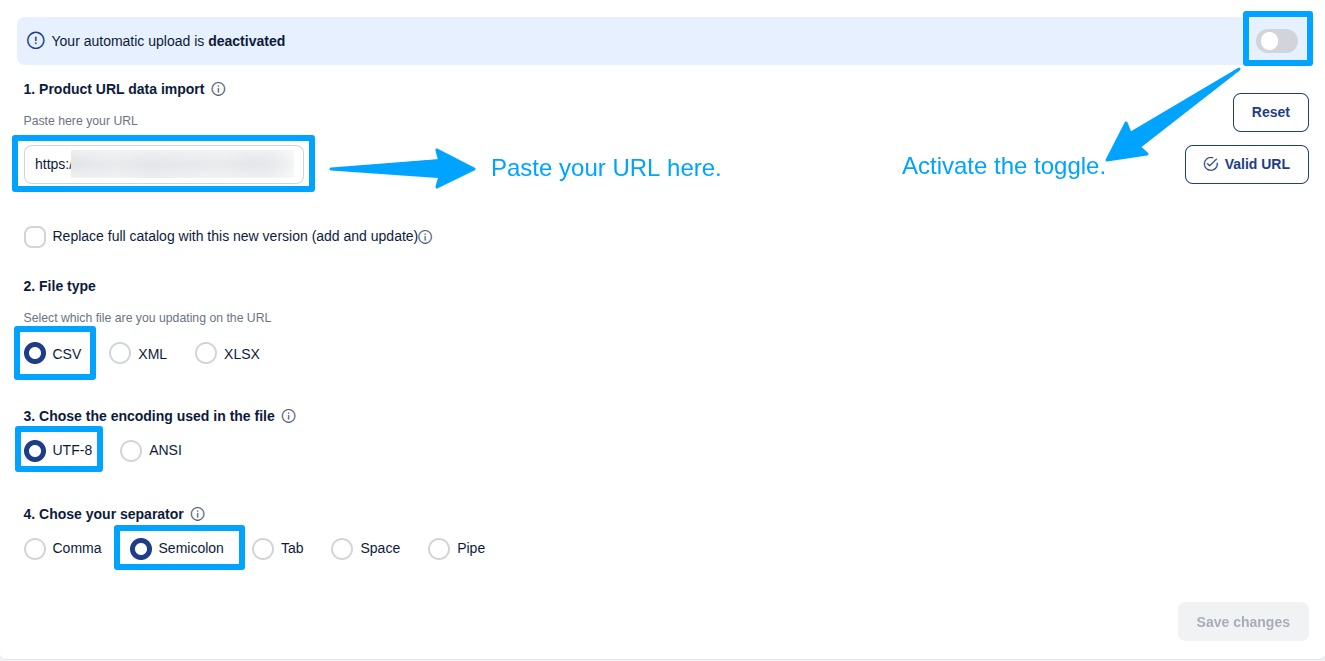
In ManoMano Toolbox, set up your feed channel with these exact settings, as the note on the instance shows:
File type: CSV.
Encoding: UTF-8.
Separator: Semicolon (;).
Update mode: keep “Replace full catalog” unchecked (incremental), so products missing from a pull are not deactivated.
Warning
If “Replace full catalog” is checked, ManoMano can deactivate the products that are not in a pull.
Paste The Feed URL
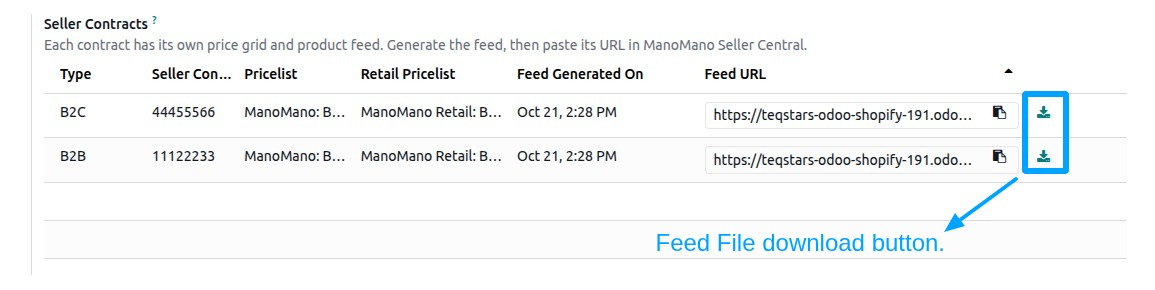
Each seller contract of the instance has its own Feed URL. The seller contracts are described in ManoMano Seller Contracts.
Open your ManoMano instance at .
In Seller Contracts, open the B2B contract and copy its Feed URL.
In ManoMano Toolbox, paste it into the “Product URL data import” field of the B2B feed channel.
Do the same for the B2C contract. You paste one URL per contract.
Tip
Generate the feed first, then paste its URL. A contract with no feed yet has nothing for ManoMano to read.
Download The Feed CSV
To see what ManoMano reads, open a seller contract and click Download Feed CSV. You get the current feed file of that contract.
If no feed exists yet, Odoo shows the message “No feed has been generated yet for this contract.” Run Export Listings or Update Listings first, or wait for the regenerate job of that contract.
When The Feed URL Changes
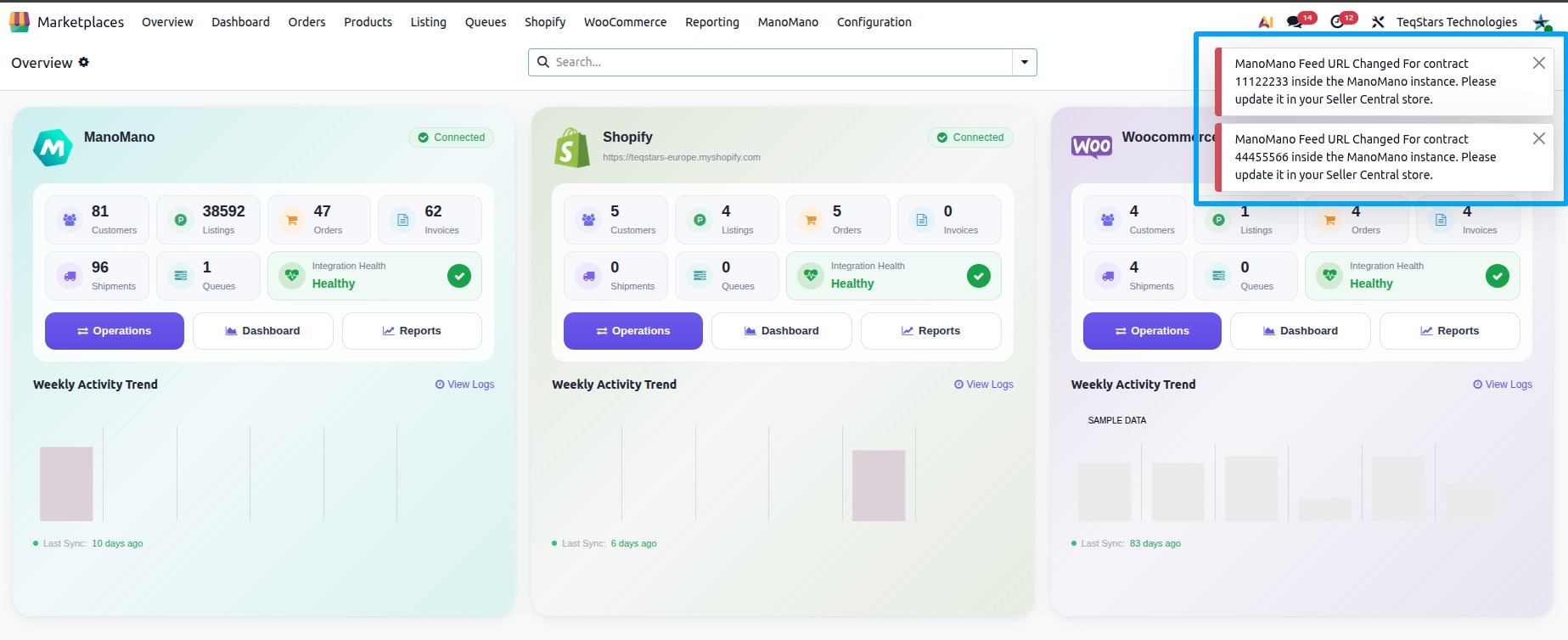
When the feed URL of a contract changes, the connector tells you with the message “B2B or B2C Feed URL Changed”: “The ManoMano feed URL of instance name has changed. Please update it in your ManoMano Seller Central store.”
Open the seller contract named in the message and copy its new Feed URL.
In ManoMano Toolbox, replace the old link in the “Product URL data import” field of that contract’s feed channel.
Until you do this, ManoMano keeps reading the old link.
Note
Rebuilding the feed with Update Listings or the regenerate jobs keeps the same feed URL. You only paste the link again when this message appears.
Why A Product Is Left Out Of The Feed
Before a product is written to the feed, the connector checks it. A product that fails a check is skipped, and the SKU is named in the log at .
No image: at least one image is required. The log shows “feed generation - at least one image is required. Skipped SKU(s): …”. Add an image to the product or its listing.
No shipping grid (carrier): at least one shipping grid is required. The log shows “feed generation - at least one shipping grid (carrier) is required. Skipped SKU(s): …”. Pick a carrier in the offer details of the listing. The carriers you can choose from are listed at , see ManoMano Carriers.
When you export or update listings by hand, the same checks stop the operation with “MANOMANO: At least one image is required before these listings can be exported/updated.” or “MANOMANO: At least one shipping grid (carrier) is required before these listings can be exported/updated.”
A product that is already confirmed live on ManoMano is also removed from the feed by the verify feed status job of that contract, as described above.
The ManoMano category, brand and B2B and B2C offer details of a listing are filled in before it goes to the feed, see Offer Details On A Listing.