
Track Bol.com Process Status In Odoo
Bol.com does not handle every request right away. Some requests, such as confirming a shipment or uploading an invoice, are queued on the Bol.com side and finish later. Odoo logs these requests in the Process Status menu, so you can see what was sent and how it ended.
Overview
When Odoo sends one of these requests to Bol.com, it creates a process status record. Odoo creates a record when you:
Confirm a shipment.
Cancel an order item.
Create or handle a return.
Upload an invoice.
Send product content to Bol.com.
Bol.com can also send status updates to Odoo through the PROCESS_STATUS webhook. Each update creates a new record or refreshes an existing one. To set up webhooks, see Configure Bol.com Webhooks In Odoo.
Each record tells you:
What Odoo asked Bol.com to do.
Which Bol.com record the request is about.
Whether the request is still running, has finished, has failed or has timed out.
Why the request failed, when it fails.
This helps you spot problems early, before they affect your orders, shipments, returns or invoices.
Open Process Status
Go to .
Odoo shows the list of all logged requests.
Click a record to open it and see its details.
Note
Process status records are read-only. You cannot create or edit them. Odoo creates and updates them for you.
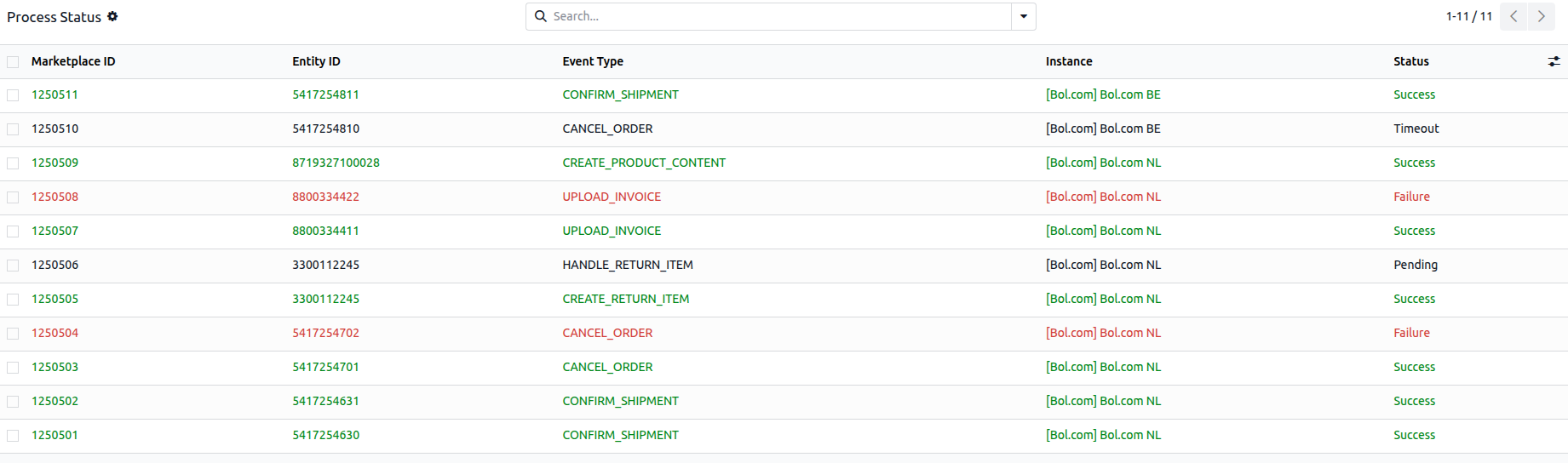
Process Status Fields
Each process status record shows the following fields:
Instance: The Bol.com instance that sent the request. This matters when you manage more than one Bol.com account.
Event Type: The kind of request sent to Bol.com, such as confirming a shipment or uploading an invoice.
Entity ID: The ID of the Bol.com record the request is about, such as an order item or a return.
Marketplace ID: The ID Bol.com gives to this request.
Description: A short text that describes the request.
Status: Where the request stands: Pending, Success, Failure or Timeout.
Failure Message: The reason Bol.com gives when the request does not succeed.
Requested By: The user who sent the request.
Create Date: The date and time Odoo logged the request.
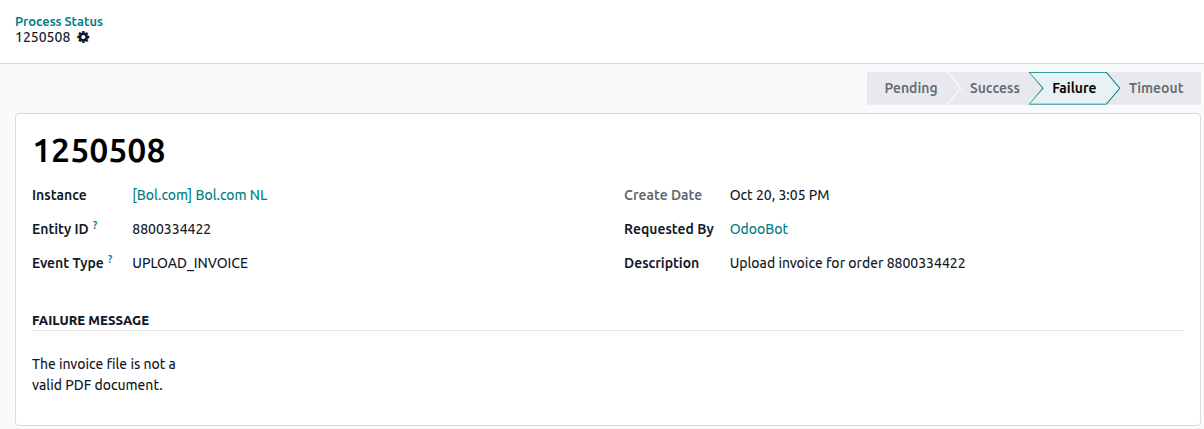
Event Types
The Event Type tells you what Odoo asked Bol.com to do. These are the event types Odoo logs:
Shipments and orders:
CONFIRM_SHIPMENT confirms a shipment.
CANCEL_ORDER cancels an order item.
Returns:
CREATE_RETURN_ITEM creates a return.
HANDLE_RETURN_ITEM handles a return.
Invoices:
UPLOAD_INVOICE uploads an invoice.
Products:
CREATE_PRODUCT_CONTENT sends product content.
Statuses: Pending, Success, Failure, Timeout
The Status field shows where each request stands:
Pending: Bol.com has received the request and is still working on it.
Success: Bol.com has finished the request.
Failure: Bol.com could not finish the request. Read the Failure Message to see why.
Timeout: Bol.com did not finish the request in time.
Note
A Pending request is normal right after you send it. Check it again later before you take action.
Troubleshoot Failed Processes
When a request does not succeed, follow these steps:
Go to .
Look for records with the Failure or Timeout status.
Open the record.
Check the Event Type and Entity ID to see which request and which Bol.com record failed.
Read the Failure Message to find the cause.
Fix the cause in Odoo.
Tip
Use Requested By and Create Date to find out who sent the request and when. This helps you link a failure to a recent change.