
Products Management
The connector exports your Odoo products to a MailChimp ecommerce store with their SKU, price, image and variants, so campaigns and automations can reference real catalog data, and orders can link to the products customers bought.
Open your products from .
Import Products from MailChimp
If products already exist in MailChimp, bring them into Odoo first:
Go to .
Select your Account(s) and set Operation Type to Product and Sales.
Choose the Store to import from, choose Mailchimp Products, and click Process.
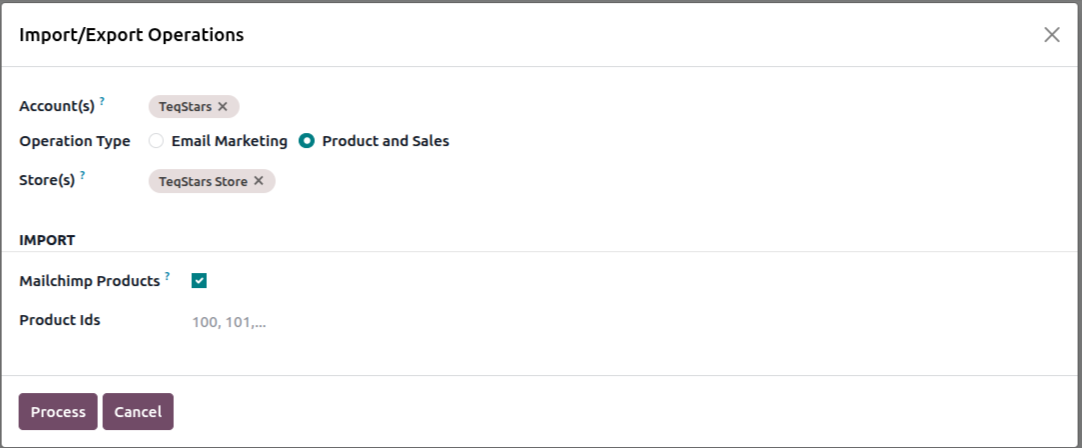
This pulls each product with its variants, image and identifier from MailChimp and records the result in the Logs.
Import Specific Products
You can also pull only certain products instead of the whole catalog. Fill in the
Product Ids field with the MailChimp product identifiers, separated by commas (for
example 100, 101, 102).
Product Ids filled: Odoo imports just those products immediately and shows the outcome in the Logs.
Product Ids empty: Odoo queues a full product import. All products are fetched in the background by the Process Queue Jobs (MailChimp) scheduled action.
Tip
Use Product Ids to quickly re-sync a handful of products that changed in MailChimp, without re-importing the whole catalog.
Mailchimp Product Details
Each imported product shows its MailChimp details and the Odoo record it is mapped to.
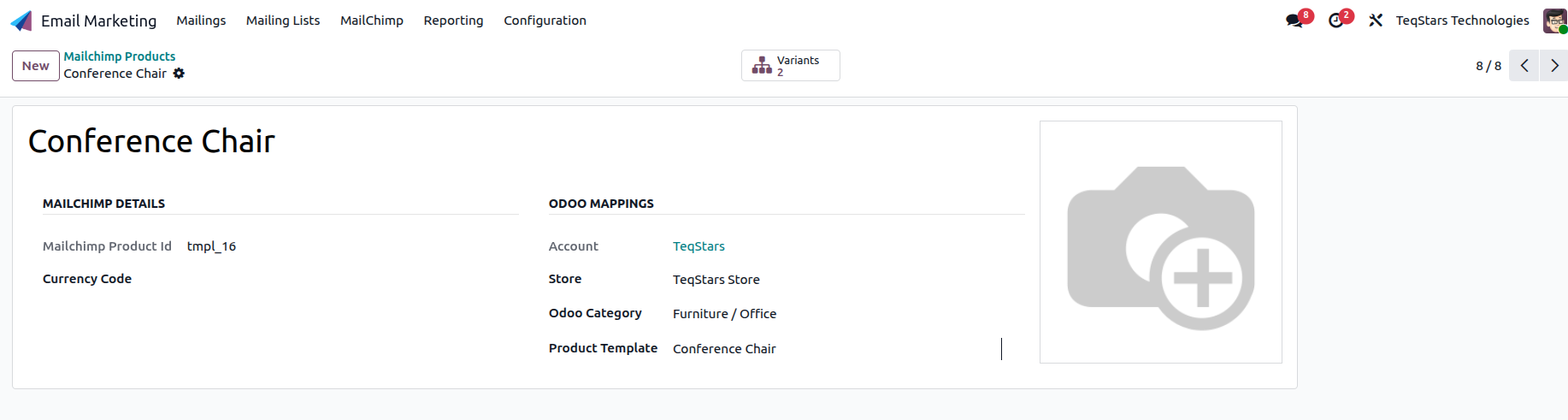
Mailchimp Details: The MailChimp product ID, currency and image URL.
Odoo Mappings: The Odoo product template, product category and the store the product belongs to.
Variants smart button: Opens the product’s variants (SKU, price, stock, image).
Note
The Variants page is read-only. To change a variant, edit the linked Odoo product; the update flows back to MailChimp on the next export.
Export Products to MailChimp
You can push Odoo products into a MailChimp store from either the product template or a single variant:
Open the product (or product template) in (or the Sales / Point of Sale app).
In the cog (⚙) menu, choose .
Choose the target MailChimp Account(s) in the wizard, then click Process.
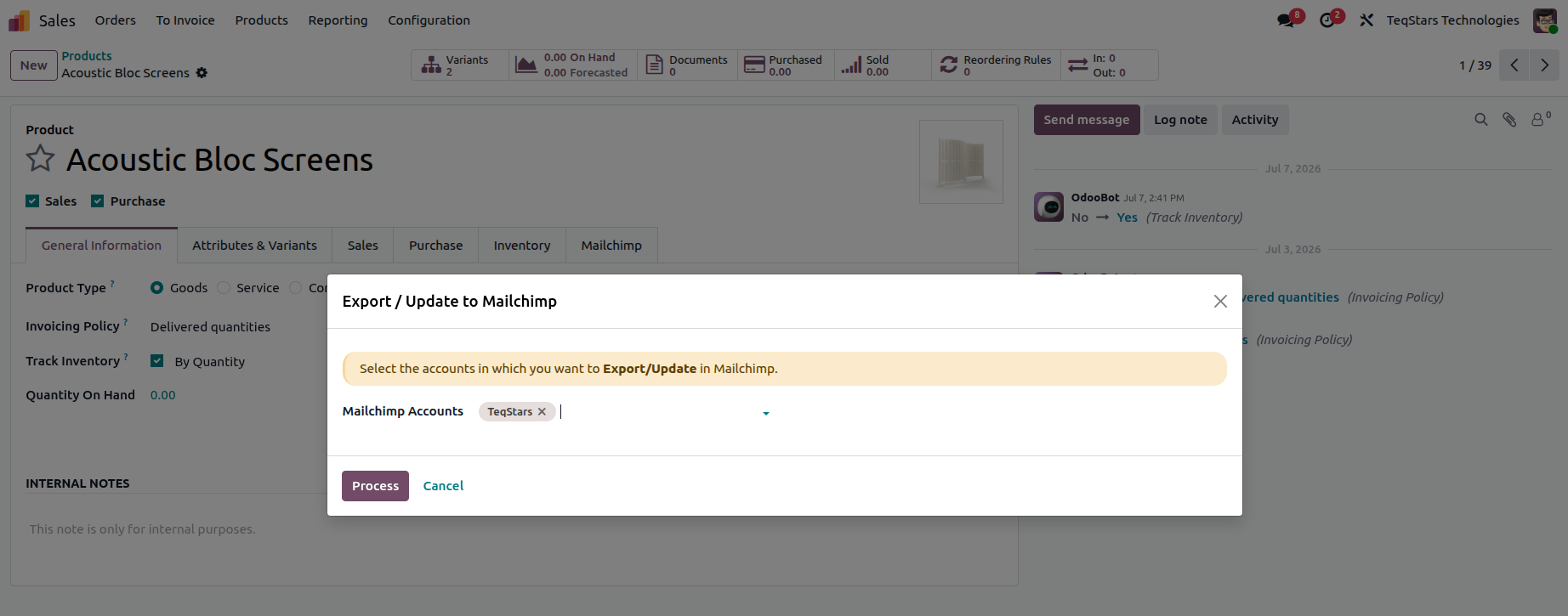
The connector creates or updates one product per template in every store that has Sync Odoo Products? enabled (across the selected accounts), with a variant per Odoo product variant. Stores where the toggle is off are skipped, so you decide store by store which catalog they receive.
Warning
Every variant must have an SKU (Internal Reference). MailChimp requires it as the unique variant identifier. If the SKU is missing, the export stops and reports the problem in the Logs.
The Mailchimp Tab on the Odoo Product
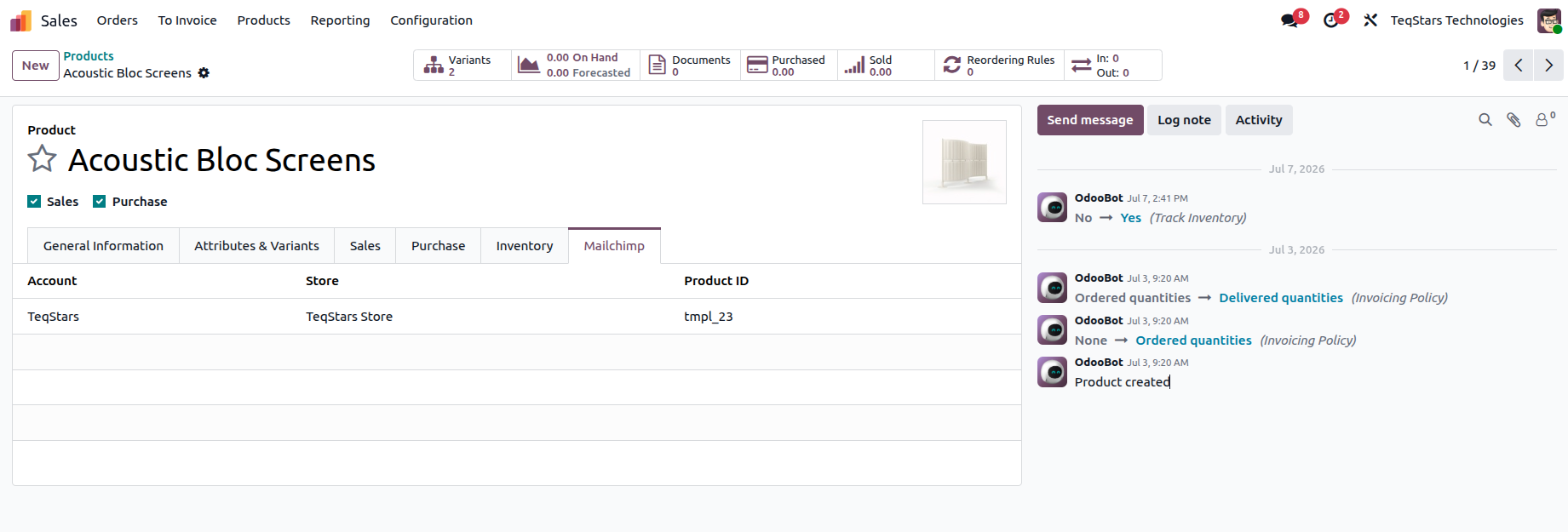
Once a product has been synced, the Odoo product template shows a Mailchimp tab listing every MailChimp store it now belongs to, with the store, the account and the MailChimp product ID.
Tip
Turn on Sync Odoo Products? on a store (see Stores Management) so the store is included whenever you use Export/Update To Mailchimp on an Odoo product. New products picked up from a sale order export always land in that order’s store, even when the toggle is off.
See also