
Generate eBay API Credentials and Connect Account
This guide explains how to set up eBay API credentials from the eBay Developer Portal and connect your eBay account to Odoo.
Step 1: Create An eBay Developer Account
Go to the eBay Developer Portal.
Sign in with your eBay account or create a new developer account.
Once logged in, you will be on the developer dashboard.
Step 2: Create An Application
From the developer dashboard, click on Create Application.
Enter an Application Title (e.g.,
Odoo eBay Integration).Select the environment: Sandbox for testing or Production for live.
Click Create.
After creation, your application will have three keys:
App ID (Client ID): Used to identify your application.
Dev ID: Required for the eBay Trading API.
Cert ID (Client Secret): Used for OAuth token exchange.
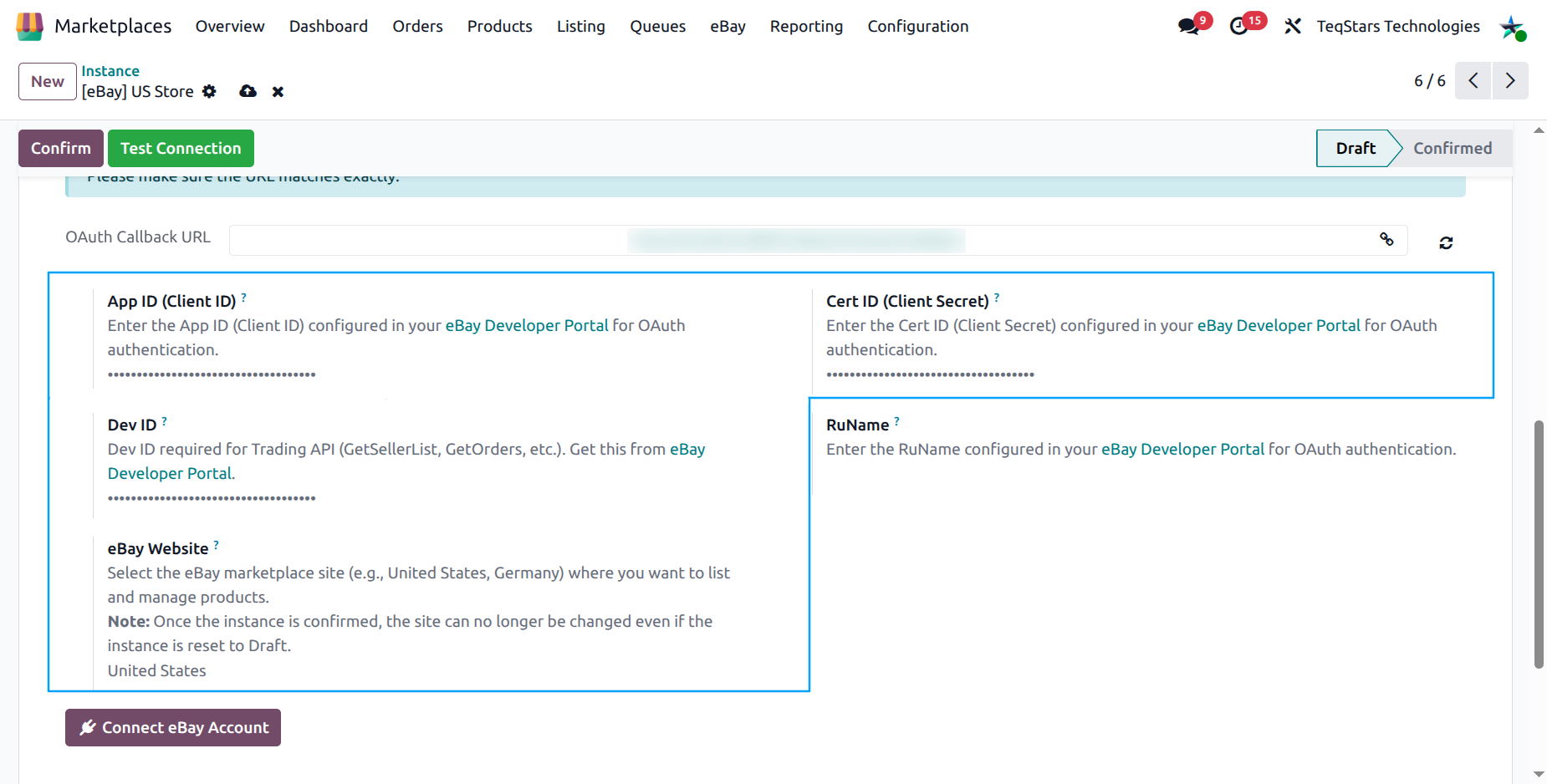
Fill in the following fields:
App ID (Client ID): Paste the App ID from the eBay Developer Portal.
Cert ID (Client Secret): Paste the Cert ID from the eBay Developer Portal.
Dev ID: Paste the Dev ID from the eBay Developer Portal.
eBay Website (Marketplace site): Of your store.
Step 3: Configure OAuth Redirect Settings (Generate RuName)
Before you can connect your eBay account, you need to configure the OAuth redirect URL and generate a RuName.
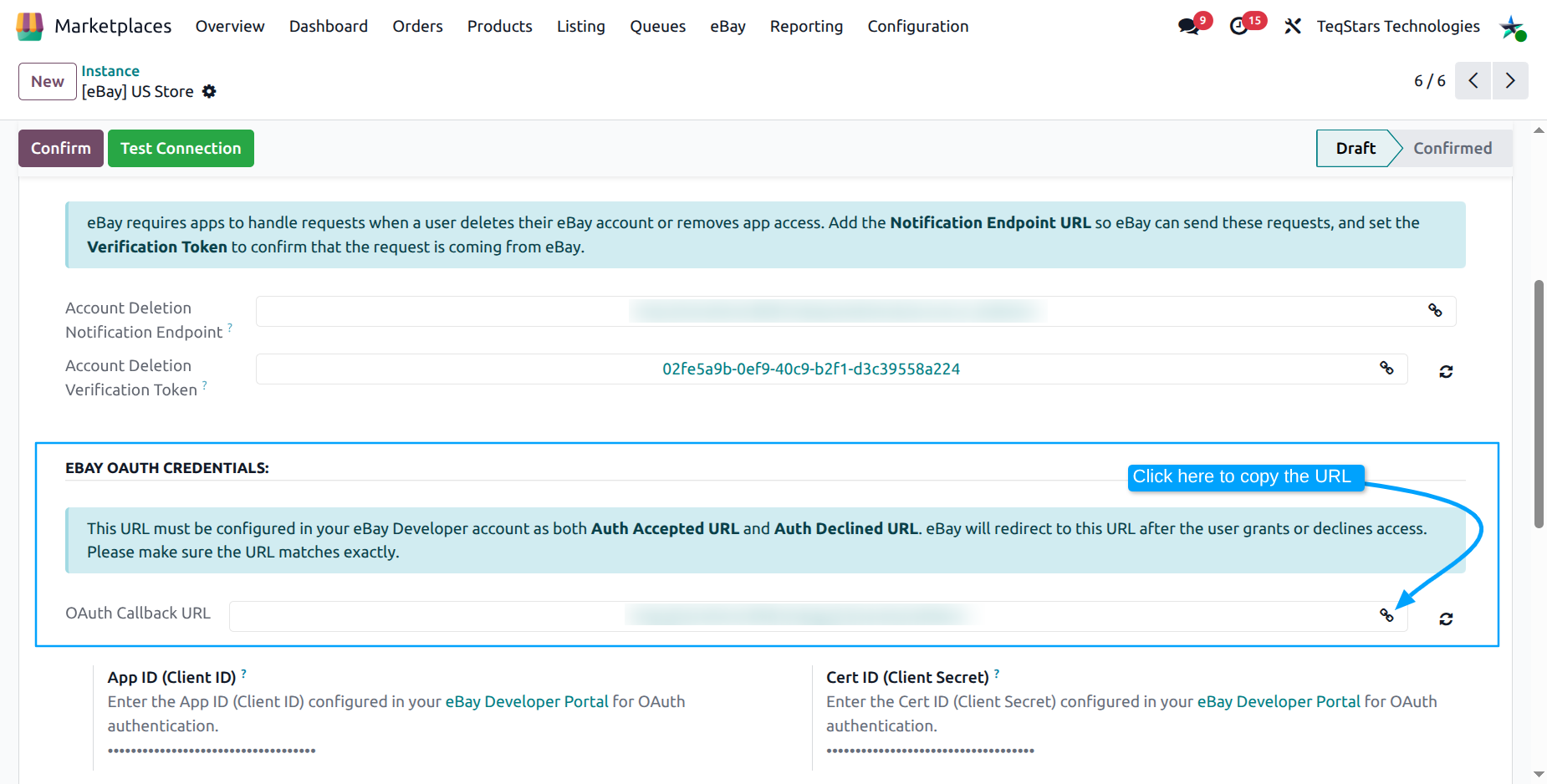
In your Odoo instance, navigate to the Credentials tab of your eBay instance.
Copy the eBay OAuth Callback URL shown on the instance form. This field appears only after you save the instance.
Go back to the eBay Developer Portal, open your application.
Navigate to the User Tokens section for your environment (Sandbox or Production).
Under Your eBay Redirect URL (RuName), paste the eBay OAuth Callback URL copied from Odoo into both:
Auth Accepted URL
Auth Declined URL
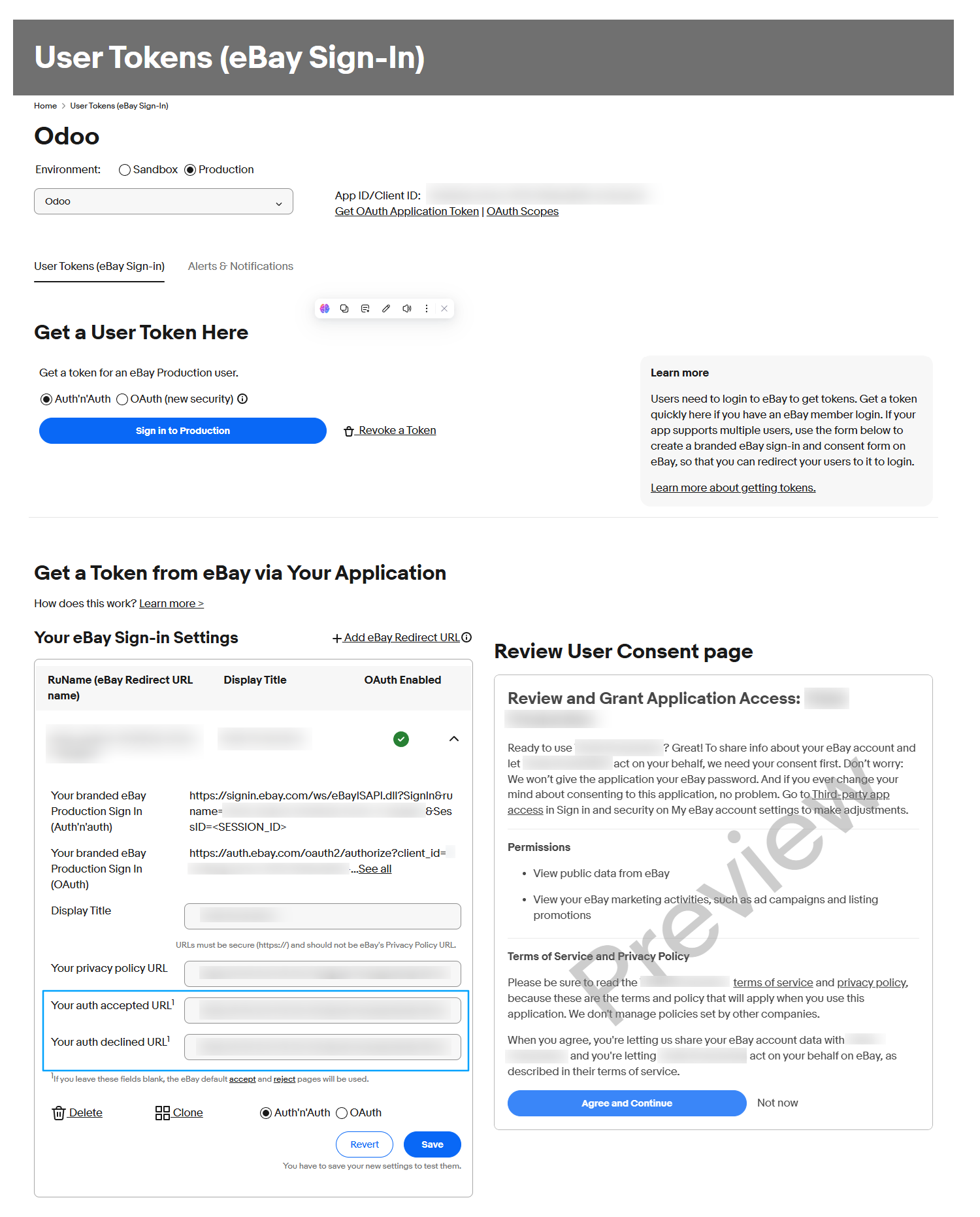
Click Save or Add. eBay will generate a RuName for this configuration.
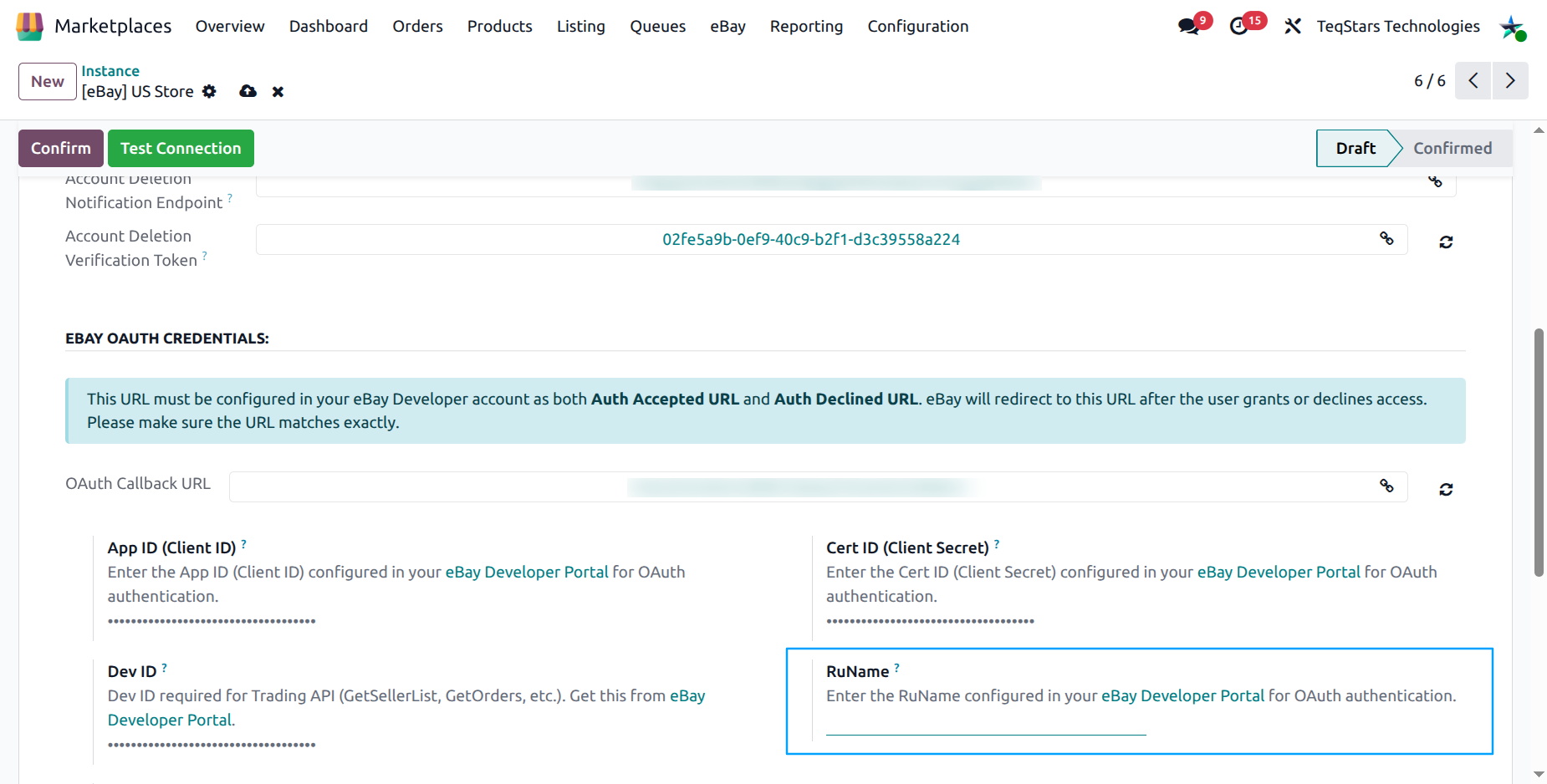
Copy the generated RuName. Paste it into the RuName field in your Odoo instance.
Warning
The eBay OAuth Callback URL must be a publicly accessible URL. If your Odoo instance is behind a firewall or uses a local domain, eBay will not be able to redirect back after authentication.
Important
All four credential fields (App ID, Cert ID, Dev ID, RuName) are required. The Connect eBay Account button will not work without them.
Step 4: Configure Account Deletion Notification (Production Only)
Note
This step is only required for Production environments. It is not needed for Sandbox.
eBay requires a notification endpoint for account deletion/closure events to comply with GDPR regulations.
In your Odoo instance, on the Credentials tab, copy the following from the eBay Account Deletion & Closure Alerts section. This section appears only after you save the instance:
eBay Account Deletion Notification Endpoint: The URL where eBay sends notifications.
eBay Account Deletion Verification Token: The token used to validate the endpoint.
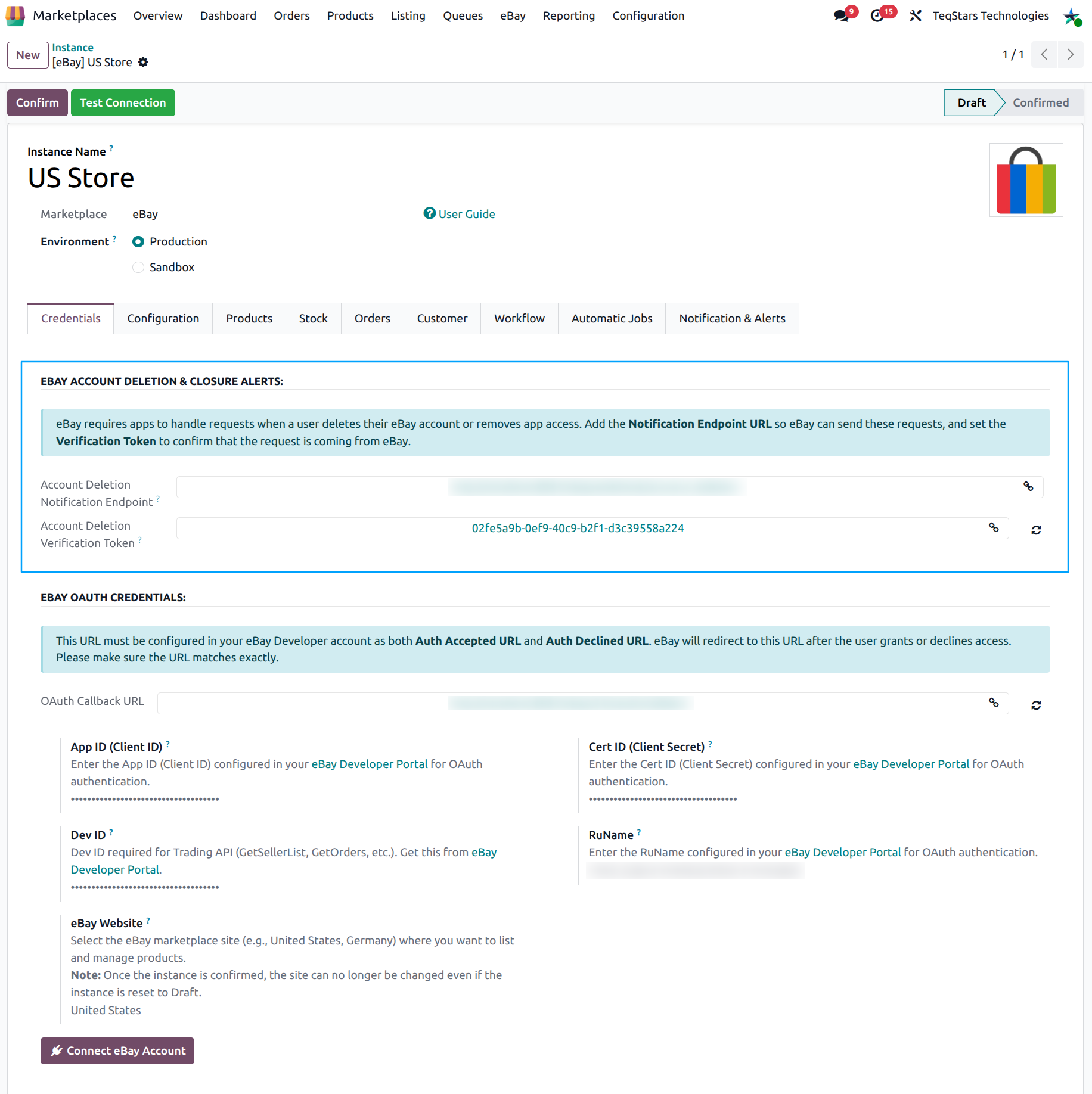
In the eBay Developer Portal, navigate to your application’s Account Deletion/Closure Notifications settings.
Add the eBay Account Deletion Notification Endpoint URL copied from Odoo.
Enter the eBay Account Deletion Verification Token copied from Odoo.
Click Verify or Save. eBay will send a verification challenge to confirm the endpoint is valid.
Tip
The endpoint URL and verification token are auto-generated by Odoo. You only need to copy and paste them into the eBay Developer Portal. If needed, you can regenerate the verification token using the refresh button next to the field.
Note
If your Odoo server hosts multiple databases, each database has its own dedicated eBay Account Deletion Notification Endpoint URL. This ensures eBay’s deletion requests are always routed to the correct database. Register each database’s URL separately in the eBay Developer Portal under its corresponding application keyset.
Step 5: Connect eBay Account
On your eBay instance in Odoo, click the Connect eBay Account button.

You will be redirected to the eBay login/consent page.
Log in with your eBay seller account.
Review the requested permissions and click Agree to grant access.
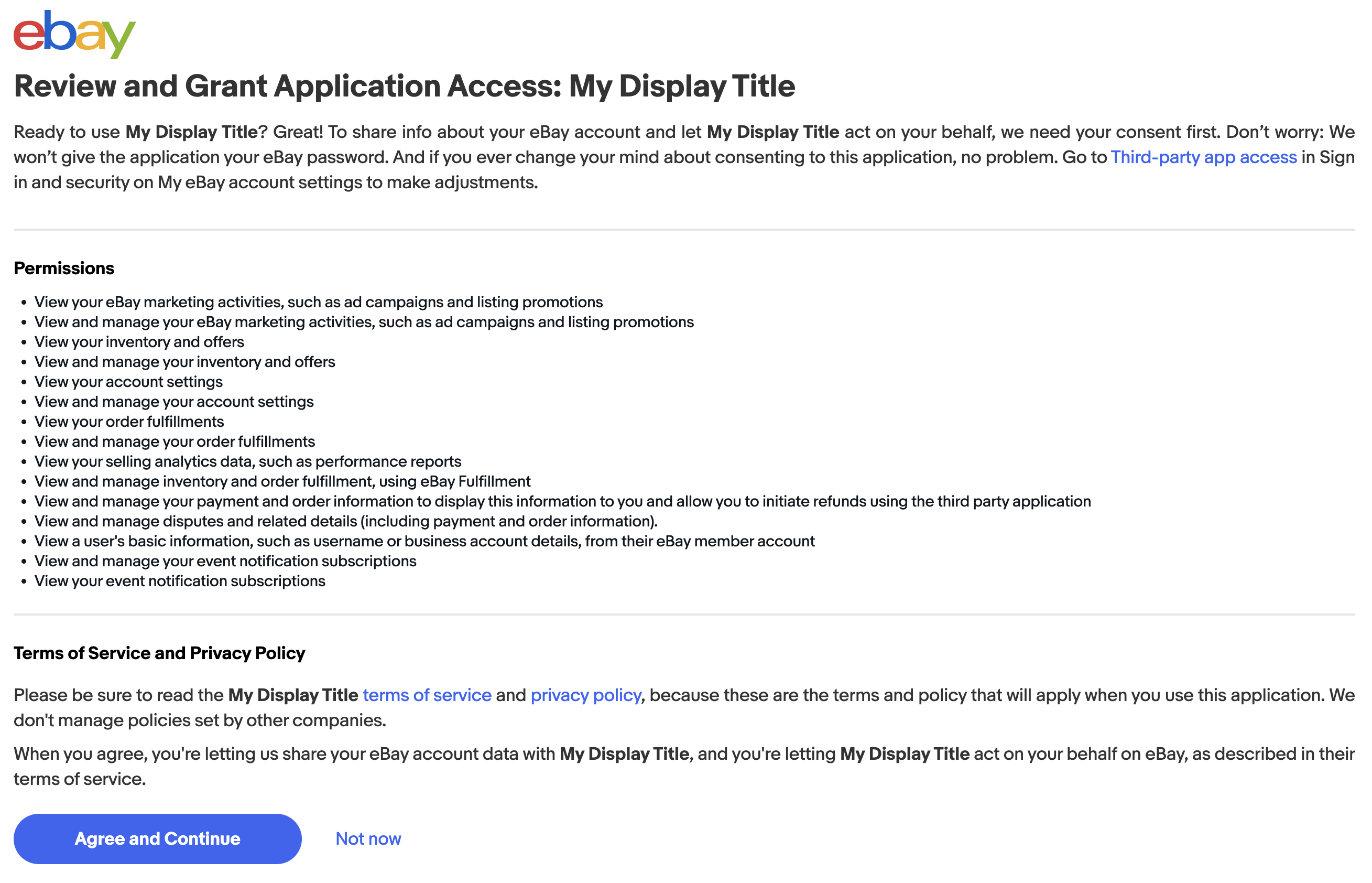
After granting access, you will be redirected back to your Odoo instance.
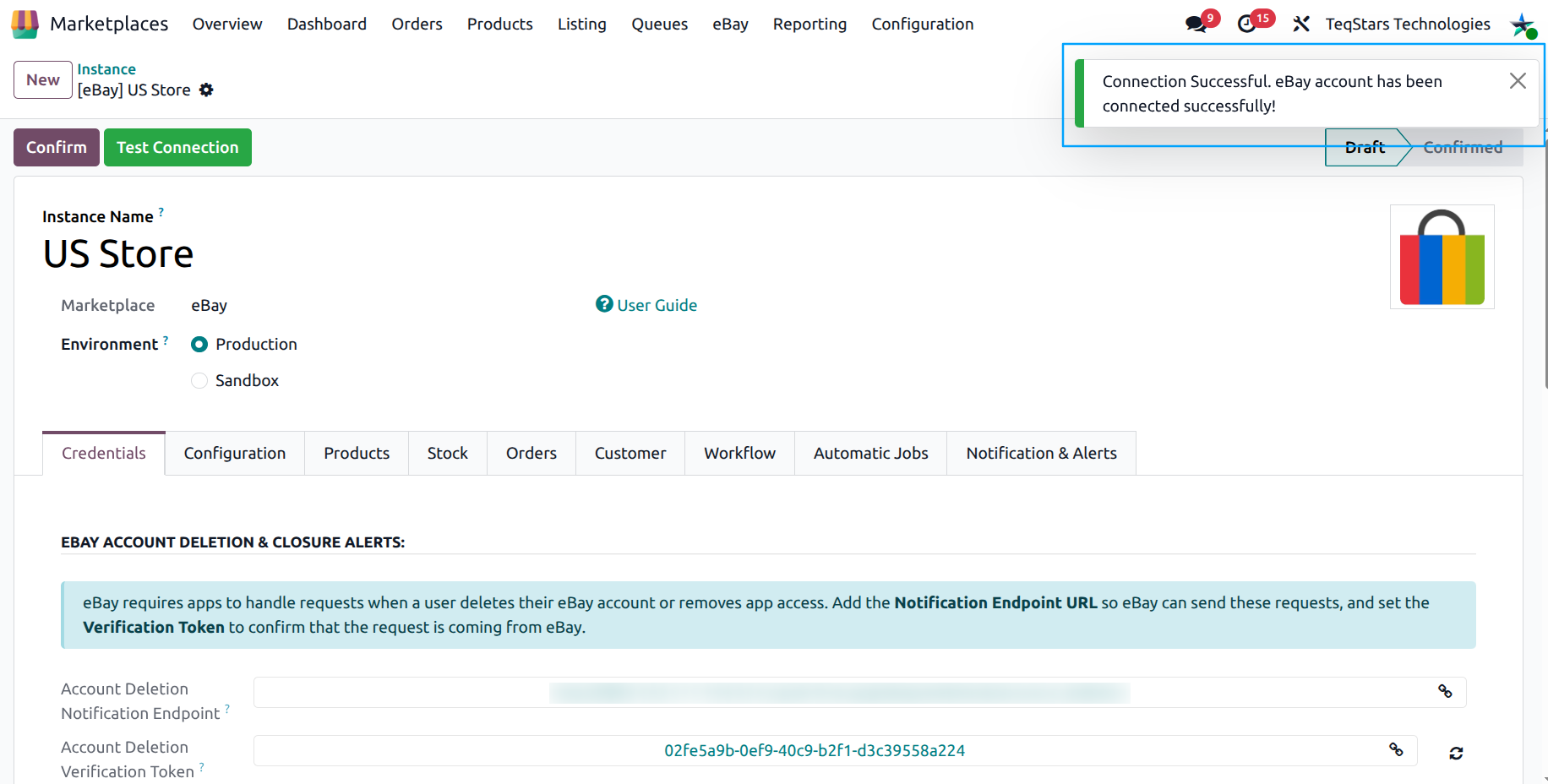
The access token and refresh token are automatically generated and stored securely in your Odoo instance.
Step 6: Test The Connection
Click Test Connection in your Odoo instance.
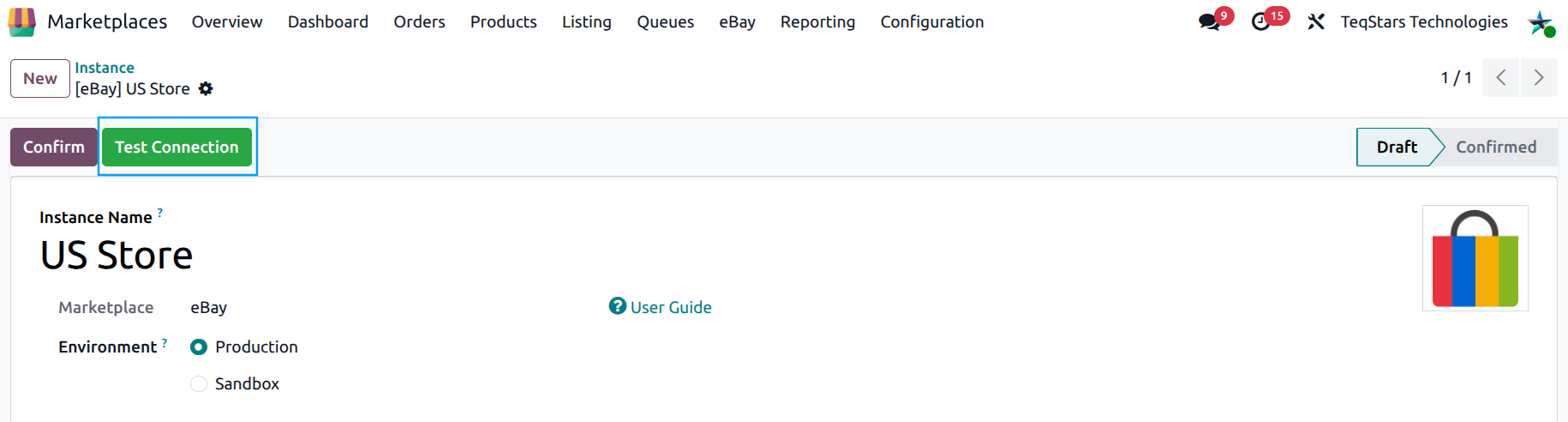
If the configuration is correct, a success message will appear confirming the connection.
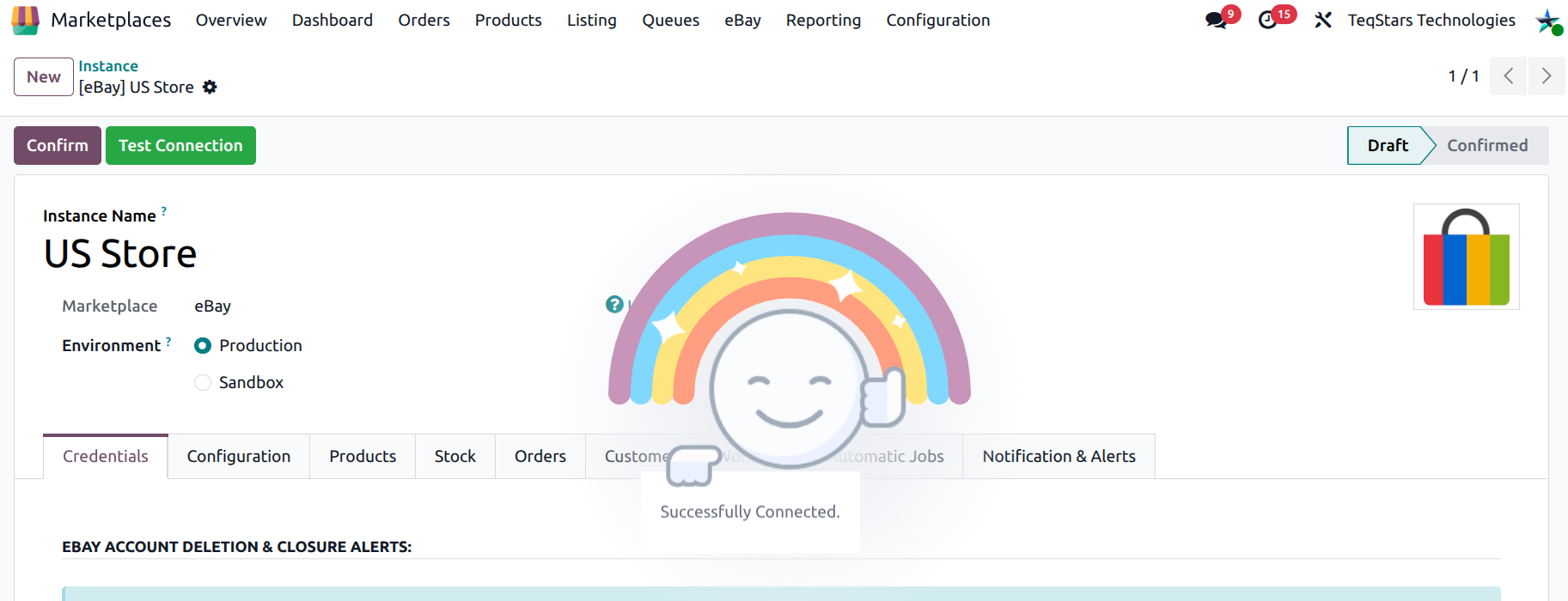
You can now proceed with the instance configuration and confirmation.
Note
Refresh tokens expire after 18 months. When the refresh token is about to expire (within 30 days), the connector creates a reminder activity on the instance. If the refresh token expires, you will need to reconnect your eBay account by clicking the Connect eBay Account button again.
After testing the connection, you can configure and confirm the instance.
See also