
Export Inventory From Odoo
Send Odoo stock levels to WooCommerce so your store reflects real availability. The exported quantity is computed from your instance’s Stock Based On setting.
Prerequisites
Listing items linked to Odoo products with Manage Stock? enabled.
A Stock Based On setting chosen on the instance (On Hand, Forecasted or Free To Use).
Method - 1: Manual Export
Go to the menu in Odoo.
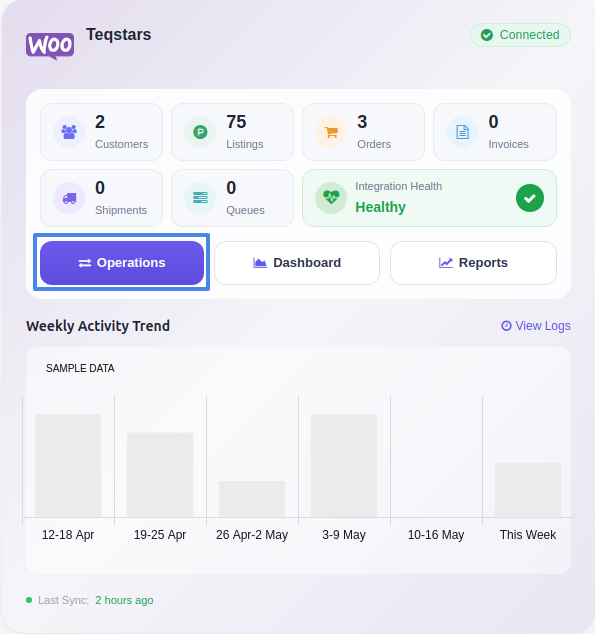
Click the Operations button from the instance record.
Choose Export as the operation type, then from Export Operation, select Update Inventory to WooCommerce.
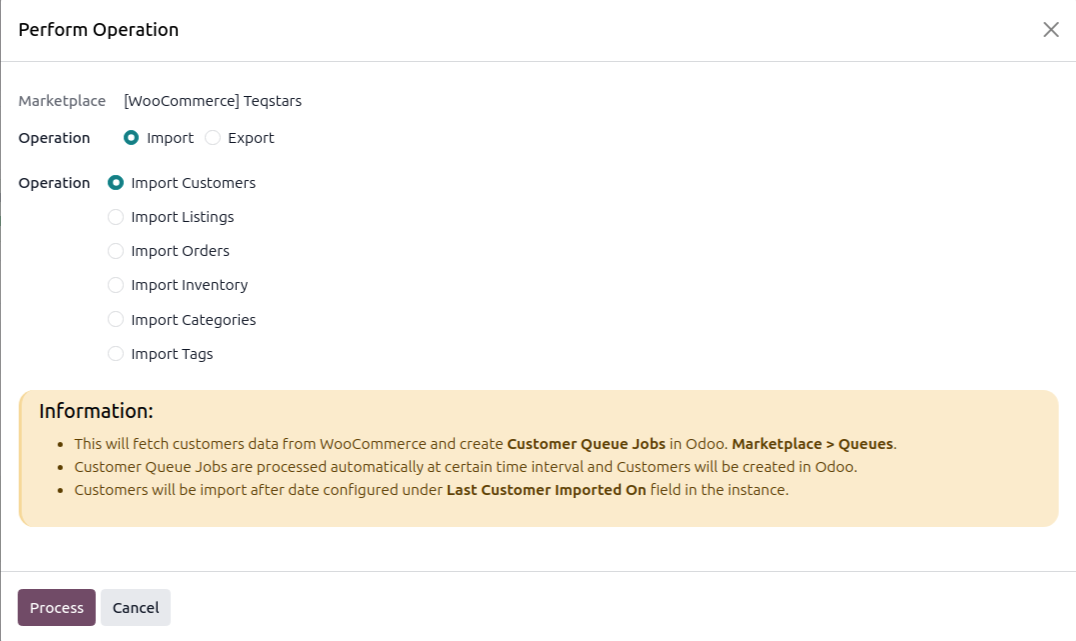
Click Process. The connector pushes stock for every linked listing item to WooCommerce.
Method - 2: Automatic Inventory Export
You can automatically export stock to WooCommerce at regular intervals using the Automatic Schedule action:
Go to your WooCommerce instance setting by navigating to .
Open the Automatic Jobs tab. In that tab you can configure the Export Product’s Inventory automatic action by setting Interval Number, Interval Unit, and then enable Active (every 30 minutes by default).
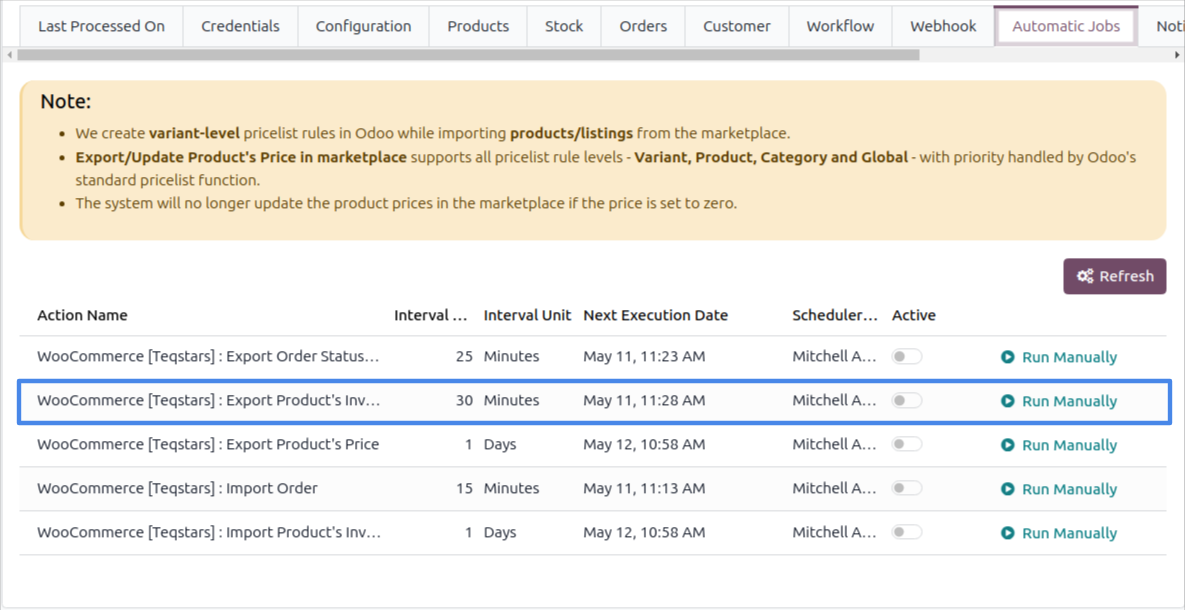
Once enabled, Odoo automatically exports stock to WooCommerce at the selected time intervals.
Note
Only variants with Manage Stock? enabled are exported.
See also