
Templates Management
MailChimp templates let you design branded email layouts once and reuse them across campaigns. The connector syncs templates both ways, so you can import your MailChimp designs into Odoo or build a template in Odoo and push it to MailChimp, then select it when creating a campaign (see Campaigns Management).
Open your templates from .
Import Templates from MailChimp
Go to .
Select your Account(s), choose Templates, and click Process.
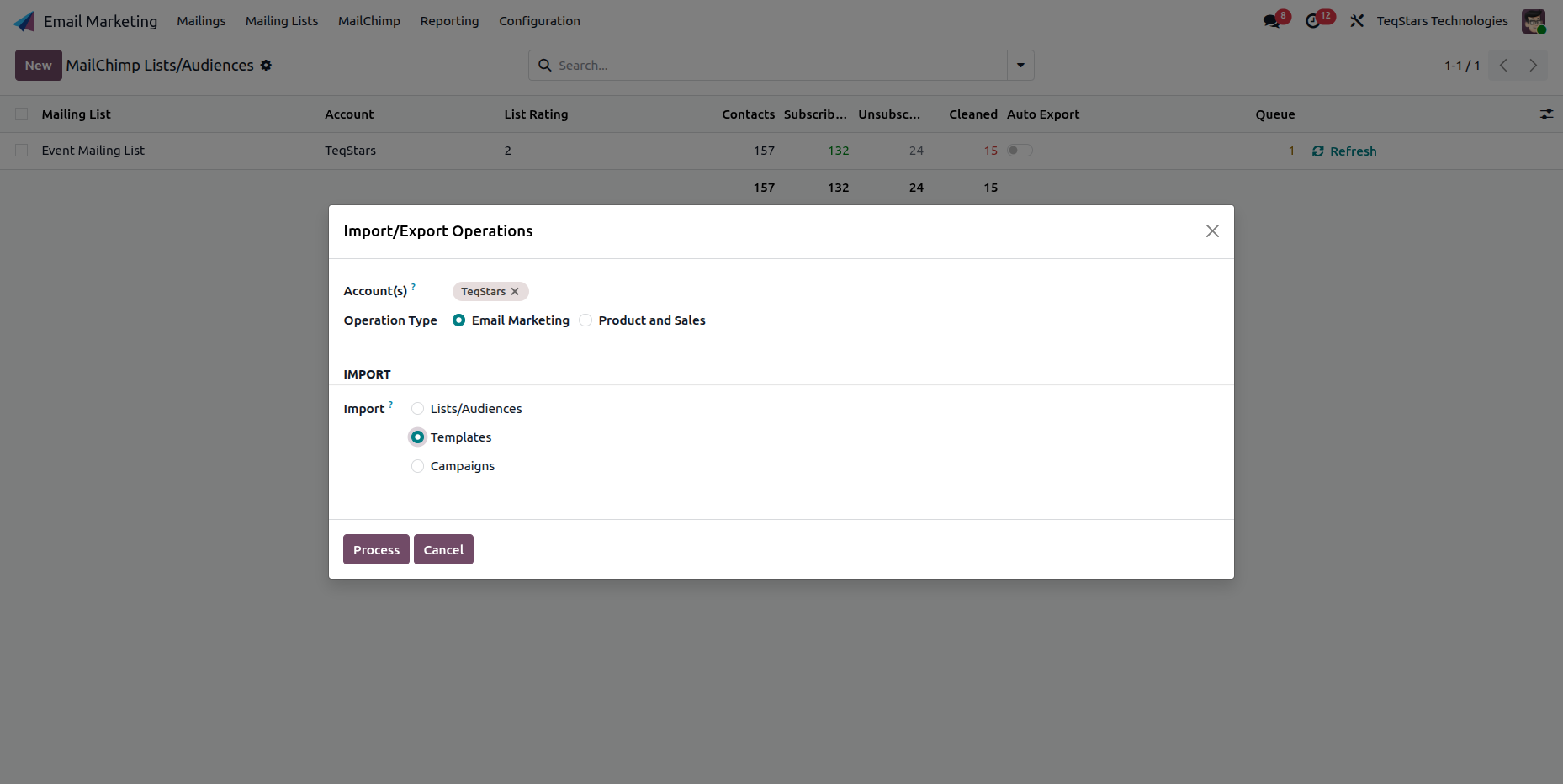
All templates from the account are imported into Odoo with their name, type and category, so there is no need to recreate them manually.
The Template Form
Open a template to view its details and design.
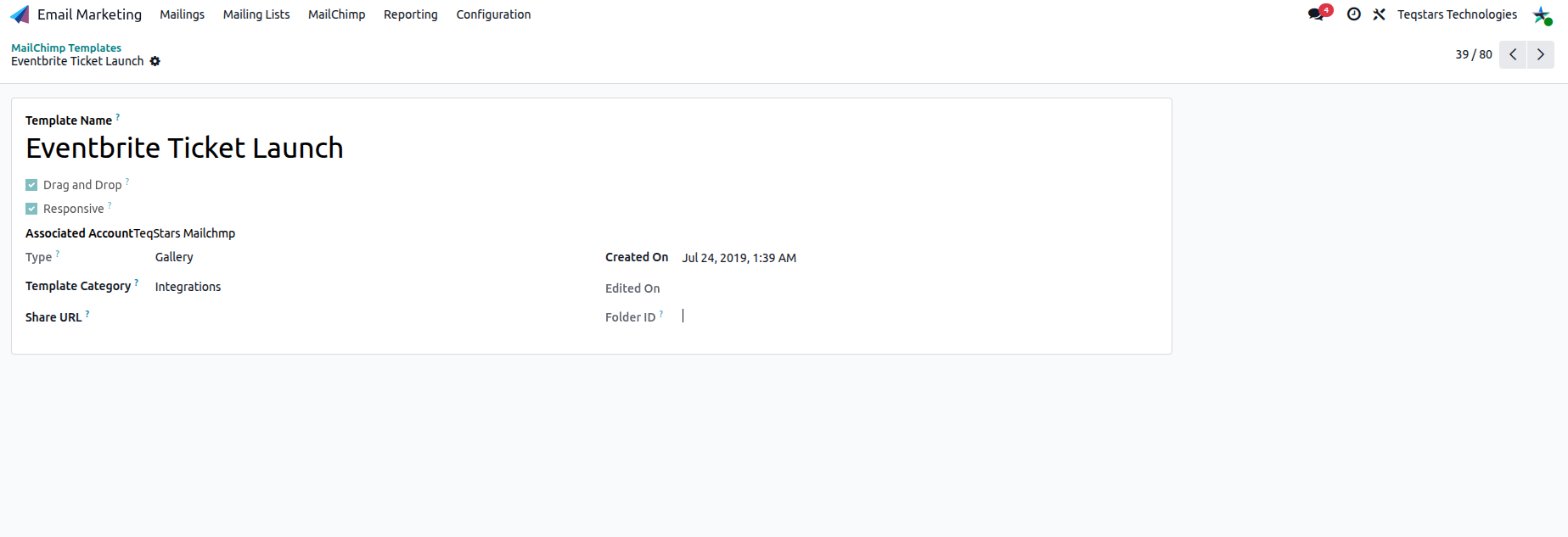
Template Name, Associated Account, Type and Category: Identify the template.
Drag and Drop / Responsive: Flags describing how the template was built in MailChimp.
Export a Template to MailChimp
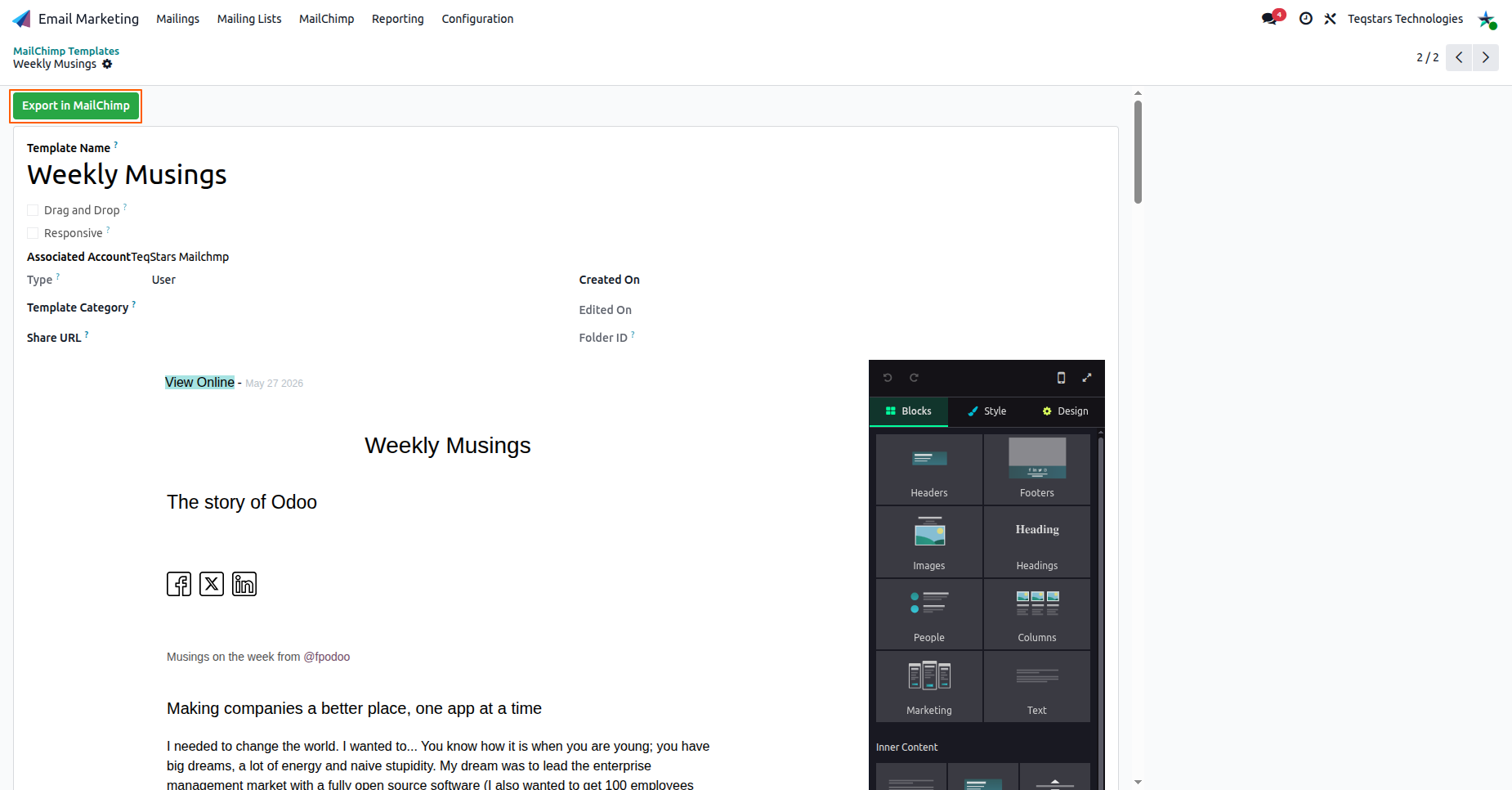
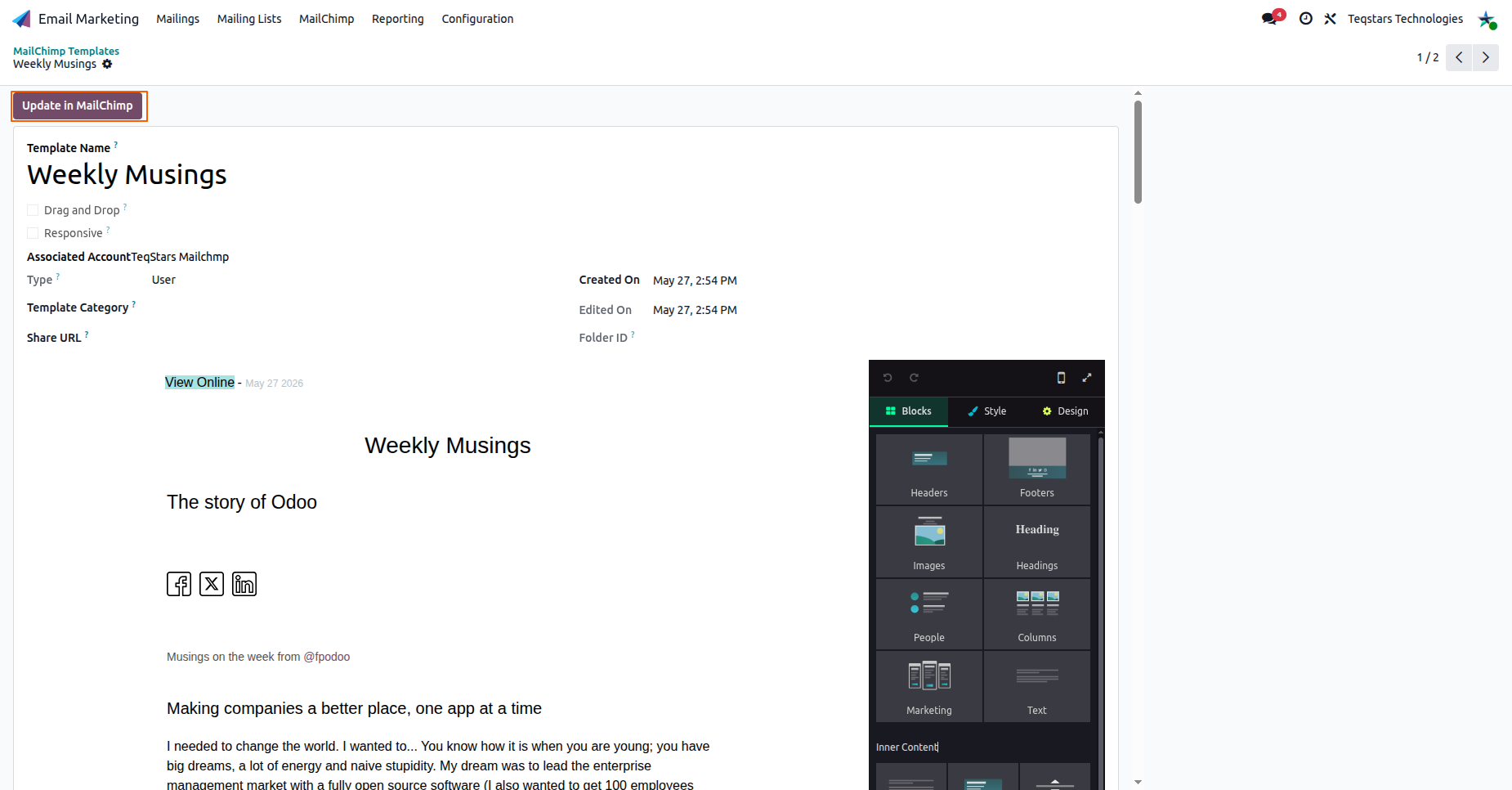
Design a template in Odoo and push it to MailChimp in one click, using the buttons in the template form header.
Export in MailChimp creates the template in MailChimp (shown for templates that do not exist there yet).
Update in MailChimp pushes your Odoo edits to the matching MailChimp template.
Warning
Templates can only be pushed to MailChimp when the linked account is in Confirmed state. If the account is still in Draft, Odoo shows “MailChimp Account is not confirmed.” Confirm the account first from . See MailChimp Account Configuration.
Note
Edit a template in one place. With Update in MailChimp, changes made in Odoo are reflected in MailChimp without duplicating work.
Tip
Templates with content built outside Odoo (for example MailChimp’s classic or drag-and-drop editor) may have no editable HTML in Odoo. In that case, keep editing them in MailChimp and use the imported template only to select it on campaigns.