
Edit the Dashboard
The editor shows the real dashboard: every card looks exactly as viewers see it, with its numbers, colors and period line. Moving and resizing never reloads a number.
Open the Editor
Open your draft dashboard and click Edit in the top bar, or choose Edit card in a card’s ⋯ menu.
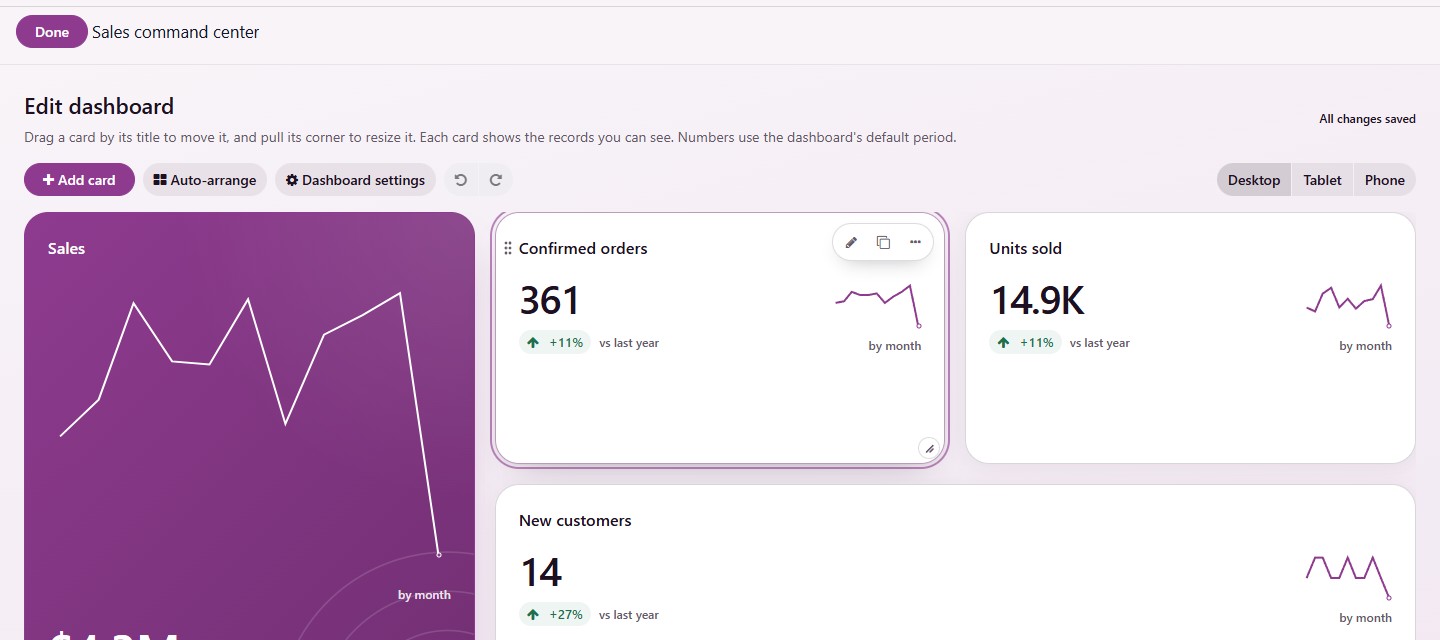
The toolbar holds:
Add card. See Add a Card.
Auto-arrange. See Auto-Arrange.
Dashboard settings. See Dashboard Settings.
Undo and Redo.
The Desktop, Tablet and Phone tabs, one layout each. On a phone, the editor opens on the Phone layout.
The editor uses the dashboard’s default period, so each card’s period line shows the dates used.
Arrange the Cards
Point at a card, or reach it with Tab, to see its tools: Edit card, Duplicate and More.
Move a card: Drag it by its title row. A dashed slot shows where it lands and the other cards make room. With the keyboard, focus the title row and use the arrow keys.
Resize a card: Drag its corner grip. The card shows its new size while you drag.
More: Move the card earlier or later, set its width (a quarter, a third, half, two thirds or the full row), make it taller or shorter, or Remove card.
A new card goes right after the selected card when it fits beside it, otherwise into the first gap, and already shows its numbers.
Cards keep their reading order and fill the first free place. Press Esc to clear the selected card.
Auto-Arrange
Auto-arrange sizes every card by what it shows, on the desktop layout only, and never changes the reading order:
A number with a trend line leads as a tall card. Numbers that show how things stand now share one calm strip.
A list is as tall as its records. Charts share rows by how much room they need.
It says Already arranged when there is nothing to change, and its message offers Undo. A saved layout never changes on its own: only when you choose Auto-arrange.
In a card’s ⋯ menu, the editor suggests a better height when one exists, such as Some rows or details are hidden at this height. Use 9 rows.
Save Your Changes
Click Done at the top. It saves what changed and closes the editor. Leaving another way with unsaved changes asks first, and a local draft can be restored.
Note
Only the owner can edit a draft, and a published dashboard cannot be edited. An administrator uses Edit a copy to change it. See Publish and Share.