
Orders Management
The connector exports your Odoo sale orders to a MailChimp ecommerce store with their revenue and product lines, attached to the matching MailChimp contact. This turns MailChimp into a revenue-aware platform you can report on orders, segment audiences by spend, and trigger purchase-based automations from real Odoo sales.
Export an Order to MailChimp
On a sale order (), open the cog (⚙) menu and choose .
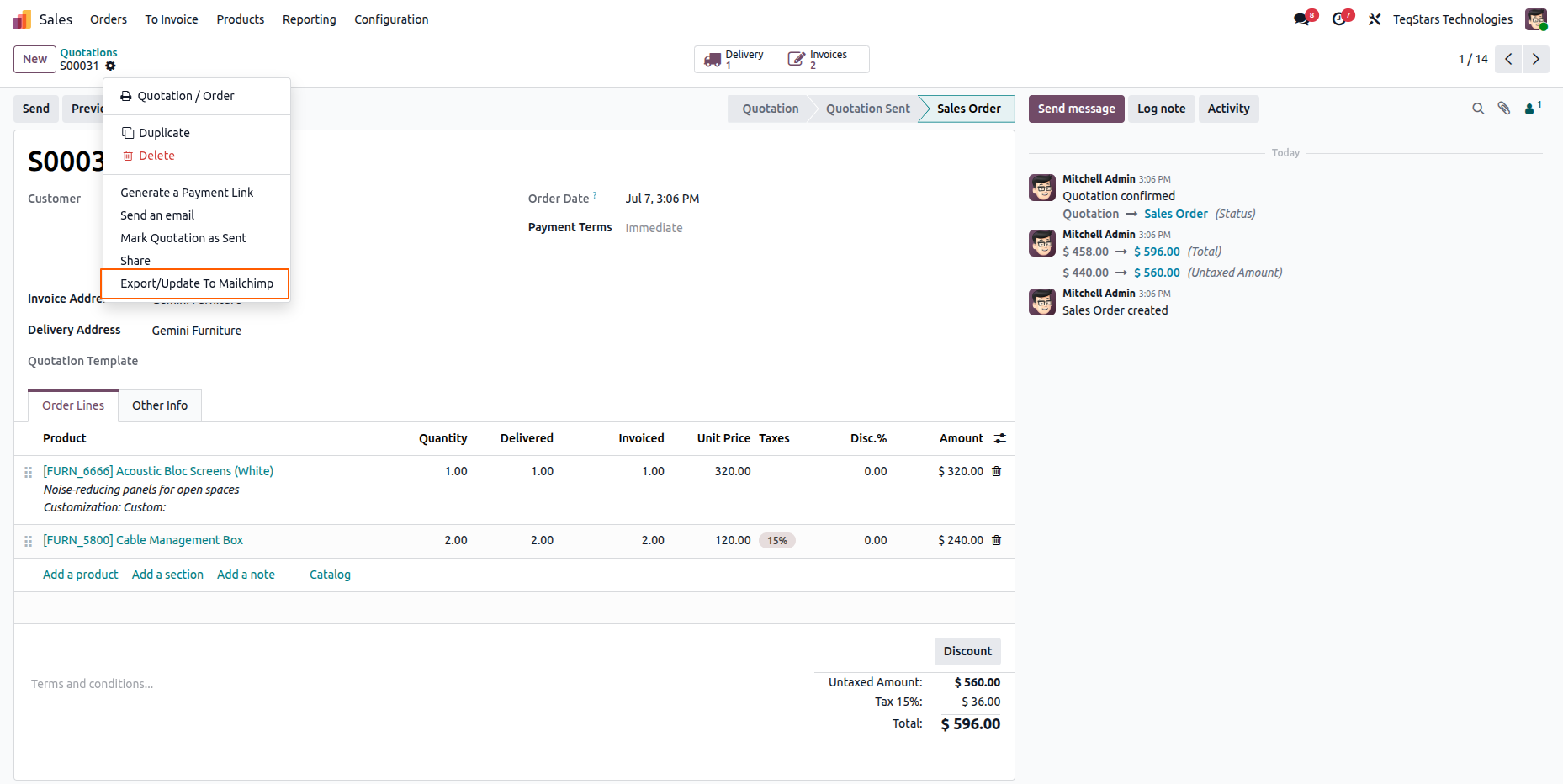
Select the target MailChimp Account(s) in the wizard and click Process. The order is sent to MailChimp with its amount and product lines, linked to the customer’s MailChimp contact. On success:
The order shows Mailchimp Exported on its form.
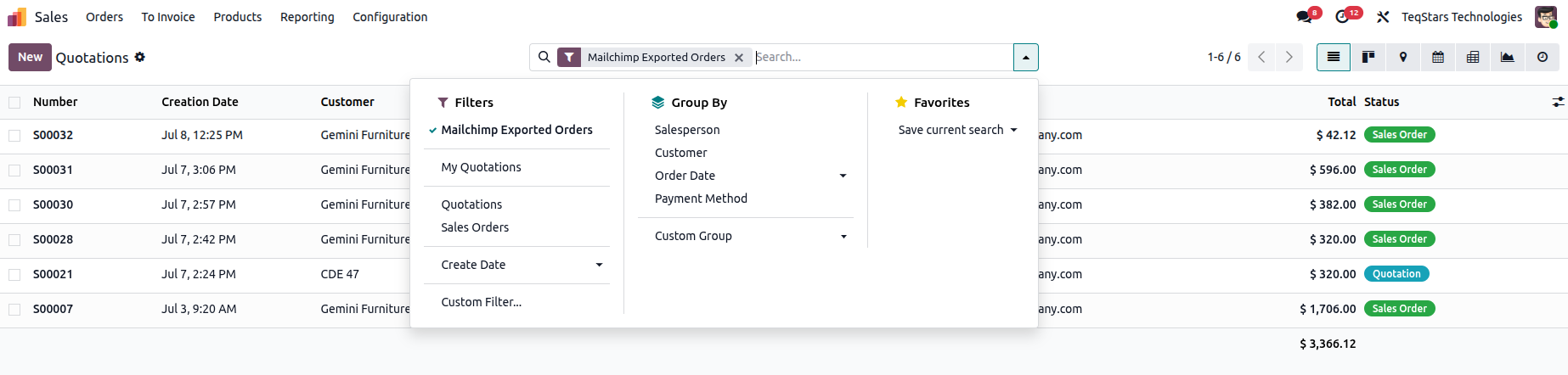
The Mailchimp Exported Orders search filter (in ) lists every exported order at a glance.
Export Several Orders at Once
You can also export in bulk from the sale order list:
Go to and select the orders you want to send.
Open the cog menu and choose .
Select the target account(s) and click Process.
Odoo pushes each order to the matching store, one by one, and records the outcome in the Logs.
Automatic Order Export
The Export Sale Order Mailchimp scheduled action exports confirmed orders automatically (daily by default). It picks up every order that was created or updated after the store’s Last Order Exported On timestamp, sends them to MailChimp in a single batch, and moves the timestamp forward.
To turn it on for a store, enable Export Sale order to mailchimp? on the store’s Product and Sales tab, and set a Last Order Exported On date. Only orders confirmed or modified after that date are picked up on the first run; Odoo then updates the timestamp automatically after every run. See Product and Sales Tab for the tab layout.
Multi-Company Setup
Orders can only be exported to a store whose Company matches the sale order’s company. In a multi-company database:
Create one store per company.
Orders whose company has no matching store are skipped and reported in the Logs, so you can create the missing store and re-run.
Note
If a product on an exported order does not yet exist in the destination store, the connector pushes it to that store automatically, so the order lines link to real catalog data. You can still export products ahead of time with Export/Update To Mailchimp when you want the store’s catalog ready before the first order arrives. See Products Management.