
Orders Management
The connector exports your Odoo sales orders to Brevo with their revenue and product lines, attached to the matching Brevo contact. This turns Brevo into a revenue-aware platform you can report on orders, segment by spend, and trigger purchase-based automations from real Odoo sales.
Export an Order to Brevo
On a sales order (), open the cog (⚙) menu and choose Export/Update To Brevo.
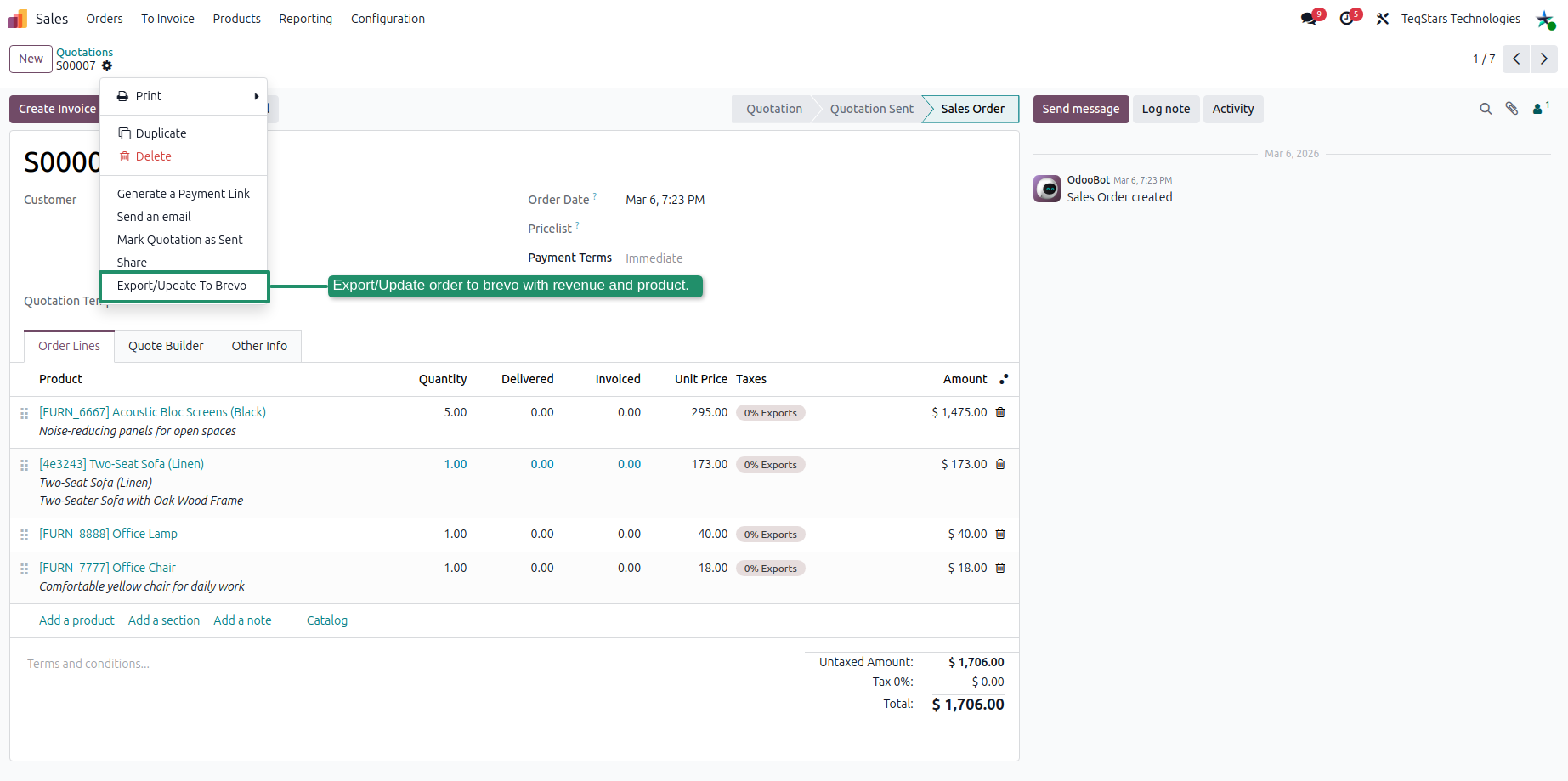
The order is sent to Brevo with its amount and product lines, linked to the customer’s Brevo contact. The order status is mapped to a Brevo order state:
Odoo Sales Order State |
Brevo Order Status |
|---|---|
Quotation |
Quote |
Quotation Sent |
Quote Sent |
Sales Order |
Confirmed |
Invoiced |
Completed |
Cancelled |
Cancel |
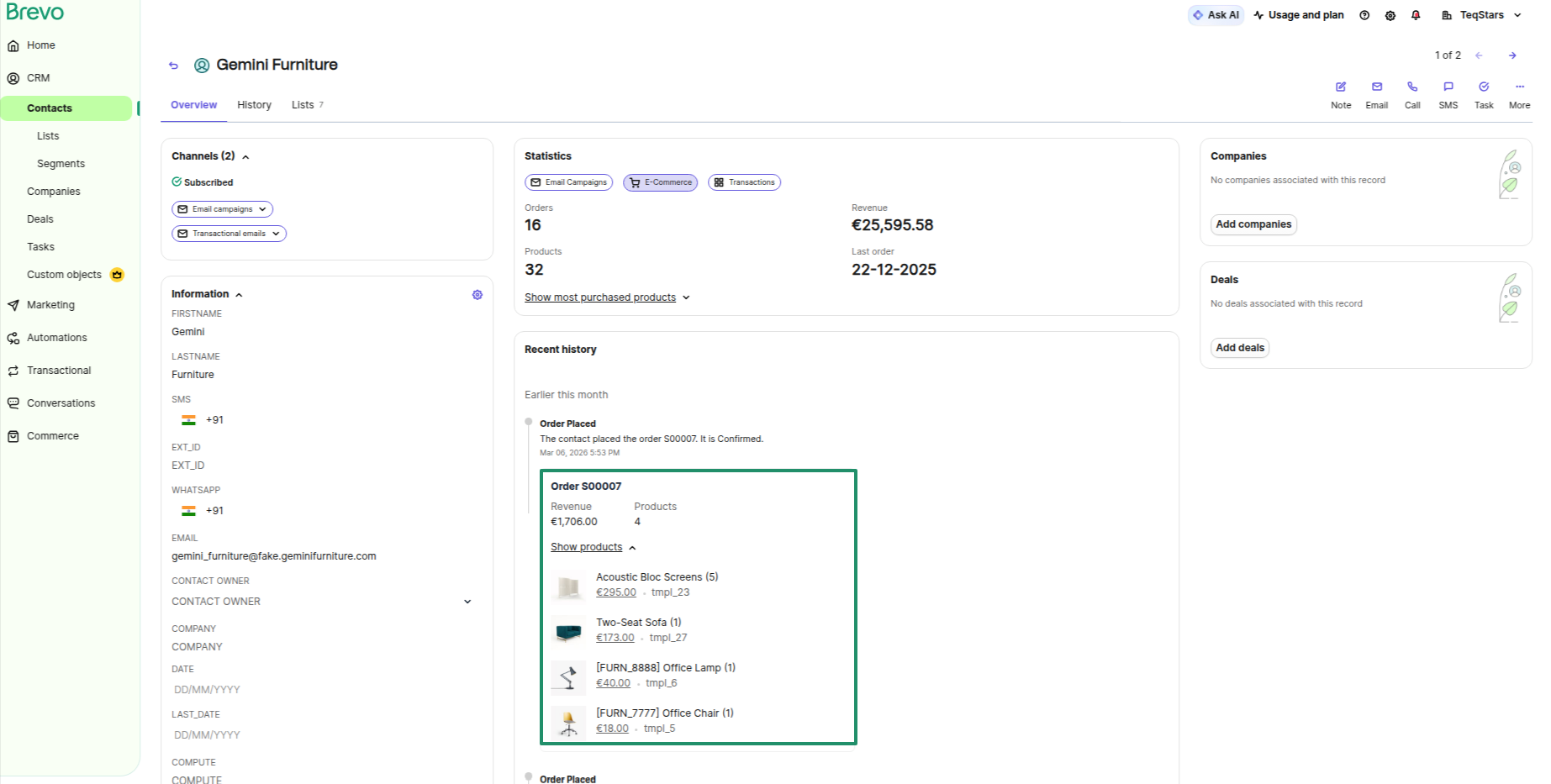
On the Brevo contact, the exported order appears with its revenue and purchased products:
Automatic Order Export
When you enable Auto Export Sale Order to Brevo? on the account, the Export Sale Order to Brevo scheduled action exports orders automatically (daily by default). Only orders changed after the Last Order Exported On date and matching the Apply Filter are exported. By default, the filter keeps confirmed sales orders. Their contacts are added to the selected Ecommerce List. Do not add a last updated date rule to the filter, because the date is already applied automatically. Click Check Remaining to see the orders still waiting to be exported. Adjust the interval from . See Brevo Account Configuration.
Note
For the order’s products to show correctly in Brevo, export the products first (see Products Management). Orders that fail validation are recorded in the Logs (see Job Queue, Logs & Operations).