
User Groups & Access Rights
The MCP Server module ships with two dedicated user groups under the MCP Server privilege category. Assign one of them to every user who needs to interact with the module.
The two groups
MCP Administrator
Full control over the module. Users in this group can:
Enable or disable the MCP endpoint (master switch).
Create, rotate, and revoke Connections for any user.
Configure tools, prompt templates, ontology, knowledge layer, and event subscriptions.
See every audit log, session, and approval request system-wide.
Open the Server Settings menu (hidden from MCP Users).
Typical real-world fit: Odoo administrators, IT, the person who manages integrations.
MCP User
Day-to-day MCP consumer. Users in this group can:
See and rotate only their own Connections.
See and deactivate only their own Sessions.
See only their own Audit Logs.
See and act on only those Approval Requests they either requested or were assigned as approver of.
Read the catalog of Tools and Prompt Templates.
Cannot open Server Settings, Event Subscriptions (admin-only), Ontology Concepts (read-only), or Knowledge Configuration.
Typical real-world fit: a sales rep, finance user, or support agent who wants to use Claude / ChatGPT against Odoo.
Note
Both groups imply base.group_user (Internal User). Anyone
added to MCP Administrator or MCP User automatically gets the
standard Internal User group as well — no extra step needed.
Record rules in plain English
The module ships with record rules so that, even though MCP Users share the same menus as admins, they can only see their own data:
Model |
MCP User can see… |
|---|---|
Audit Logs |
only entries where they are the user |
Connections |
only connections owned by them |
Sessions |
only sessions owned by them |
Approval Requests |
only requests they either filed or are the designated approver of |
MCP Administrators bypass these rules and see everything.
How to assign a group
Go to .
Open the user record.
Scroll to the Other (or Access Rights) tab.
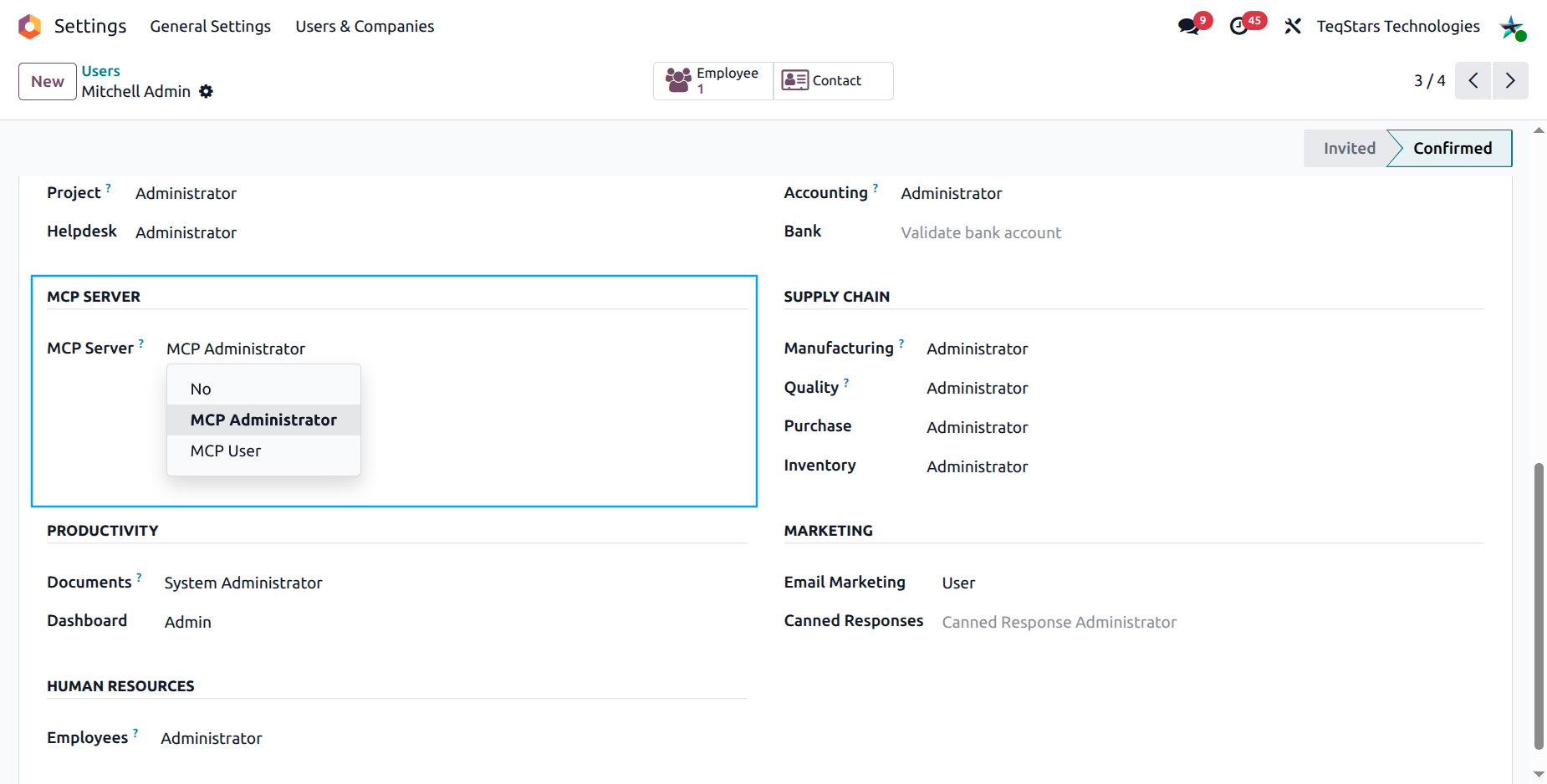
In the MCP Server section, pick either MCP Administrator or MCP User.
Click Save.
Tip
In doubt, start with MCP User for end users and MCP Administrator only for the small group of people who need to create connections or look at every user’s audit history. Less privilege is always safer.
Who acts on behalf of whom?
When an AI tool calls Odoo through MCP, it acts as the Odoo user attached to the Connection — not as the person who installed the module. So:
A connection created for Alice will execute every tool as Alice. If Alice cannot read certain records in Odoo, the AI cannot read them either.
An admin can create a connection on behalf of any user (the Odoo User field in the wizard). The plaintext key still appears once on the admin’s screen — they must hand it to the end user securely.
Warning
Never share a single API key between multiple humans. Each person should have their own connection so audit logs, rate limits, and approval routing are tied to the right individual.