
Export Inventory From Odoo
Exporting inventory from Odoo to Mirakl can be achieved through the following steps:
Note
Stock Based On instance configuration will be used while export Inventory.
There are two ways to export inventory from Odoo to Mirakl:
Method - 1: Manual Export
Go to the menu in Odoo.
Click on the
Operationsbutton from the instance record.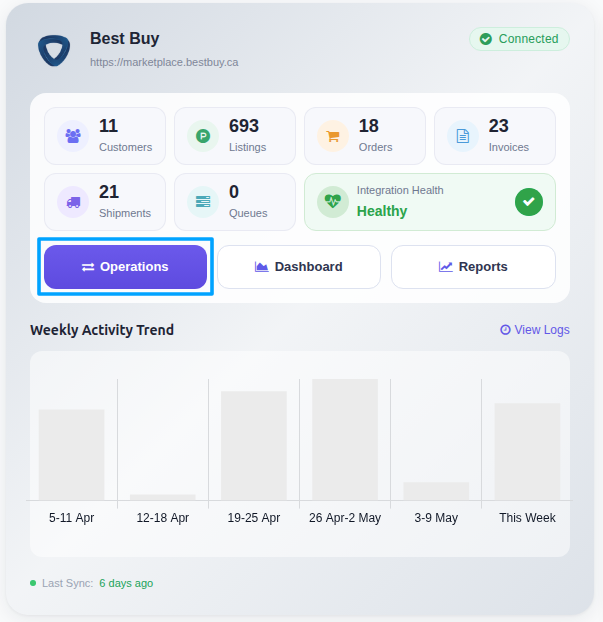
Select Export Operation and then select Export Inventory option.
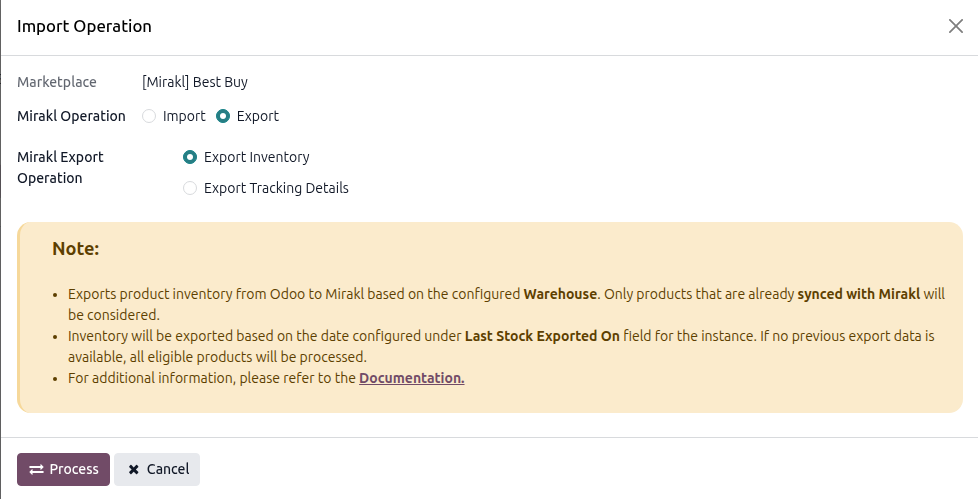
Press
PROCESSbutton to export product inventory from Odoo to Mirakl.
By following these steps, you can successfully export inventory levels from Odoo to Mirakl and keep your inventory data up-to-date in Mirakl. Remember to review the exported inventory for accuracy and ensure that the inventory levels match between both platforms.
Note
Only storable products are included in the inventory export. Stock is calculated from the instance’s configured Warehouse based on the Stock Based On setting.
Inventory will be exported based on the date configured under Last Stock Exported On field for the instance.
Method - 2: Automatic Inventory Export
Inventory export from Odoo to Mirakl can be automated using the Automatic Schedule action, which allows you to set up a predefined time interval for the execution of the export inventory process. This automation ensures that the inventory data from your Odoo ERP is regularly and systematically updated in Mirakl without the need for manual intervention. Here’s how the process works:
Go to your Mirakl instance setting by navigate to .
Here you will see Automatic Jobs tab. In that tab you can configure Export Product’s Stock to Mirakl automatic action by setting Interval Number, Interval Unit and Active.
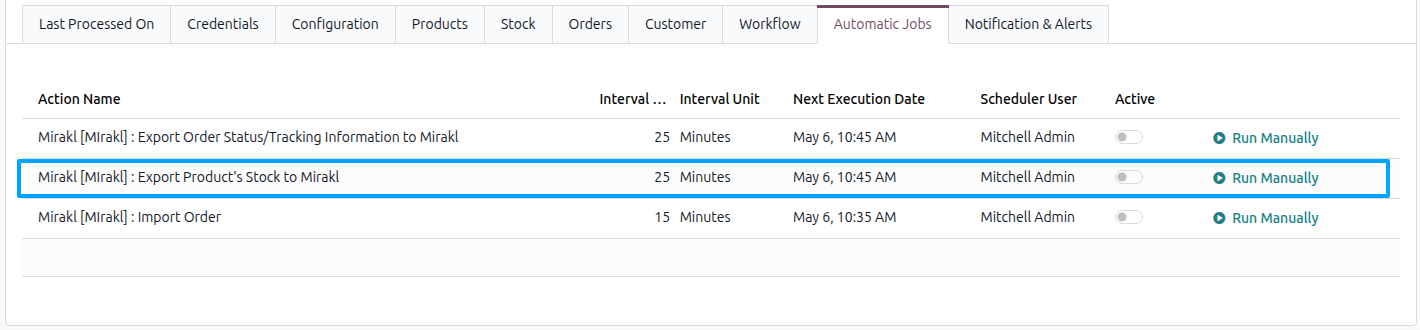
Once the schedule action is active, Odoo will automatically trigger the inventory export from Odoo to Mirakl at the specified time intervals. At the defined intervals, Odoo will export the latest inventory data from your Odoo ERP and update the corresponding inventory in the Mirakl based on Stock Based on configuration.