
Octopia Update Order Status from Odoo
When you ship an order in Odoo, the connector declares the parcel to Octopia with its carrier and tracking number, which moves the order to Shipped.
Requirements
An order is declared only when all of these are true:
Its Octopia status is In Preparation.
It has at least one seller managed line that is In Preparation. Octopia ships its own fulfilment lines, so they are never declared by you, even though Odoo creates the delivery for them.
Its delivery is fully validated, because Octopia takes one parcel per order.
The delivery has a Tracking Reference and a carrier.
Important
Octopia requires a parcel number and a carrier name. Without them nothing is sent and the reason is logged.
Method - 1: Manual Update Order Status
Open a validated delivery order and click Update in Marketplace for a single order. An error message tells you why when it cannot be declared.
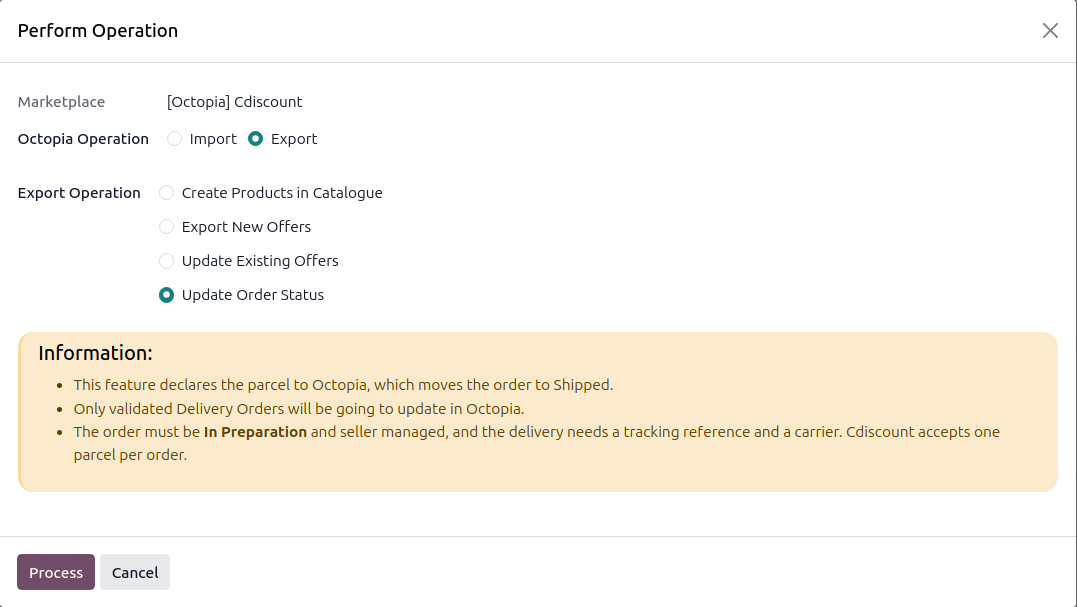
Or run the Operations wizard, choose Export, select Update Order Status and click Process, to declare all eligible orders.
Method - 2: Automatic Update Order Status
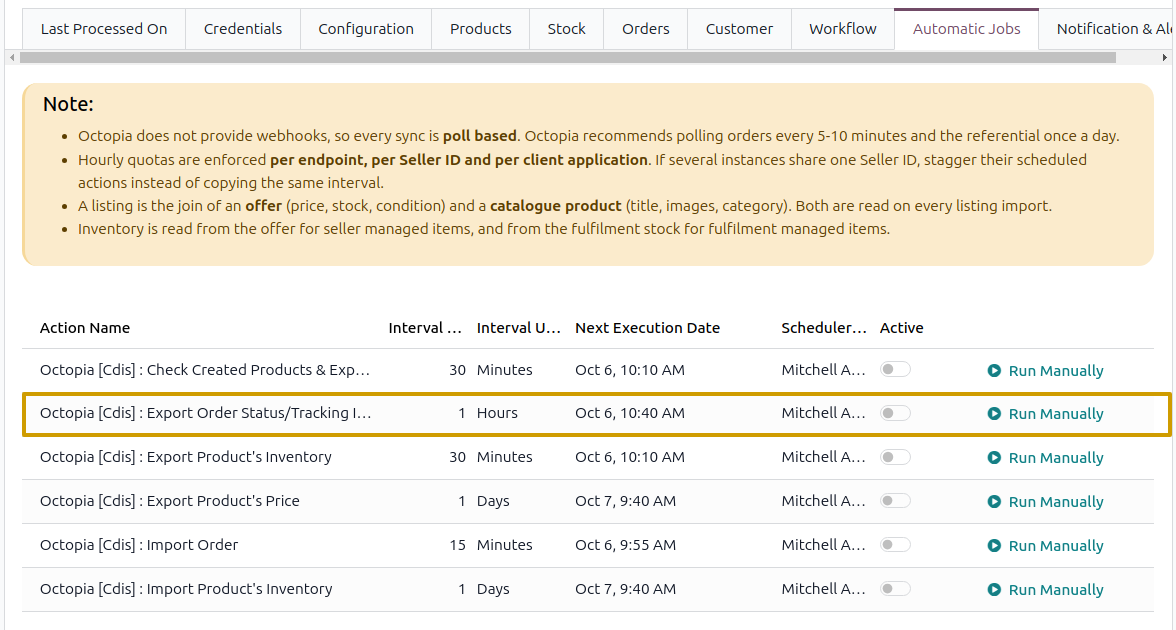
Enable the Export Order Status/Tracking Information scheduled action on the instance (every 1 hour by default).
Note
A delivery is retried up to 3 times. When Octopia refuses the parcel, the delivery is flagged as a marketplace exception and the reason is logged.
What Is Sent
Parcel number: the tracking reference of the delivery.
Carrier name: the carrier of the delivery.
Order lines: the seller managed lines that are In Preparation.
Tracking URL: when the delivery has one.
Once Octopia accepts it, the order is marked as updated in the marketplace and its Octopia status becomes Shipped, so it is never sent twice.
See also