
Map QuickBooks Accounts and Journals in Odoo
QuickBooks and Odoo each keep their own Chart of Accounts. Before documents can move between them, the connector needs to know which QuickBooks account corresponds to which Odoo account. That link is built once, from the connection form.
Sync the Chart of Accounts
With the connection Confirmed, click Sync Chart of Accounts in the header.
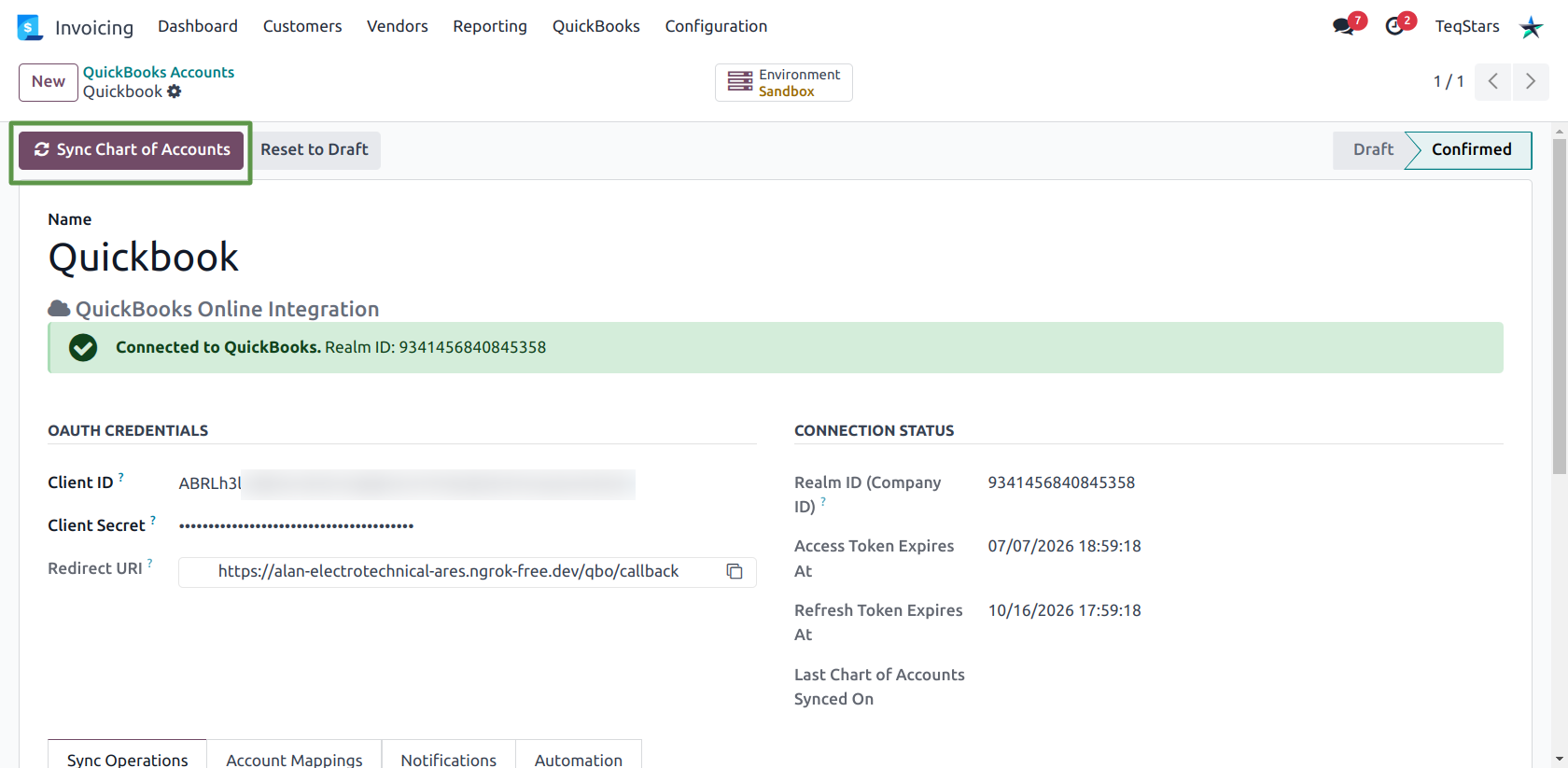
Odoo reads every active QuickBooks account and creates one row per account on the Account Mappings tab. Each row records the QuickBooks ID, Name and Type, and an Odoo Account to link it to.
The connector tries to fill the Odoo account for you. A row is flagged Auto-mapped when it found a match, using — in order:
An Odoo account whose code equals the QuickBooks account name, or appears inside its fully qualified name (
Parent:Child).An Odoo account whose name equals the QuickBooks name, or the last segment of the fully qualified name.
Rows with no match are created with an empty Odoo Account — set them by hand.
Note
Re-running Sync Chart of Accounts refreshes the QuickBooks name and type on existing rows and adds any new accounts. It never overwrites an Odoo Account you set manually, so it is safe to run again after changes in QuickBooks.
Tip
Sorting the Account Mappings list by Auto-mapped brings the unmatched rows to the top — those are the ones that need your attention.
Important
Only active QuickBooks accounts are imported. An account archived in QuickBooks will not appear, and an existing mapping row for it stays behind until you delete it.
Where the mapping is used
Setting Odoo Account on a mapping row writes the QuickBooks ID onto the Odoo account itself. You see it as the read-only QuickBooks ID field on the account form at . Clearing or deleting the mapping clears that field again.
The mapping drives:
Discount lines on exported documents — a negative invoice line is sent as a QuickBooks discount line posted to the mapped account.
Payment deposit and bank accounts — a customer payment is deposited to, and a bill payment is drawn from, the QuickBooks account mapped to the payment journal’s default account.
Set the default accounts
Open the Sync Operations tab and fill the Default QuickBooks accounts for product export section.
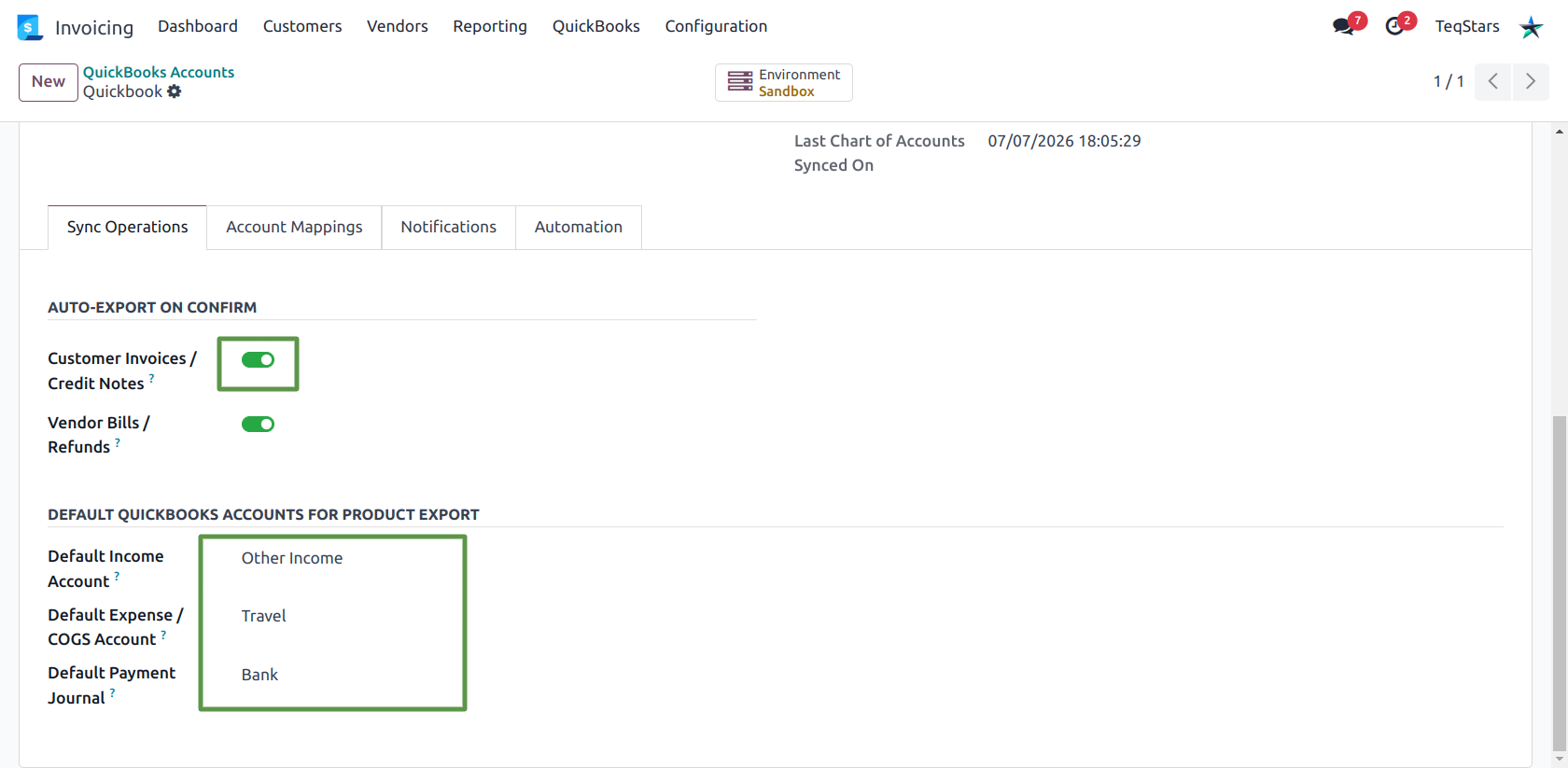
Default Income Account — the QuickBooks Income account used as the income account of every product the connector creates in QuickBooks.
Default Expense / COGS Account — the QuickBooks Cost of Goods Sold or Expense account used as the product’s expense account.
Default Payment Journal — the Odoo bank or cash journal used as the fallback for payments. Imported QuickBooks payments are created in this journal, and exported payments fall back to its QuickBooks bank account when the payment’s own journal is not mapped.
Important
The two account fields only list rows from Account Mappings, so run Sync Chart of Accounts before setting them. Without both of them, exporting a product — and therefore any document containing a product that is not yet in QuickBooks — stops with an error.
Journal mapping
Payments need a QuickBooks bank account. The connector resolves it in this order:
The QuickBooks ID stored on the payment’s journal.
The QuickBooks account mapped to that journal’s default account in Account Mappings.
The same two lookups on the connection’s Default Payment Journal.
In practice, mapping your bank account in the Account Mappings tab is enough. The journal that uses it as its default account resolves through it automatically. The resulting value is visible as the read-only QuickBooks ID field on the journal form at .
Warning
A bill payment whose journal resolves to no QuickBooks bank account is skipped, and the reason is written to the log. Map the bank account, or set a Default Payment Journal whose account is mapped.