
Update Products From Odoo
With Update Listings, you can update your listings to Shopify, including all information such as pricing, inventory, and images. You can proceed to update products from Odoo to Shopify in three different ways:
Method - 1: From The Operation Popup
Go to the menu in Odoo.
Click on the
Operationsbutton from the instance record.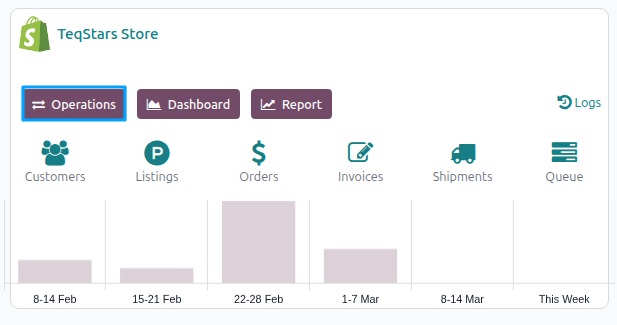
Select Export Operation and then select Update Listings option.
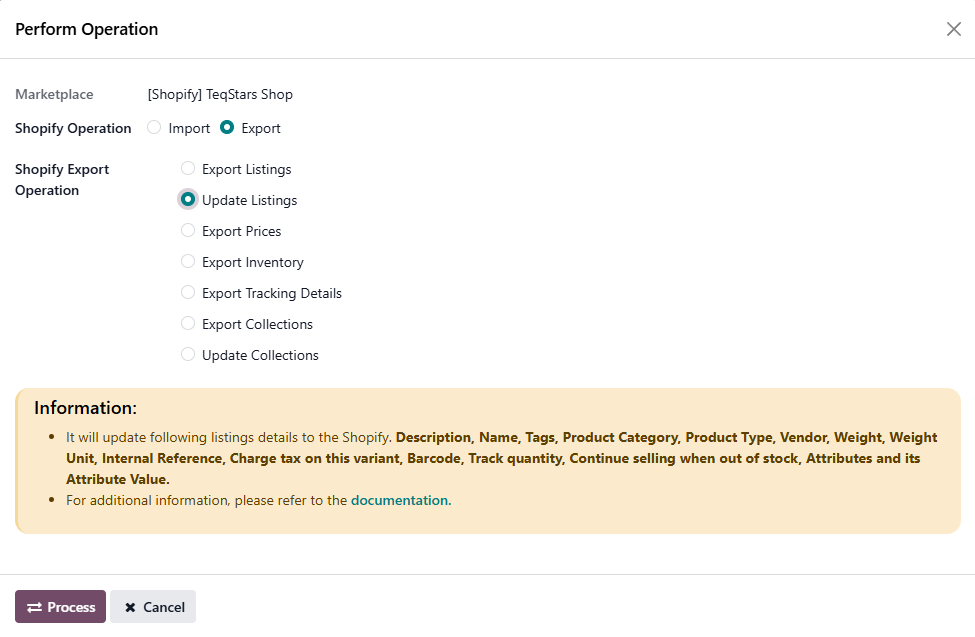
Press
PROCESSbutton to update products to Shopify.
Method - 2: From The Listing View
Go to the menu in Odoo.
Click on the
Listingbutton from the instance record to navigate where all your product listings are managed.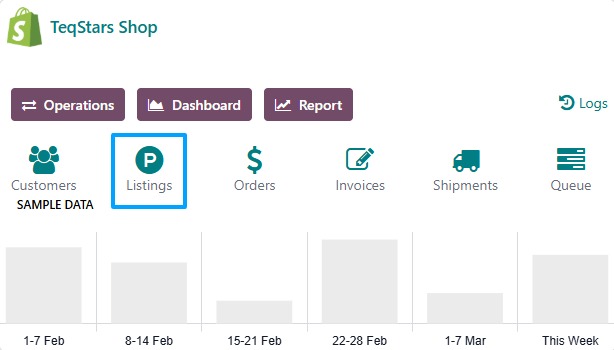
In the Listing menu, Select Listings and click on the
Update Listingbutton.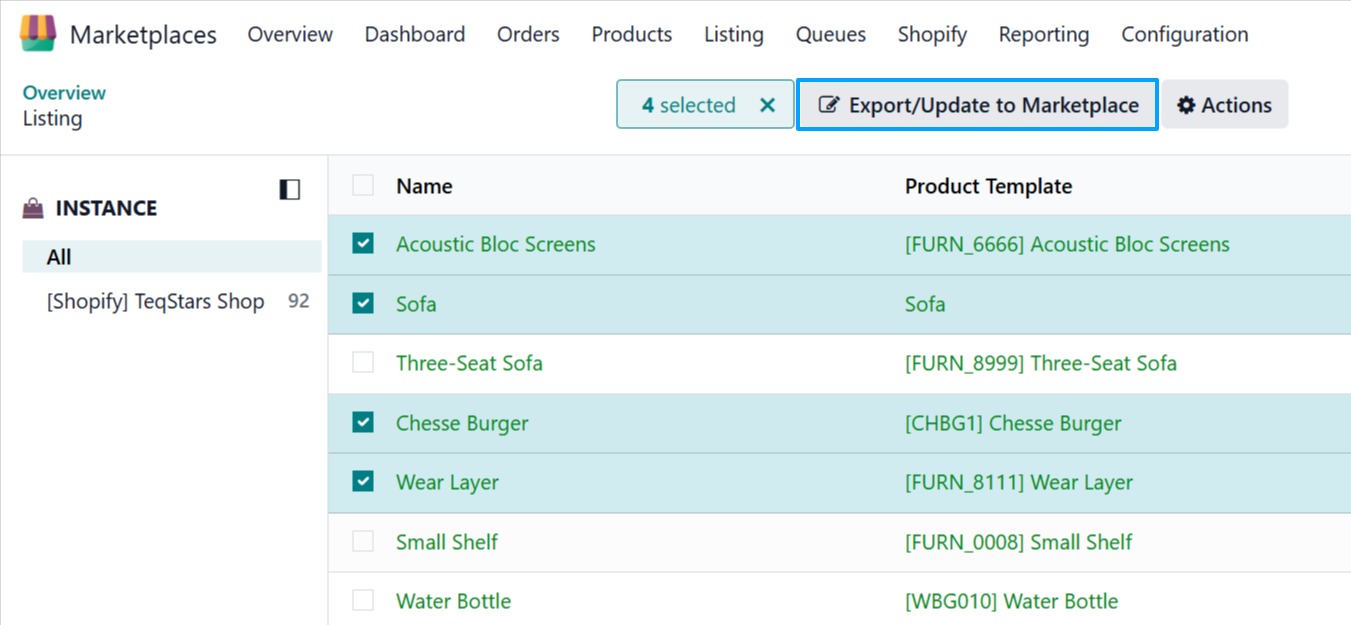
A pop-up window will appear, presenting you with various listing update options. Select the data you want to update to Shopify and press
Update Listingbutton.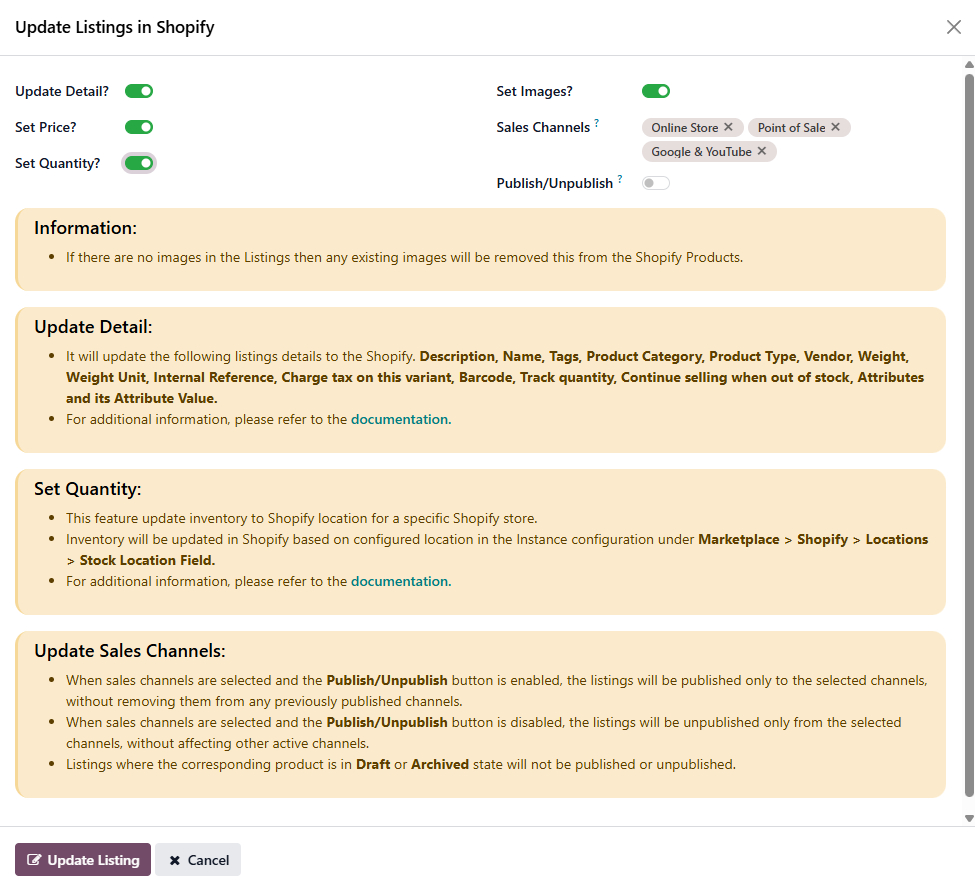
HS Code & Country of Origin
While Update Listings, the connector also updates the HS Code and Country of Origin from the Odoo product to Shopify.
In Shopify, these values are stored separately for each product variant, while in Odoo the same values are shared across all variants of the product. Because of this difference, the connector follows the rule below before updating the Shopify product:
The Country of Origin set on the Odoo product is updated on every variant of the product in Shopify.
The HS Code set on the Odoo product is updated on every variant of the product in Shopify.
If either value is empty on the Odoo product, the corresponding value in Shopify is cleared.
Any existing value in Shopify is replaced with the latest value from Odoo.
Method - 3: Sync a Single Shopify Listing
Use this method to update one specific listing in Shopify.
Go to the menu in odoo and open the listing you want to sync.
Click the
Sync to Shopifybutton on the listing form view.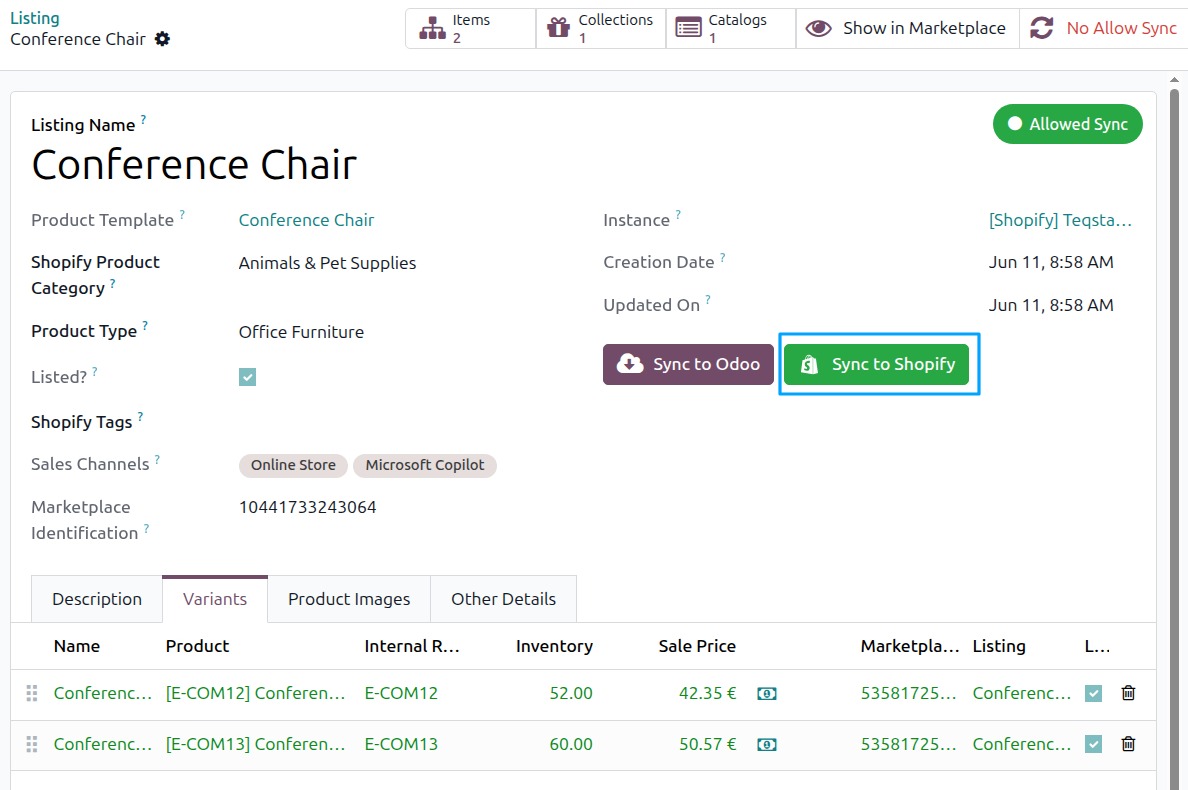
The connector fetches the latest data for this listing from odoo and updates the shopify record. An Update Completed notification appears when finished.
Note
The
Sync to shopifybutton is Update the listing in Shopify with the latest product details, price, quantity, and images from Odoo to Shopify. Sales channels are not affected.
Method - 4: From The Listing Item View
Go to the menu in Odoo.
Select one or more already listed listing items, then click on the
Update to Marketplacebutton.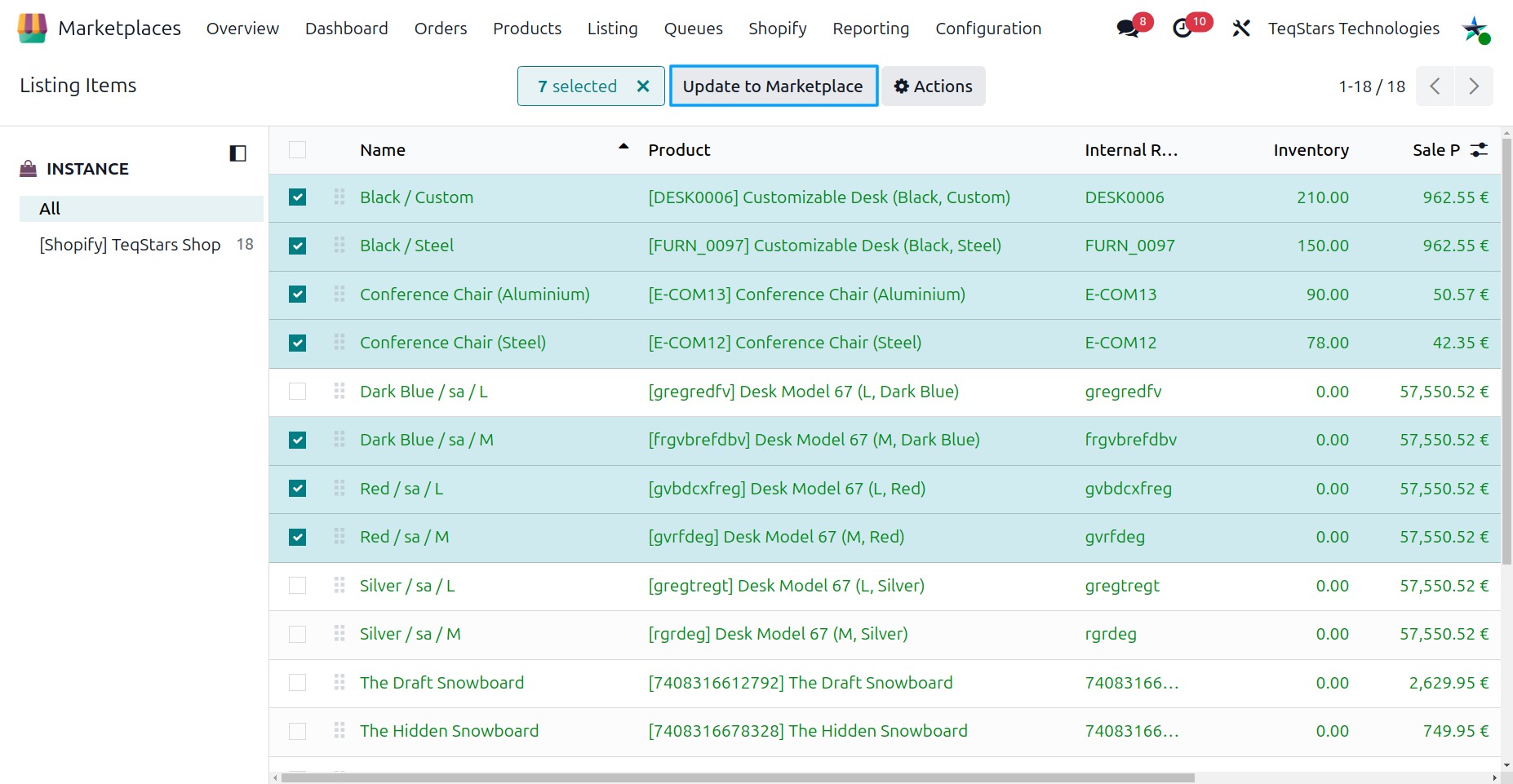
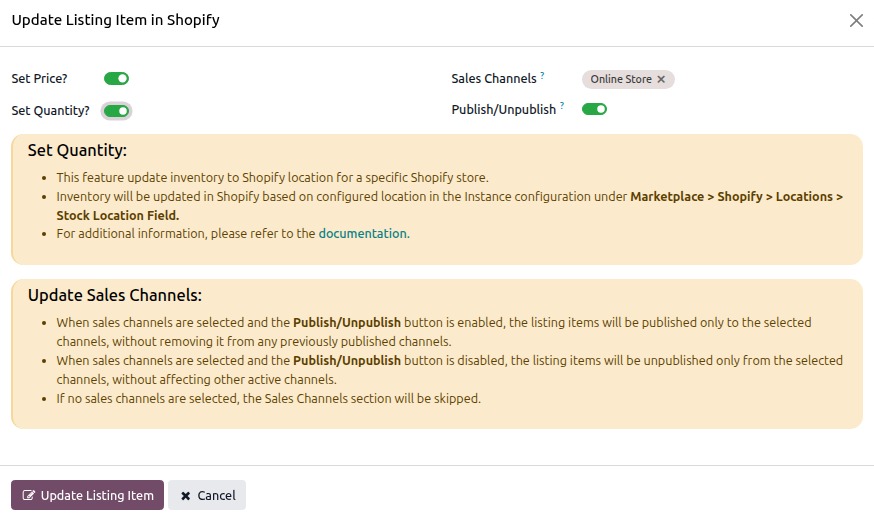
A pop-up window will appear, presenting you with the listing item update options.
Set Price?:
When enabled, the product price from the selected Odoo pricelist is exported to Shopify for each variant.
Set Quantity?:
When enabled, Odoo inventory quantities are exported to the configured Shopify locations.
Sales Channels (optional):
Select the Shopify sales channels (e.g., Online Store, Point of Sale) where you want the updated listing item to be published. If left empty, the listing item will still be updated to Shopify but will not be published to any sales channel.
Publish/Unpublish:
Select the sales channels and enable or disable Publish/Unpublish to control listing item visibility in Shopify sales channel.
Enable it to publish the listing item to the selected channels.
Disable it to unpublish the listing item from the selected channels.
This action only affects the selected channels.
Click
Update Listing Itembutton.
Note
All selected items must already be listed in Shopify. Items that are not yet exported will be rejected.
Method 3 updates only price and/or stock quantity for listing items already listed in Shopify. It does not update title, description, images, HS Code, Country of Origin, sales channels, or any other product data. For a full product update, use Method 1 or Method 2 above.
Manage Sales Channels
Click the Manage Sales Channels button to open a popup where you can manage where your listing item are published/unpublished in Shopify.
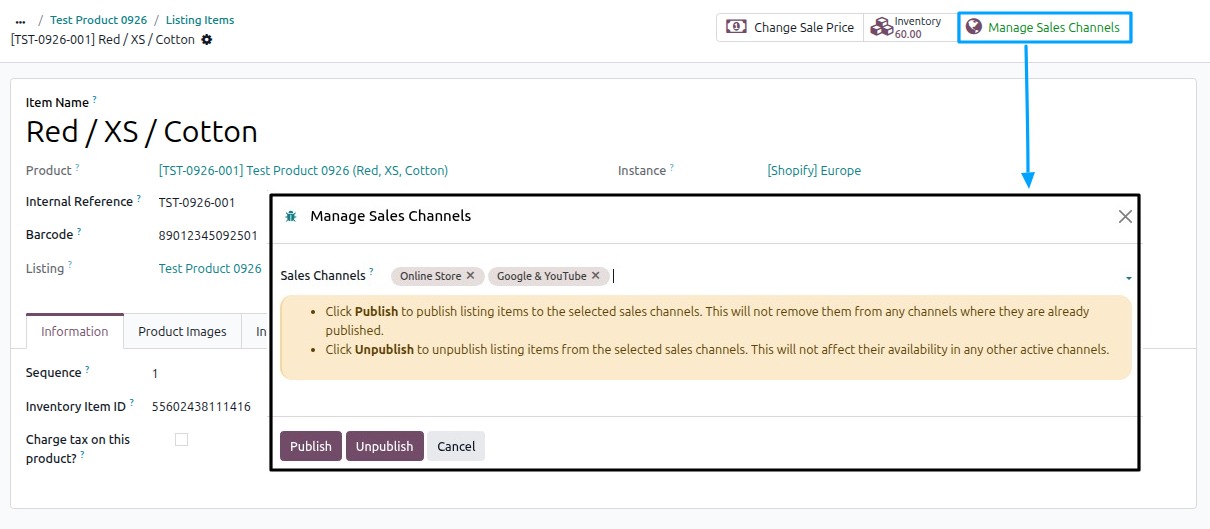
Sales Channels (Required):
Select the sales channels where you want your listing item to be published/unpublished (for example, Online Store or Point of Sale).
Publish/Unpublish:
Select the sales channels and click Publish or Unpublish to control listing item visibility in Shopify sales channel.
Clicking Publish will show the listing item in the selected channels.
Clicking Unpublish will remove the listing item from the selected channels.
This action only affects the channels you select.
Skip Sync for a Listing
Sometimes you may want to stop a specific Shopify product from being synced with Odoo for a while, without affecting any other product in the same instance.
How to Use
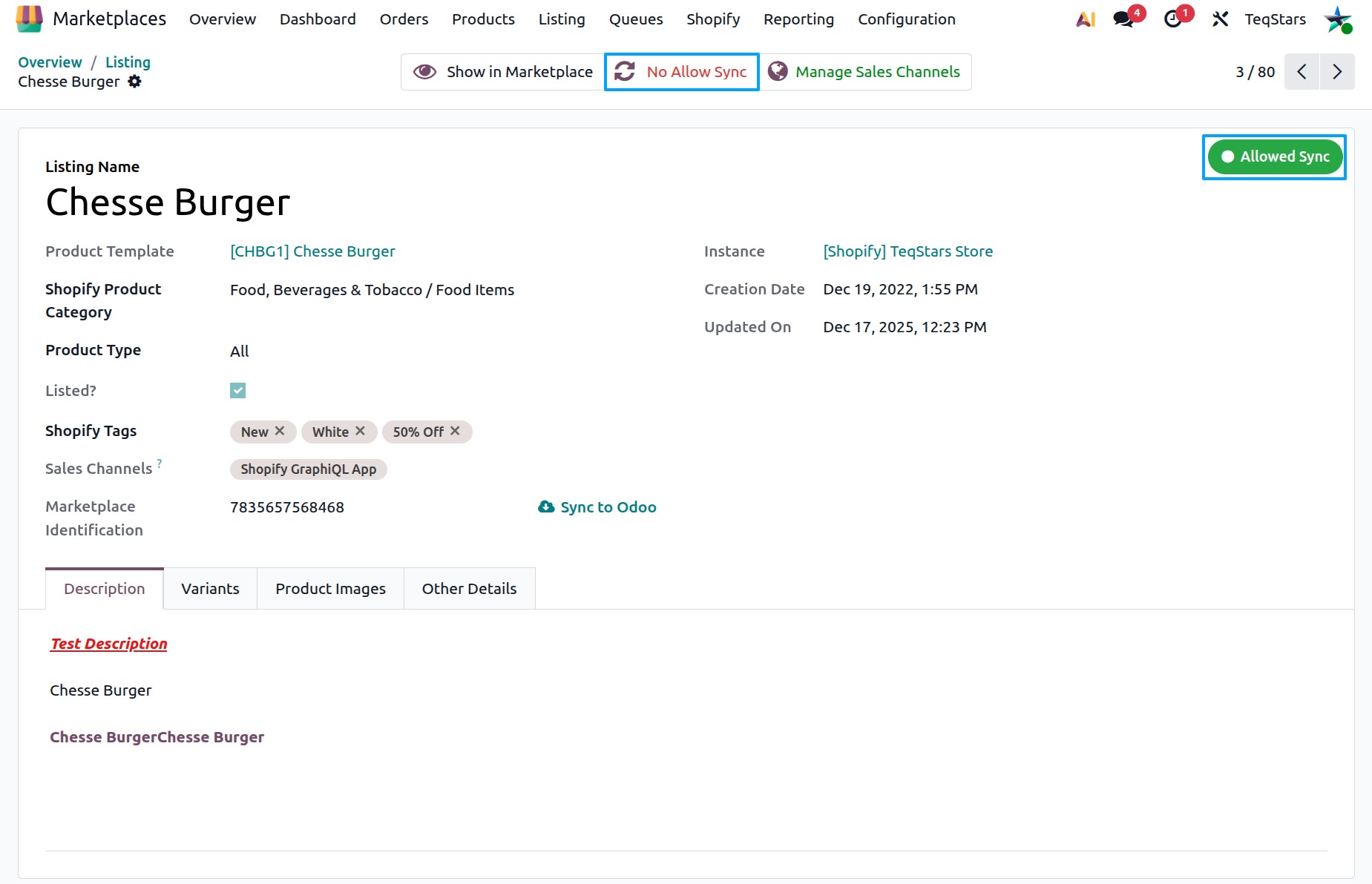
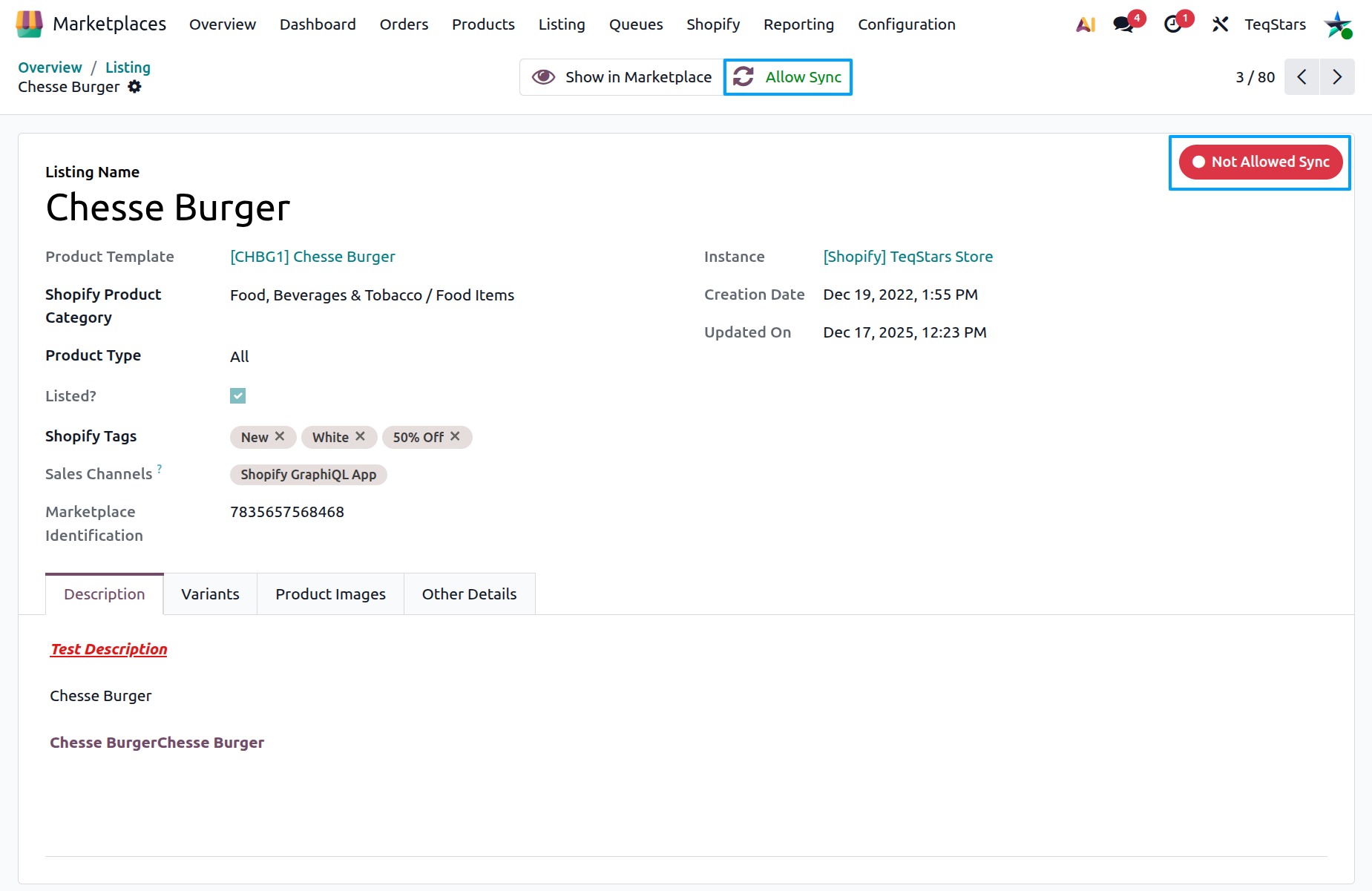
Every Shopify listing has a sync toggle at the top of the listing form view. A small status badge on the right side of the form tells you the current sync state of the listing:
Allowed Sync (shown in green) — the listing is being synced normally.
Not Allowed Sync (shown in red) — the listing is currently paused from sync.
To pause sync for a listing:
Go to the menu in Odoo.
Open the listing you want to pause.
Click the No Allow Sync button at the top of the form. The status badge on the right will change to Not Allowed Sync and the listing will be excluded from all sync activities.
To resume sync for the same listing later:
Open the listing again.
Click the Allow Sync button at the top of the form. The status badge will change back to Allowed Sync and the listing will start syncing normally again.
What will Skipped
When the Not Allowed Sync status badge is shown on the upper-right side in the Form View, the connector skips that listing during all of the following operations:
Product import from Shopify to Odoo
Product update from Odoo to Shopify
Inventory import from Shopify
Inventory export to Shopify
Price update from Odoo to Shopify
Manage Sales Channels
Click the Manage Sales Channels button to open a popup where you can manage where your products are published/unpublished in Shopify.
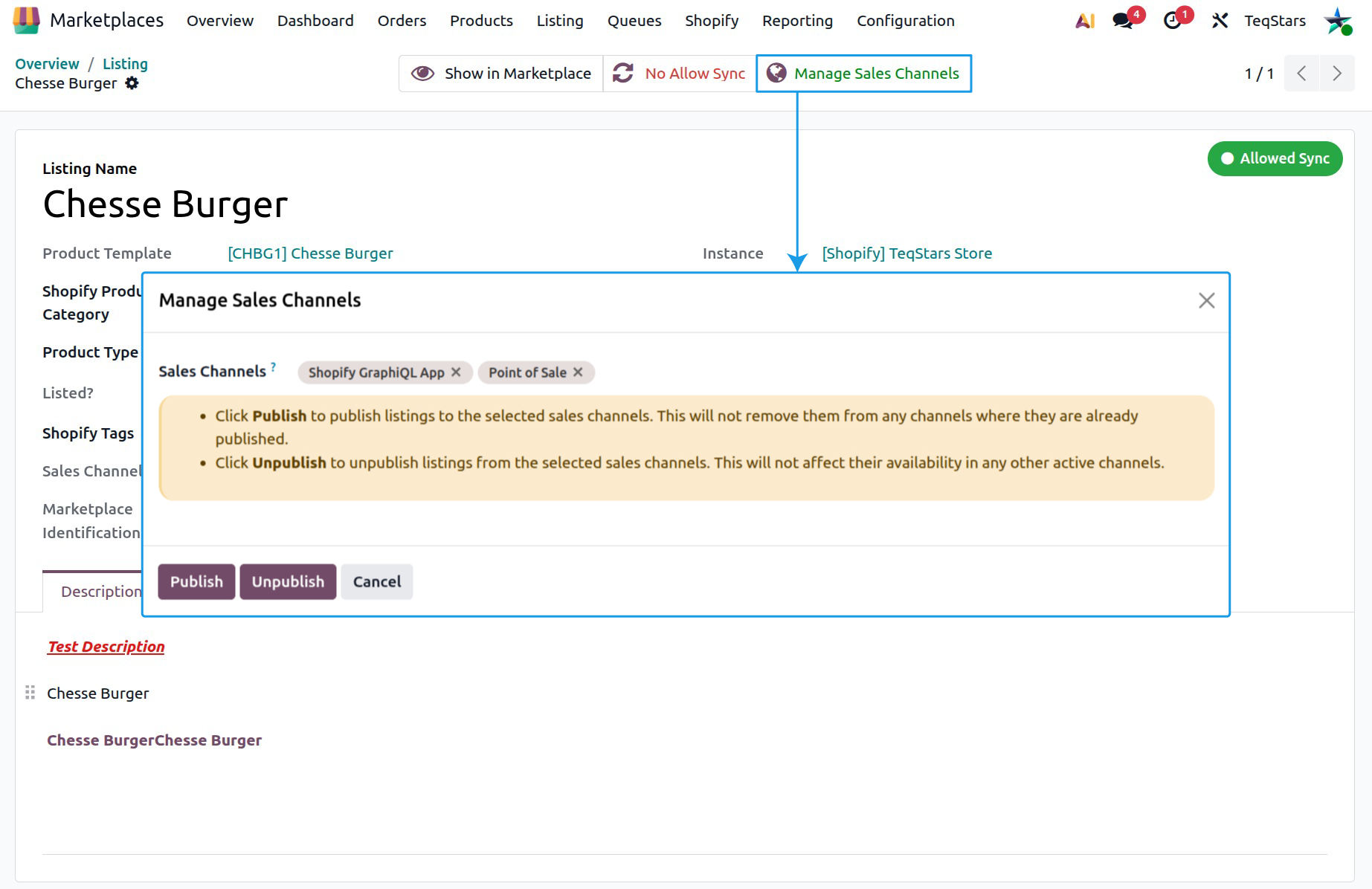
- Sales Channels (Required):
Select the sales channels where you want your products to be published/unpublished (for example, Online Store or Point of Sale).
- Publish / Unpublish:
Select the sales channels and click Publish or Unpublish to control product visibility in Shopify sales channel.
Clicking Publish will show the product in the selected channels.
Clicking Unpublish will remove the product from the selected channels.
This action only affects the channels you select.