
PrestaShop Order States
Each PrestaShop order has an order state, such as paid, shipped or canceled. Odoo keeps a copy of your store’s order states. You map each state, or a default, to an Odoo order workflow, a payment term and a payment gateway. This tells Odoo how to process every order it imports.
Sync Order States
Order states are synced automatically after you connect your store. You can sync them again at any time, for example after you add a new order state in PrestaShop.
Open your PrestaShop marketplace instance.
Click Sync Order States.
Odoo syncs the order states of your PrestaShop store. You find them under .
On the instance, use the following fields to choose which orders come into Odoo:
Order States to Import: Odoo imports orders only in these PrestaShop states. This keeps orders you do not want to process, such as unpaid ones, out of Odoo.
Fulfillment State: The PrestaShop order state that stands for a fulfilled order.
Order States List
Go to to see the synced states.
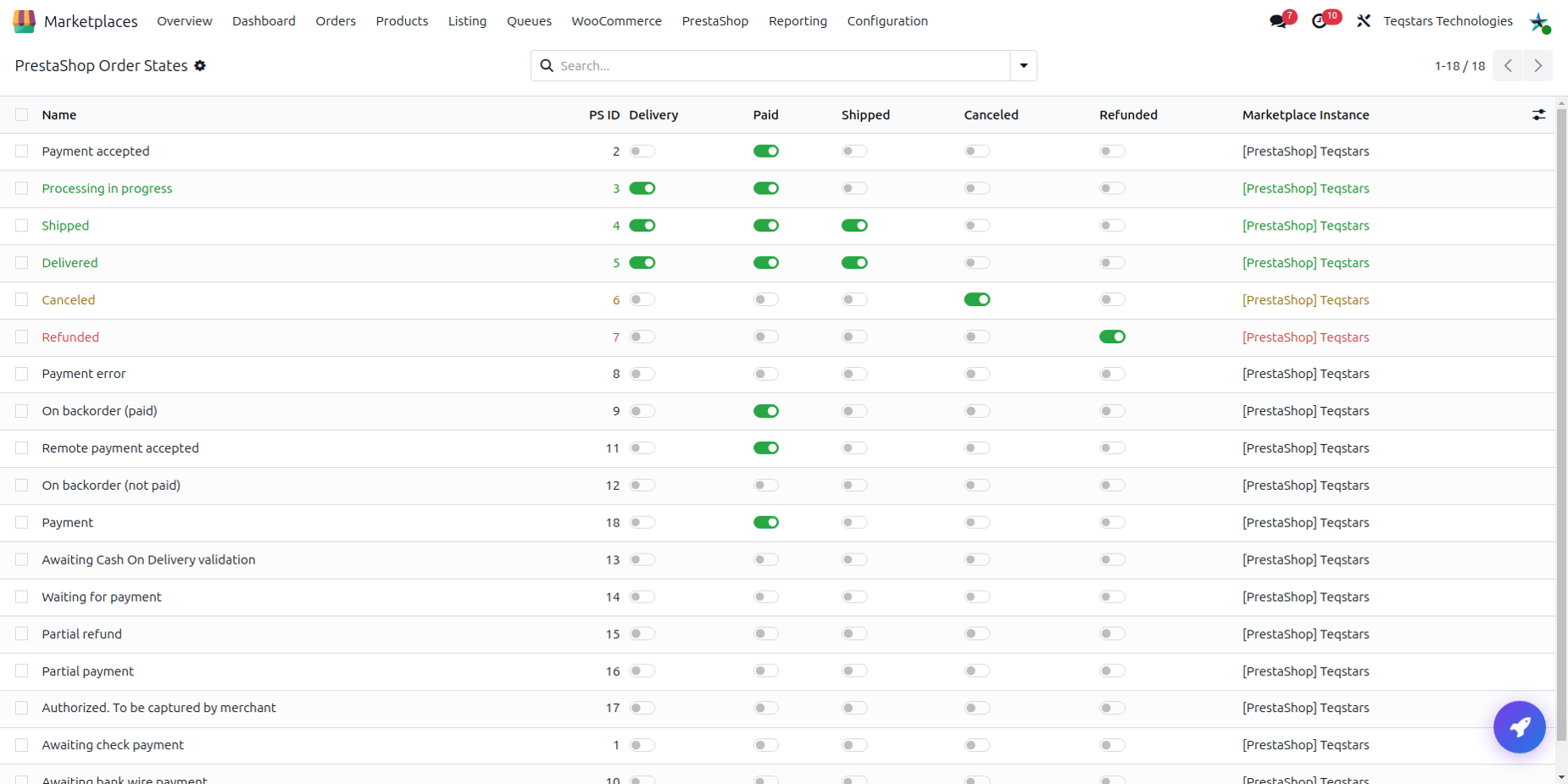
Each order state shows:
Name: The name of the state, as in PrestaShop.
PS ID: The ID of the state in PrestaShop.
Color: The color of the state in PrestaShop.
Color index: The Odoo tag color, from 0 to 11. Odoo works it out from the PrestaShop color, so the state tags look the same as in your store.
Marketplace Instance: The instance the state was synced from. It is empty for a global state.
Delivery, Paid, Shipped, Canceled and Refunded: These show what the state means in PrestaShop.