
Audit Logs
Every request the MCP Server processes — a tools/list, a
tool call, an OAuth event, a rejected request — is recorded as
an Audit Log entry. The audit log is the single source of
truth when something goes wrong or compliance asks “who did
what?”.
Where to find it
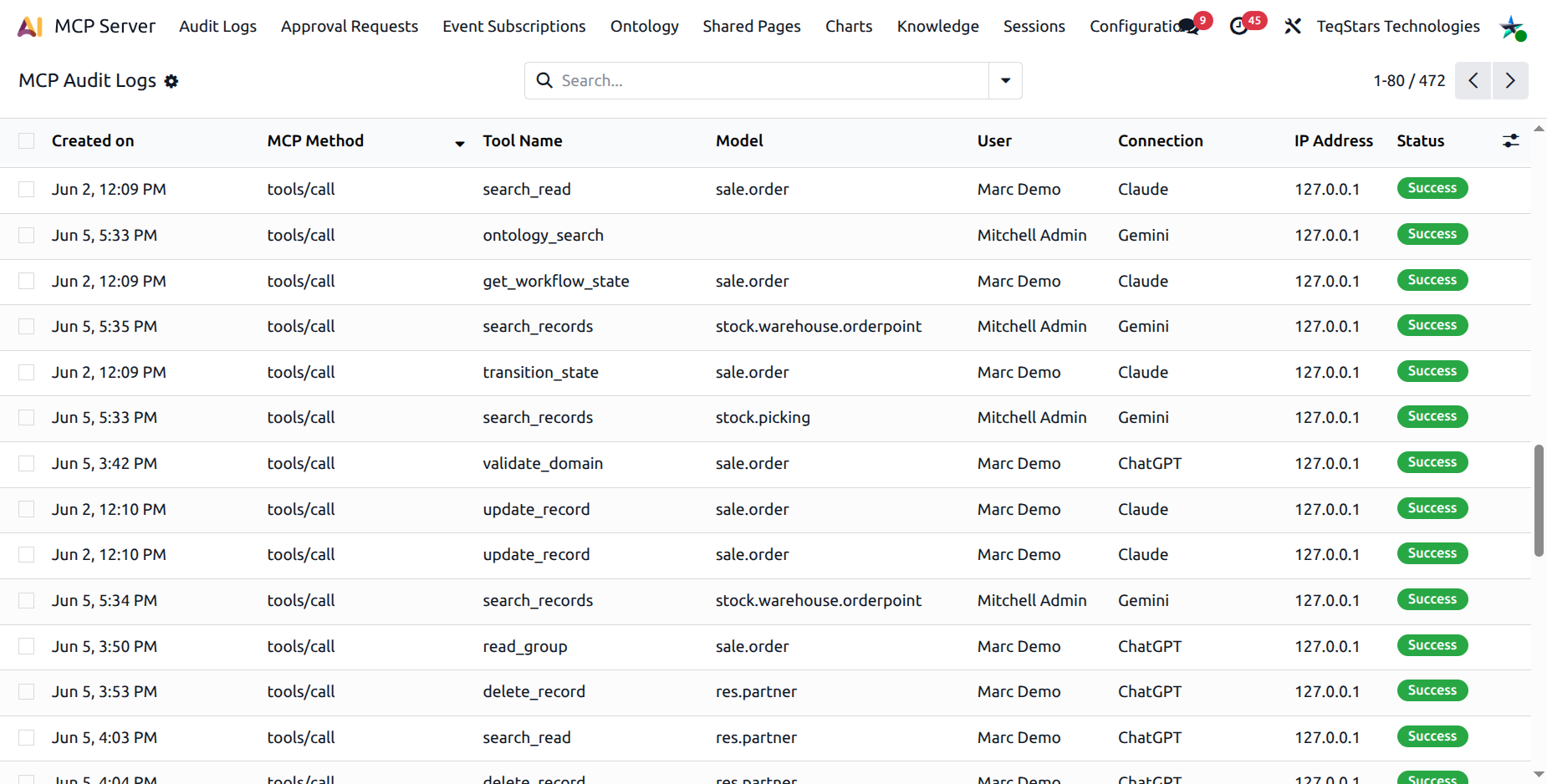
Admins: (sees the whole tenant).
MCP Users: same menu, but the record rule scopes them to only their own entries.
What is recorded
Every entry captures:
Created on — timestamp.
Method — the MCP method (
tools/call,prompts/get,oauth.authorize…).Tool — the tool name (when it’s a tool call).
Model — the Odoo model involved (when applicable).
User — the Odoo user the connection acts as.
Connection — the connection that made the call.
IP Address — the remote IP.
Status — success (green) or error (red).
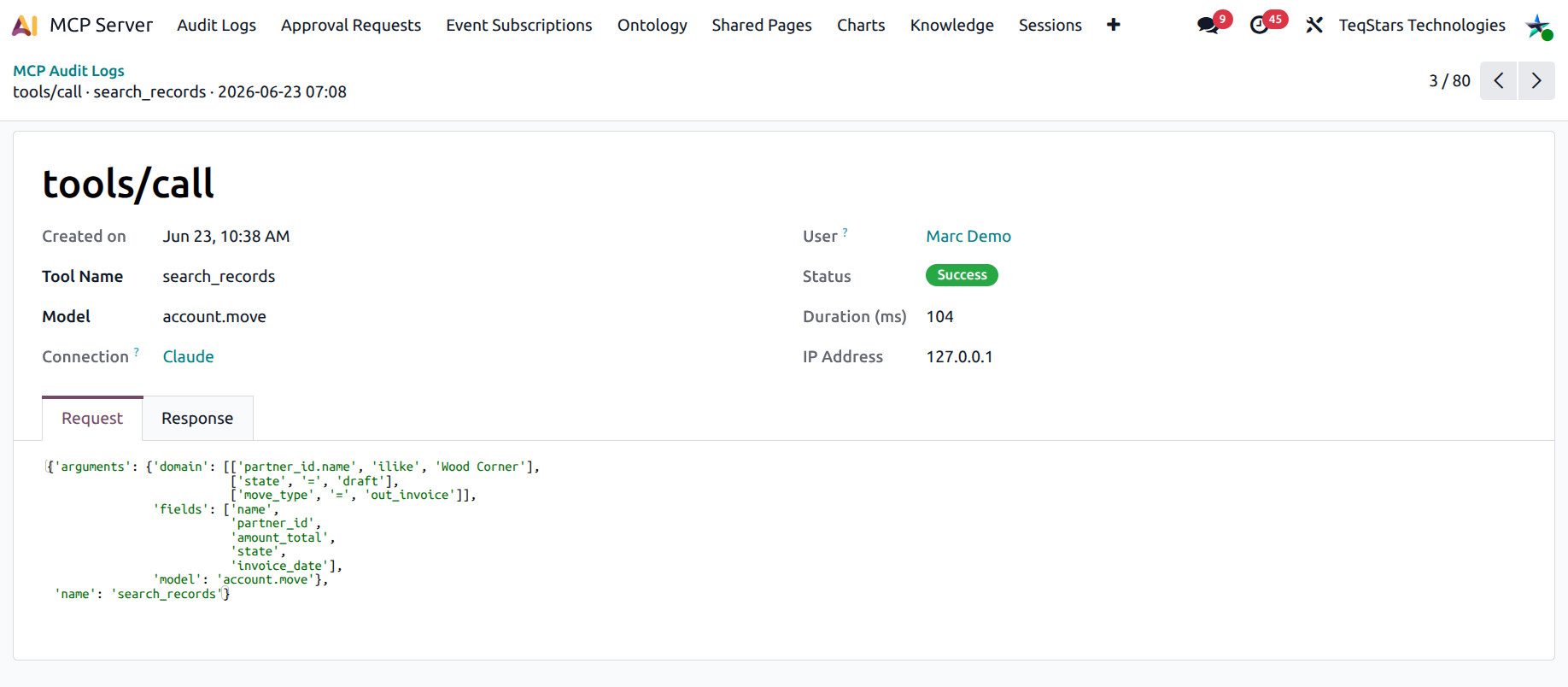
Duration (ms) — how long the call took.
Request payload — only when Log Payloads is on in Server Settings.
Response summary — only when Log Payloads is on.
Error message — when the call failed.
Search and filter
The search bar offers:
Free-text on Method, Tool, Model, User, Connection, IP.
Quick filters: Success, Errors, Today, Last 7 days, Last 30 days, Tool calls, OAuth events.
Group by Status / Method / Tool / Model / User / Connection / Day.
Open any row for the detail form, which shows the request payload, response summary, and error message in dedicated notebook tabs.
Payload logging
The Log Request/Response Payloads master switch in controls whether payloads are stored.
Off (default) — only meta-data is stored. Smaller table, no sensitive data.
On — full request and a response summary are stored, useful for compliance and troubleshooting.
Warning
Turning payload logging on can land sensitive data (customer details, draft email bodies, financial amounts) into the audit table. Make sure your retention period matches your data retention policy.
Retention and cleanup
Audit Log Retention (days) — set in Server Settings (default 90).
The MCP: Cleanup Old Audit Logs cron runs daily and deletes rows older than the retention period.
You can change the retention to any positive integer. Setting a very large value can grow the table substantially — keep an eye on it in dev.
Cannot edit, cannot delete
Audit Log entries are intentionally read-only:
Create button is hidden.
Edit and Delete are hidden.
Even MCP Administrators can only view entries.
This is by design — audit logs are evidence, not editable documents.
Use cases
Incident response. “Show me every call from connection X in the last hour, errors only.”
Compliance. “Who issued the request that updated invoice INV/2026/0042 last Tuesday?”
Debugging. “Why did the AI’s third call fail? Look at the Error tab.”
Cost review. “How many tool calls did connection X make last week?”
Performance. “Group by tool and sort by duration to find slow tools.”
Tip
Bookmark the audit log filtered to errors in the last 7 days — it becomes your daily morning health check.