
Targets
A target is a goal for a number over a period, such as “at least 150 orders this quarter”. Once published, a target stays fixed, so everyone measures against the same goal.
The Targets Screen
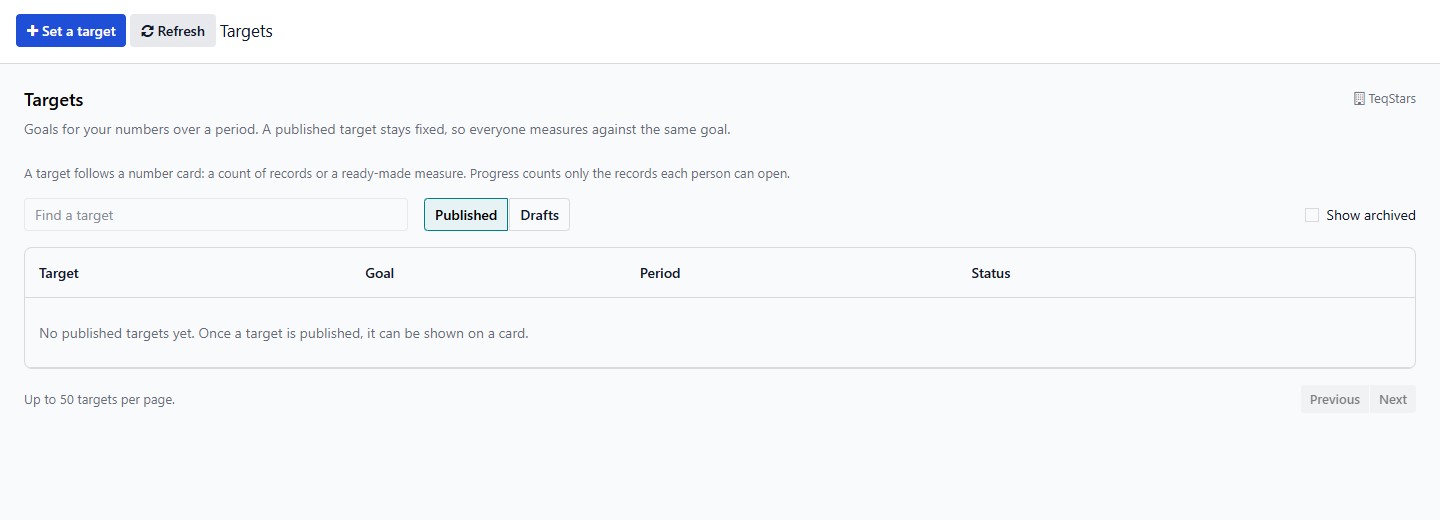
Go to . The screen lists your targets under Published and Drafts, with their goal, period and status. Show archived adds the archived ones.
Set a Target
A target follows a number card: a count of records or a ready-made measure. Save the dashboard before you create a target for a new card.
Click Set a target.
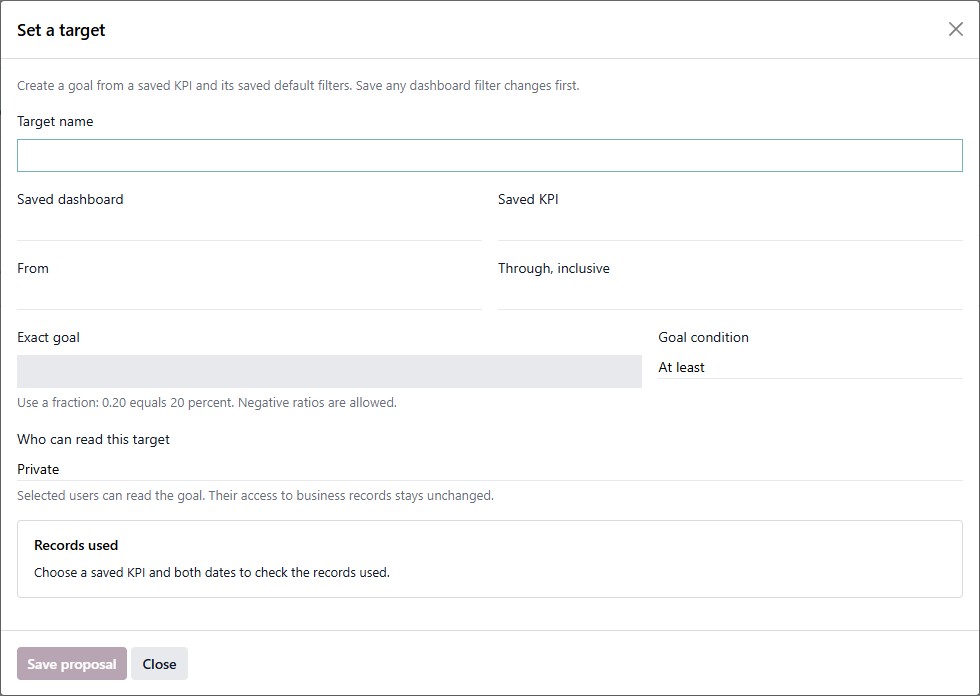
Enter a Target name.
Choose the Saved dashboard and the Saved KPI the target measures.
Set From and Through, inclusive. Both dates are included, and the dates cannot overlap another version of the same target.
Enter the Exact goal and choose the Goal condition: At least or At most. For a rate, use a fraction: 0.20 equals 20 percent.
In Who can read this target, choose up to 50 internal users. This does not change their access to business records.
Check Records used, then click Save proposal.
An Administrator then clicks Publish version. A newer version replaces the older one for new cards, and cards already using an older version keep it.
Show a Target on a Card
Edit the number card and open its Data tab.
Turn on Show a target and choose the Published target version.
Save the dashboard.
The card then shows Target met or Target not met. The Gauge and Target bar chart types draw the progress against the goal.
Note
The target counts the records its creator could see, with the card’s own filters. It never lets anyone see more records.
See also