
Import Walmart Product Types In Odoo
Note
Walmart product types and their specifications are available for the United States marketplace only. On instances configured for Canada, Mexico, or Chile these operations do not appear in the Operations wizard. See Walmart Supported Marketplaces.
Walmart organizes everything it sells into a taxonomy, and it will not create a listing until you tell it which product type the item belongs to and supply the attributes that product type requires. This page covers importing that taxonomy into Odoo, and fetching the attribute specifications for the product types you actually use.
Understanding The Taxonomy
Walmart’s taxonomy has three levels, and the connector stores each one:
Category: the broadest grouping, such as Beauty.
Product Type Group: a grouping inside a category, such as Fragrances.
Product Type: the specific type an item is listed as, such as Body Sprays. This is the level Walmart actually uses when you create a listing.
Each product type has a specification: the list of attributes Walmart
allows and requires for items of that type. An attribute might be brand, color, or fabricContent,
and the spec says what data type it holds, whether it is required, and which values are allowed.
Open an attribute of a specification to see what Walmart expects for it. This helps you fill in your product data correctly the first time:
Title: the name of the attribute.
Min Length and Max Length: how short or long a text value can be.
Min Items and Max Items: how many values a list can hold.
Allowed Values: the only values Walmart accepts for this attribute.
Parent Attribute: the group this attribute belongs to.
Child Attributes: the attributes inside this group.
If Walmart rejects a value, open the attribute and check these limits first.
Important
A product type can only be used for exporting listings once its specification has been fetched. Importing the taxonomy gives you the names; fetching the specification gives you the attributes.
Step 1: Import The Taxonomy
Go to the menu in Odoo.
Click on the
Operationsbutton from the instance record.Select Import Operation and then select Import Product Types option.
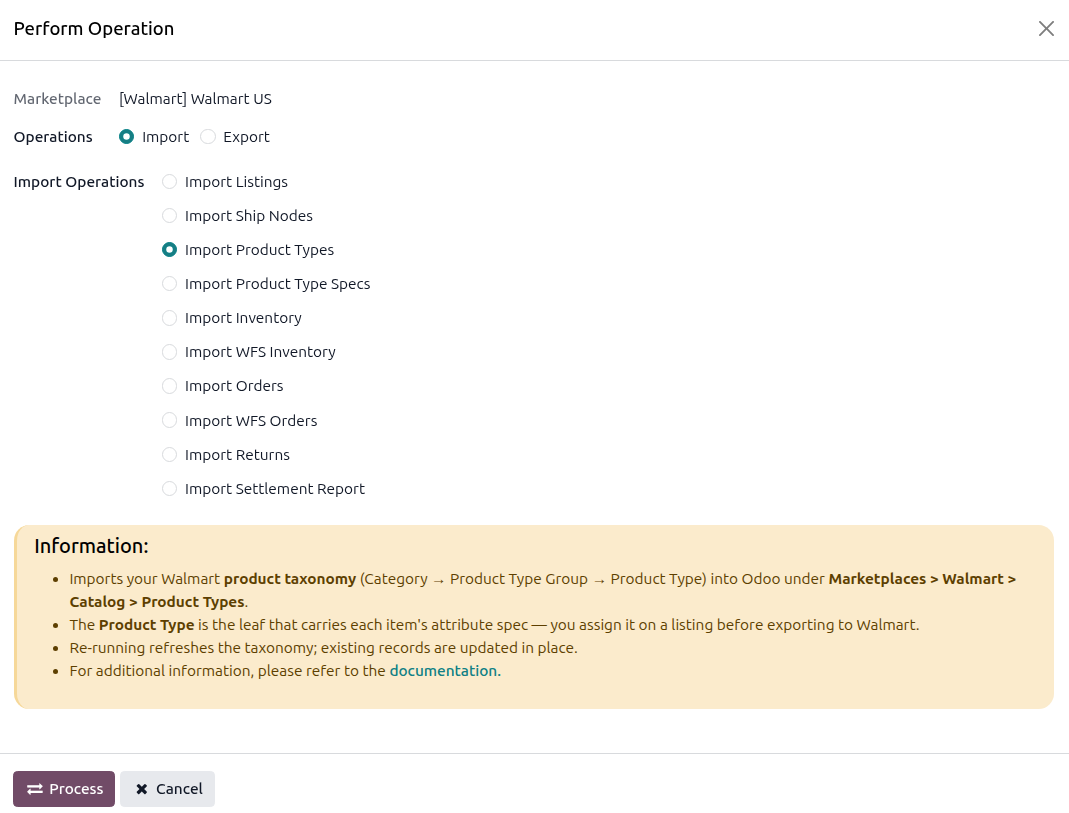
Press
PROCESSbutton.
The categories, product type groups and product types are created in Odoo. You can review them under .
Tip
You can also import the taxonomy for every confirmed Walmart instance at once with the Import from Walmart button at the top of the Product Types list.
Step 2: Fetch The Spec
Importing the taxonomy does not fetch every attribute for every product type. Walmart has thousands of product types, so only fetch the specifications for the product types you actually use.
Method - 1: From The Operations Popup
Open the
Operationspopup from the instance record.Select Import Operation and then select Import Product Type Specs option.
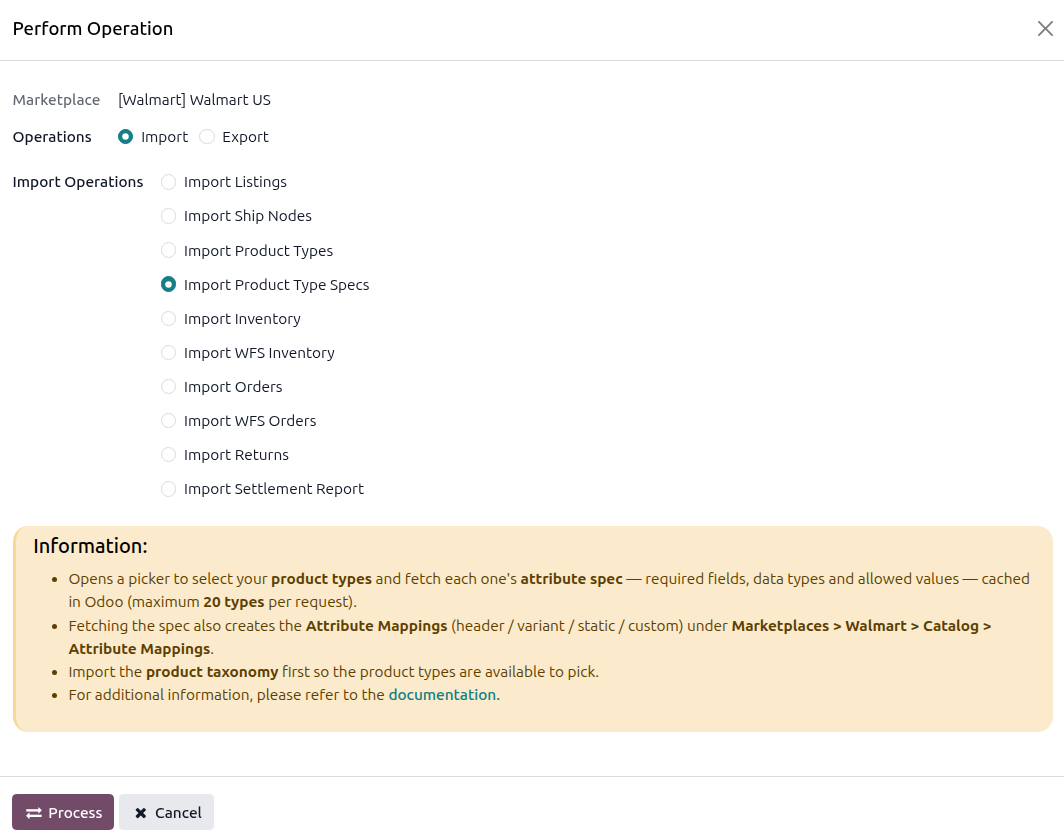
Press
PROCESSbutton.
Method - 2: From A Product Type
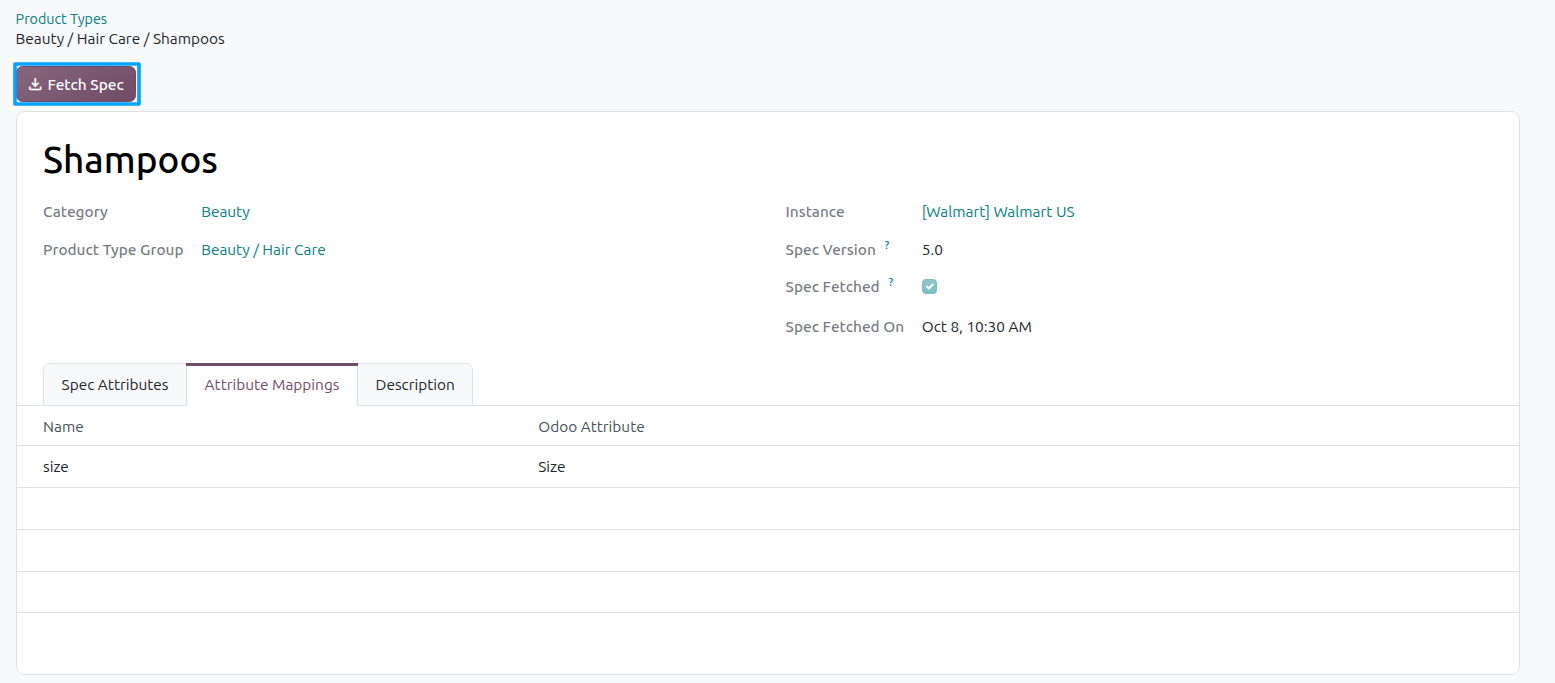
Go to and open a product type.
Click the Fetch Spec button.
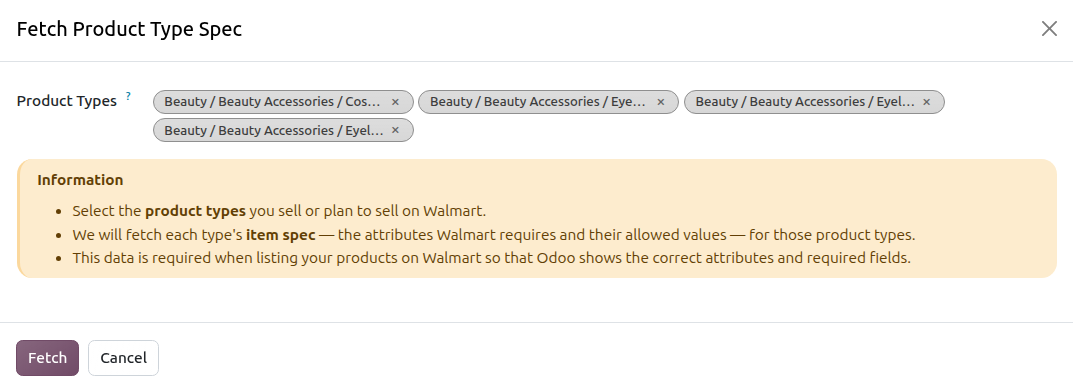
In the Fetch Walmart Product Type Spec dialog, confirm or add the Product Types you want, then click Fetch.
Note
When you confirm a United States instance for the first time, this dialog is offered automatically so you can cache the specs straight away. You can choose Ignore & Confirm to skip it and fetch them later.
Reviewing A Product Type
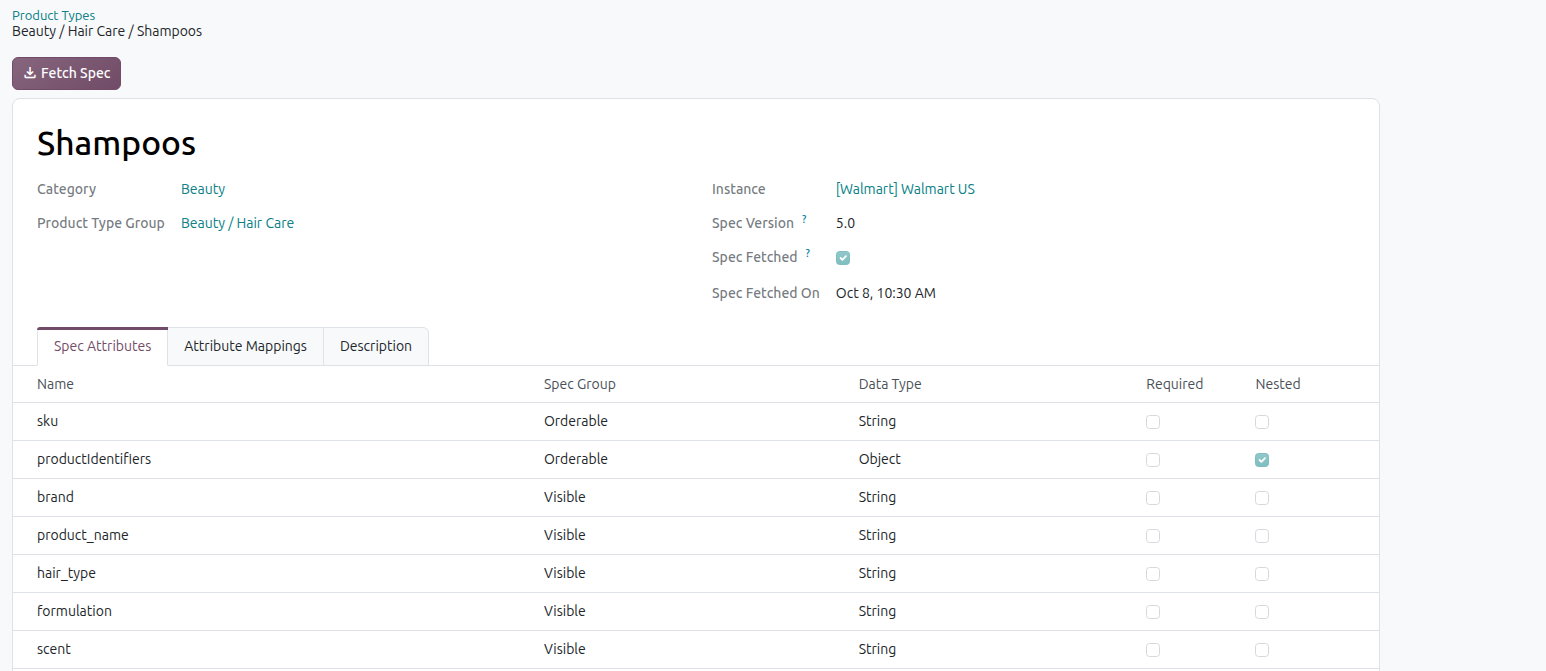
A product type shows:
Category and Product Type Group: Where it sits in the taxonomy.
Instance and Spec Version: Which instance it belongs to and which version of the specification was fetched.
Spec Fetched and Spec Fetched On: Whether the attributes have been retrieved and when.
On the Spec Attributes page, each attribute shows:
Spec Group: where Walmart uses the attribute:
Orderable,Visible, orTrade Item.Data Type:
String,Number,Integer,Boolean,Array, orObject.Required: whether Walmart demands a value when the item is first created.
Nested: whether the attribute is a container holding further attributes inside it.
The Attribute Mappings page lists the attributes of this product type that are mapped to Odoo attributes. See Walmart Attribute Mapping.
Browsing Categories And Groups
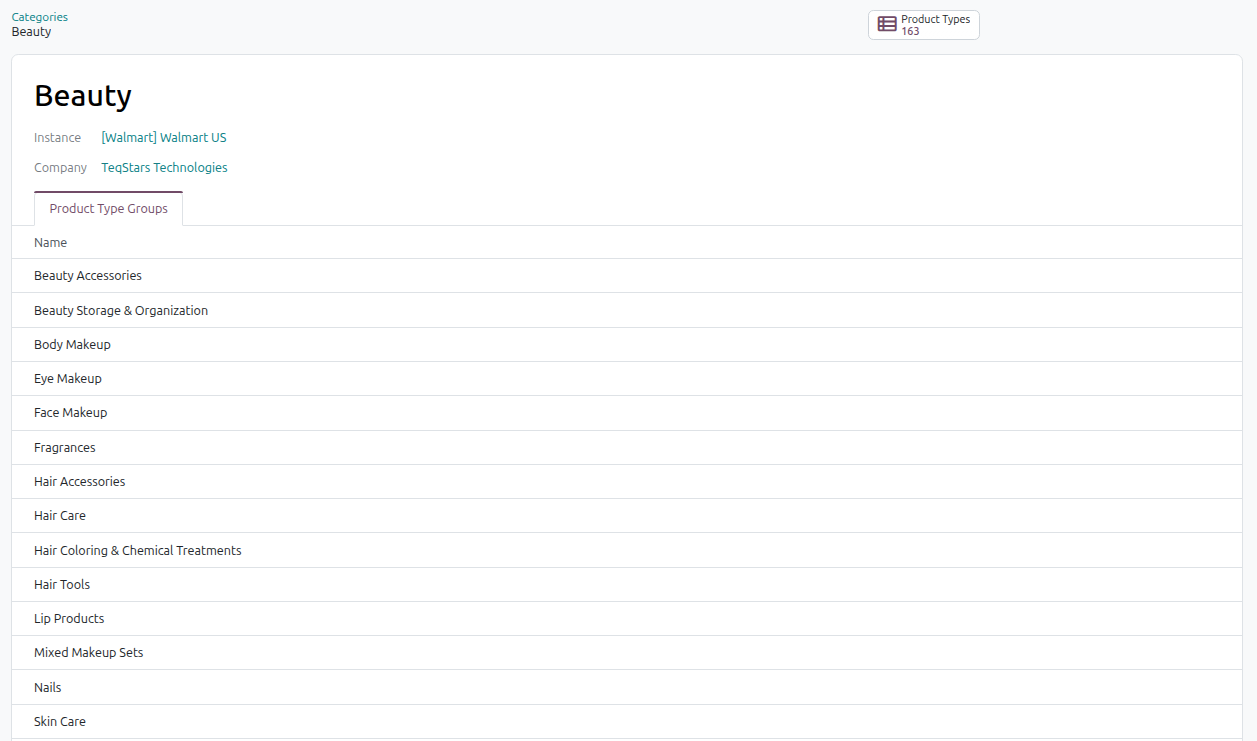
lists the top level. A category form shows its product type groups, and a Product Types stat button leading to everything beneath it.
lists the middle level, each showing its category and the product types it contains.
These records are imported from Walmart and are read-only.
Note
The taxonomy is imported per instance, so each Walmart instance has its own copy. The lists open filtered to confirmed instances by default.
What To Do Next
Map Walmart attributes to your Odoo attributes so listings can be created automatically. See Walmart Attribute Mapping.
Set the product type and fill in the attributes for each listing. See Walmart Listing Attributes.
Export the listing to Walmart. See Export Odoo Products To Walmart.