
Import Products in Odoo
The Bol.com Odoo Connector imports your Bol.com offers/products into Odoo as Listings and Listing Items, optionally creating Odoo products when no match is found.
Before importing, configure Product configuration on the instance, especially Sync Listings Based On and Create Odoo Products?.
Imports run manually from the Operations popup. The connector queues the offers/products and a scheduled background job processes them.
How To Import Offers/Products
Before importing products, it’s necessary to configure certain product configuration in the Instance.
To import products in Odoo from Bol, please follow these steps.
Go to the menu in Odoo.
Click on the Operations button from the instance record.
Select FBR & FBB and then select Sync Offer/Products option.
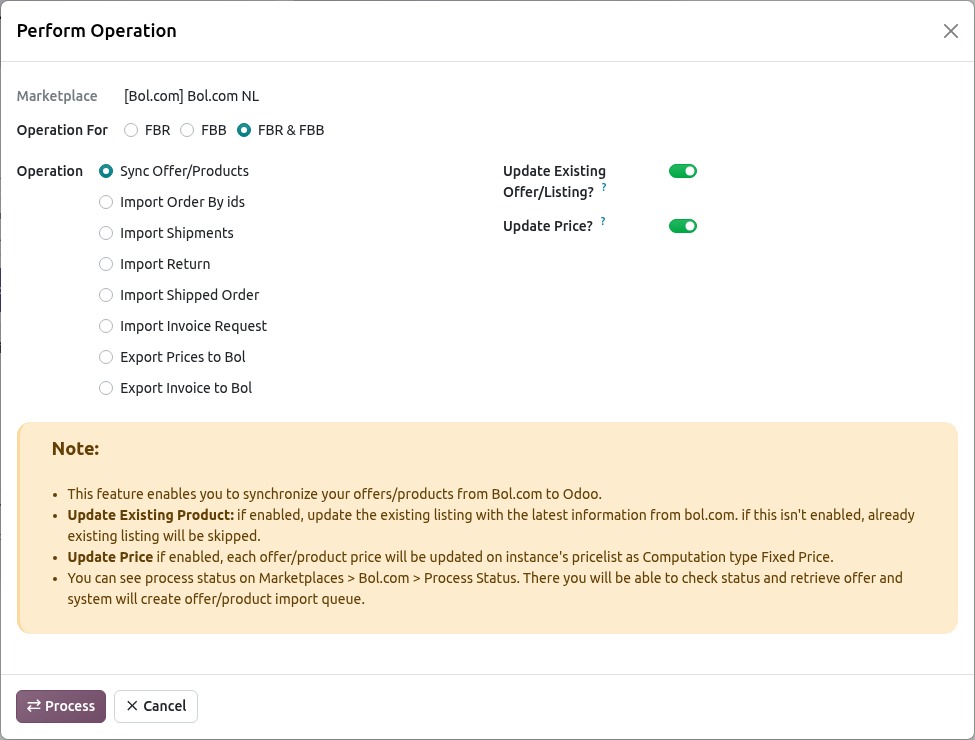
Configure the optional flags:
Update Existing Offer/Listing?: When enabled, refresh existing Odoo Listings/Listing Items with the latest data from Bol.com. When disabled, only new listings are created.
Update Price?: Available only when Update Existing Offer/Listing? is enabled. Updates the listing item price in the instance pricelist while importing.
Click PROCESS.
What Happens Next
The connector reads all offers from Bol.com page by page (100 offers per page) and creates one Product queue per page. When the import finishes, the new queues are opened for you.
For offers that are new to the instance, the connector also asks the Bol.com catalog for the product title (using the EAN). If Bol.com does not know the EAN, the offer reference (or the EAN) is used as the listing name. Offers that were already imported keep their existing name.
The Marketplace : Process Queue Job scheduled action (every 15 minutes by default) processes the queued lines, creates the corresponding Odoo Listings and Listing Items, and links them to existing Odoo products via Sync Listings Based On. You can also open a queue and process it manually.
If no Odoo product matches and Create Odoo Products? is enabled on the instance, a new storable product is created automatically (name from the offer title, Internal Reference from the offer reference, barcode from the EAN). Otherwise the line is marked as failed and a log entry is written.
Find queue and log details under and .
Important
Offer matching is driven by Sync Listings Based On (Barcode is recommended).
When Create Odoo Products? is disabled and no match is found, the import is skipped for that offer and recorded in the logs.
Listings that Bol.com no longer returns are deleted. As soon as the offers have been fetched, every Odoo Listing of the instance whose offer ID is not part of the Bol.com response is removed (together with its Listing Items). This also includes listings that were added with Add to Listing but not exported yet, because they have no offer ID. The cleanup only runs when Bol.com returned at least one offer. Do not run the import against an instance whose offers you still expect to find in Odoo.