Manage Bol.com Transporters In Odoo
Bol.com uses its own list of transporters to know which carrier delivers a shipment. Odoo keeps this list in the Transporters menu. You link each transporter to an Odoo delivery method. This way, the shipments you send to Bol.com carry the right transporter code and tracking number.
Overview
The Transporters menu holds:
The transporter name and the Bol.com transporter code.
The tracking URLs of each transporter, per country.
Odoo comes with the Bol.com transporter list already loaded, with tracking URLs for the most common transporters. You do not add or delete transporters.
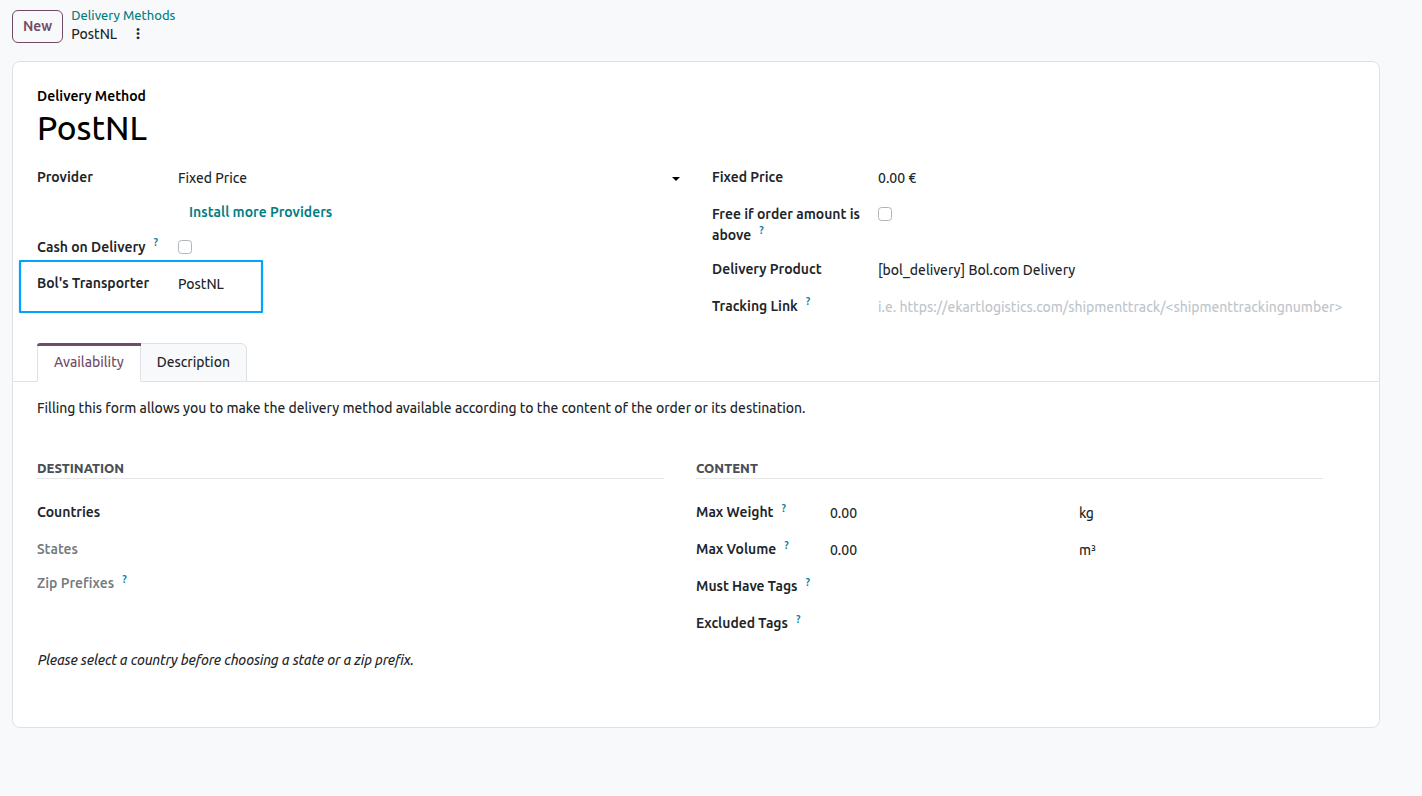
On the delivery method, the Bol’s Transporter field tells Odoo which Bol.com transporter to use for shipments sent with that method.
Note
Bol.com receives the transporter code and the tracking number of the shipment. The tracking URL is not sent to Bol.com. Odoo uses it to open the tracking page from the delivery order.
Open Transporters
Go to .
Click a transporter in the list to open it.
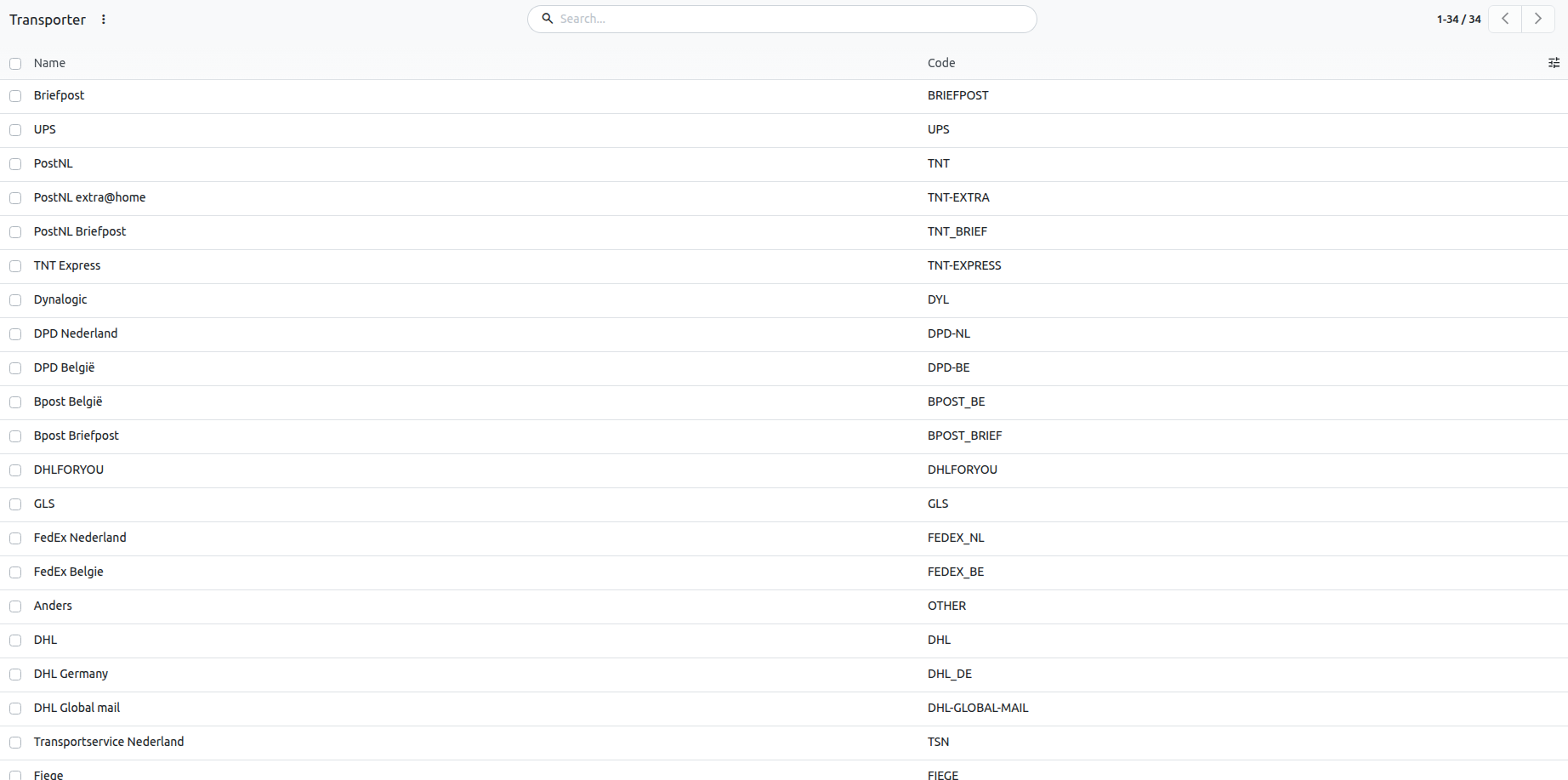
The list shows the Name and the Code of each transporter.
Transporter Name and Code
Each transporter has:
Name: the name of the transporter. You cannot change it.
Code: the transporter code that Bol.com expects.
Warning
Do not change the Code. Bol.com reads this code to know the carrier, so it must match the Bol.com code exactly, or Bol.com may reject the shipment.
Tracking URLs per Country
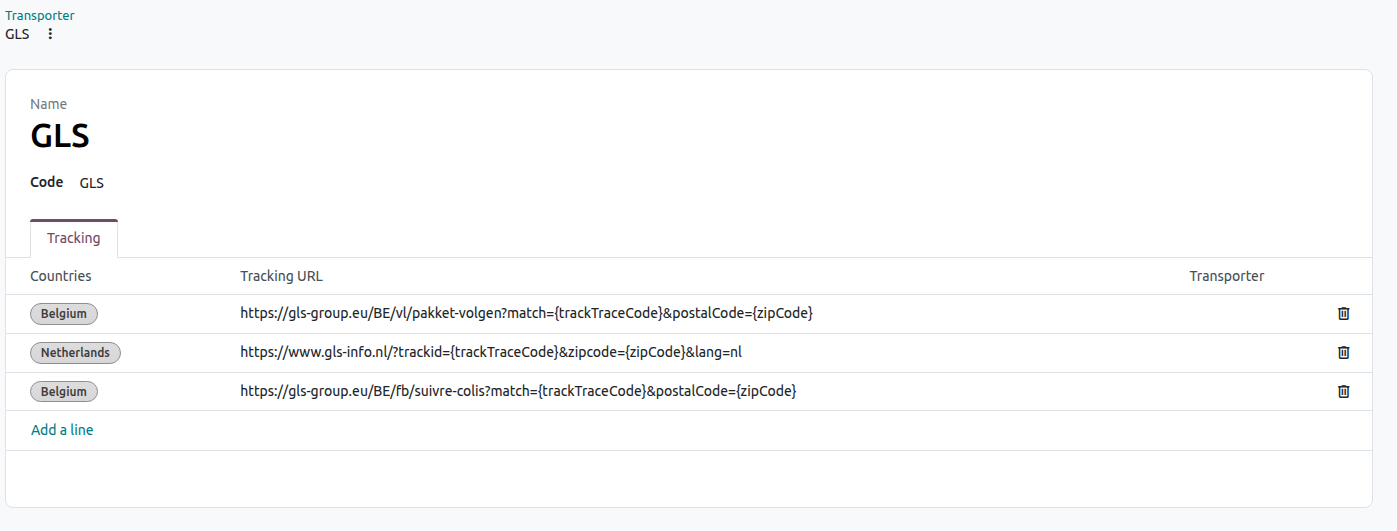
A transporter can use a different tracking page in each country. The Tracking tab on the transporter holds these tracking pages.
Each line in the Tracking tab has:
Countries: the countries this tracking page applies to.
Tracking URL: the web address of the tracking page for these countries.
To add a tracking page:
Open the transporter.
On the Tracking tab, add a line.
Select the Countries.
Enter the Tracking URL.
Save the transporter.
When you click the Tracking button on a Bol.com delivery order, Odoo opens the tracking page that matches the country of the delivery address.
Link a Transporter to a Delivery Method
Odoo needs to know which Bol.com transporter goes with each delivery method you use for Bol.com orders.
Open the delivery method you use for Bol.com shipments.
In the Bol’s Transporter field, select the matching transporter.
Save the delivery method.
Shipments sent with this delivery method now carry the code of the selected transporter and the tracking number.
Important
Set Bol’s Transporter on every delivery method you use for Bol.com orders. If it is empty, Odoo cannot send the shipment to Bol.com and records the message “Cannot update order status of Order because Bol Transporter is not set in shipping method.”
Note
When Odoo imports a shipment from Bol.com with a transporter it does not know, it creates the transporter and a delivery method with that name for you. You may see delivery methods you did not create.